00198611-01_IM_712.0_R18-2_EN.pdf - 第40页
Station Software Ver sion 712.0 (R18 - 2) / Installation Manual 11/2018 Edition 40 The Show License dialog box is displayed. Figure 5-27: Accepting licens e ► Select I accept the terms of the li cense agreement to accept…
Station Software Version 712.0 (R18-2) / Installation Manual 11/2018 Edition
39
5.5 Installing Product Patches
If patches are available for the station software, these must be installed separately.
► Log in under the ASM_Admin user account.
► Insert the installation media and mount the *.iso file.
► Open Windows Explorer.
► Double-click the Station_SW_Patches.exe file to start installing the product patches for the
station software.
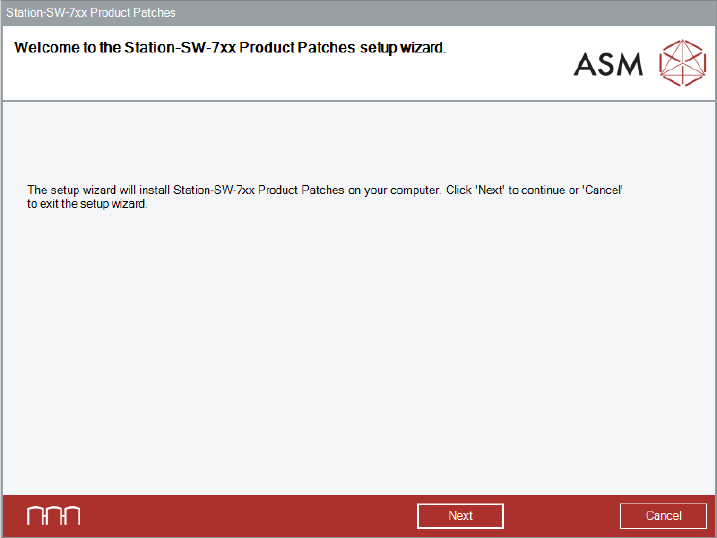
► The Welcome dialog box of the patches setup wizard is displayed.
Figure 5-26: Welcome dialog box
► Click the Next button.
Station Software Version 712.0 (R18-2) / Installation Manual 11/2018 Edition
40
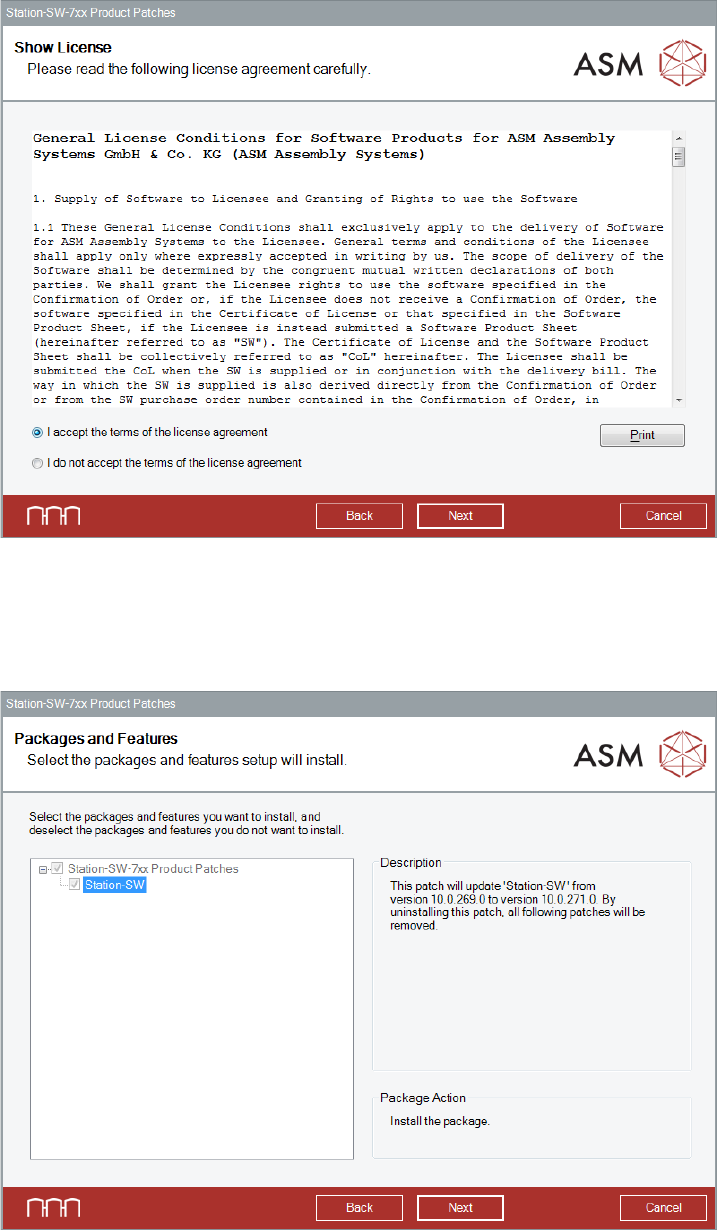
The Show License dialog box is displayed.
Figure 5-27: Accepting license
► Select I accept the terms of the license agreement to accept the license conditions.
► Click the Next button.
The Packages and Features dialog box is displayed.
Figure 5-28: Selecting packages and features
► Click the Next button.
Station Software Version 712.0 (R18-2) / Installation Manual 11/2018 Edition
41
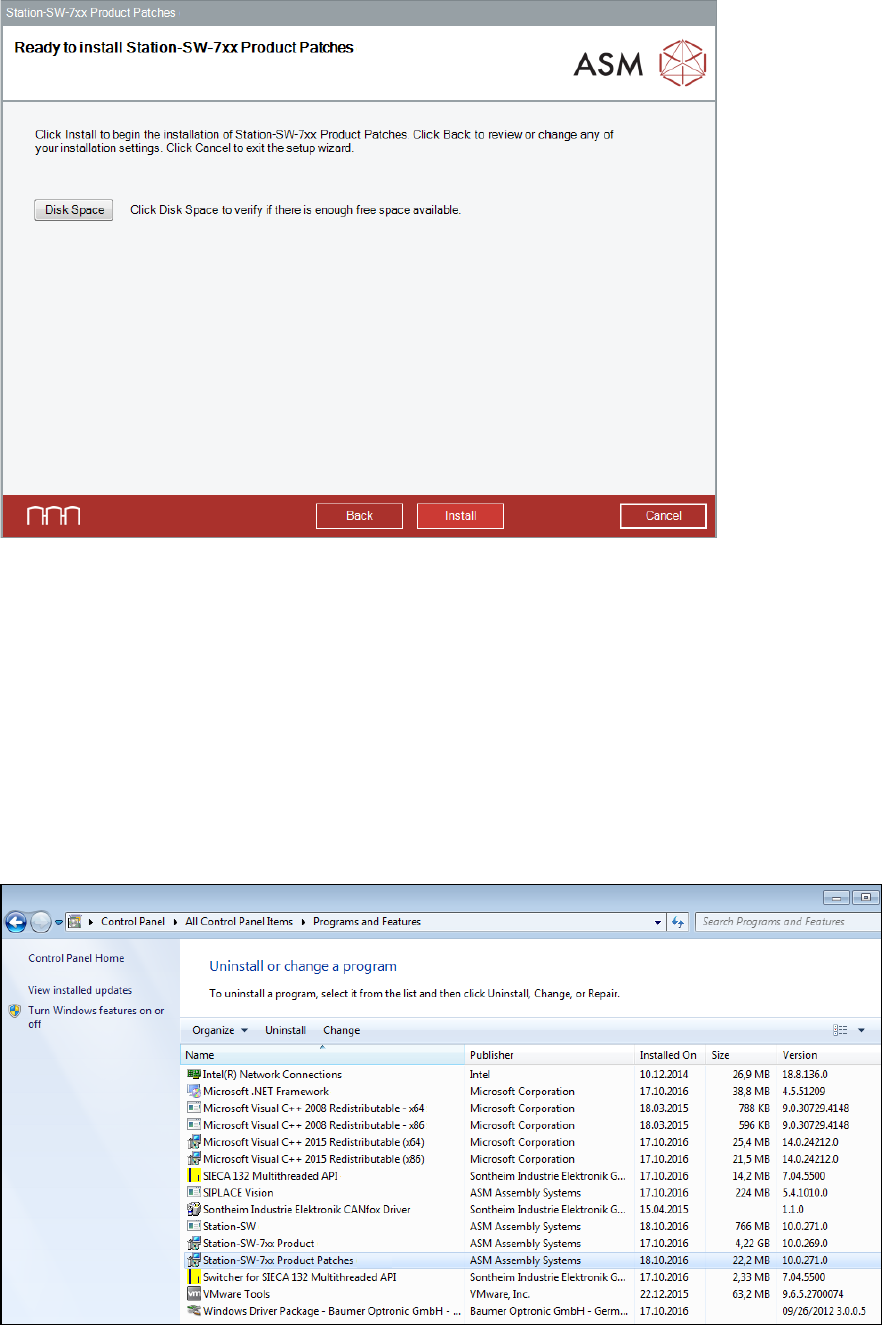
The patch is now ready to be installed. The following dialog box is displayed.
Figure 5-29: Ready for installation
Before installing, you can check the available, required and recommended disk space (per drive) to
perform the installation. In this case:
► Click the Disk Space button.
Please refer to section 5.4 for more information.
Otherwise:
► Click the Install button to start the installation.
► Exit the setup wizard after successful installation.
► Restart your computer for all changes to take effect.
The installed updates are displayed under Programs and Features in the Control Panel.
Figure 5-30: Installed updates