00198611-01_IM_712.0_R18-2_EN.pdf - 第46页
Station Software Ver sion 712.0 (R18 - 2) / Installation Manual 11/2018 Edition 46 The Welcome dialog box of the Langu age Pack setup wizard i s displayed. Figure 5-34: Welcome dialog box ► Click the Next button. The Sho…
Station Software Version 712.0 (R18-2) / Installation Manual 11/2018 Edition
45
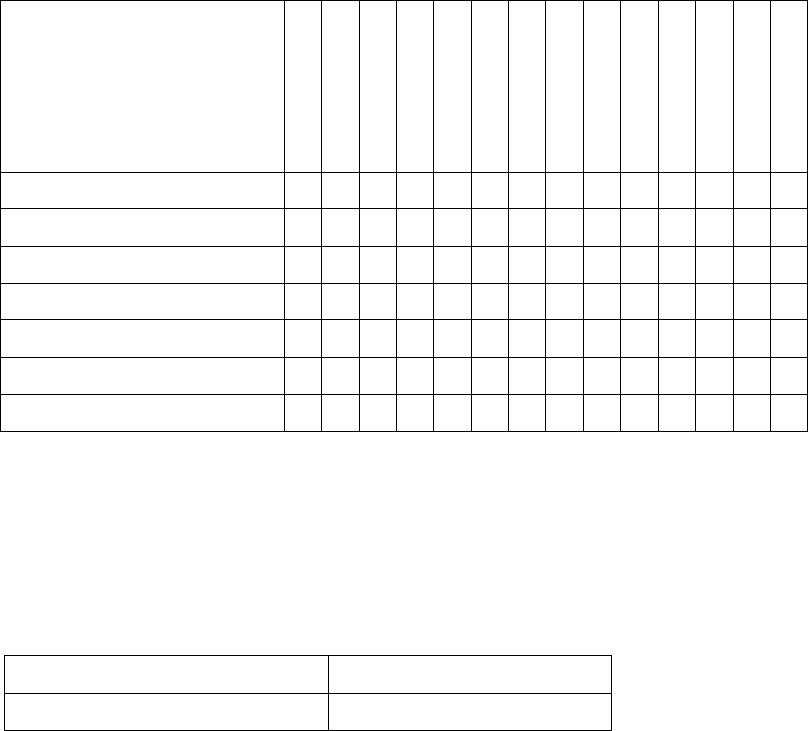
The following files and directories are contained:
French
Italian
Spanish
Portuguese
Bulgarian
Czech
Hungarian
Romanian
Polish
Russian
Simpl. Chinese
Japanese
Korean
Vietnamese
GUI
siplacestationgui_xxx.qm X X X X X X X X X X X X X X
Vision_yyyy.dll X X X X X X X X X X X X X X
Online Help
xxx\stationgui X X X X X X X X
xxx\SIPLACEVision X X X X X X X X
Table 5-2: Files and directories on DVD
The already existing German and English files are not included.
5.6.2 Prerequisites
The following software package is prerequisite to be able to install the Language Pack:
SIPLACE station software SIPLACE Vision
Version 712.0 Version 561
If this software package is not available or if an incorrect version is installed, an error message
occurs and the installation is aborted.
5.6.3 Installing Language Pack
Follow the instructions listed below to install the Language Pack successfully.
► Log in under the ASM_Admin user account on the station computer.
► Download the *.iso file to the computer and mount it.
► Open Windows Explorer.
► Double-click the BundleInstaller.exe file to start installing the Language Pack.
Station Software Version 712.0 (R18-2) / Installation Manual 11/2018 Edition
46
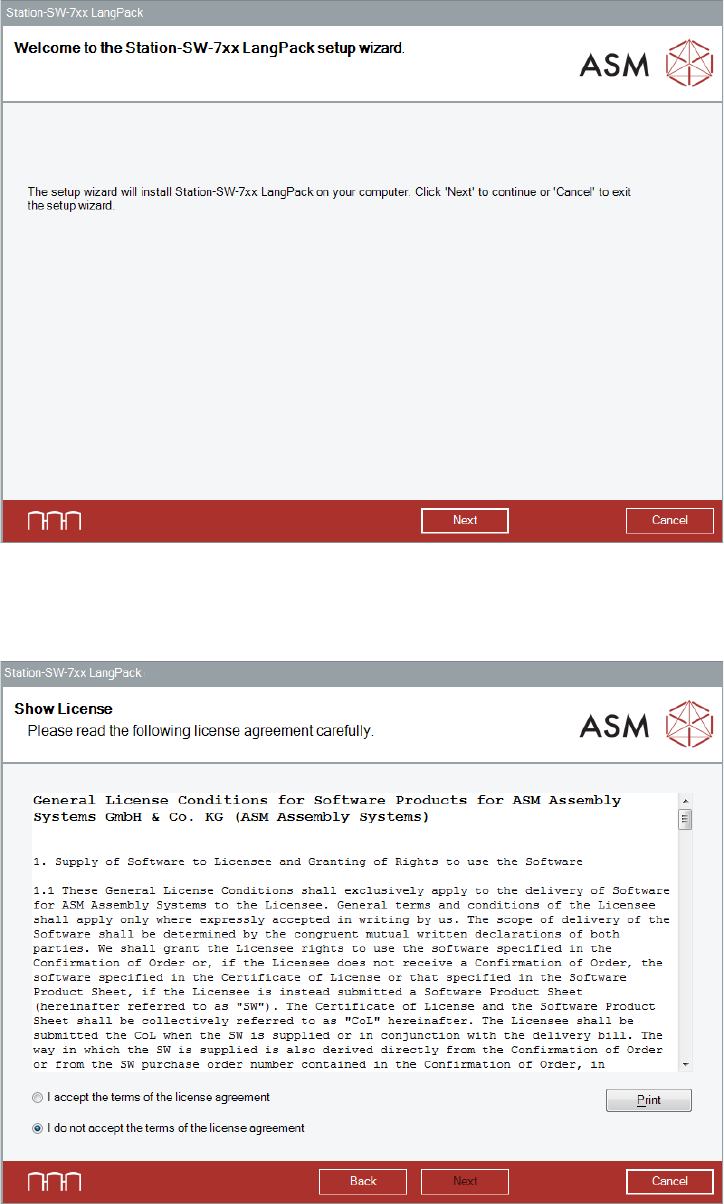
The Welcome dialog box of the Language Pack setup wizard is displayed.
Figure 5-34: Welcome dialog box
► Click the Next button.
The Show License dialog box is displayed.
Figure 5-35: Accepting license
► Select I accept the terms of the license agreement to accept the license conditions.
► Click the Next button.
Station Software Version 712.0 (R18-2) / Installation Manual 11/2018 Edition
47
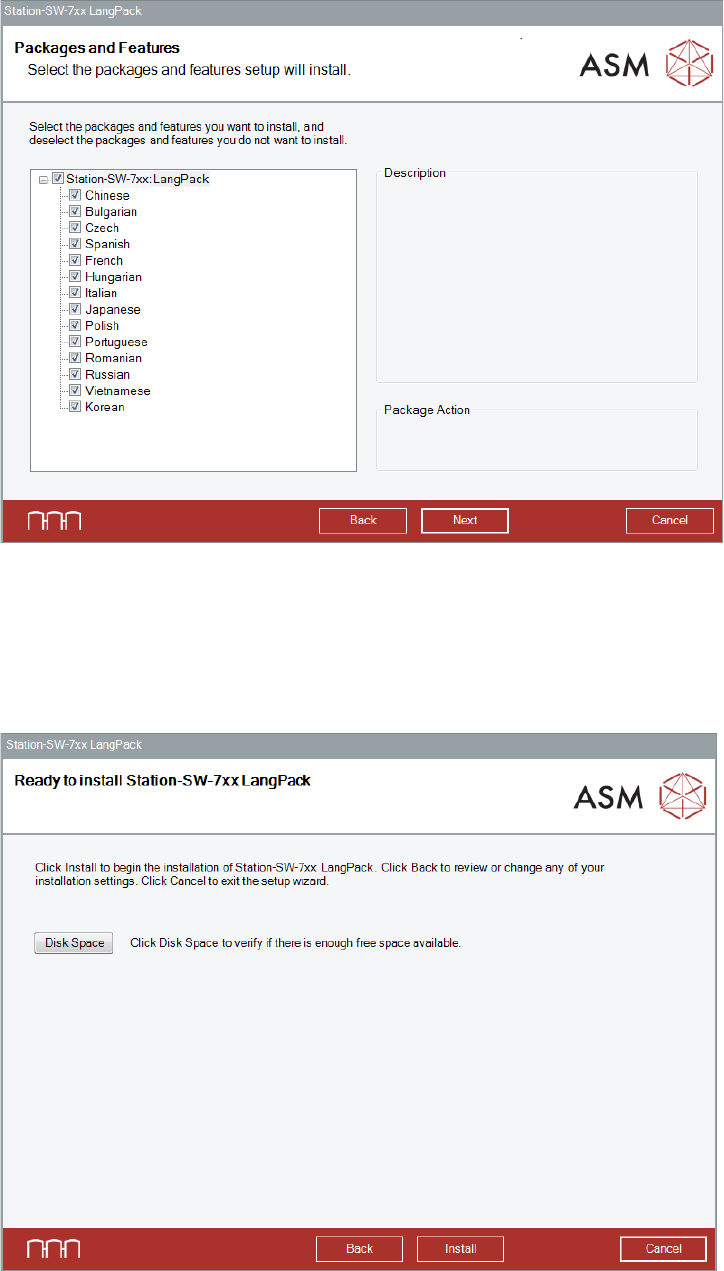
The Packages and Features dialog box is displayed.
Figure 5-36: Packages and Features
All available languages are enabled by default.
► If desired, unselect languages you do not want to install.
► Click the Next button.
The Language Pack is now ready to be installed. The following dialog box is displayed.
Figure 5-37: Ready for installation