00198611-01_IM_712.0_R18-2_EN.pdf - 第47页
Station Software Ver sion 712.0 (R18 - 2) / Installation Manual 11/2018 Edition 47 The Packages and F eatures dialog box is displayed. Figure 5-36: Packages and Featu res All available languages are enabled by default. ►…
Station Software Version 712.0 (R18-2) / Installation Manual 11/2018 Edition
46
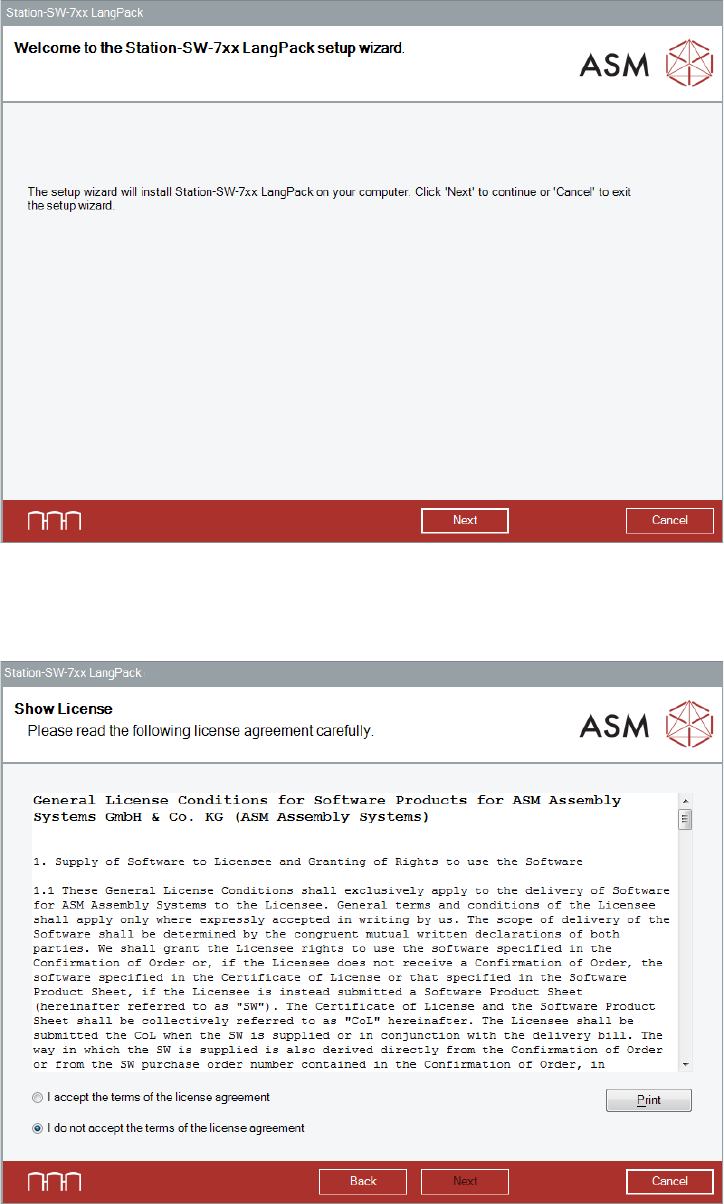
The Welcome dialog box of the Language Pack setup wizard is displayed.
Figure 5-34: Welcome dialog box
► Click the Next button.
The Show License dialog box is displayed.
Figure 5-35: Accepting license
► Select I accept the terms of the license agreement to accept the license conditions.
► Click the Next button.
Station Software Version 712.0 (R18-2) / Installation Manual 11/2018 Edition
47
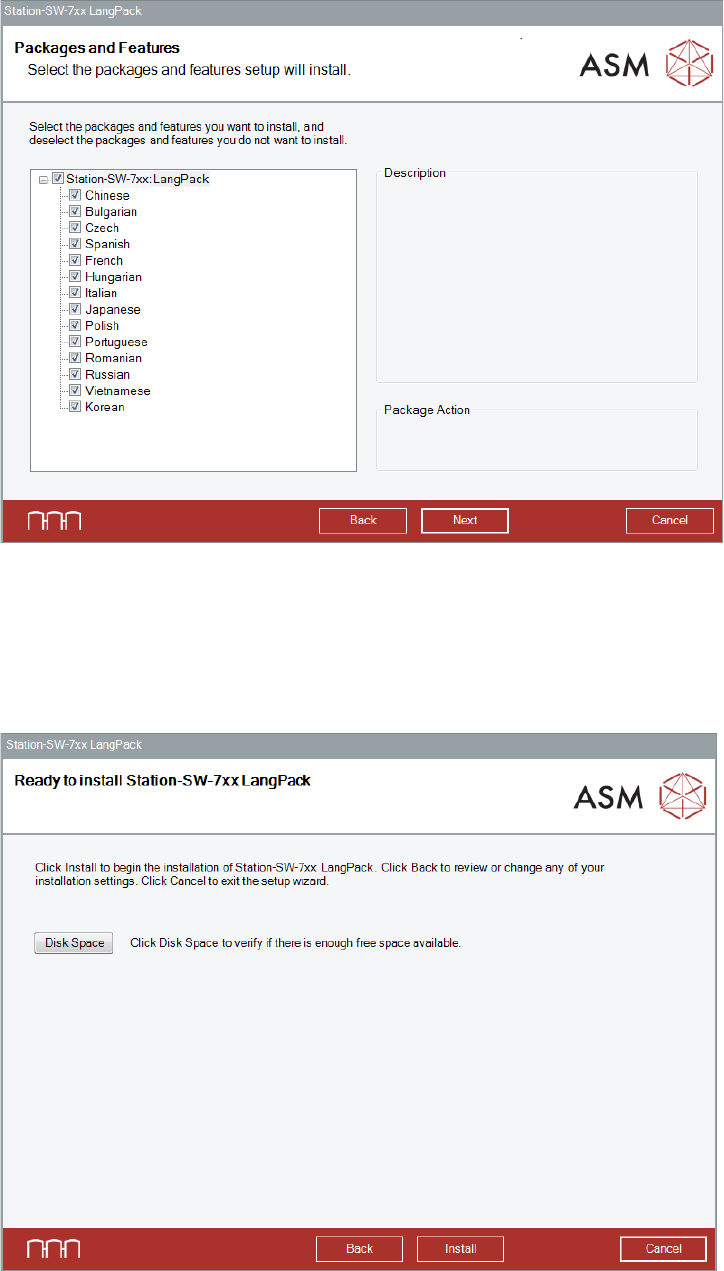
The Packages and Features dialog box is displayed.
Figure 5-36: Packages and Features
All available languages are enabled by default.
► If desired, unselect languages you do not want to install.
► Click the Next button.
The Language Pack is now ready to be installed. The following dialog box is displayed.
Figure 5-37: Ready for installation
Station Software Version 712.0 (R18-2) / Installation Manual 11/2018 Edition
48
Before installing, you can check the available, required and recommended disk space (per drive) to
perform the installation.
► Click the Disk Space button.
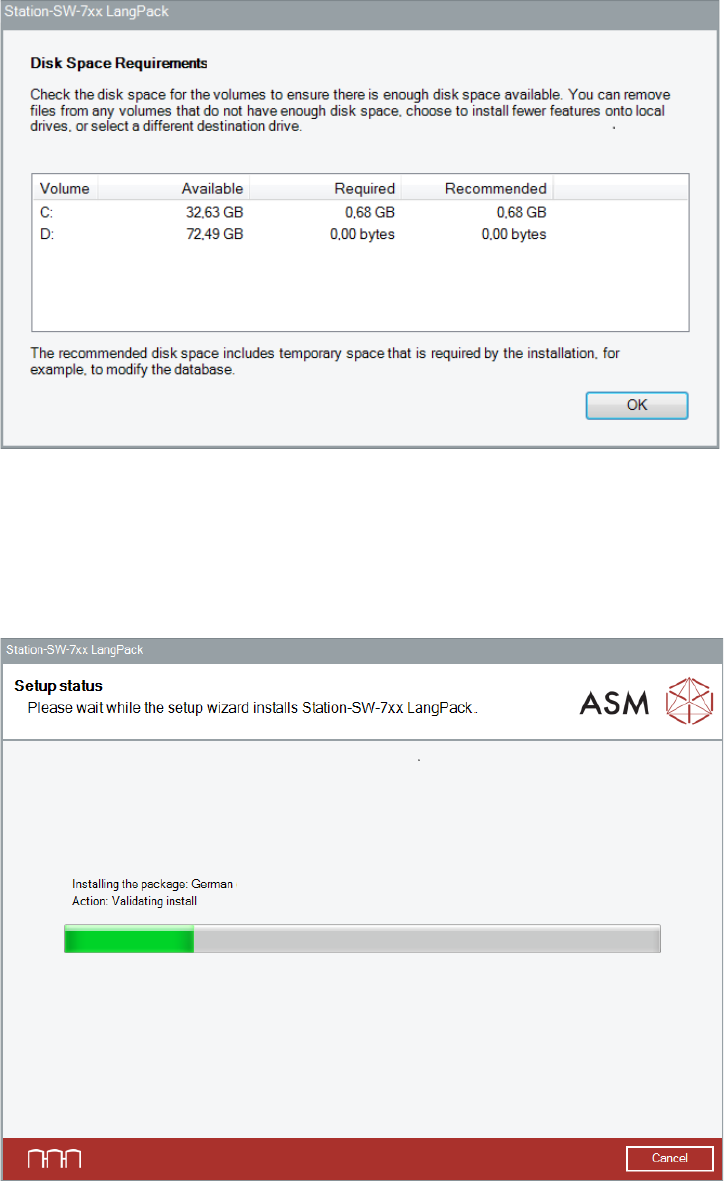
The Disk Space Requirements dialog box is displayed.
Figure 5-38: Disk Space Requirements
► Click the OK button.
The Ready to install dialog box is displayed again.
► Click the Install button to start the installation.
The setup status is displayed during installation.
Figure 5-39: Setup status