00198611-01_IM_712.0_R18-2_EN.pdf - 第53页
Station Software Ver sion 712.0 (R18 - 2) / Installation Manual 11/2018 Edition 53 The Welcome dialog box of the Visionc omputer setup wizard i s displayed. Figure 6-1: Welcome dialog box ► Click the Next button. The Sho…
Station Software Version 712.0 (R18-2) / Installation Manual 11/2018 Edition
52
6 Installing Coplan Computer Software or Feeder
Computer Software
If the 3D coplanarity module or the SIPLACE BulkFeeder X is used, an additional SIPLACE Vision
computer named Coplan computer and feeder computer respectively is required. For simplification,
these computers are called "Vision computer" in this chapter if the current description is valid for
both variants.
NOTICE
The 3D coplanarity module and SIPLACE BulkFeeder X options cannot run
simultaneously. I.e., a Vision computer can either be set up as Coplan computer or as
feeder computer.
Detailed information on the 3D coplanarity module can be found in the corresponding Assembly
Instructions, item numbers [00195344-xx] (for X-series), [00196842-xx] (for SX1/SX2) und
[00197395-xx] (for X-series S).
Detailed information on the SIPLACE BulkFeeder X can be found in the SIPLACE BulkFeeder X
Operating Manual, item no. [00198045-xx].
The respective software can either be installed directly on the Vision computer or via a remote
connection from the station computer.
Both installation options are described in the following.
6.1 Installing the Software Directly on the Vision Computer
CAUTION
The station software must not run on the station computer during installation of the
respective software on the Vision computer!
► Log in to the Vision computer under the ASM_Admin user account.
► Insert the installation media and mount the *.iso file.
► Open Windows Explorer.
► Double-click the BundleInstallerVision.exe file to start installing the station software.
Station Software Version 712.0 (R18-2) / Installation Manual 11/2018 Edition
53
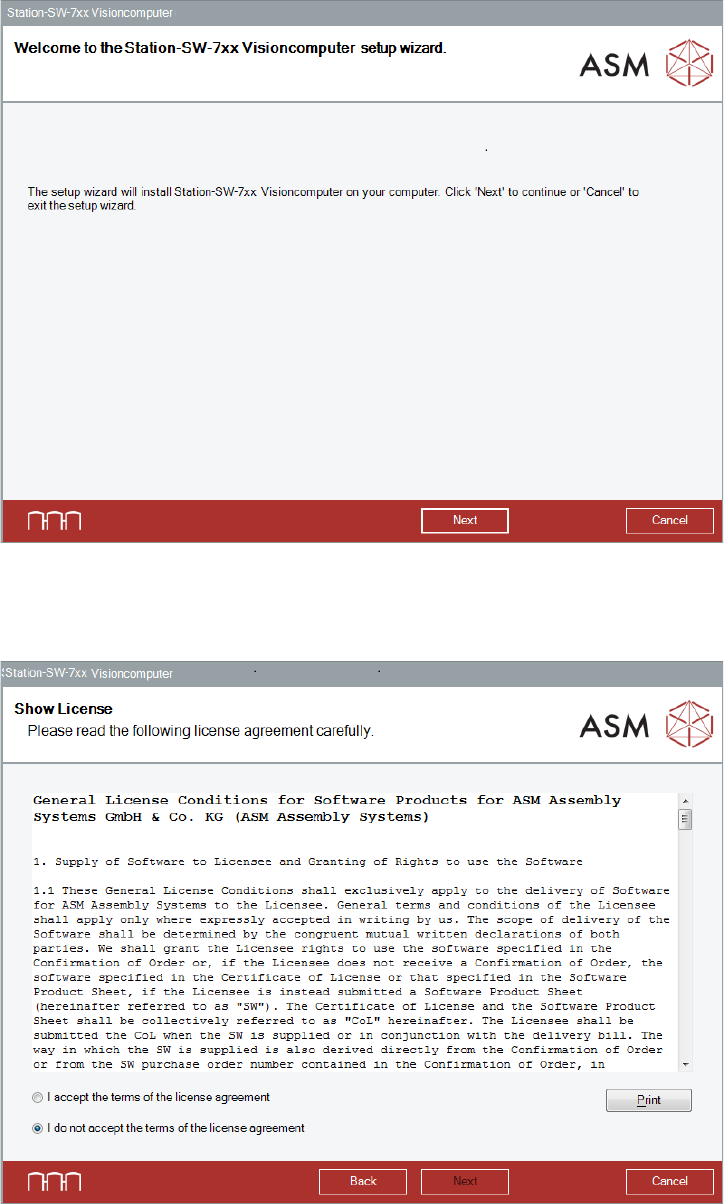
The Welcome dialog box of the Visioncomputer setup wizard is displayed.
Figure 6-1: Welcome dialog box
► Click the Next button.
The Show License dialog box is displayed.
Figure 6-2: Accepting license
Station Software Version 712.0 (R18-2) / Installation Manual 11/2018 Edition
54
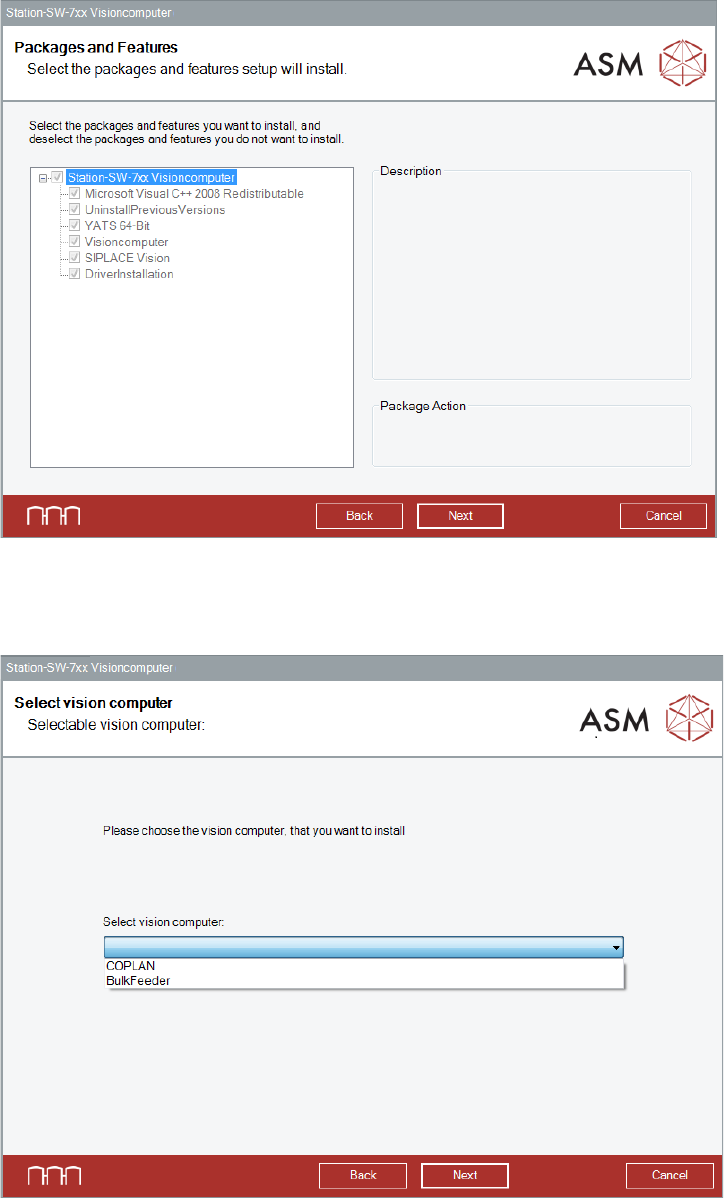
The Packages and Features dialog box is displayed.
Figure 6-3: Packages and Features
► Click the Next button.
The Select vision computer dialog box is displayed.
Figure 6-4: Selecting machine type
► Select COPLAN to install the Coplan computer software.
Or:
► Select BulkFeeder to install the feeder computer software.
► Click the Next button.