00198611-01_IM_712.0_R18-2_EN.pdf - 第55页
Station Software Ver sion 712.0 (R18 - 2) / Installation Manual 11/2018 Edition 55 NOTICE The Coplan compute r software and fee der computer softwa re cannot be combined with each other! The Visioncomput er software is n…
Station Software Version 712.0 (R18-2) / Installation Manual 11/2018 Edition
54
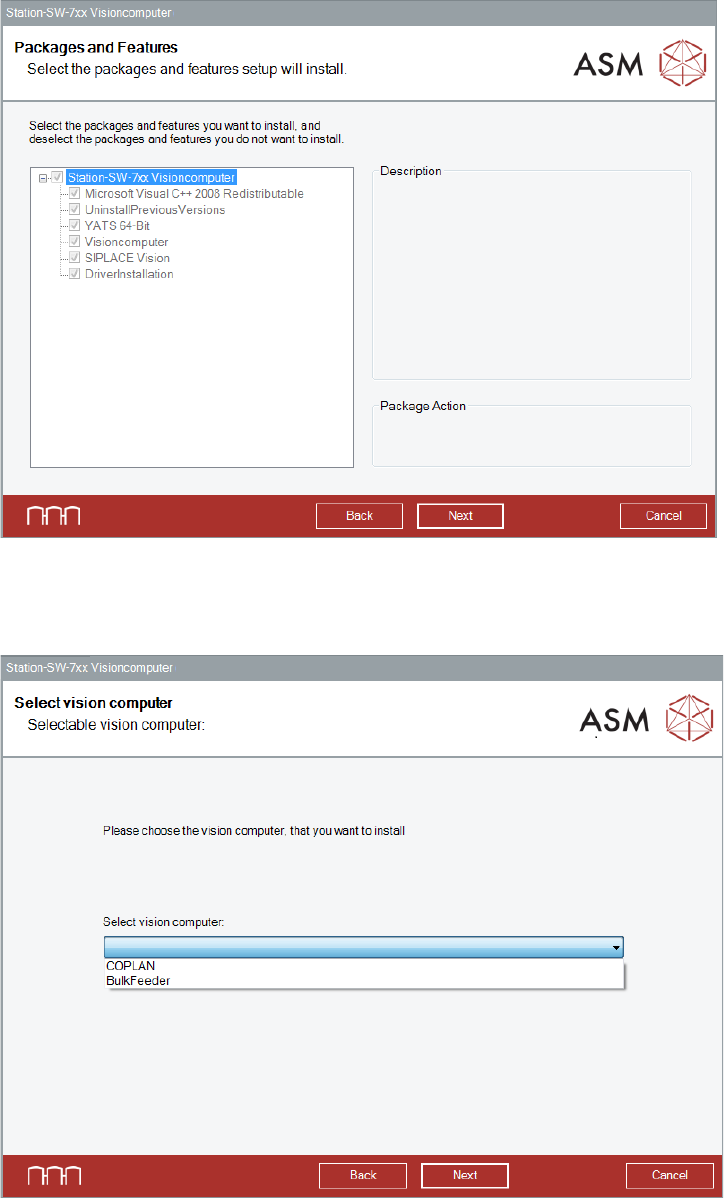
The Packages and Features dialog box is displayed.
Figure 6-3: Packages and Features
► Click the Next button.
The Select vision computer dialog box is displayed.
Figure 6-4: Selecting machine type
► Select COPLAN to install the Coplan computer software.
Or:
► Select BulkFeeder to install the feeder computer software.
► Click the Next button.
Station Software Version 712.0 (R18-2) / Installation Manual 11/2018 Edition
55
NOTICE
The Coplan computer software and feeder computer software cannot be combined with
each other!
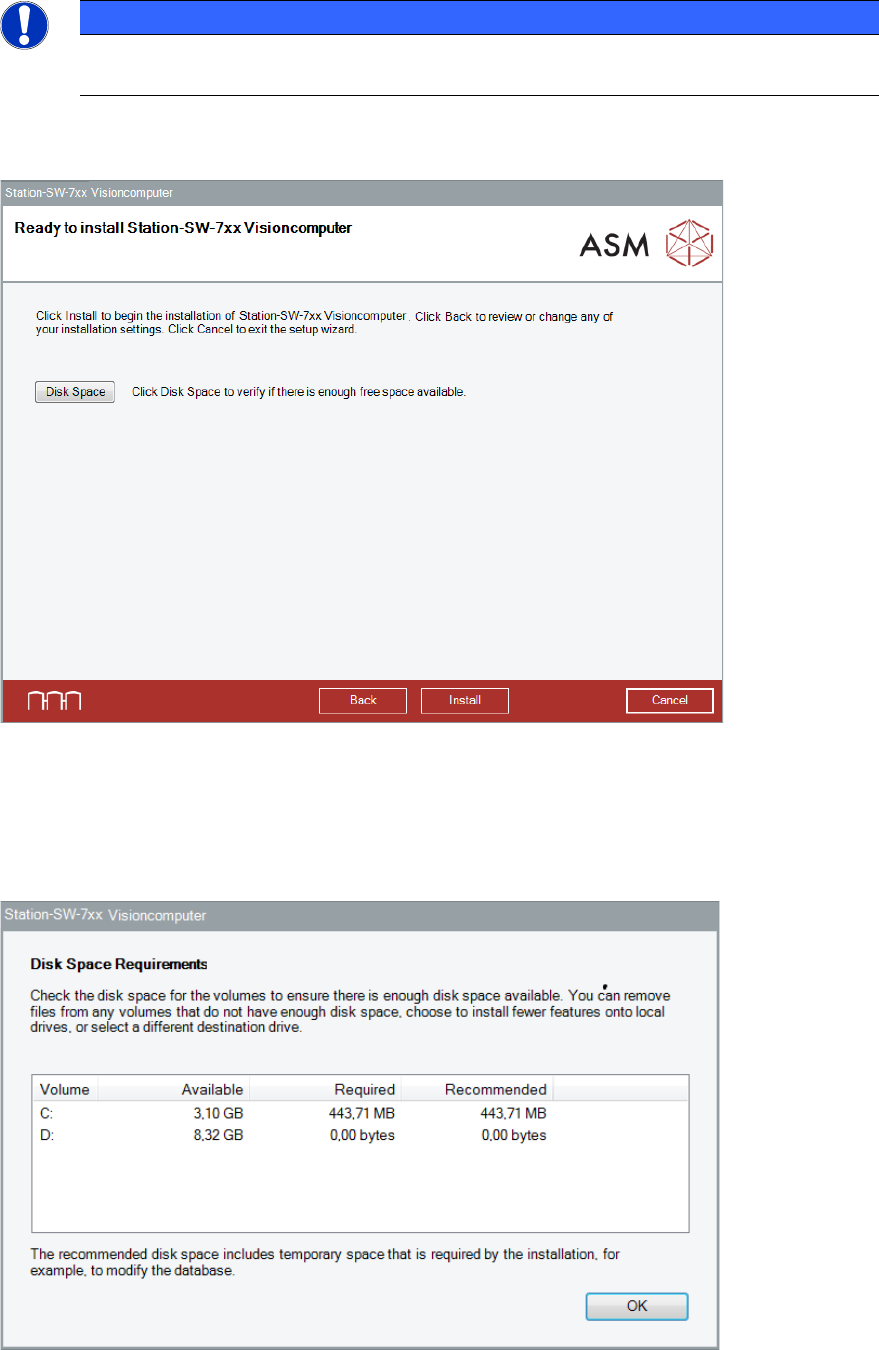
The Visioncomputer software is now ready to be installed. The following dialog box is displayed.
Figure 6-5: Ready for installation
Before installing, you can check the available, required and recommended disk space (per drive) to
perform the installation.
► Click the Disk Space button.
The Disk Space Requirements dialog box is displayed.
Figure 6-6: Disk Space Requirements
► Click the OK button.
Station Software Version 712.0 (R18-2) / Installation Manual 11/2018 Edition
56
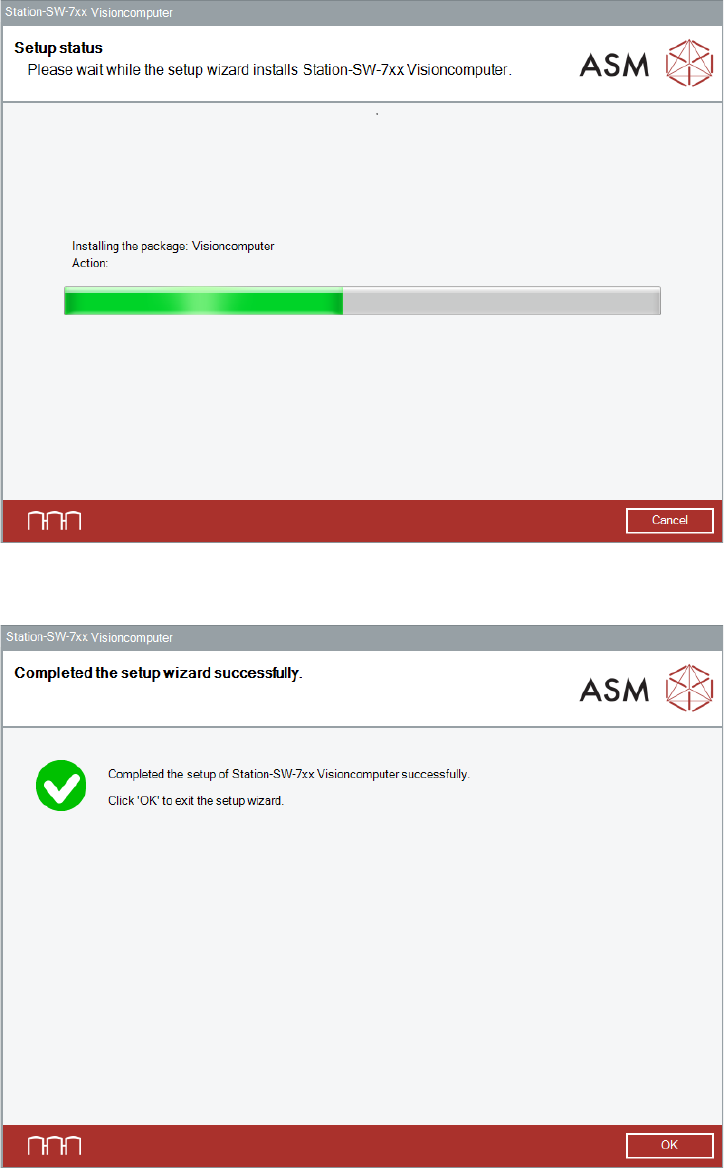
The Ready to install dialog box is displayed again.
► Click the Install button to start the installation.
The necessary files for the respective software will be installed on the Vision computer.
The setup status is displayed during installation.
Figure 6-7: Setup status
After successful installation, the following dialog box is displayed.
Figure 6-8: Installation completed