00198611-01_IM_712.0_R18-2_EN.pdf - 第68页
Station Software Ver sion 712.0 (R18 - 2) / Installation Manual 11/2018 Edition 68 8 Modifying the Insta llation The Modify option al lows you to change the current installati on entries , e.g. m achine ID, serial number…
Station Software Version 712.0 (R18-2) / Installation Manual 11/2018 Edition
67
7.9 Storing Calibration Data in the EEPROM
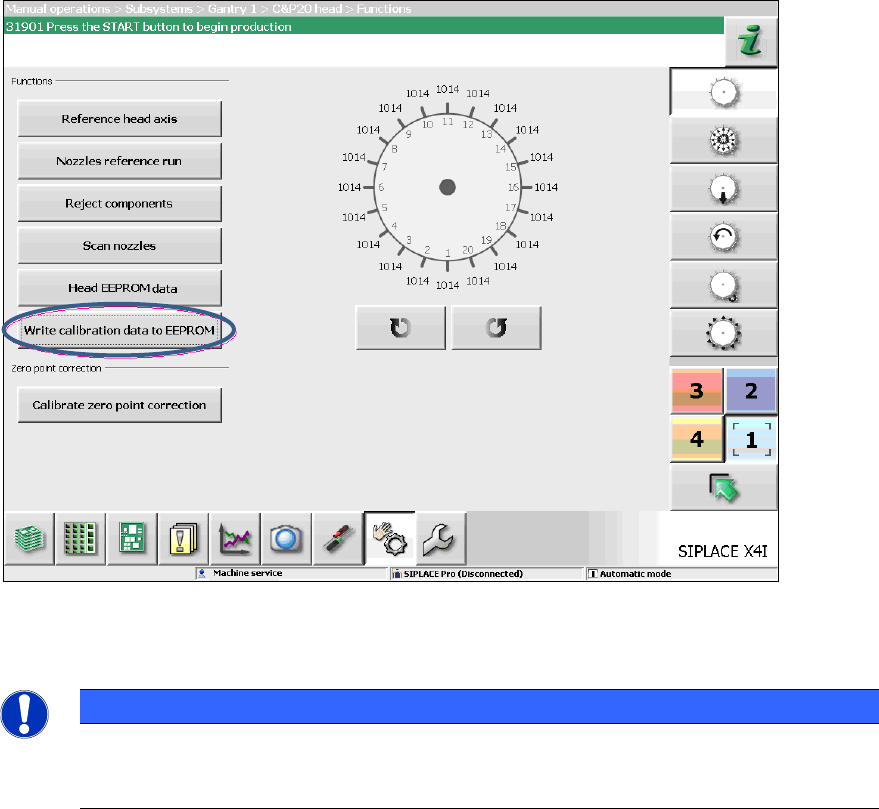
In order to use the fast head exchange feature, the head specific calibration data has to be stored
in the EEPROM. For placement heads with no head specific calibration data stored within the
EEPROM, the available data on the station computer will be stored in the EEPROM of the
respective placement head as follows.
Requirement:
The embedded SW versions have been updated.
Figure 7-3: Storing calibration data in the EEPROM
► Perform the highlighted function for each placement head.
NOTICE
After the storing calibration data step, the message 37200 Changed heads
detected
should disappear. Otherwise you must reboot the machine. If the message
still is displayed after rebooting, please inform the ASM Service.
Station Software Version 712.0 (R18-2) / Installation Manual 11/2018 Edition
68
8 Modifying the Installation
The Modify option allows you to change the current installation entries, e.g. machine ID, serial
number and machine type.
8.1 Modifying the Station Software Installation
► Log in under the ASM_Admin user account on the station computer.
► Insert the installation media and mount the *.iso file.
► Open Windows Explorer.
► Double-click the BundleInstaller.exe file to modify the station software.
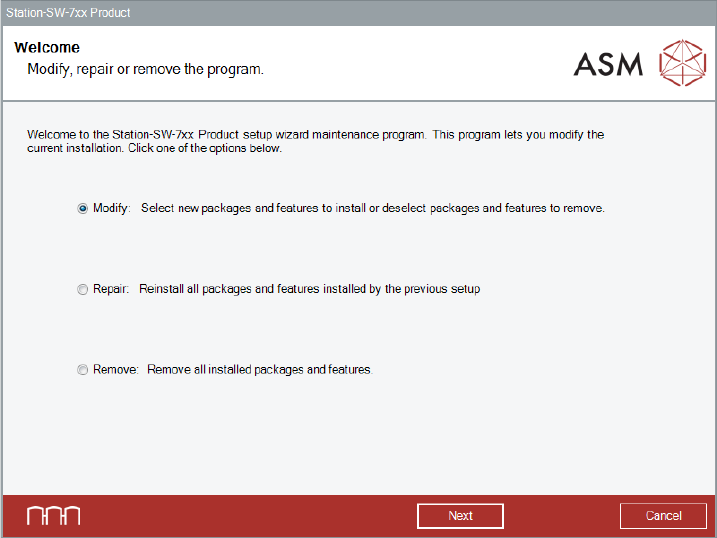
The Welcome dialog box is displayed.
Figure 8-1: Welcome dialog box
► Select Modify.
► Click the Next button.
Station Software Version 712.0 (R18-2) / Installation Manual 11/2018 Edition
69
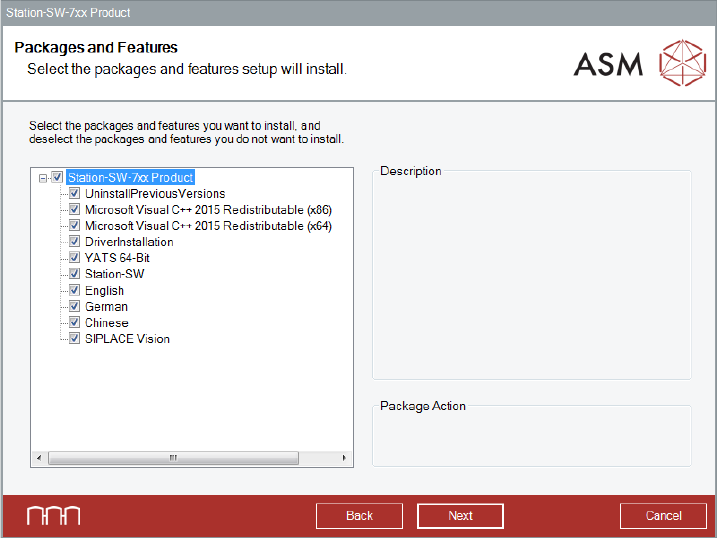
The Packages and Features dialog box is displayed.
Figure 8-2: Modifying Packages and Features
All software components are enabled by default.
► Leave them enabled if you want to modify the station software!
However, you can select single packages and features to be installed or uninstalled.
► After you have made your choice, click the Next button.
The subsequent dialog boxes depend on which packages and features you have selected.
After the modified installation has been completed, it is recommended to restart your computer for
all changes to take effect.