00198611-01_IM_712.0_R18-2_EN.pdf - 第9页
Station Software Ver sion 712.0 (R18 - 2) / Installation Manual 11/2018 Edition 9 Automatic Calibrati on – Sys te m I dentification for SX -S eries The System identificat ion calibration fe ature has been introdu ced for…
Station Software Version 712.0 (R18-2) / Installation Manual 11/2018 Edition
8
3 Upgrading to Station Software Version 712.0
This chapter describes which steps you generally must attend when upgrading to the current
station software version and which steps are additionally required when upgrading from lower to
higher software versions.
Upgrading from previous station software versions (701.x – 709.x) to station software version 712.x
is not possible due to a change in the installation technology beginning with station software
version 710.0.
If a previous station software version is already installed on the station computer, it will be
automatically uninstalled by the setup wizard before the current station software gets installed.
Only if the installation of station software 712.x fails, the previous station software version must be
manually uninstalled.
NOTICE
Individual machine data (calibration data) will not be deleted!
► Note some information before you start upgrading the station software.
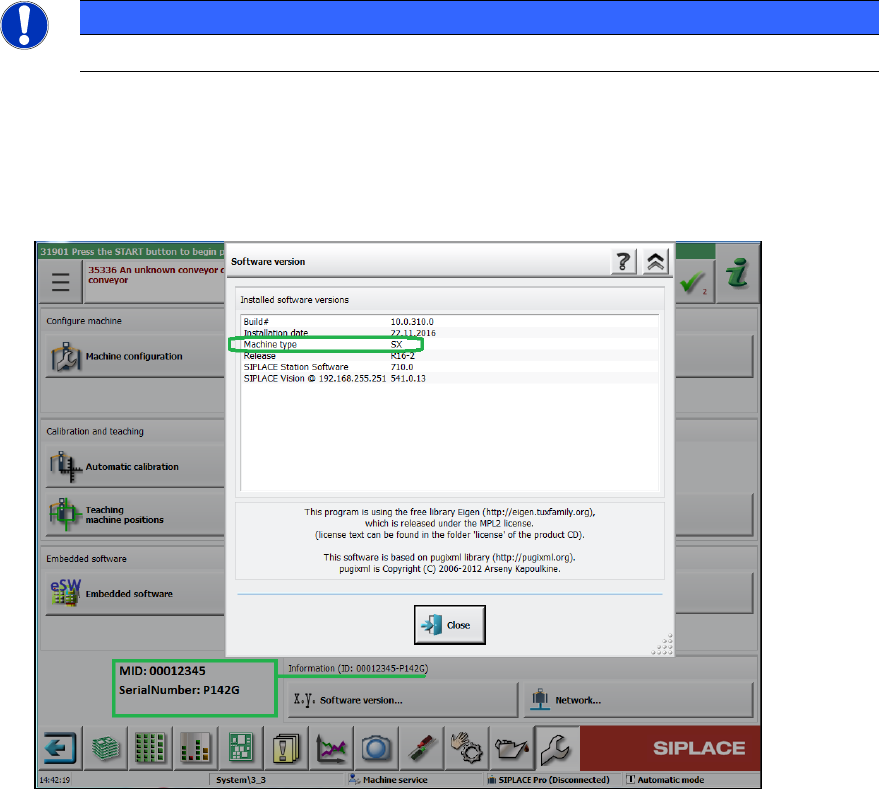
During installation of station software 712.0 you will be asked for machine type, MID number
and serial number. These settings will not be transferred during upgrading (no default
settings!). You find this information on the GUI of your current station software version:
Figure 3-1: Example of machine information
► When upgrading the station software, always check the eSW versions and download the
current versions if necessary.
Station Software Version 712.0 (R18-2) / Installation Manual 11/2018 Edition
9
Automatic Calibration – System Identification for SX-Series
The System identification calibration feature has been introduced for the SX-series placement
machines in the automatic calibration. Therefore, an additional calibration step may be required
after installation. In this case, a warning is displayed that the calibration is not up to date. This also
applies for the respective station software version in compatible mode. Proceed as follows:
► Log in on the Machine service activity level.
► Switch to the Configure, update and calibrate machine menu.
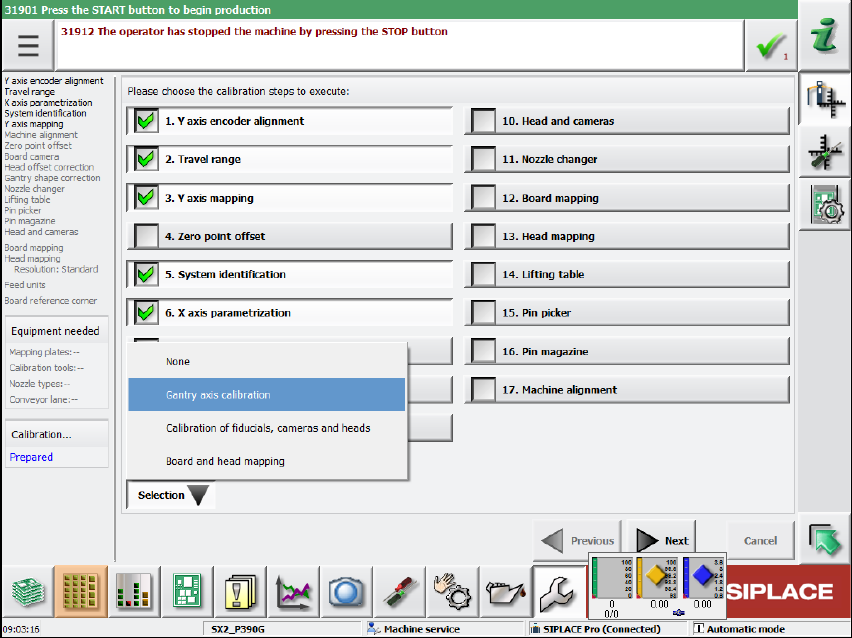
► Press the Automatic calibration button.
The following dialog box is displayed:
Figure 3-2: Calibration steps dialog box
► Select the System identification calibration step.
Or
► Select Selection – Gantry axes calibration.
All required calibrations will then be performed for the main axes and the machine provided
with the current data.
Station Software Version 712.0 (R18-2) / Installation Manual 11/2018 Edition
10
Loss of Calibration Data for Vacuum Tooling
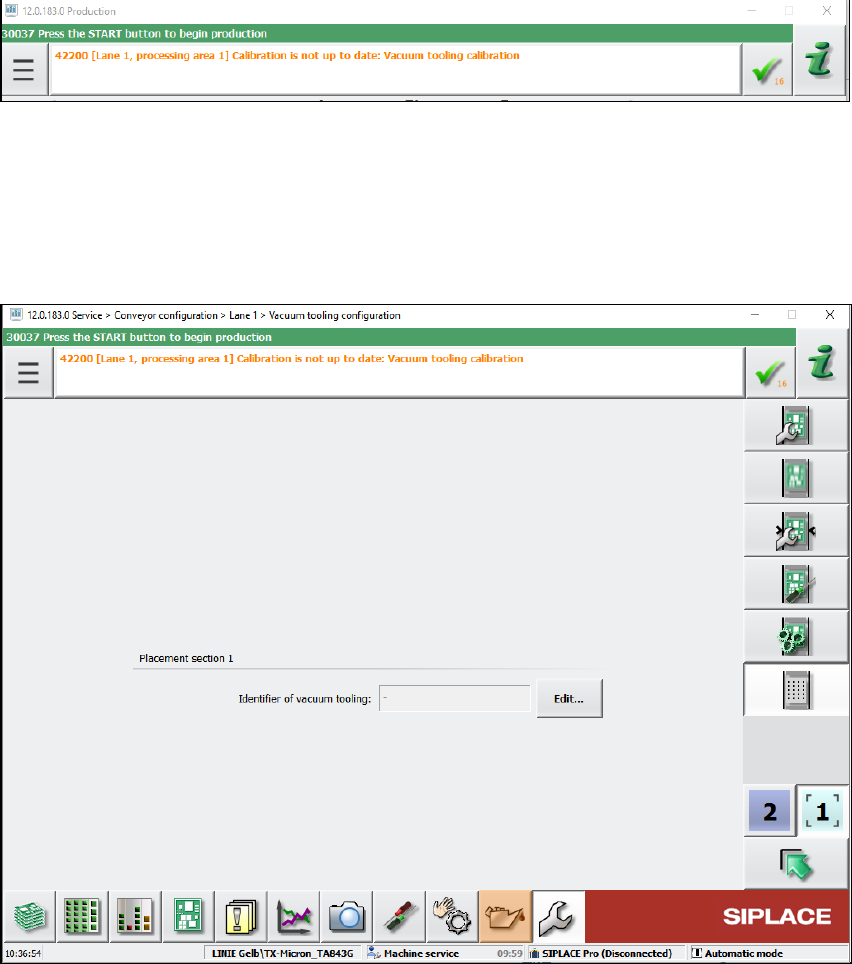
The following message may occur when upgrading the station software:
Figure 3-3: Error message: Vacuum tooling calibration
In this case, detailed information can be found in the assistance to this error message or in the
topic "Calibration/Vacuum Tooling" in the Online Help for the station software.
► The following steps must be performed:
Depending on the machine type, the vacuum tooling ID must be entered in the dialog below and
the corresponding file reloaded.
Figure 3-4: Vacuum tooling configuration
Additionally, the vacuum toolings must be recalibrated by selecting the vacuum tooling calibration
in the automatic calibration wizard.