03253524-01 KPO 2 Closed Loop.pdf - 第20页
3 USER INFORMATION 3.3 GETTING STARTED 20 Standalone Manual Interface To Koh Young KPO 2 08/2021 2018-07-10 12:01:52.8953: INFO: KPOPlugIn: Parameter change: Front Print Speed - 100(mm/s) - > 60.0(mm/s) 2018-07-10 12:…
3 USER INFORMATION
3.3 GETTING STARTED
Standalone Manual Interface To Koh Young KPO 2 08/2021 19
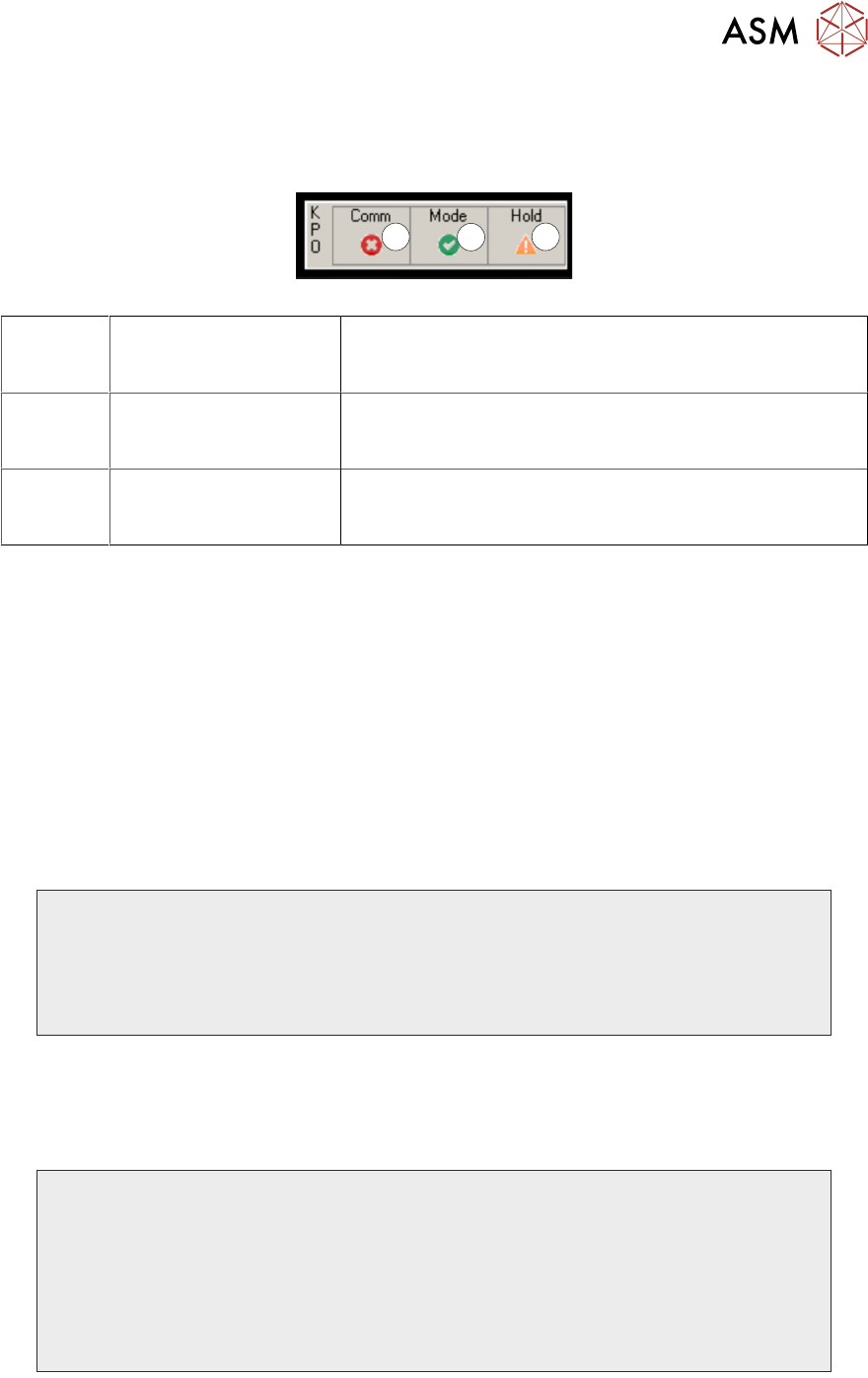
When the KPO Monitor app is running it can be accessed from behind the printer user interface us-
ing Alt-Tab on the keyboard. When the application is hidden or minimized the following small float-
ing window summarizing the KPO interface status is displayed in front of the printer user interface:
1
2
3
1 Comm Displays the communication status between the printer
and the SPI (as in 1 in previous table)
Options – Tick – connected/Cross - not connected
2 Mode Displays the status of the KPO Mode (as in 2 in previous
table)
Options – Tick - enabled/Cross - disabled
3 Hold Displays the status of the Board Hold (as in 3 in previous
table)
Options – Exclamation Mark – enabled/Tick - disabled
The floating window can be positioned by the user by clicking and dragging anywhere in the win-
dow border.
3.3.3 KPO Logs
The KPO plug-in records data in the following log, e:\log\plug-in\kpo folder. The log is automatically
managed, so the size of the log does not exceed 10 MB.
The log records all messages exchanged between the printer and the SPI and any process adjust-
ments. The log can be viewed, but it is intended for use by ASM Service to diagnose any commu-
nication issues.
3.3.3.1 Log Examples
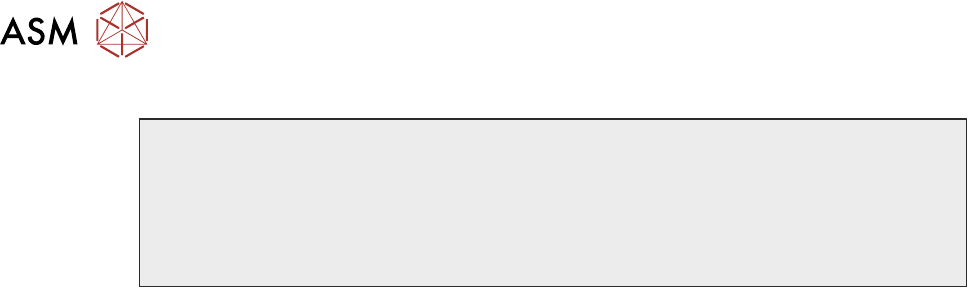
Below are displayed three examples of the KPO log:
2018-09-07 14:57:40.2817: INFO: KPOPlugIn: Enabling interface
2018-09-07 14:57:40.2817: INFO: KPOPlugIn: Interface manager starting
2018-09-07 14:57:40.2817: INFO: KPOPlugIn: Comms manager starting
2018-09-07 14:57:40.2917: INFO: KPOPlugIn: Starting comms thread
2018-09-07 14:57:40.2917: INFO: KPOPlugIn: Server socket created: address=0.0.0.0:7001
2018-09-07 14:57:40.3067: INFO: KPOPlugIn: Server socket listening
2018-09-07 14:57:40.3067: INFO: KPOPlugIn: Waiting for client to connect
Waiting For Connection
2018-07-10 12:00:20.4501: INFO: KPOPlugIn: Client connected: address=10.49.40.41:53547
2018-07-10 12:00:20.4501: INFO: KPOPlugIn: Current comms state: Connected
2018-07-10 12:00:21.5951: INFO: KPOPlugIn: Packet received: |GETINFO|{"HeaderInfo": {"Version":
"1.0", "DateTime": "20180710165956"}}|
2018-07-10 12:00:21.5951: INFO: KPOPlugIn: Processing input buffer: |GETINFO|{"HeaderInfo": {"Version":
"1.0", "DateTime": "20180710165956"}}|
2018-07-10 12:00:21.5951: INFO: KPOPlugIn: Received GETINFO message:
{"HeaderInfo": {"Version": "1.0", "DateTime": "20180710165956"}}
2018-07-10 12:00:21.6101: INFO: KPOPlugIn: Sending INFO message:
Connected To SPI
3 USER INFORMATION
3.3 GETTING STARTED
20 Standalone Manual Interface To Koh Young KPO 2 08/2021
2018-07-10 12:01:52.8953: INFO: KPOPlugIn: Parameter change: Front Print Speed - 100(mm/s) -
> 60.0(mm/s)
2018-07-10 12:01:52.8953: INFO: KPOPlugIn: Parameter change: Rear Print Speed - 100(mm/s) -
> 60.0(mm/s)
2018-07-10 12:01:52.8953: INFO: KPOPlugIn: Parameter change: Front Pressure - 0(kg) -> 53.14(N)
2018-07-10 12:01:52.8953: INFO: KPOPlugIn: Parameter change: Rear Pressure - 0(kg) -> 53.14(N)
2018-07-10 12:01:52.8953: INFO: KPOPlugIn: Parameter change: Separation Speed - 20(mm/s) ->
5.0(mm/s)
Printing With Parameter Changes
NOTE
KPO uses Newtons for print pressure. The printer software automatically converts to kg or lbs.
3 USER INFORMATION
3.4 TROUBLE SHOOTING AND ESCALATION
Standalone Manual Interface To Koh Young KPO 2 08/2021 21
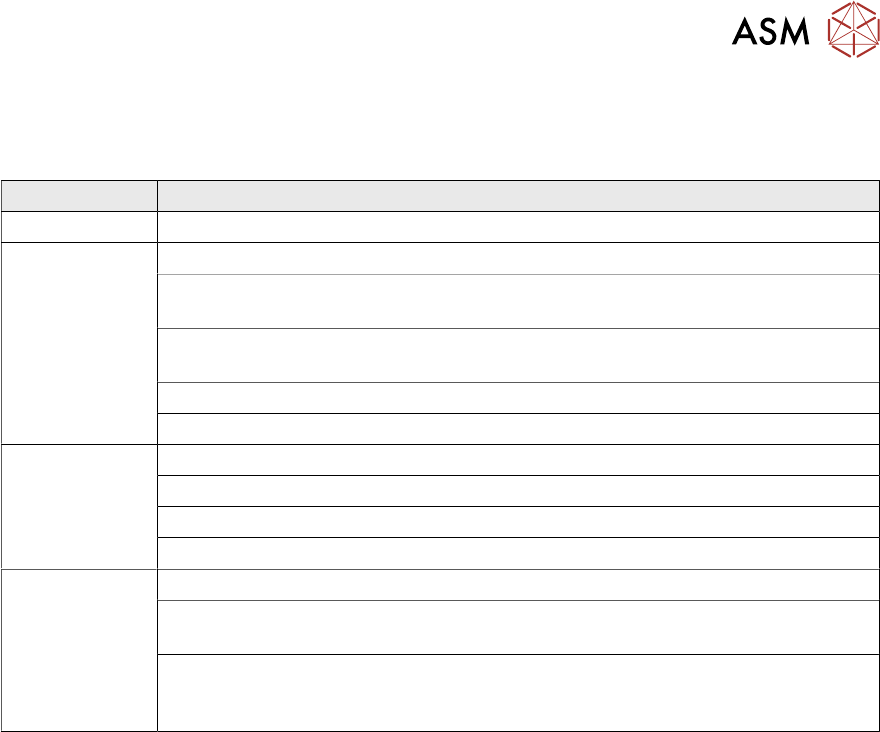
3.4 TROUBLE SHOOTING AND ESCALATION
When running KPO, if the print process becomes unstable or falls below production quality targets,
use the following troubleshooting and escalation process table:
Step Task
1 Follow the troubleshooting guidelines in Koh Young’s supporting documentation
2 Confirm Print Process:
Check that all process hardware is still in good condition; ie no damage or wear
to stencil, tooling, squeegees etc
Check that the quantity of paste on the stencil is controlled and within specified
limits
Check under stencil cleaner functionality
Escalate to a trained process engineer for process troubleshooting
3 Confirm Printer Capability:
Check machine condition and setup
Run printability test using a test board or similar
Escalate to trained maintenance engineer for machine troubleshooting
4 Further Escalation:
If the printer condition and performance is acceptable but there are issues while
running under KPO closed loop control, escalate to a Koh Young representative
If there are issues with the printer performance after eliminating the process
hardware, process recipe and machine maintenance as the root cause, contact
your local ASM service control centre for further advice