00198829-01_SM_X-Series-S_Hxxxx_EN.pdf - 第229页
7 Conveyor 7.8 Laser light barriers, fiber optic cable and PCB sensors Service Manual SIPLACE X-Series S (from Hxxxx) 01/2021 229 Fig.302: Holding plate ► Remove the screws (2) fastening the bracket (3) to the top end…
7 Conveyor
7.8 Laser light barriers, fiber optic cable and PCB sensors
228 Service Manual SIPLACE X-Series S (from Hxxxx) 01/2021
Troubleshooting
The following points indicate that there are problems with the fiber optic cables:
●
Boards are shown in the conveyor, although there are none there.
●
The fiber optic cables are not illuminated on the transmitter side.
●
The fiber optic sensor (at the conveyor control) shows a value of zero.
●
If the fiber optic cable sensor shows nothing, this indicates that there could be a problem with
the sensor.
Try the following steps to remedy the problem:
► Refresh the PCB status.
► Teach the PCB sensors.
NOTICE
Fiber optic cable sensor
If you replace the fiber optic cable transmitter and receiver on the fiber optic sensor, you
can check at the "receiver end" whether the fiber optic cable is OK. The transmitter should
be illuminated.
Removal
CAUTION
Do not bend the fiber optic cable
► Make sure you do not bend the fiber optic cable. These could otherwise become
cloudy or break and no longer transmit the signal properly.
CAUTION
Move the conveyor sides carefully!
The clamping and guide rails are a key stabilizing element for the conveyor side, which is
then less stable once they have been removed.
► Move the opened conveyor sides very carefully.
Make sure that the sides are always pushed equally on the left and right.
Also make sure that you do not distort the side panels.
► Switch off the machine, disconnect it from the power supply and secure it to prevent
unauthorized reactivation.
1.2 "Preparatory work..." [}16]
► Dismantle the clamping or guide rail on the fiber optic cable.
7.7.3 "Replacing the Clamping Rail/Belt Guidance" [}210]
► Loose the screw fastening the fiber optic wire to the clamping or guide rail. The fiber optic wire
is either fixed with a nut (M5.5) or a grub screw, depending on the installation location.
► You may want to dismantle more clamping and guide rails so that you can thread the fiber op-
tic cable out of the trailing cable. You might also need to dismantle the transmitter/receiver for
the laser light barrier.
7.8.1 "Replacing the Laser Light Barrier for the Transmitter/Receiver" [}216]
► You might want to move hexagonal shafts in order to create more room for movement.
7.6.6 "Replacing the hexagonal shaft" [}205]
7 Conveyor
7.8 Laser light barriers, fiber optic cable and PCB sensors
Service Manual SIPLACE X-Series S (from Hxxxx) 01/2021 229
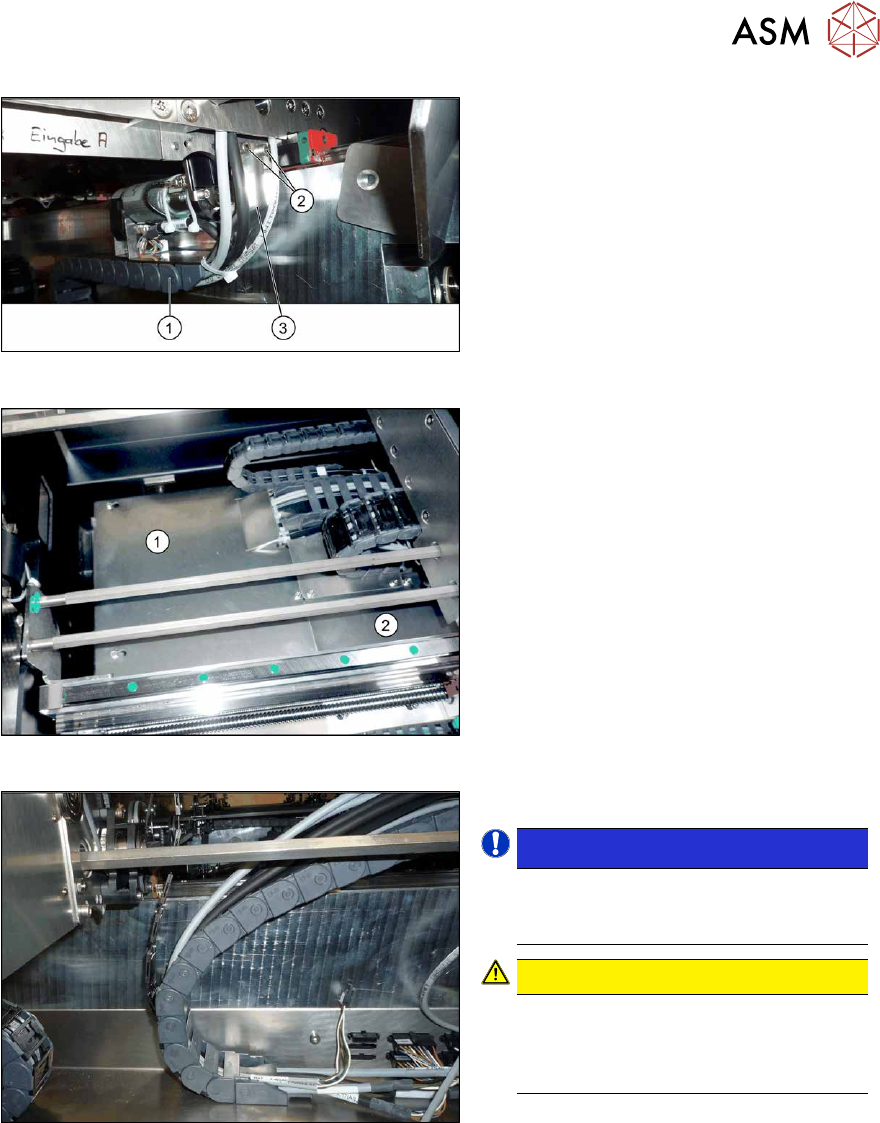
Fig.302: Holding plate
► Remove the screws(2) fastening the
bracket(3)
to the top end of the trailing
cable(1)
on the conveyor side.
► For better access, you can remove the
screws fastening the trailing cable to
the bracket.
Fig.303: Cover plates (example of SX1/SX2 shown)
► Dismantle the two cover plates(1)
and(2) under the trailing cable. To do
this, loosen the four fastening screws
for each and then remove the cover
plates.
Fig.304: Opened trailing cable
► Open the trailing cable.
NOTICE!
There is also a protective tape in the
trailing cable. This separates the fiber
optic cable from the cables.
.
CAUTION!
Make sure you do not bend the fiber
optic cable. This will otherwise become
dull and no longer transmit the signal
properly.
.
► For better access, you can remove the
screws on the bottom of the conveyor.
► Unthread the fiber optic cable from the conveyor side and the trailing cable.
► Unplug the fiber optic cable from the fiber optic sensor. To do this, open the fiber optic lock on
the sensor.
7.8.7 "Replacing the Fiber Optic Cable Sensor" [}233]
Installation
Follow the removal instructions in reverse order for installation. Also observe the following instruc-
tions:
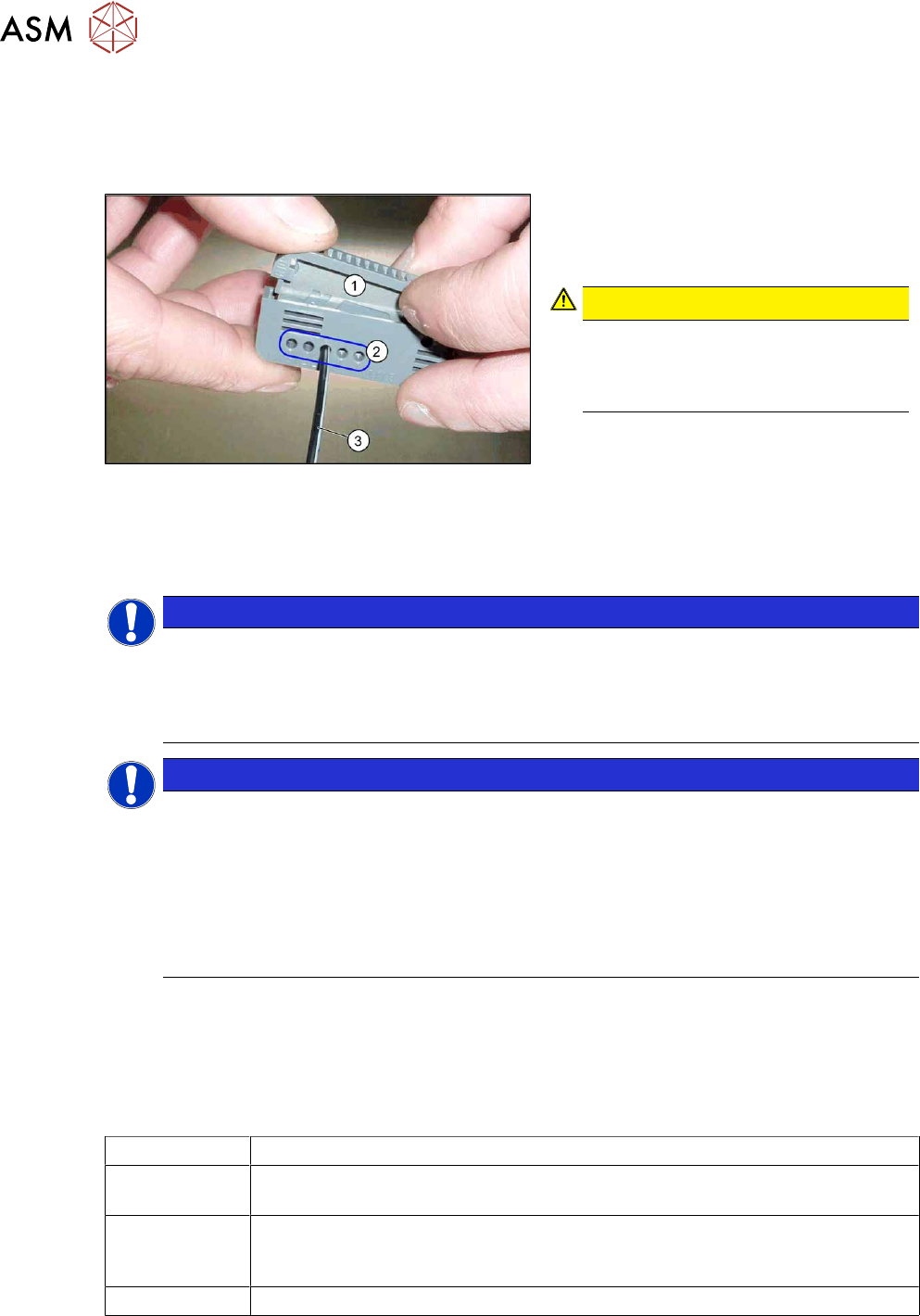
► Shorten the fiber optic cable with the cutter tool provided (see below). Make sure you give the
fiber optic cable enough play.
► Replace any open cable ties.
Make sure that the cable ties and the heads of the cable ties do not rub against any parts
when you do this.
7 Conveyor
7.8 Laser light barriers, fiber optic cable and PCB sensors
230 Service Manual SIPLACE X-Series S (from Hxxxx) 01/2021
► Check the setting for the transmitter/receiver and correct if necessary.
7.8.3 "Checking the laser light barrier" [}222]
7.8.4 "Correcting the Laser Light Barrier Setting" [}225]
► Teach the PCB sensors.
Fig.305: Cutter tool
1. Cutter tool
2. Cutting aperture
3. Fiber optic cable
CAUTION!
Make sure that you only use each cut-
ting aperture once. If they are used
more than once, good quality cuts can
not be guaranteed.
.
7.8.6 Repairing the fiber optic cables
To avoid machine downtimes, it is possible to repair fiber optic cables temporarily, using the repair hose.
NOTICE
Repair hose for fiber optic cable LL3-TV05
► The repair hose may only be used for short periods to avoid machine downtimes.
► The repair hose may only be used once per fiber optic cable.
► The fiber optic cable must be replaced during the next repair or maintenance cycle.
NOTICE
No guarantee
► No guarantee is given if the fiber optic cable is repaired using the repair hose.
► There is no long-term experience with the repair hose.
► Depending on the board width, the intensity of the light beam may diminish in such a
way that an evaluation is no longer possible.
► The repair hose must not be bended. For this reason, there is an additional danger of
rupture after the repair, in areas where the fiber optic cable is routed in narrow radii.
► If another rupture of the fiber optic cable occurs and it is not possible to replace the whole
fiber optic cable, replace the defective part of the fiber optic cable in such a way that only one
repair hose is used.
Parts
03092407-xx Fibre optic cable LL3-TV05 2m (including cutting tool for fibre optic cables)
03092408-xx Fibre optic cable LL3-TV05 3m (spare part) (including cutting tool for fibre optic
cables)
03122383-xx Hose PUN 3x0.5-SW, 100mm (repair hose)
A repair hose is supplied with each fiber optic cable. The repair hose is not
available on its own.
Sheet with yellow glue dots