00197193-02_IM_SIPLACE_EDM_2.1_EN.pdf - 第29页
EDM V2.1 / I nstallat ion Ma nual Ausgabe 11/2012 E dition 29 The “D efault” role entr y as the l ast entr y in the Rol es grid app lies to all ED M Client s that do n ot matc h the conditions of an y previous ent ry. NO…
EDM V2.1 / Installation Manual Ausgabe 11/2012 Edition
28
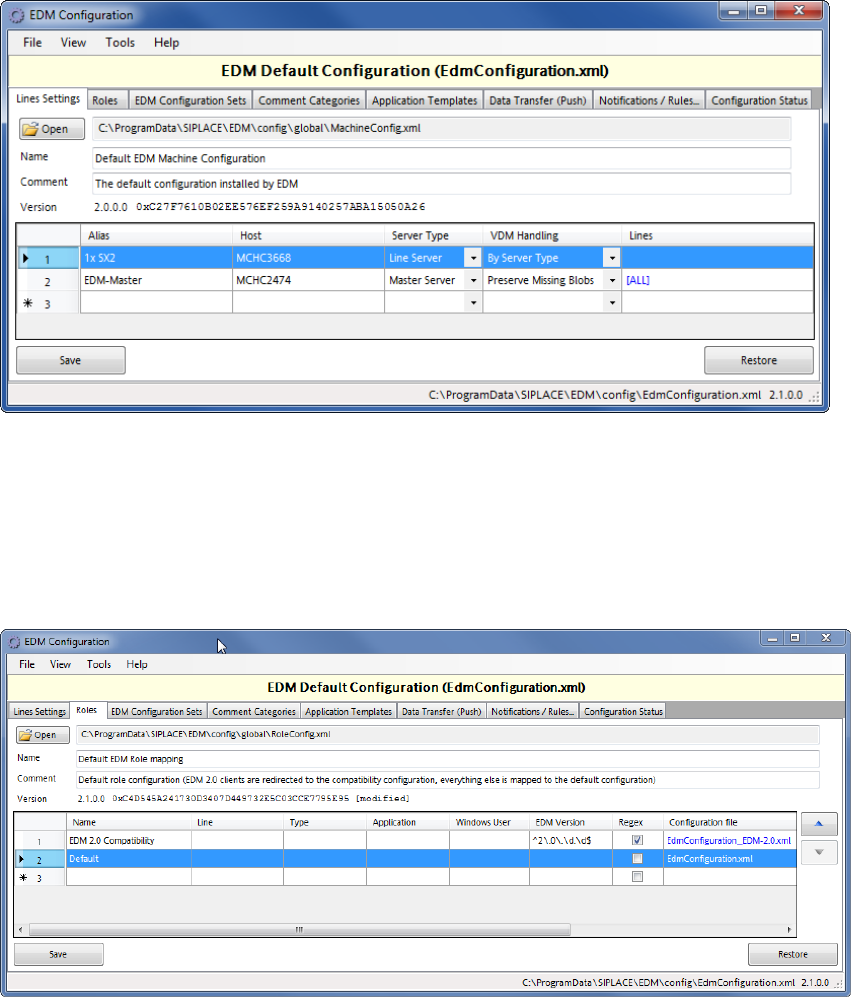
The Lines Settings tab provides an overview over the EDM network and shows each registered
computer, together with its associated role.
This dialog is an editor to the basic line data given during the setup (cf. section 5.2.1.2).
In addition, the behavior of the EDM VisionDataManager may be changed in the VDM Handling
column. For detailed information on these settings, please refer to section 6.3.6.29, Advanced
vision data actions.
5.3.4 Roles
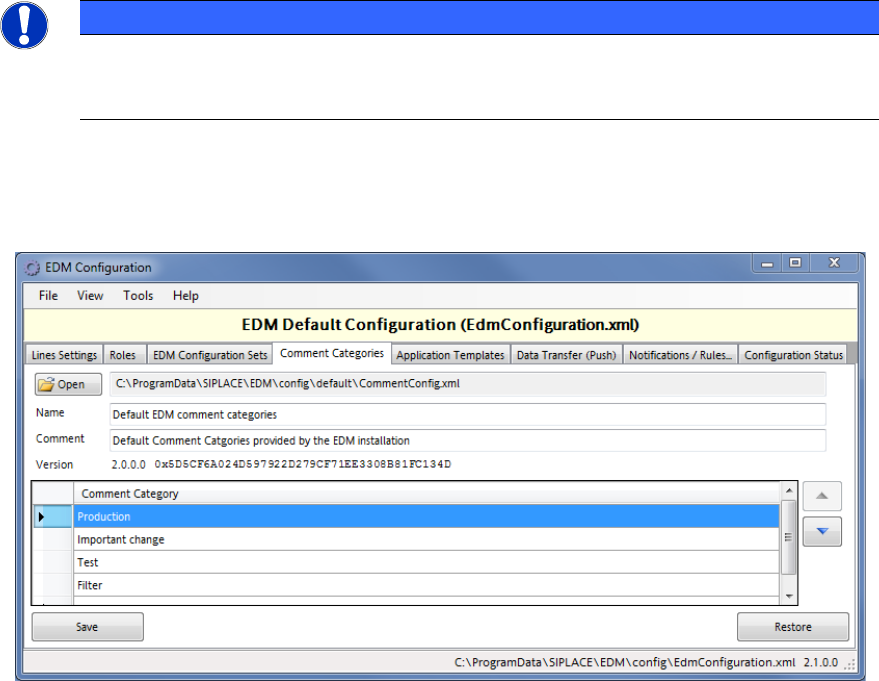
Figure 5-1: Configuration of EDM roles
The Roles tab defines which configuration set shall be sent to the EDM Clients.
This dialog may be useful if e.g. one of the EDM Line computers (“NPI-Line”) has a special role
(NPI) which requires different filter settings. In this case:
► Create a new configuration set in the EDM Configuration Sets tab
► Click on the location item of the configuration item that should be different from the standard
settings and duplicate the file using the context (“right mouse button”) menu entry “Save linked
configuration as…”).
► In the Roles tab, create an entry that points to the newly created configuration set and give the
Line (alias)name, Windows User or EDM Version to which the setting shall refer.
The first entry that matches the conditions (Line name or current Windows user) determines the
configuration set, which is sent to this EDM Client.
EDM V2.1 / Installation Manual Ausgabe 11/2012 Edition
29
The “Default” role entry as the last entry in the Roles grid applies to all EDM Clients that do not
match the conditions of any previous entry.
NOTICE
By default, EDM 2.1 contains a role entry that ensures that EDM Computers running
EDM version 2.0 will receive a valid, compatible configuration set. To be effective, this
role definition should always stay on the top of the list.
5.3.5 Comment Categories
These comment categories are presented to a user on the EDM Clients in the comment dialog that
appears due to changes of SIPLACE Pro data.
► Double-click on an existing entry to change the category name.
► Double-click on the last line of the grid to add a new category.
► Select a line and press <DEL> to remove the selected entry.
► Change the order of the categories with the help of the arrow buttons next to the grid.
5.3.6 Application templates
The application templates depict the static part of the customer process that is related to the data.
They primarily define the object types to be transferred and whether or not they will be overwritten
on the EDM line during push or pull operation.
5.3.6.1 General settings
EDM V2.1 / Installation Manual Ausgabe 11/2012 Edition
30
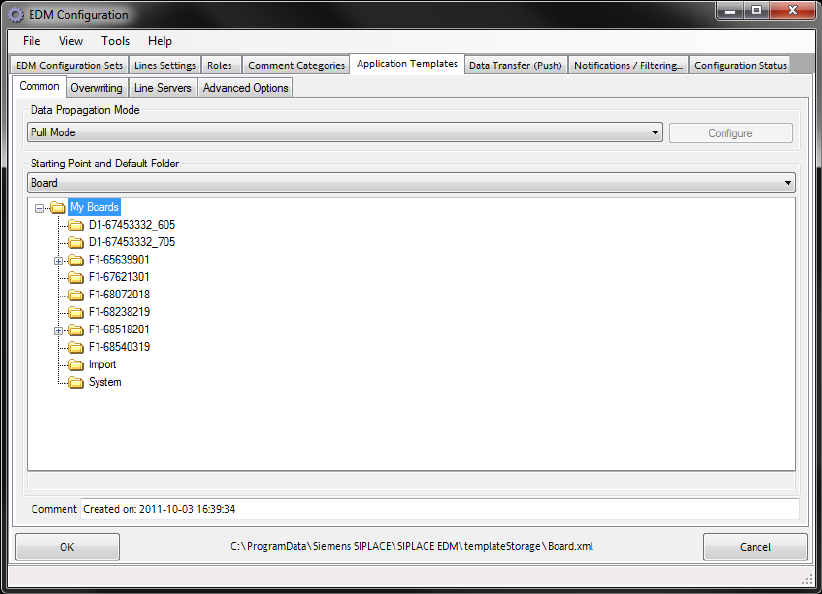
Figure 5-1: General settings for application templates
The general settings include:
● Type of data transfer. Currently, you can only select Pull Mode, Push Mode or Forced Pull
Mode.
● Starting Point specifies the object type for which this template can be valid. A template can
only be valid for one object type at a time. However, it is possible to define more than one
template for an object type.
● Objects found in the Default folder and all its subfolders can be subsequently specified by the
line engineer for pulling and pushing from the master.
● An optional comment.
Pull mode and push mode
No additional settings can be specified for these types of data transfer between the Master Server
and Client computers.