00196742-01 - Install Guide SIPLACE Explorer 2.7_de.pdf - 第31页
In stal latio ns- und Ko nfig urat ions anl eitun g S IPL ACE Explo rer 3 I ns tall ati on d es SIP LAC E E xpl orer Au sgab e 03 /2 010 D E 3. 1 Er stin stal lat ion v on S IPL ACE Exp lor er 2.7 31 → I n diesem Fall kö…
3 Installation des SIPLACE Explorer Installations- und Konfigurationsanleitung SIPLACE Explorer
3.1 Erstinstallation von SIPLACE Explorer 2.7 Ausgabe 03/2010 DE
30
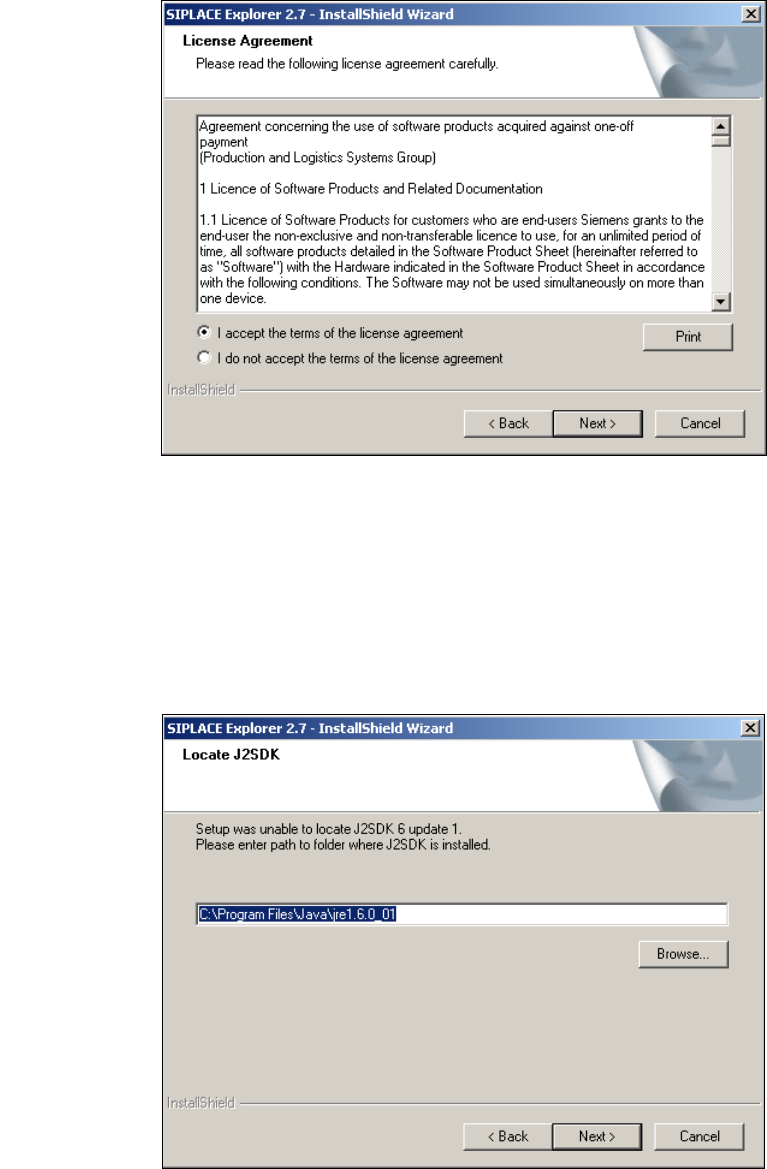
→ Lesen Sie die Lizenzbestimmungen. Wenn Sie zustimmen, I accept ... anklicken, ansonsten I
do not accept .... Wenn Sie I do not accept ... anklicken, wird die Installation beendet.
3
Abb. 3 - 3 SIPLACE Explorer Setup - Lizenzvereinbarungen
→ Bestätigen Sie Ihre Auswahl mit Next (Weiter).
→ Damit SIPLACE Explorer lauffähig ist, muss J2SE Runtime Environment 6 Update 1 oder
höher auf Ihrem PC installiert sein. Wenn es bereits installiert ist, läuft das SIPLACE Explorer
Setup-Programm weiter.
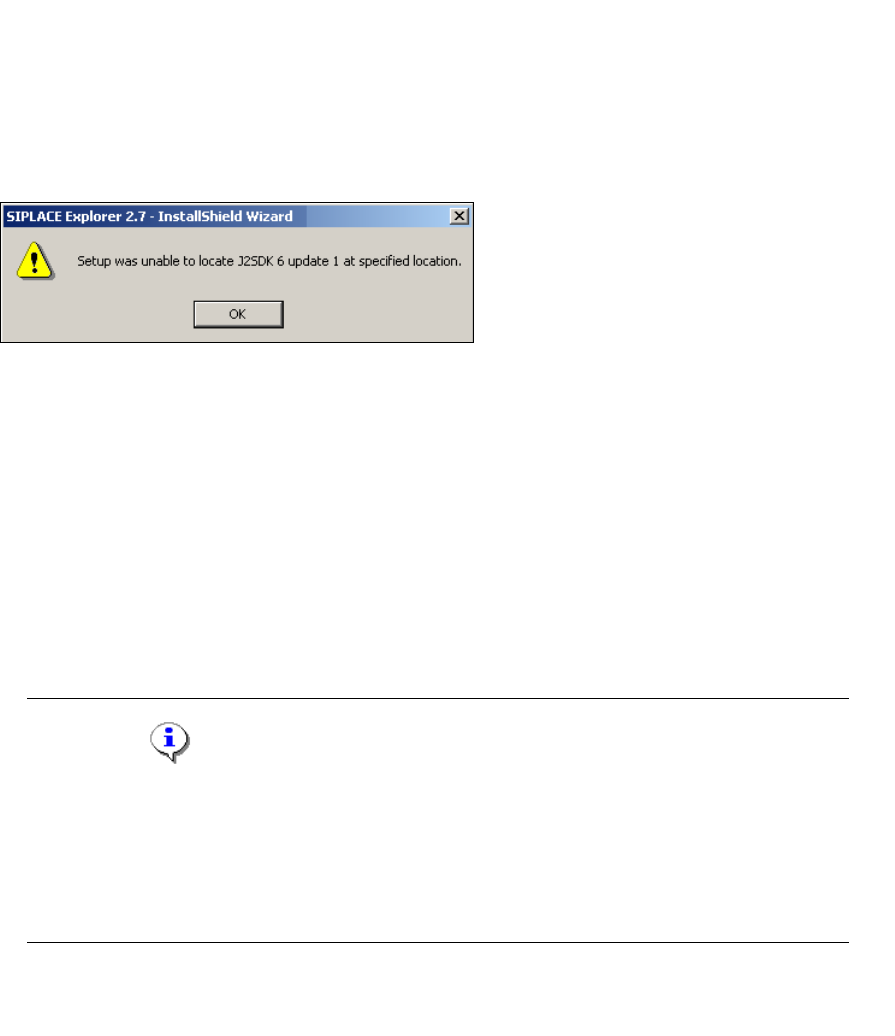
→ Wenn beim Installationsversuch J2SE 6 Update 1 nicht gefunden wird, erscheint auf Ihrem
Bildschirm das Fenster Locate J2SDK (Finden).
3
Abb. 3 - 4 SIPLACE Explorer Setup - JAVA 2SDK finden
Installations- und Konfigurationsanleitung SIPLACE Explorer 3 Installation des SIPLACE Explorer
Ausgabe 03/2010 DE 3.1 Erstinstallation von SIPLACE Explorer 2.7
31
→ In diesem Fall können Sie entweder den Pfad des Ordners J2SE Runtime Environment 6
Update 1 direkt im Textfeld eingeben oder die Schaltfläche Browse (Durchsuchen) anklicken
und mit Hilfe des Dialogfensters Open File (Datei öffnen) den Ordner J2SE Runtime
Environment 6 Update 1 suchen.
→ Wenn Sie den Ordner nicht korrekt angegeben haben, in dem J2SE Runtime Environment 6
Update 1 installiert ist, erhalten Sie nachfolgende Meldung.
3
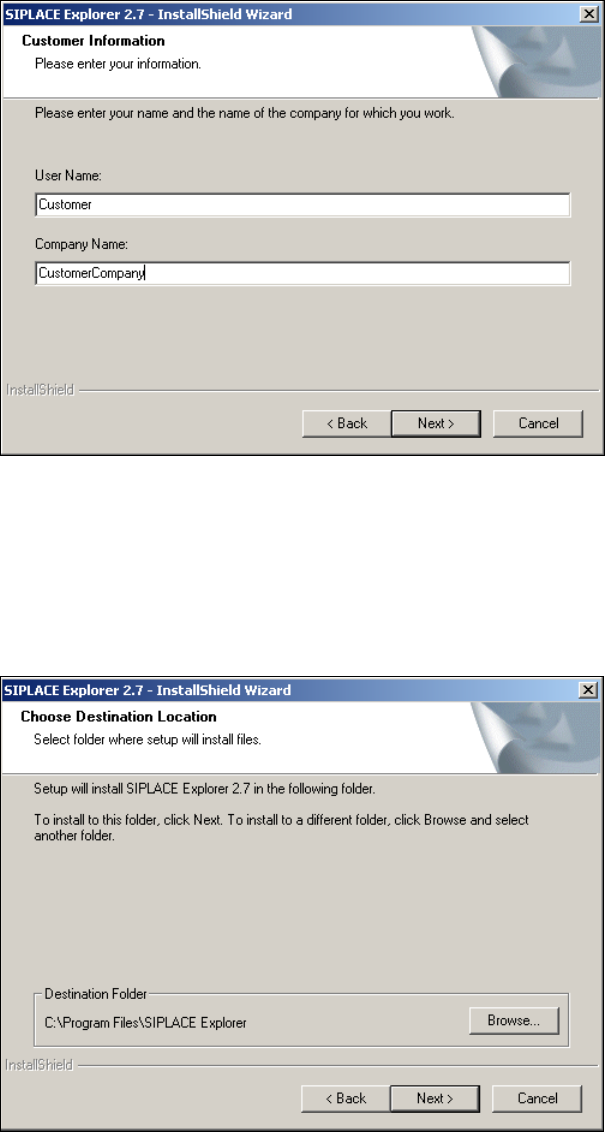
Abb. 3 - 5 SIPLACE Explorer Setup - J2SE kann nicht gefunden werden
→ Klicken Sie OK, um zum vorangegangenen Dialogfenster zurückzukehren. SIPLACE Explorer
erfordert vor der Installation von SIPLACE Explorer, dass J2SE Runtime Environment 6
Update 1 installiert wurde.
→ An dieser Stelle können Sie entweder den J2SE Runtime Environment 6 Update 1 Ordner
nochmals eingeben oder Cancel (Abbrechen) anklicken, um die Installation des SIPLACE
Explorer abzubrechen.
→ Haben Sie Cancel (Abbrechen) gewählt, installieren Sie die auf der Support Media DVD
enthaltene Version von J2SE Runtime Environment 6 Update 1. Beginnen Sie anschließend
die Installation des SIPLACE Explorer erneut.
HINWEIS
Wenn auf Ihrem System die von Sun Microsystems unter http://java.sun.com/j2se erhältliche
J2 Runtime Umgebung (und nicht J2SE Runtime Environment 6 Update 1) installiert ist,
funktioniert die von SIPLACE Explorer Website Builder erstellte Website nicht einwandfrei,
da diese auf JSP basiert, was wiederum J2SE Runtime Environment 6 Update 1
voraussetzt. 3
→ Die Installation von SIPLACE Explorer 2.7 wird nach Lokalisierung von J2SE Runtime
Environment 6 Update 1 fortgesetzt. Das Dialogfenster Customer Information wird geöffnet.
3 Installation des SIPLACE Explorer Installations- und Konfigurationsanleitung SIPLACE Explorer
3.1 Erstinstallation von SIPLACE Explorer 2.7 Ausgabe 03/2010 DE
32
3
Abb. 3 - 6 SIPLACE Explorer setup - Kundeninformation angeben
→ Geben Sie in dem Feld User Name Ihren Namen an und im Feld Company Name den Namen
Ihrer Firma. Klicken Sie dann auf Next (Weiter). Das Dialogfenster Choose Destination
Location wird geöffnet.
→ Geben Sie jetzt den Ordner an, in dem Sie die Anwendung installieren möchten. Der
standardmäßig eingestellte Ordner ist C:\Program Files\SIPLACE Explorer.
3
Abb. 3 - 7 SIPLACE Explorer setup - Zielordner wählen
→ Sie können die Standardeinstellung durch Betätigung der Schaltfläche Browse (Durchsuchen)
verändern.