00196742-01 - Install Guide SIPLACE Explorer 2.7_de.pdf - 第36页
3 In st al lati o n de s SIP LACE Ex plor e r Inst al l atio ns - und Ko nfi gu rat io ns an le itun g S IPL AC E Exp lo rer 3. 1 E rst inst all atio n vo n S IPLA CE E xplo rer 2.7 Au sga be 03 /201 0 DE 36 → Das Di alo…
Installations- und Konfigurationsanleitung SIPLACE Explorer 3 Installation des SIPLACE Explorer
Ausgabe 03/2010 DE 3.1 Erstinstallation von SIPLACE Explorer 2.7
35
3
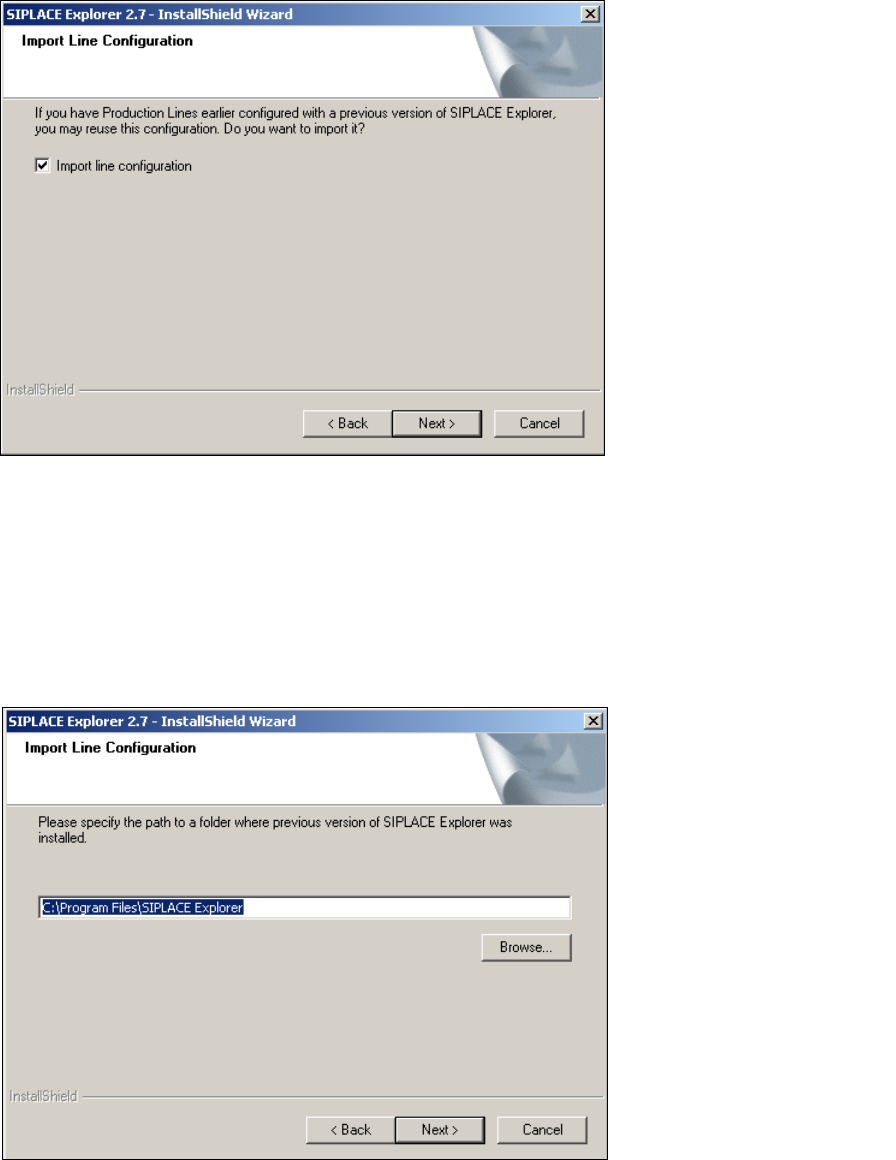
Abb. 3 - 10 SIPLACE Explorer setup - Linienkonfiguration importieren
→ Aktivieren Sie Import line configuration (Linienkonfiguration importieren), wenn Sie die
Linienkonfiguration einer vorherigen Version übernehmen möchten. Das Dialogfenster Import
Line Configuration (Linienkonfiguration importieren) wird geöffnet.
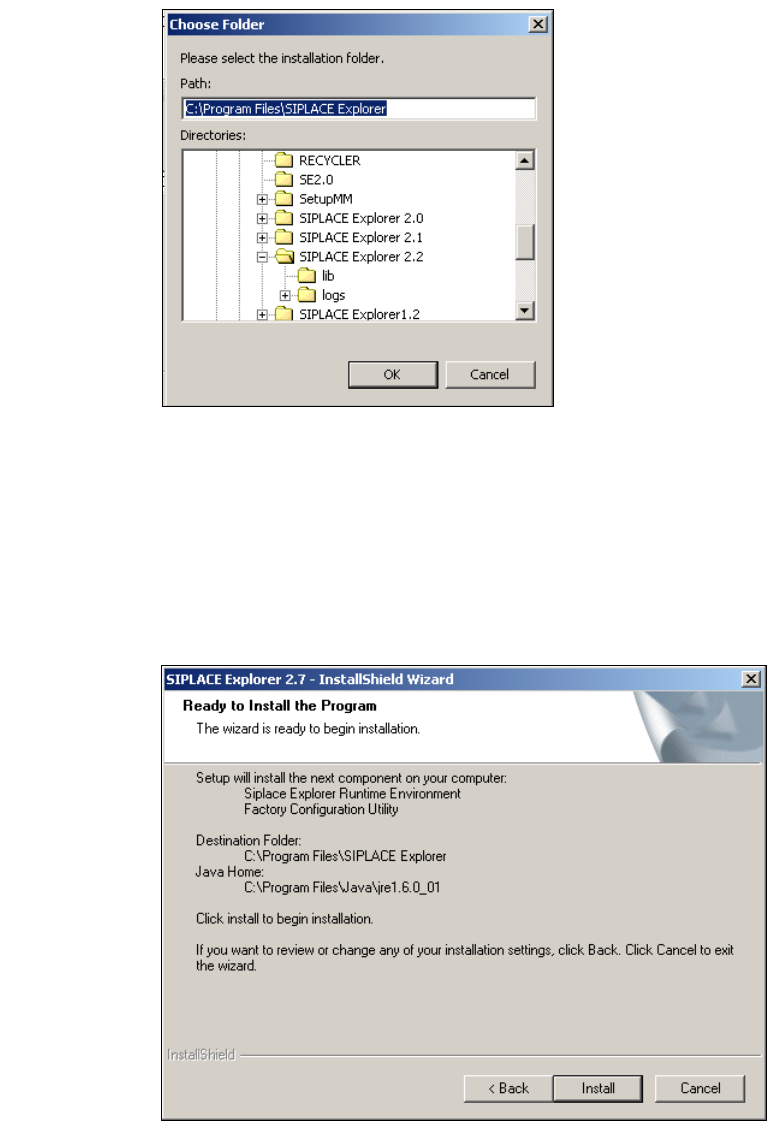
→ Geben Sie jetzt den Ordner an, in dem die Linienkonfiguration einer vorherigen SIPLACE
Explorer Version gespeichert ist. Der standardmäßig eingestellte Ordner ist C:\Program
Files\SIPLACE Explorer.
3
Abb. 3 - 11 SIPLACE Explorer setup - Zielordner wählen
→ Sie können die Standardeinstellung durch Betätigung der Schaltfläche Browse (Durchsuchen)
verändern.
3 Installation des SIPLACE Explorer Installations- und Konfigurationsanleitung SIPLACE Explorer
3.1 Erstinstallation von SIPLACE Explorer 2.7 Ausgabe 03/2010 DE
36
→ Das Dialogfenster Choose Folder (Ordner auswählen) öffnet sich, um den gewünschten
Ordner zu wählen.
3
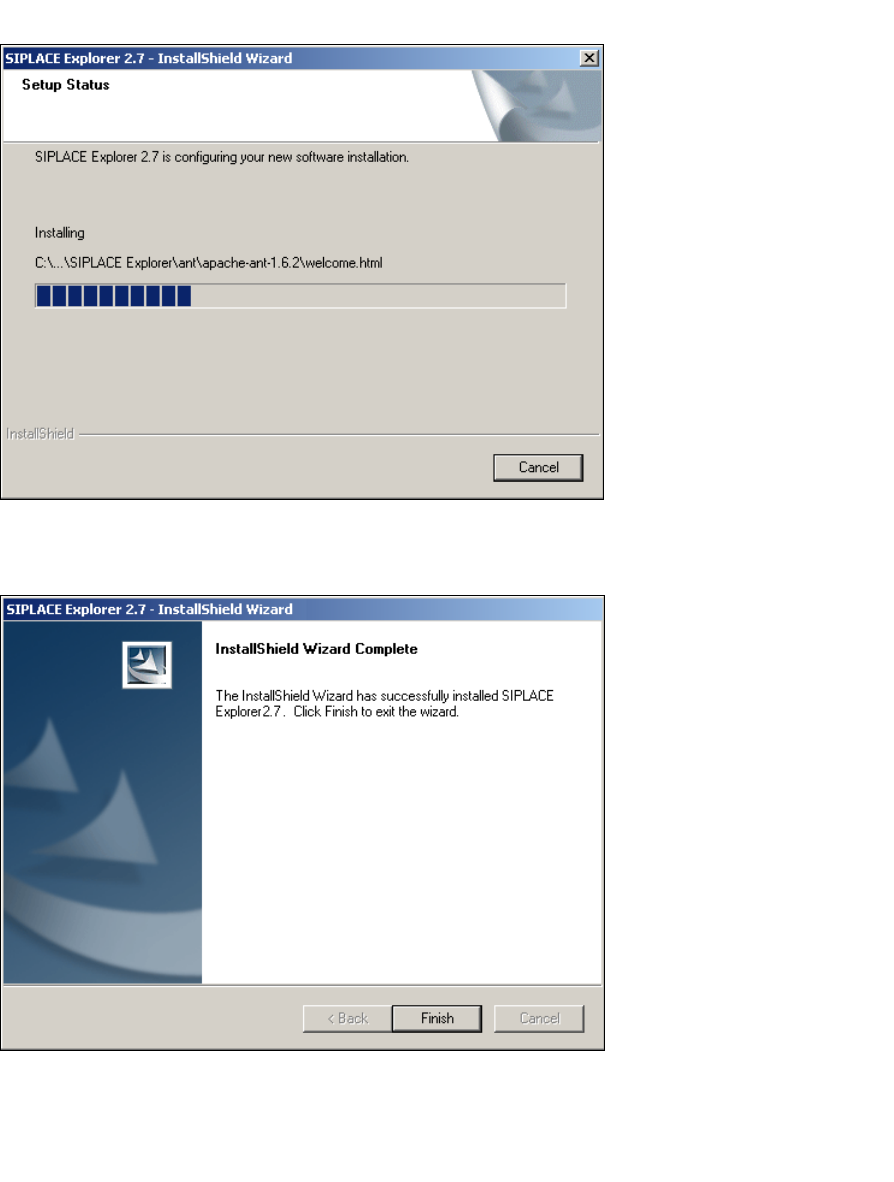
Abb. 3 - 12 SIPLACE Explorer Setup - Dialogfenster 'choose folder' (’Ordner auswählen’)
→ Geben Sie den gewünschten Ordner an und klicken Sie OK, um Ihre Auswahl zu bestätigen.
Im Dialogfenster Import Line Configuration (Linienkonfiguration importieren) wird der
ausgewählte Ordner angezeigt.
→ Um die Auswahl des Zielordners zu bestätigen, klicken Sie im Dialogfenster Import Line
Configuration (Linienkonfiguration importieren) die Schaltfläche Next (Weiter) an.
→ Das Dialogfenster Ready to Install the Program (Bereit für die Installation) wird geöffnet.
3
Abb. 3 - 13 SIPLACE Explorer Setup - Dialogfenster 'Ready to Install' (Bereit für die Installation)
Installations- und Konfigurationsanleitung SIPLACE Explorer 3 Installation des SIPLACE Explorer
Ausgabe 03/2010 DE 3.1 Erstinstallation von SIPLACE Explorer 2.7
37
→ Betätigen Sie die Sie die Schaltfläche Install, die eigentliche Installation von SIPLACE
Explorer V2.7 beginnt.
3
Abb. 3 - 14 SIPLACE Explorer Setup - Dialogfenster 'Setup Status' (Status der Installation)
→ Wenn die Installation beendet ist, erscheint nachfolgendes Dialogfenster.
3
Abb. 3 - 15 SIPLACE Explorer Setup - Installation beendet
→ Klicken Sie auf Finish. Nach dem nächsten Start Ihres Computers können Sie SIPLACE
Explorer starten. Gehen Sie dazu vor, wie unter “SIPLACE Explorer starten” auf Seite 43
beschrieben.