00196742-01 - Install Guide SIPLACE Explorer 2.7_de.pdf - 第46页
3 In st al lati o n de s SIP LACE Ex plor e r Inst al l atio ns - und Ko nfi gu rat io ns an le itun g S IPL AC E Exp lo rer 3. 4 K onf igur ation von MS SQL Se rver Aus gabe 03/2 01 0 DE 46 3 Abb. 3 - 25 M S SQ L Server…
Installations- und Konfigurationsanleitung SIPLACE Explorer 3 Installation des SIPLACE Explorer
Ausgabe 03/2010 DE 3.4 Konfiguration von MS SQL Server
45
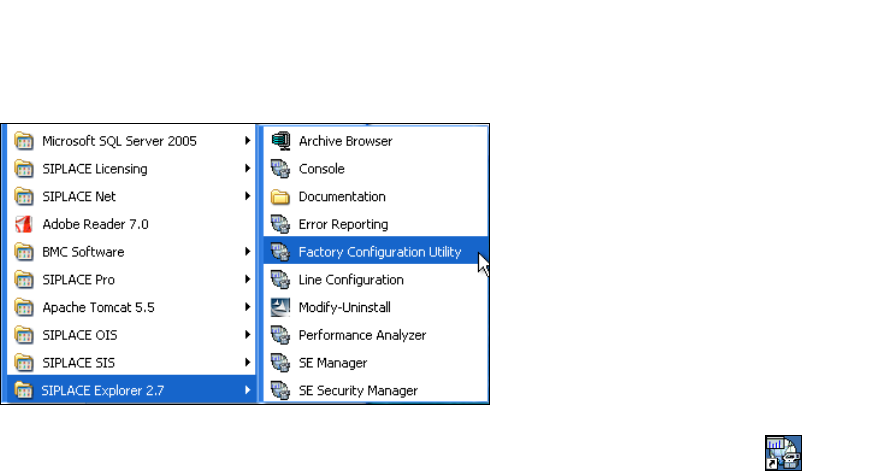
→ SIPLACE Explorer V.2.7 Factory Configuration Utility
Starten Sie Factory Configuration Utility über das Windows-Menü Programme → SIPLACE
Explorer 2.7 → Factory Configuration Utility. 3
3
Abb. 3 - 24 Factory Configuration Utility Windows Start Menü
→ Oder klicken Sie auf Ihrem Desktop auf das Symbol Factory Configuration Utility .
3.4 Konfiguration von MS SQL Server
Mit der Linien-Konfiguration können Sie die System-Datenbank konfigurieren. Siehe “Schritt 5 -
System-Datenbank konfigurieren” auf Seite 61. 3
Damit Sie die Wartung für die Systemdatenbank definieren können, müssen Sie den MS SQL
Server folgendermaßen konfigurieren: 3
→ Öffnen Sie MS SQL Server Management Studio.
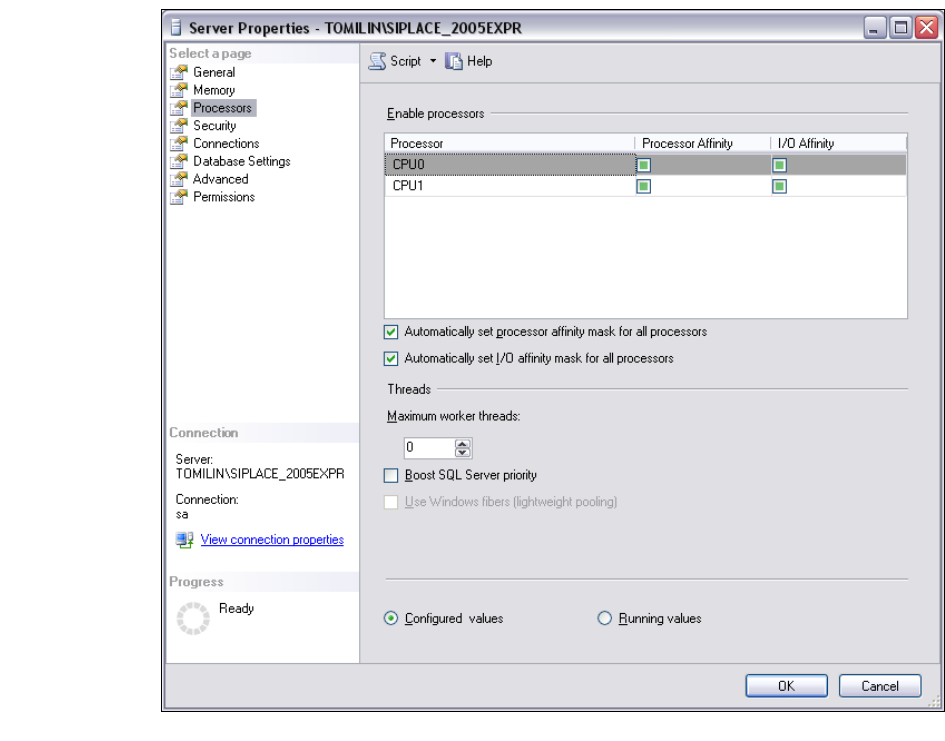
→ Öffnen Sie das Dialogfenster Server Properties. Wählen Sie die Server-Instanz, mit der
SIPLACE Explorer System-Datenbank aus. Wählen Sie aus dem Kontextmenü der rechten
Maustaste Properties. Das Dialogfenster Server Properties öffnet sich:
3 Installation des SIPLACE Explorer Installations- und Konfigurationsanleitung SIPLACE Explorer
3.4 Konfiguration von MS SQL Server Ausgabe 03/2010 DE
46
3
Abb. 3 - 25 MS SQL Server Properties
→ Wählen Sie Processors.
→ Aktivieren Sie folgende Checkboxen:
– Automatically set processor affinity mask for all processors
– Automatically set I/O affinity mask for all processors
→ Bestätigen Sie Ihre Eingaben mit OK.
→ Starten Sie den MS SQLServer erneut.
Installations- und Konfigurationsanleitung SIPLACE Explorer 3 Installation des SIPLACE Explorer
Ausgabe 03/2010 DE 3.5 Konfiguration von Tomcat
47
3.5 Konfiguration von Tomcat
3.5.1 Verwendung von Windows 2003 Server
Haben Sie als Betriebssystem Windows 2003 Server installiert, müssen Sie für die Verwendung
von SIPLACE Explorer V2.7 den Webserver (Tomcat) nachkonfigurieren. Diese Konfiguration
nehmen Sie im Internet Explorer vor. 3
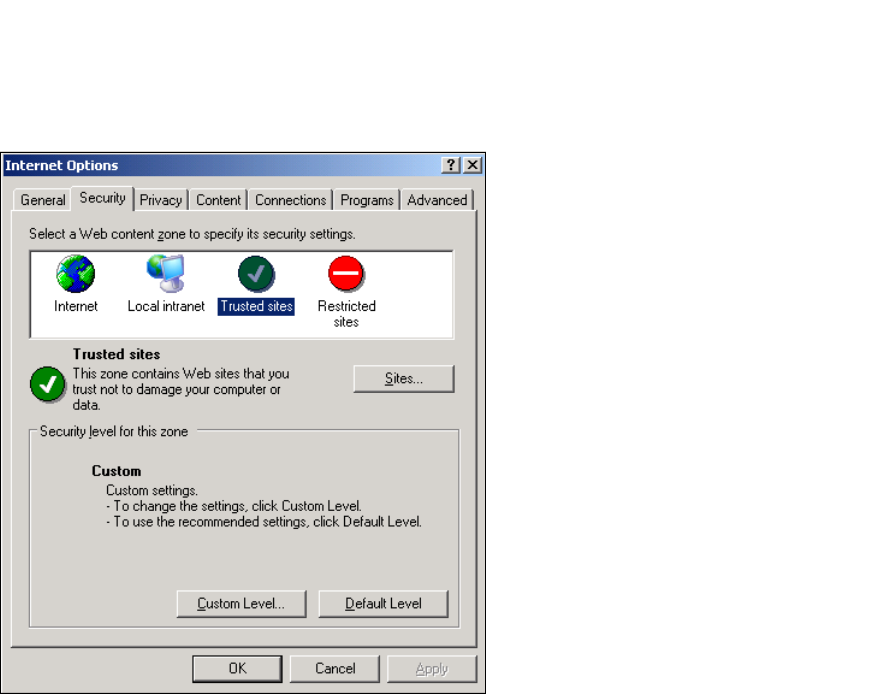
→ Wählen Sie das Menü Tools → Options aus.
→ Das Dialogfenster Internet Options öffnet sich:
3
Abb. 3 - 26 Internet Options
→ Wählen Sie das Register Security aus.
→ Klicken Sie auf das Symbol für Trusted Sites und betätigen Sie die Schaltfläche Sites.
→ Das Dialogfenster Trusted Sites öffnet sich: