CP-7[732-742]-series Mechanical Reference(2.9E).pdf - 第208页
1.3 V ision Processing Errors No. 3-1 3-2 3-3 M: Part 3 Chapt 1 "1.9" Chapt 3 "3.1", "3.2" T : Part 3 Lesson 2 "2.1.1", "2.1.2" U: Part 2 Chapt 4 "Appearance", …
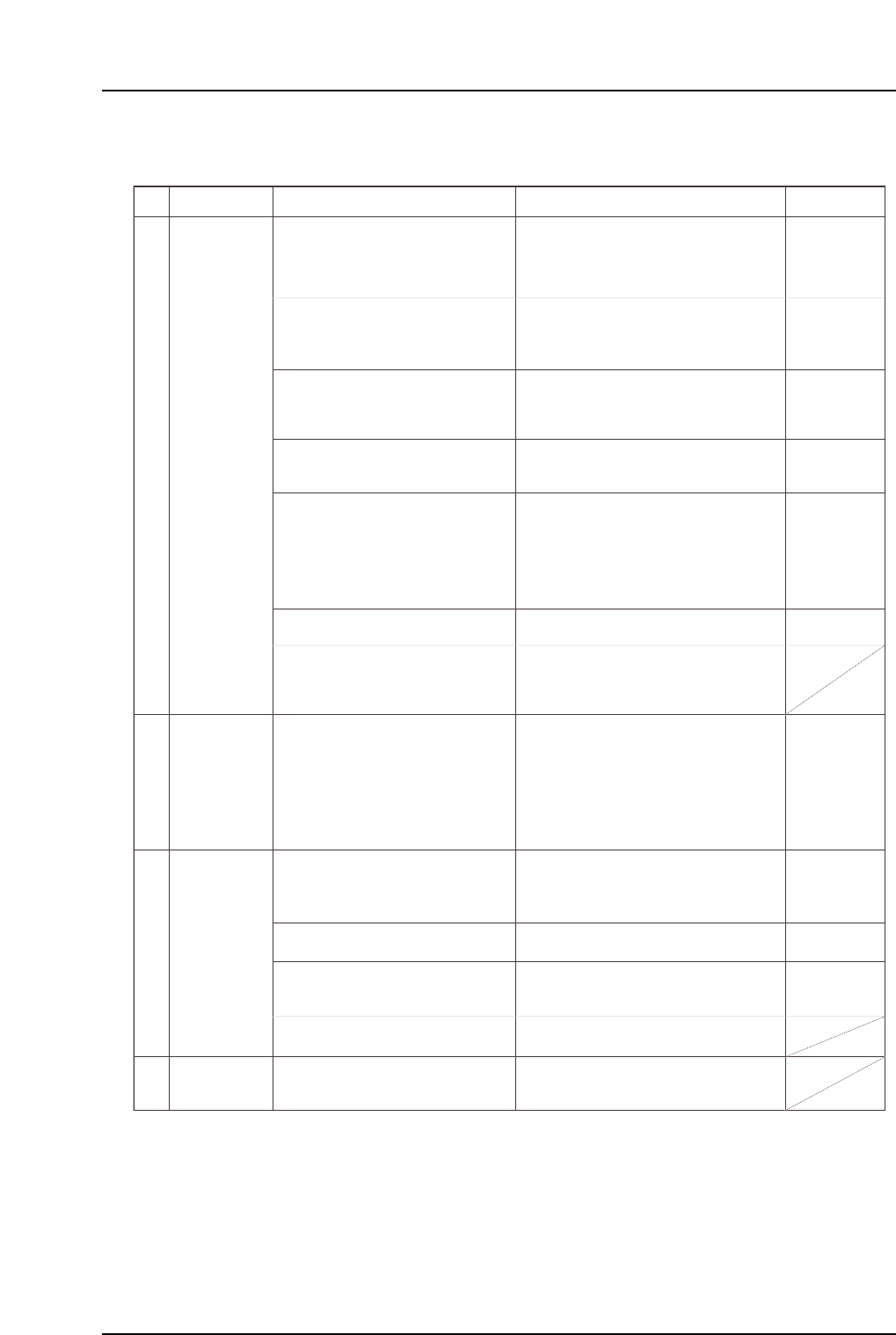
No.
2-4
2-5
2-6
2-7
Deviation
between the
feeder and
machine pickup
position.
Check the pickup offset (X,Z) setting in
Part data.
The presence of parts or foreign matter, etc.,
on the device table or on the feeder's L-guide
can prevent the feeder from being set in the
correct position.
Parts which have adhered to the ratchet can
cause pickup position deviations at regular
intervals. Air-blow the ratchet area before
etting the tape.
Gouges in the feeder's L-guide can prevent
the feeder from being set in the correct
position.
An unsuitable reference value will result in an
automatic offset of the pickup height.
Note: Machine adjustments can be performed
only by those with a Level 3 training.
Pickup position deviations may occur after
prolonged feeder use.
Check the pickup posiiton periodically.
Lubricate the ratchet area. Failure to
lubricate can result in ratchet and stopper
wear which will cause pickup position
deviations.
• A bent nozzle will cause pickup position
deviations, and may prevent pickup from
occurring properly.
• A stuck nozzle cannot reach the part,
making pickup impossible.
• A clogged nozzle will have a lower vacuum
force, and may prevent pickup from
occurring properly.
Poor spool motion can prevent parts from
being picked up properly.
A low vacuum force may prevent parts from
being pick up properly.
Cracks in hoses can prevent parts from
being picked up properly.
Clean away parts and dust, etc., which
have adhered to the device table and
feeder tape leaf.
Clean away parts and dust, etc., which
have adhered to the ratchet.
Use a grinder to flatten the gouges in
the feeder's L-guide.
Adjust the pickup position.
Adjust the ST1 pickup height.
1) Use the nozzle check command to
check for bent nozzles.
2) Verify that the nozzle spring-back
motion is smooth.
3) Verify that the nozzle is not clogged.
If a problem is found with any of the
above, replace the nozzle.
Measure the part height sensor's nozzle
height reference value.
Ensure that the pressure value on the
vacuum pump displays at most -40kPa.
Replace the pump parts if the value fails
to reach the prescribed range.
Replace mechanical valves where the
spool motion is not smooth.
Check the connection of the hose
between the vacuum pump and the
index unit.
Check the hose between the vacuum
pump and the index unit.
Reset the ST1 feeder's feed lever.
Defective nozzle.
Vacuum force is
too low.
The ST1 feeder's
feed lever has
been tripped.
Cause Remedy Remarks Ref. Page
FM: Part 3
Chapt 2 "2.3"
FM: Part 3
Chapt 2 "2.1"
FM: Part 3
Chapt 7
DT-651(E) Digitizer
with Image
Processing
Instruction Manual
FM: Part 3
Chapt 4 "4.9"
FM: Part 3
Chapt 4 "4.11"
M: Part 4
Chapt 1 "1.4"
M: Part 4
Chapt 1 "1.5"
M: Part 3
Chapt 3 "3.1"
M: Part 3
Chapt 3 "3.8"
M: Part 3
Chapt 3 "3.10"
T: Part 3
Lesson 2
"2.1.3"
U: Part 2
Chapt 4
"Carrying"
Part 5 Chapter 1 Troubleshooting Table
Edition 2.7 5-1-4 CP-7 series Mechanical Reference
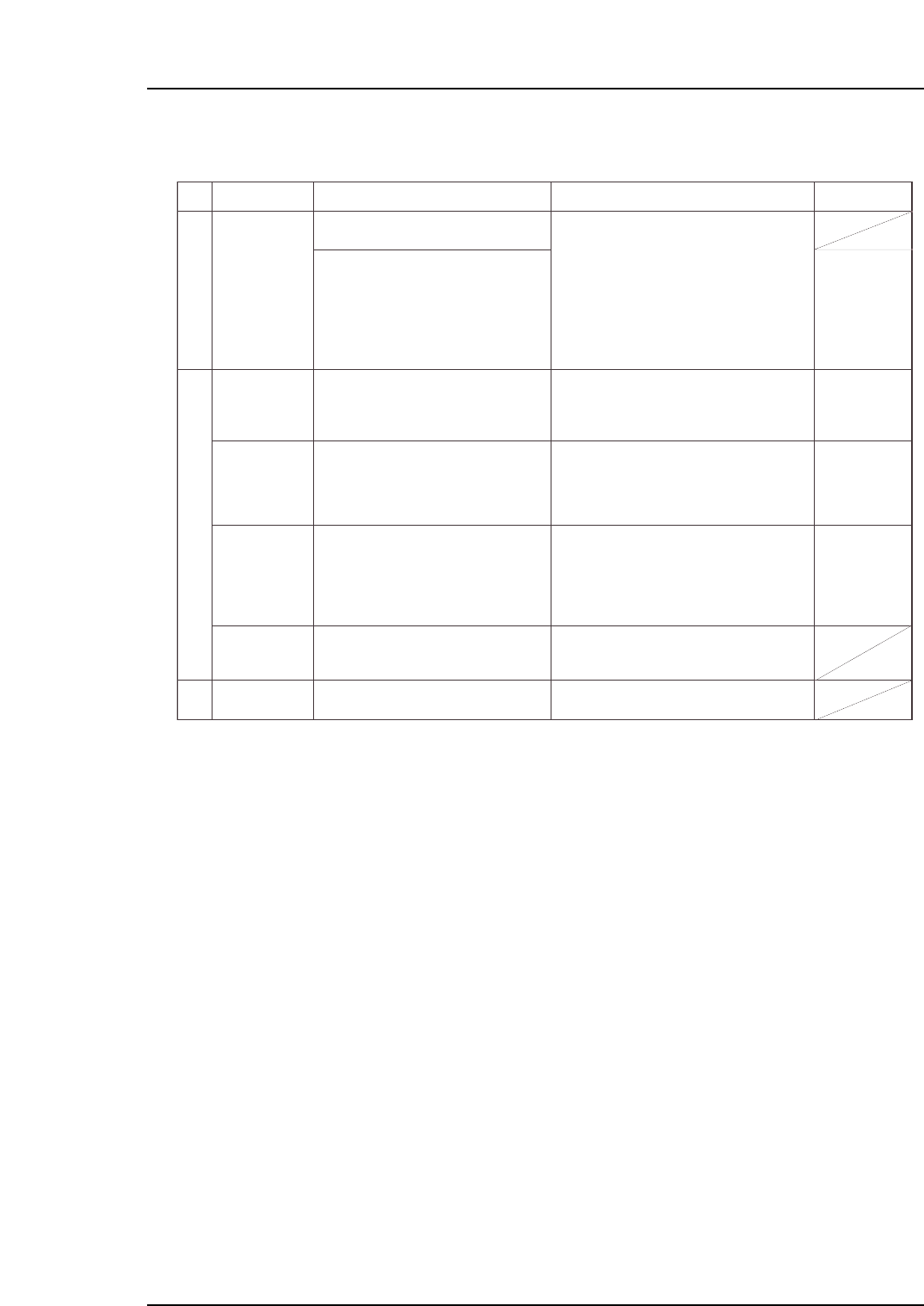
1.3 Vision Processing Errors
No.
3-1
3-2
3-3
M: Part 3
Chapt 1 "1.9"
Chapt 3
"3.1", "3.2"
T: Part 3
Lesson 2
"2.1.1", "2.1.2"
U: Part 2
Chapt 4
"Appearance",
"[Element]
window"
T: Part 3
Lesson 2
"2.1.1"
U: Part 2
Chapt 4
"Appearance"
M: Part 3
Chapt 1 "1.5"
Part size is
different from
Part Data
setting value.
Replace the error part with the correct
part type.
This error occurs because the part
information set in Part data is different from
the part on the machine.
If the problem is being caused by a soiled
nozzle, the vision processing error will occur
only when that soiled nozzle is used.
If the prism box surface is soiled, vision
processing errors will occur for almost all
parts.
Frequent vision processing errors may be
caused by slight differences between the
actual part dimensions and the dimension
settings. In such cases, measure the actual
part, and enter those dimensions as the
settings.
The brightness adjusting function is
supported from V1.18.
Enter the correct (error part's) part size,
part height, lead pitch, etc., settings in
Part data.
Check for dust, etc., around the
displayed image of the part causing the
vision processing error, the wipe the
prism box surface clean with a dry cloth
or cotton swab.
Measure the size of the part where
frequent errors are occurring, then enter
this correct size in Part data.
Replace the UV lamp if a "Replace UV
lamp" message displays after performing
a nozzle center measurement.
Refer to item 2 (Pickup Errors).
Check production information to see if a
specific nozzle is causing the vision
processing errors. If so, clean/replace
that nozzle, or replace its reflective seal.
Nozzle is soiled.
Prism box
surface is soiled.
The part size is
slightly different
from the Part
data setting.
UV lamp life has
expired.
Parts are not
being picked up.
Cause Remedy Remarks
Ref. Page
Part 5 Chapter 1 Troubleshooting Table
Edition 2.7 5-1-5 CP-7 series Mechanical Reference
Part 5 Chapter 1 Troubleshooting Table
Edition 2.7 5-1-6 CP-7 series Mechanical Reference
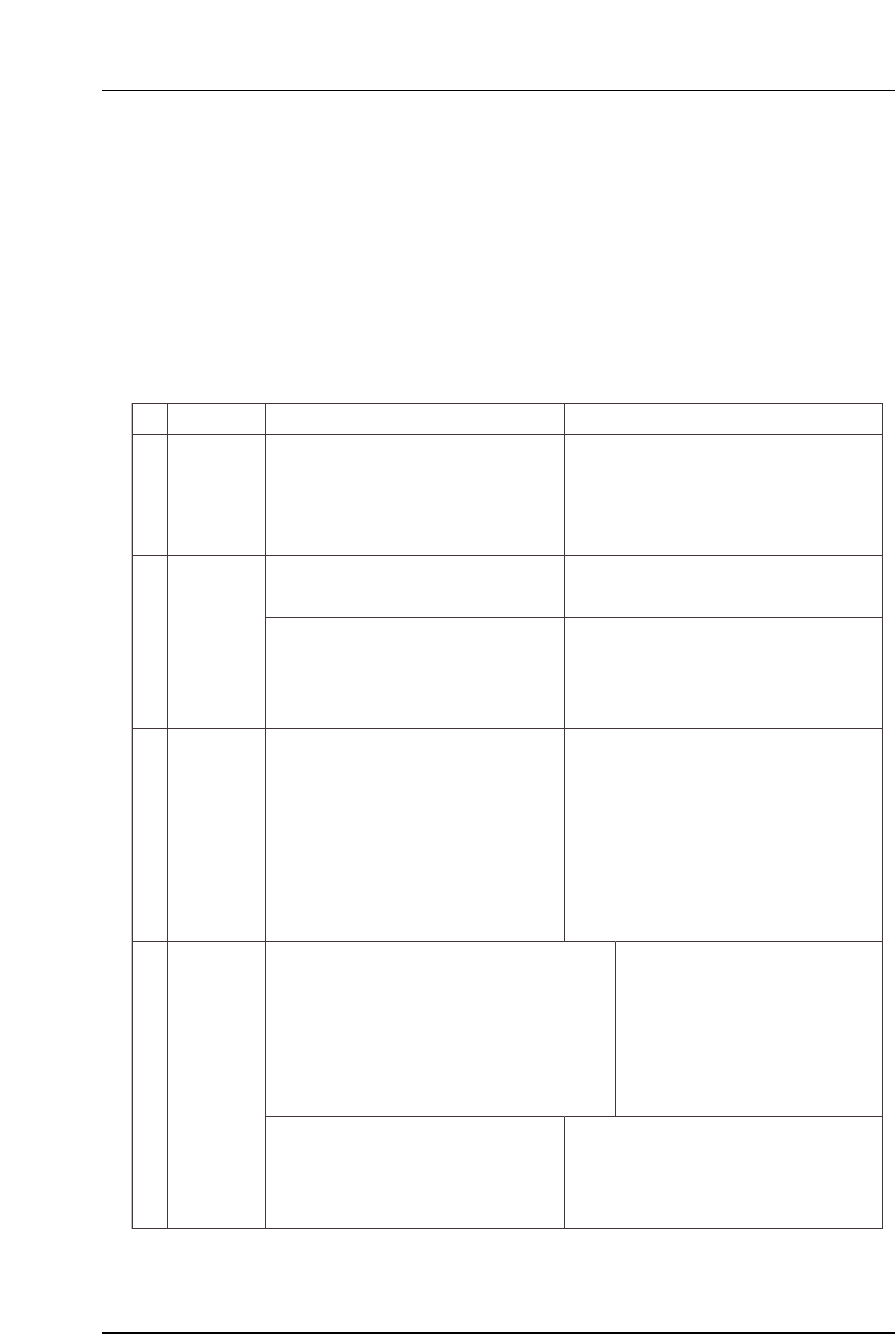
1.4 Panel Conveyance Related Errors
No.
4-1
4-2
4-3
4-4
M: Part 1
Chapt 3
M: Part 1
Chapt 3
M: Part 1
Chapt 3
S: Part 3
Chapt 1
S: Part 3
Chapt 1
M: Part 1
Chapt 3
S: Part 3
Chapt 1
In-carrier panel
conveyance
error
(1) Check whether the panel is being clamped
correctly.
(2) Check the following sensors for problems
(1) - (6) (described above).
(1) Check the following sensor for problems
(3) - (6) (see above).
(2) Check the in-carrier conveyance cylinder for
problem (7) (see above).
XOB1 or XOB2 panel sensor fails to
switch on at carrier advance limit even
though a panel has been loaded from
the in-lifter.
Or, panel has been conveyed from the
in-carrier to the XY-table, but the X0B1
or XOB2 panel sensor fails to switch off.
In-carrier may not be moving all the
way to its motion limit position.
In-carrier was advanced, but the in-
carrier advance limit sensor failed to
switch on.
In-carrier was conveyed, but the in-
carrier advance limit or retract limit
sensor failed to switch on.
An in-carrier cycle error occurs if the
advance limit or retract limit sensor
fails to switch on within 8 seconds.
In-carrier may not be moving all the
way to its motion limit position.
In-carrier advance limit panel check (1) XOB1
In-carrier advance limit panel check (2) XOB2
In-carrier advance limit check XOB3
(1) Check the following sensor for problems
(3) - (6) (see above).
In-carrier advance limit check XOB3
In-carrier retract limit check XOB4
Execute the following commands to see if the
carrier can be moved to its motion limit position:
[Panel Loader]-[Loader Maintenance]-[In-side]-
[Carrier Extend/Carrier Retract]-[START].
(2) Check the in-carrier conveyance cylinder for
problem (7) (see above).
Execute the following commands to see if the
carrier can be moved to its motion limit position:
[Panel Loader]-[Loader Maintenance]-[In-side]-
[Carrier Extend/Carrier Retract]-[START].
In-carrier cycle
error
Cause Remedy Remarks Ref. Page
In-carrier
advance limit
error
• Most panel conveyance errors are caused by sensor problems. As a rule, these errors occur due to
one of the following 6 causes. After checking the machine's error display content, check the following
items at the sensor in question.
(1) Panel detection problem.
(2) Sensor beam emitter is aimed at a notched area of the panel.
(3) Sensor beam emitter is soiled (foreign matter is present).
(4) Sensor has failed.
(5) Disconnected/severed cable, etc.
(6) I/O board and I/O terminal board malfunction.
• As a malfunctioning actuator may be responsible for problems with sensors which detect the cylinder
actuator stroke end, etc., item (7) shown below should also be checked.
(7) Sensor detection problem caused by malfunctioning cylinder, etc.
* The "X???" and "Y???" values which appear in the remedy column correspond to
the I/O map assignment numbers.
In-carrier
clamping error
(1) Check the following sensor for problems (3) - (6)
(see above).
• In-carrier clamper was
closed but the clamp sensor
failed to switch on.
• In-carrier clamper was
opened but the unclamp
sensor failed to switch on.
The clamper may not be closing/
opening all the way to its limit position.
In-carrier retract limit panel clamp check (fixed-rail side) X0B7
In-carrier retract limit panel clamp check (adjustable-rail side) X0B8
In-carrier advance limit panel clamp check (fixed-rail side) X0B9
In-carrier advance limit panel clamp check (adjustable-rail side) X0BA
In-carrier retract limit panel unclamp check (fixed-rail side) X0BB
In-carrier retract limit panel unclamp check (adjustable rail side) X0BC
In-carrier advance limit panel unclamp check (fixed-rail side) X0BD
In-carrier advance limit panel unclamp check (adjustable-rail side) X0BA
(2) Check the in-carrier clamping/unclamping
cylinder for problem (7) (see above.)
Execute the following commands to see if the
carrier can be moved to its motion limit position:
[Panel Loader]-[Loader Maintenance]-[In-side]-
[Carrier Extend/Carrier Retract]-[START].