00195011-01.pdf - 第13页
Installation Manual, Station Software Version 408.01 Edition 03/2006 4 Inst allation instructions 4.1 Installing the SIPLACE sof tware 4.1.1 Requirements You must have installed the Window s XP Professional operating sys…
Installation Manual Station Software Version 408.01
3.2.3 Station computer
3.2.3.1 Station computer CS und CF
SCENIC C610 i 865GV
Name
Celeron ® CPU 2.80 GHz
CPU / clock frequency
256 MB (248MB)
RAM memory
40 GB (38.xxx MB)
Hard disk
Yes
CD-ROM drive
3.5“, 1.44 MB
Floppy drive
yes
USB interface
1 x 10/100Base-T
Network
2 x 10Base-T
6-port hub
Table 3-2: Station computer hardware
3.2.3.2 Station computer S23 und F5 HM
SCENIC N 320
Name
Celeron ® CPU 2.80 GHz
CPU / clock frequency
256 MB (248 MB)
RAM memory
40 GB (38.xxx MB)
Hard disk
Yes
CD-ROM drive
3.5“, 1.44 MB
Floppy drive
yes
USB interface
1 x 10/100Base-T
Network
1 x 10Base-T
Table 3-3: Station computer hardware
3.2.4 Machine controller MC54 for CS, CF, S23 and F5 HM
Sicomp AMS M54
Name
566 MHz
CPU / clock frequency
32 MB
RAM memory
20 bis 40 GB
Hard Disk
Yes
CD-ROM drive
3.5“, 1.44 MB
Floppy drive
1 x 10/100Base-T
Network
Table 3-4: Machine controller hardware
12 of 104

Installation Manual, Station Software Version 408.01 Edition 03/2006
4 Installation instructions
4.1 Installing the SIPLACE software
4.1.1 Requirements
You must have installed the Windows XP Professional operating system with service pack 2
before installing the station computer version 408 (see section
3).
Caution:
When installing the RMOS operating system (see section
4.3.3), it is imperative that the
installation disks for Version 408 or higher are used. If any other disks are used, the
machine will not boot.
The default Windows display settings must be changed and the touchscreen must be calibrated.
You must be logged on as the
Administrator in order to be able to carry out this work.
13 of 104
Installation Manual Station Software Version 408.01
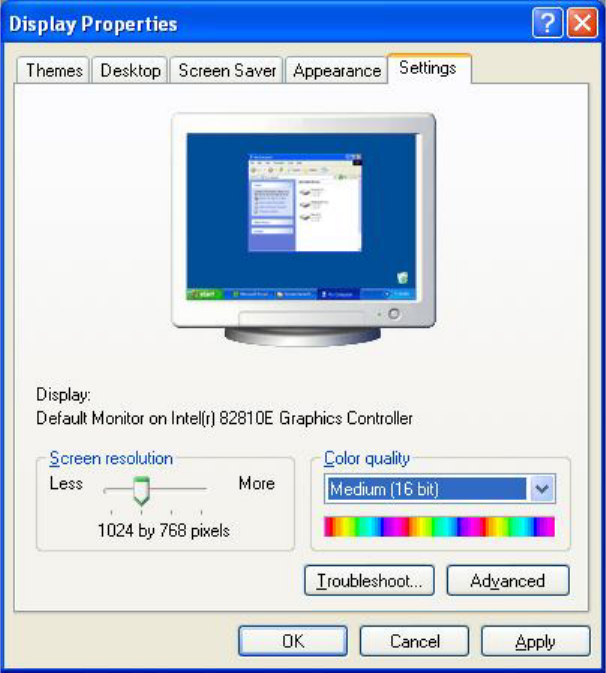
4.1.1.1 Changing the screen settings
→ Select Start Æ Settings Æ Control Panel Æ Display.
→ Click the Settings tab.
→ Make the following settings here:
Fig. 4-1: Screen settings
14 of 104