00196497-07_SM_SXDX12_en.pdf - 第260页
Settings Electrical and Control Settings 4.3.4 Installing the CAN Card Driver 260 Service Manual SIPLACE SX1/SX2/DX1/DX2 FS02 ► Select the top opt ion (4) and click on the "Next" (5) button. ► Click on the &quo…
Settings
4.3.4 Installing the CAN Card Driver Electrical and Control Settings
Service Manual SIPLACE SX1/SX2/DX1/DX2 FS02 259
4.3.4.2
4.3.4.2 Installing the New Driver
Installing the New Driver
► Log on as administrator.
► Deinstall the old driver. To do this, open the Control panel, select "Software" and click on the entry
“SIE MultiThread API SIECA 132 Real PowerPCI” - deinstall this.
► Reboot your PC and log on again as administrator.
When you log on, the operating system shows that new hardware has been installed. Terminate the driv-
er installation with the help of the Hardware Wizard. Proceed as follows instead:
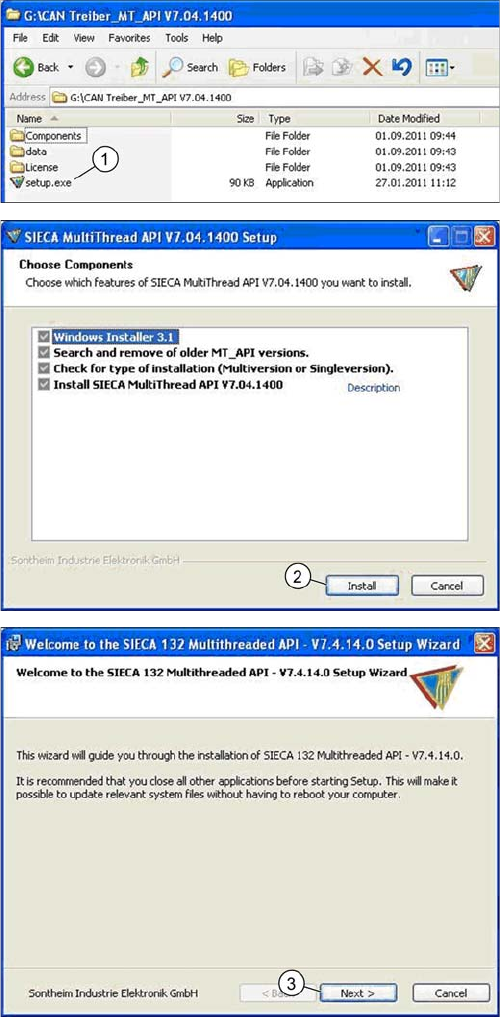
► Copy and extract the "CAN driver_MT_API V7.04.1400" to a data carrier. You will find the driver in
the SW download center.
► Now start the Setup.exe on the station computer or machine controller for your machine.
► Acknowledge the following installation steps.
► Double click on the Setup.exe (1) file.
► Click on the "Install" (2) button.
► Click on the "Next" (3) button.
Settings
Electrical and Control Settings 4.3.4 Installing the CAN Card Driver
260 Service Manual SIPLACE SX1/SX2/DX1/DX2 FS02
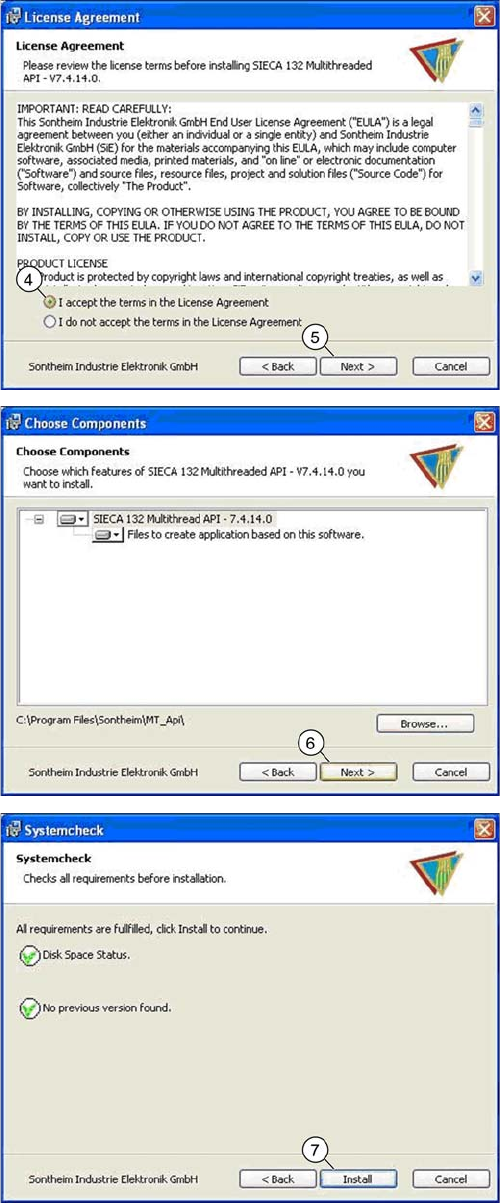
► Select the top option (4) and click on the "Next" (5)
button.
► Click on the "Next" (6) button.
► Click on the "Install" (7) button.
Settings
4.3.5 Setting the DIP Switch on the CAN Switch Electrical and Control Settings
Service Manual SIPLACE SX1/SX2/DX1/DX2 FS02 261
► Reboot your machine and check the operating system to make sure that the CAN driver has been
correctly installed or that the firmware and serial number are recognized correctly.
4.3.5
4.3.5 Setting the DIP Switch on the CAN Switch
Setting the DIP Switch on the CAN Switch
► Disconnect the CAN switch from the voltage supply.
► Loosen the two screws fastening the upper section (side with label) and remove it.
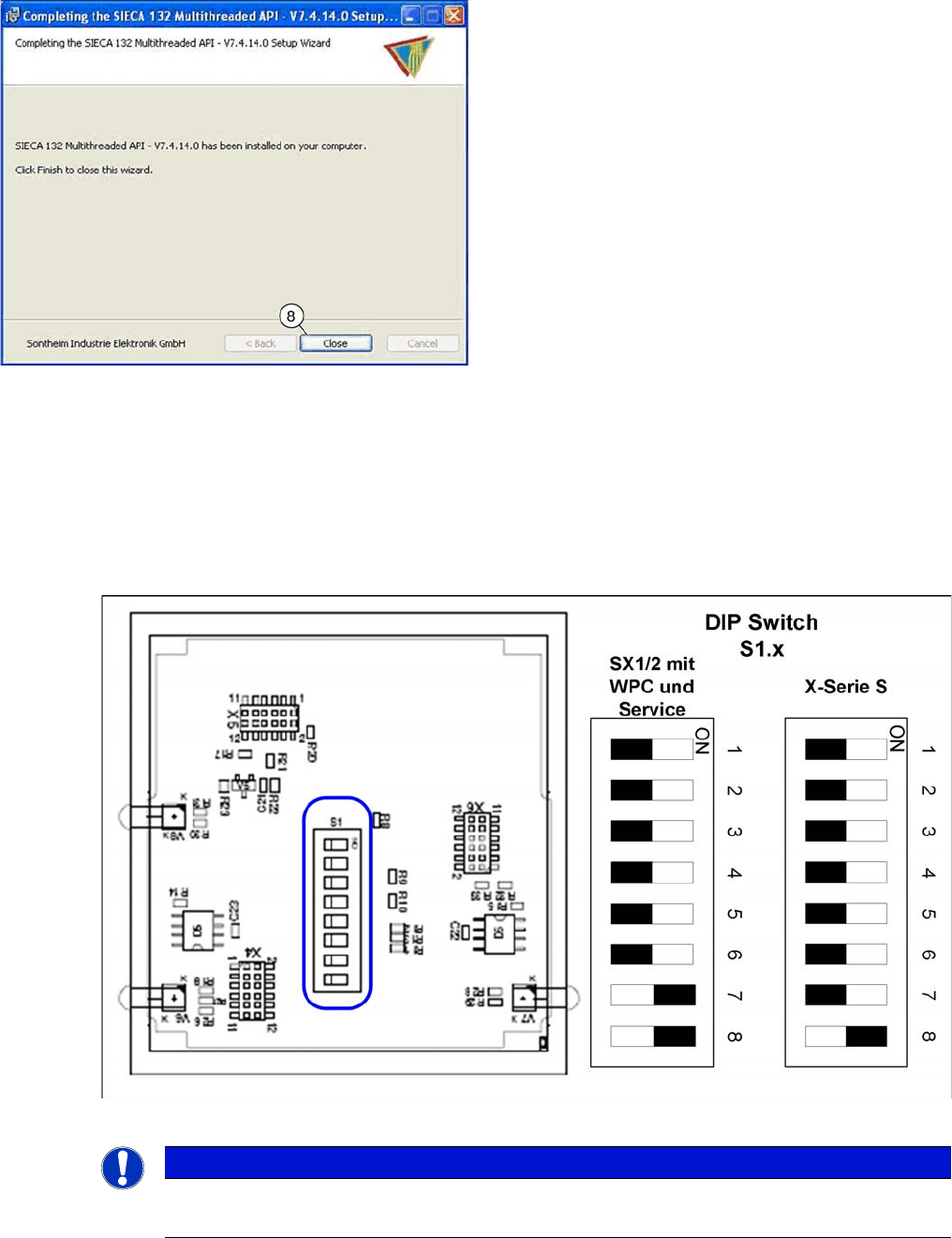
► Set the DIP switches:
Board in CAN switch [03083844-xx]
► Once the installation has finished, click on the "Close"
(8) button to close the installation wizard.
NOTICE
Default setting
The CAN switch is preset as a default for the X-Series S.