00192662-01.pdf - 第139页
User Manual SIPLAC E F5/F5 HM 3 Introduction and Basic Concepts Software version SR.407.xx 01/2001 US Edition 3.3 User Interf ace - Views and Menus 139 Transport 1 F7 3 Used to c all the s ingle func tions fo r PCB c onv…

3 Introduction and Basic Concepts User Manual SIPLACE F5/F5 HM
3.3 User Interface - Views and Menus Software version SR.407.xx 01/2001 US Edition
138
Setup F2 3
The setup for a feeder location is displayed in tabular form. It can be called separately for each of
the four locations.
The procedure is described in more detail in Chapter 4
Placement Functions. 3
Errors F3 3
Errors are differentiated by type and each error type is presented in a separate table. You can call
separate tables for track errors, conveyor errors, machine errors and general errors.
The last error to have occurred is always displayed at the top of the table. Identical errors are cu-
mulated in the error counter ("#E" column).
The procedure is described in more detail in Chapter 4
Placement Functions. 3
Feeders F4 3
Here you can use a variety of functions to display and fill empty tracks for linear feeders or to dis-
play and modify inventory levels for trays and wafflepack changers.
The procedure is described in more detail in Chapter 4
Placement Functions. 3
NOTE
The following 6 menu options belong to the group of single functions.
The single functions are used to execute specific actions following fatal errors as well as to set up
and test the machine since they allow you to address the various functional modules in a defined
manner.
Execution of the single functions is described in Chapter 5 Single Functions. 3
Gantry 1 F5 3
This allows you to call the Single functions for the gantry. These functions can be used, for exam-
ple, to test the Collect&Place head functions. 3
Transport 2 F6 3
Single functions for PCB conveyor 2 (= left conveyor track in the case of twin conveyors) 3
NOTE
The single functions for Conveyor 2 cannot be called unless twin conveyors are configured.
The functions are identical to the functions for Conveyor 1. 3

User Manual SIPLACE F5/F5 HM 3 Introduction and Basic Concepts
Software version SR.407.xx 01/2001 US Edition 3.3 User Interface - Views and Menus
139
Transport 1 F7 3
Used to call the single functions for PCB conveyor 1 (= right conveyor track in the case of twin
conveyors). These are used to test and set the functional modules for PCB conveyor as well as
to set the conveyor width. 3
NOTE
The next two menu options belong to the group of vision functions.
These functions are used to teach and test fiducials, measure components and change package
form data.
The vision functions cannot be executed at the "Operator" access level. 3
Teach fiducial F8 3
This menu item is used to call the functions for the processing of fiducials for PCB position detec-
tion.
For a more extensive description of the procedure refer to Chapter 6
Vision functions. 3
Test component F9 3
This menu item is used to call the functions for the processing of package forms for component
centering.
For a more extensive description of the procedure refer to Chapter 6
Vision functions. 3
Start SITEST F10 3
This automatically starts the SITEST test program for machine set-up and calibration.
The user interface, together with the procedure for the execution of the functions, is described in
the separate User’s Manual for the SITEST test program. 3
NOTE
The SITEST test program cannot be started from the "Operator" access level. 3
GEM F11 3
This menu item is used to call the GEM interface functions.
For a more extensive description of the procedure refer to Chapter 12
. 3
NOTE
The GEM interface functions cannot be called unless the GEM interface has been configured.
At the "Operator" access level, only the function "Send and receive messages" is available. 3
3 Introduction and Basic Concepts User Manual SIPLACE F5/F5 HM
3.3 User Interface - Views and Menus Software version SR.407.xx 01/2001 US Edition
140
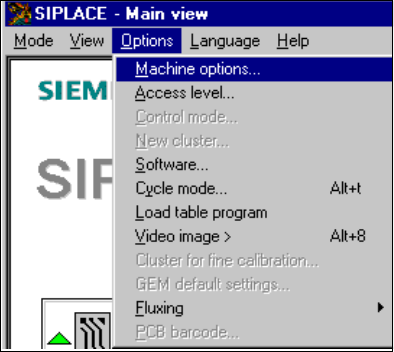
3.3.2.3 "Options" Menu
The "Options" menu is only available in the main view. This menu contains all the supplementary
functions. 3
Å Click the required menu item and then make the appropriate settings or selections in the cor-
responding windows or dialog boxes.
3
3