00192662-01.pdf - 第141页
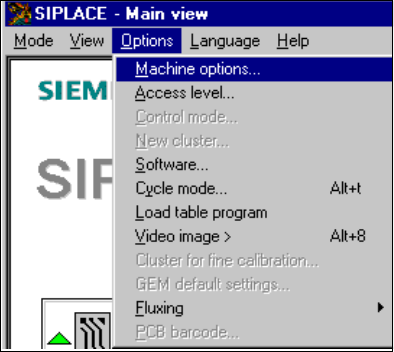
User Manual SIPLAC E F5/F5 HM 3 Introduction and Basic Concepts Software version SR.407.xx 01/2001 US Edition 3.3 User Interf ace - Views and Menus 141 Machine options... 3 Depending on acc ess le vel, y ou ca n obtain i…
3 Introduction and Basic Concepts User Manual SIPLACE F5/F5 HM
3.3 User Interface - Views and Menus Software version SR.407.xx 01/2001 US Edition
140
3.3.2.3 "Options" Menu
The "Options" menu is only available in the main view. This menu contains all the supplementary
functions. 3
Å Click the required menu item and then make the appropriate settings or selections in the cor-
responding windows or dialog boxes.
3
3
User Manual SIPLACE F5/F5 HM 3 Introduction and Basic Concepts
Software version SR.407.xx 01/2001 US Edition 3.3 User Interface - Views and Menus
141
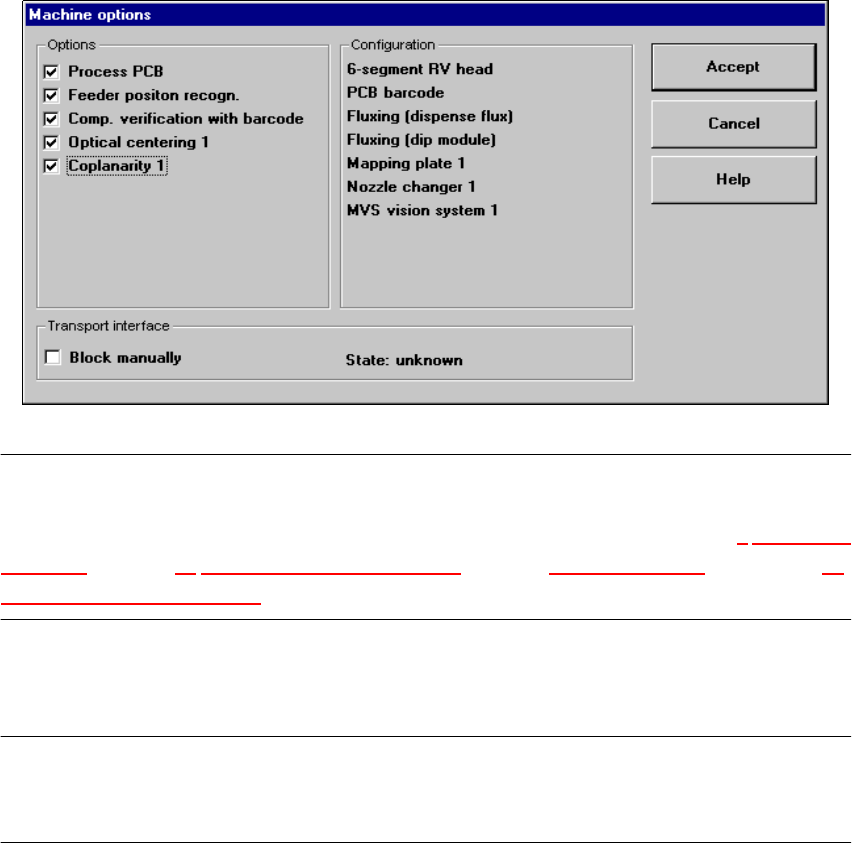
Machine options... 3
Depending on access level, you can obtain information about the station configuration ("Opera-
tor") or activate or deactivate the displayed machine options ("Line engineer", "Service"). 3
Å Click the menu item Machine options...
The following window is displayed.
3
NOTE
Only those machine options are displayed which are configured at the current station.
The different machine options and the associated functions are described in Chapter 4
Placement
Functions, Chapter 11 Station extensions /Hardware, Chapter 6 Vision functions and chapter 12
Station Extensions - Software. 3
Å Click the checkboxes corresponding to the machine options which you want to activate or de-
activate.
NOTE
At "Operator" access level, it is only possible to activate and deactivate the conveyor interface op-
tions. 3
3 Introduction and Basic Concepts User Manual SIPLACE F5/F5 HM
3.3 User Interface - Views and Menus Software version SR.407.xx 01/2001 US Edition
142
Access level... 3
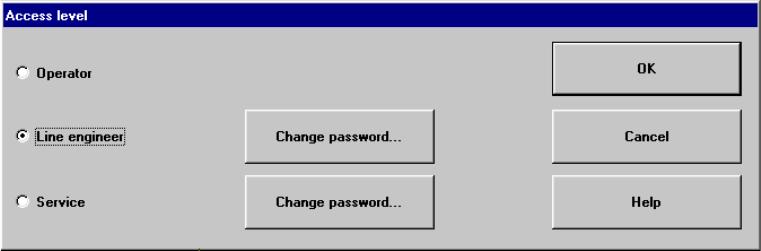
It is possible to protect some user interface functions against unauthorized use by setting an ac-
cess level and allocating a password. Functions which are not accessible from a given access
level cannot be executed since the associated push-button, radio buttons and menu commands
are either inactive or not displayed. 3
You can choose between the access levels "Operator", "Line engineer" and "Service". Passwords
can be allocated for the access levels "Line engineer" and "Service". 3
Å Click the menu item Access level ...
The "Access level" dialog box is opened.
3
Å Click the radio button for the required access level.
Å Click the "Change password" button to the right of the access level if you want to allocate a
password or change an existing password.
The dialog box for password entry is now displayed.
3