00192662-01.pdf - 第420页
8 Error Information User Manual SIPLA CE F5/F5 HM 8.2 Calling error information Software version SR. 407.xx 01/2001 US E dition 420 8 Fig. 8.2 - 3 Example: Error information on the current error 8 8.2.2.1 Meaning of the …
User Manual SIPLACE F5/F5 HM 8 Error Information
Software version SR.407.xx 01/2001 US Edition 8.2 Calling error information
419
8.2.2 Displaying information on a selected error
8
Å Click the icon in the toolbar in main view.
The user interface switches to the error display for the last error type to be active. All the errors
of the current error type which have occurred are listed in the display area.
Å If necessary, use the corresponding toolbar icon to switch the view to the required error type
(see Chapter 4
, Section 4.2).
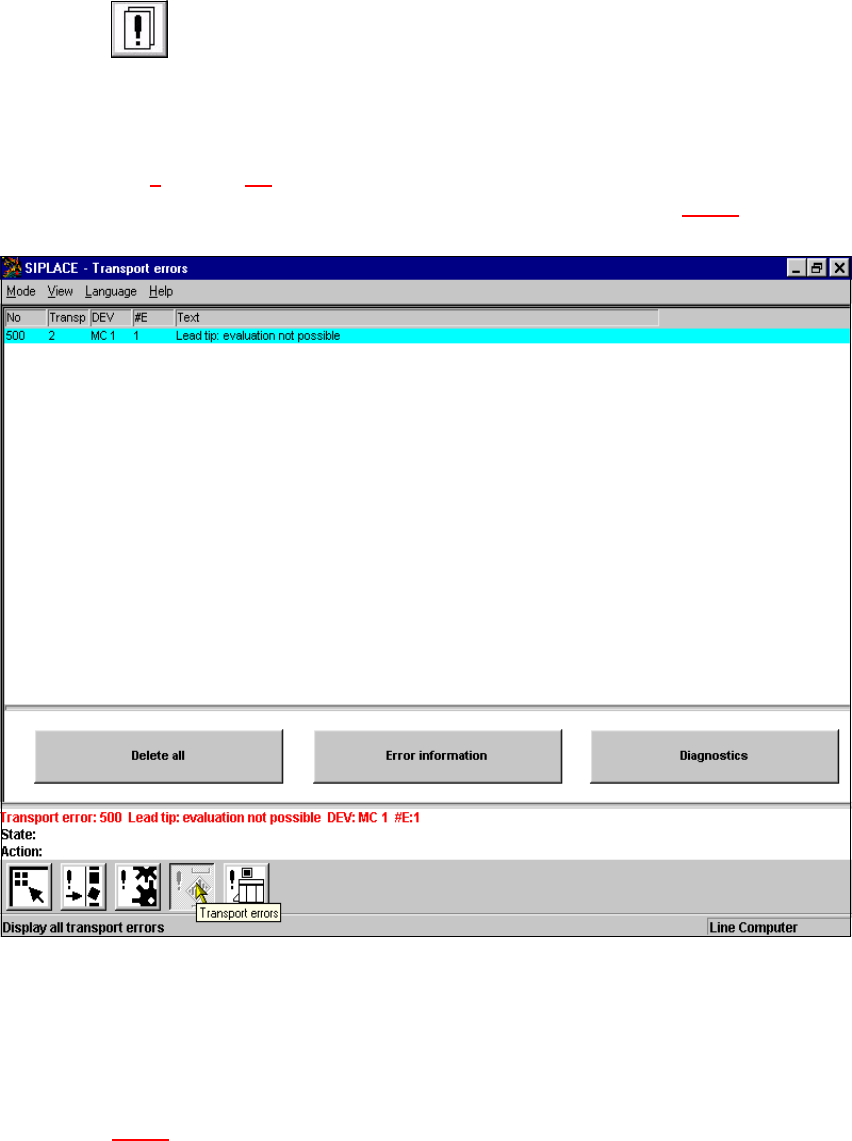
The display area is switched to the selected error type (see example in Fig. 8.2 - 2
).
8
Fig. 8.2 - 2 Example: Error type "transport error"
Å In the error table, select the entry for the error about which you want to be informed. The se-
lected line is displayed in light blue in the table. The "Error information" button is now active.
Å Click the Error information button.
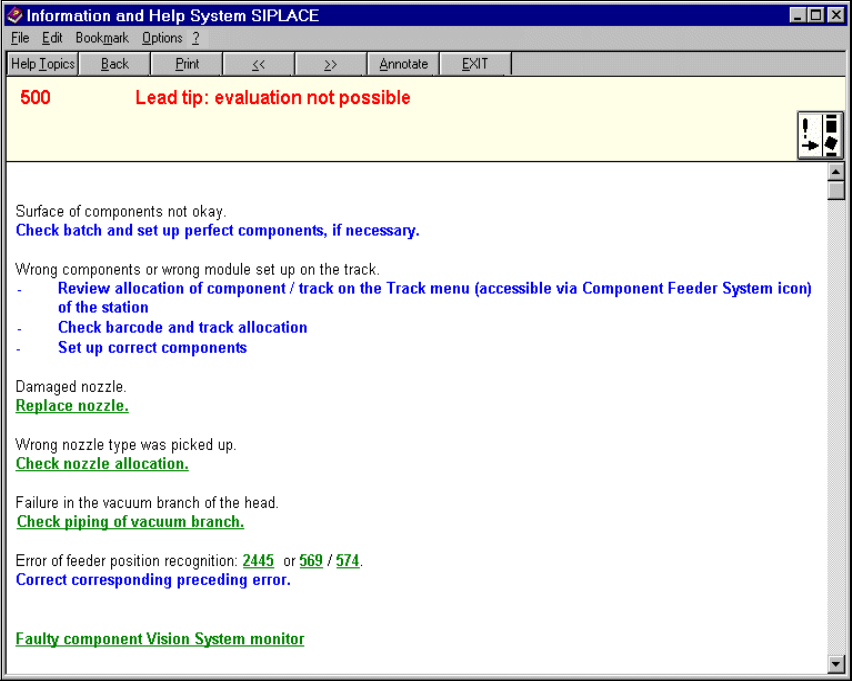
The main help system window is opened with information on the currently selected error
(see Fig. 8.2 - 3
).
8 Error Information User Manual SIPLACE F5/F5 HM
8.2 Calling error information Software version SR.407.xx 01/2001 US Edition
420
8
Fig. 8.2 - 3 Example: Error information on the current error
8
8.2.2.1 Meaning of the colors in the error information display
– Red text Error number and error message
– Black text Possible cause(s) of the error
– Blue text Instructions on how to eliminate the error
– Green, underlined text Click to call up additional information on the cause of the error
and further instructions on how to handle the error
User Manual SIPLACE F5/F5 HM 8 Error Information
Software version SR.407.xx 01/2001 US Edition 8.2 Calling error information
421
NOTE
In addition, the icon for the current error type is displayed to the right of the error message
(red text) (see Chapter 4, Section 4.2). 8
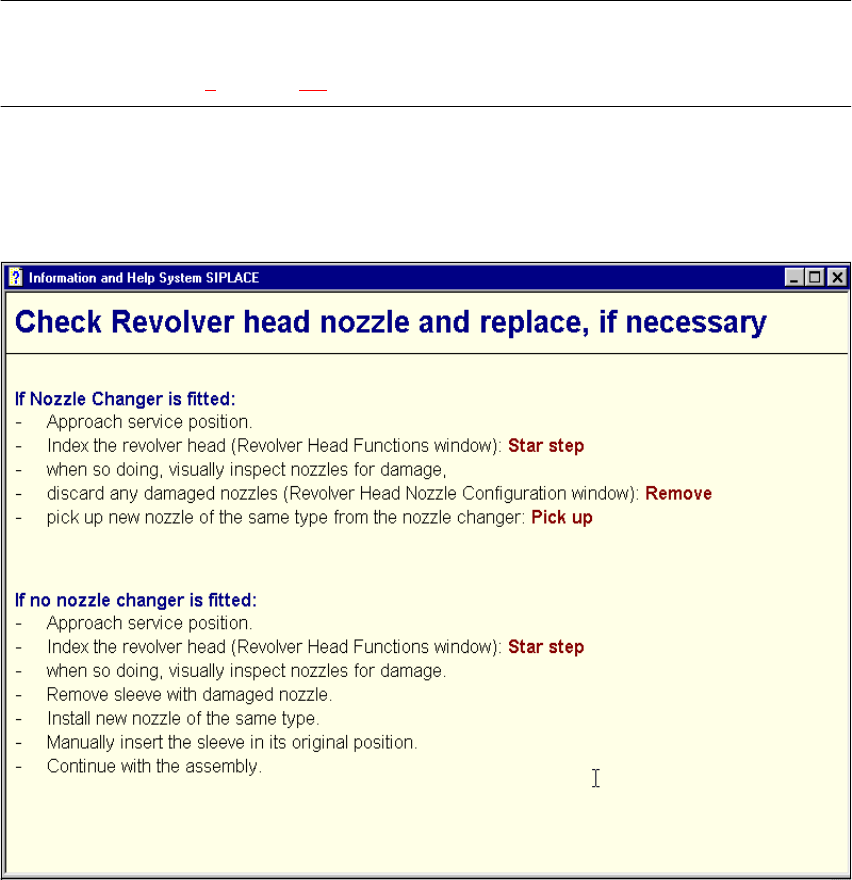
Å If necessary, click on a green, underlined text in order to call up special supplementary infor-
mation on the current error.
The display area switches to the information corresponding to the selected entry.
8
Fig. 8.2 - 4 Example: Additional information on the current error
8
8
8
8
8