00192662-01.pdf - 第431页
User Manual SIPLAC E F5/F5 HM 9 Online Help S ystem Software version SR.407.xx 01/2001 US Edition 9.1 General 431 9.1.1.5 Calling general st ation computer inf ormation Å In the He lp menu, click the About ... item . The…

9 Online Help System User Manual SIPLACE F5/F5 HM
9.1 General Software version SR.407.xx 01/2001 US Edition
430
9.1.1.4 Calling help on use of the Windows help system
Å In the Help menu, click the Help About Help item.
The Windows help window is now displayed with the three tabs "Contents", "Index" and "Find".
– Contents tab The help topics are displayed sorted by category.
– Index tab A list of the index entries for the help topics is displayed.
– Find tab You can search for words or expressions which are present in the
help topics.
9
Å For example, click the Index tab.
The topics relating to the use of the help system are displayed.
Å Select the required topic from the list (e.g. "Bookmark Define") or enter the first few characters
of the required topic name in the edit field (e.g. "Bookm"). The topic is now selected in the list.
Å Click the Display button.
Help on the selected topic is displayed in a separate window.
9
NOTE
For a detailed description of the functions of the Windows help system and how to use them, please
refer to the corresponding Windows manual or Windows online help. 9
User Manual SIPLACE F5/F5 HM 9 Online Help System
Software version SR.407.xx 01/2001 US Edition 9.1 General
431
9.1.1.5 Calling general station computer information
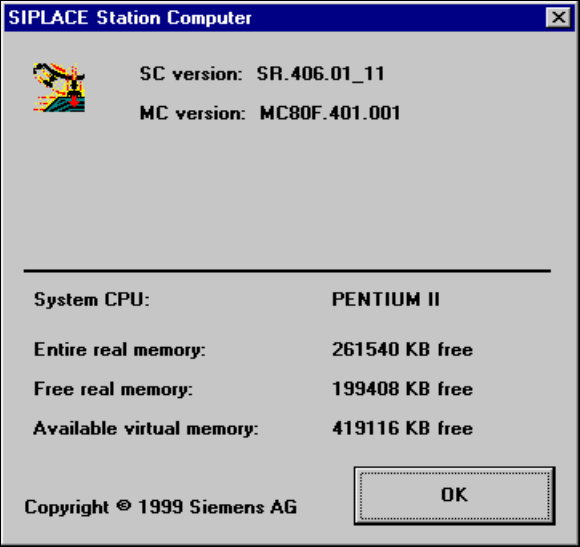
Å In the Help menu, click the About ... item.
The following window is opened.
This displays the version designations of the SC, MC and GEM software currently installed on
the station computer together with general station computer data
Fig. 9.1 - 5 Information on the station computer
9 Online Help System User Manual SIPLACE F5/F5 HM
9.1 General Software version SR.407.xx 01/2001 US Edition
432
9.1.1.6 Calling help on an object
Å Press the key combination Shift + F1 in the currently active view of the SC user interface. A
question mark is displayed next to the mouse pointer
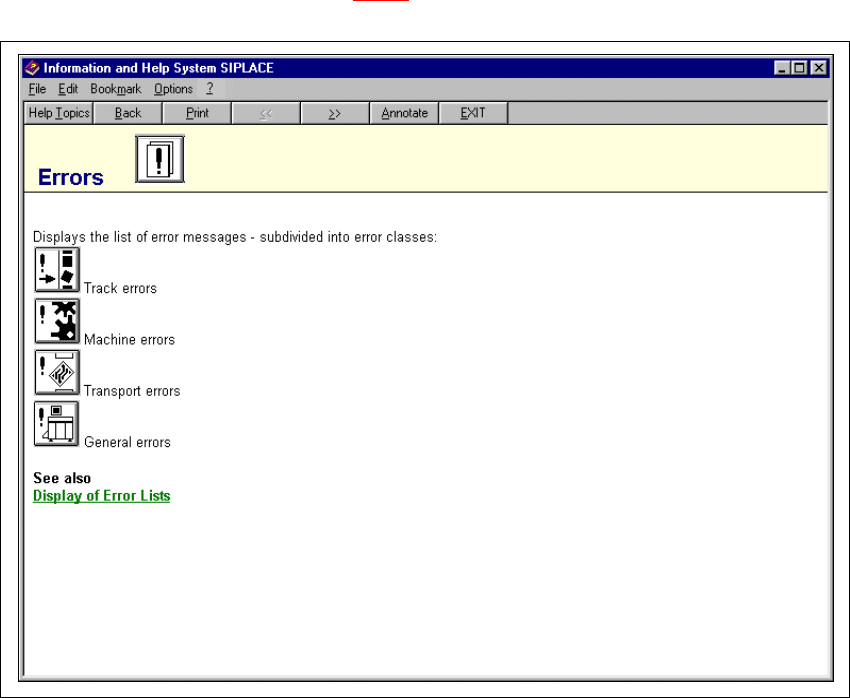
Å Move the mouse pointer and question mark to the required object (e.g. to the "Display errors"
icon) and then click.
The main help system window is opened. The display area contains help information on the
selected object (see example in Fig. 9.1 - 6
).
9
Fig. 9.1 - 6 Example: Help on the "Display errors" icon
9