CP43操作手册.pdf.pdf - 第105页
Chapter 4 Device Check Part 2 Function Key Menu +P AGE : Press to display next scr een -P AGE : Press to display previous scr een ▲ : Press to move cursor up one device ▼ : Press to move cursor down one device ESC : Pr e…
Chapter 4 Device CheckPart 2
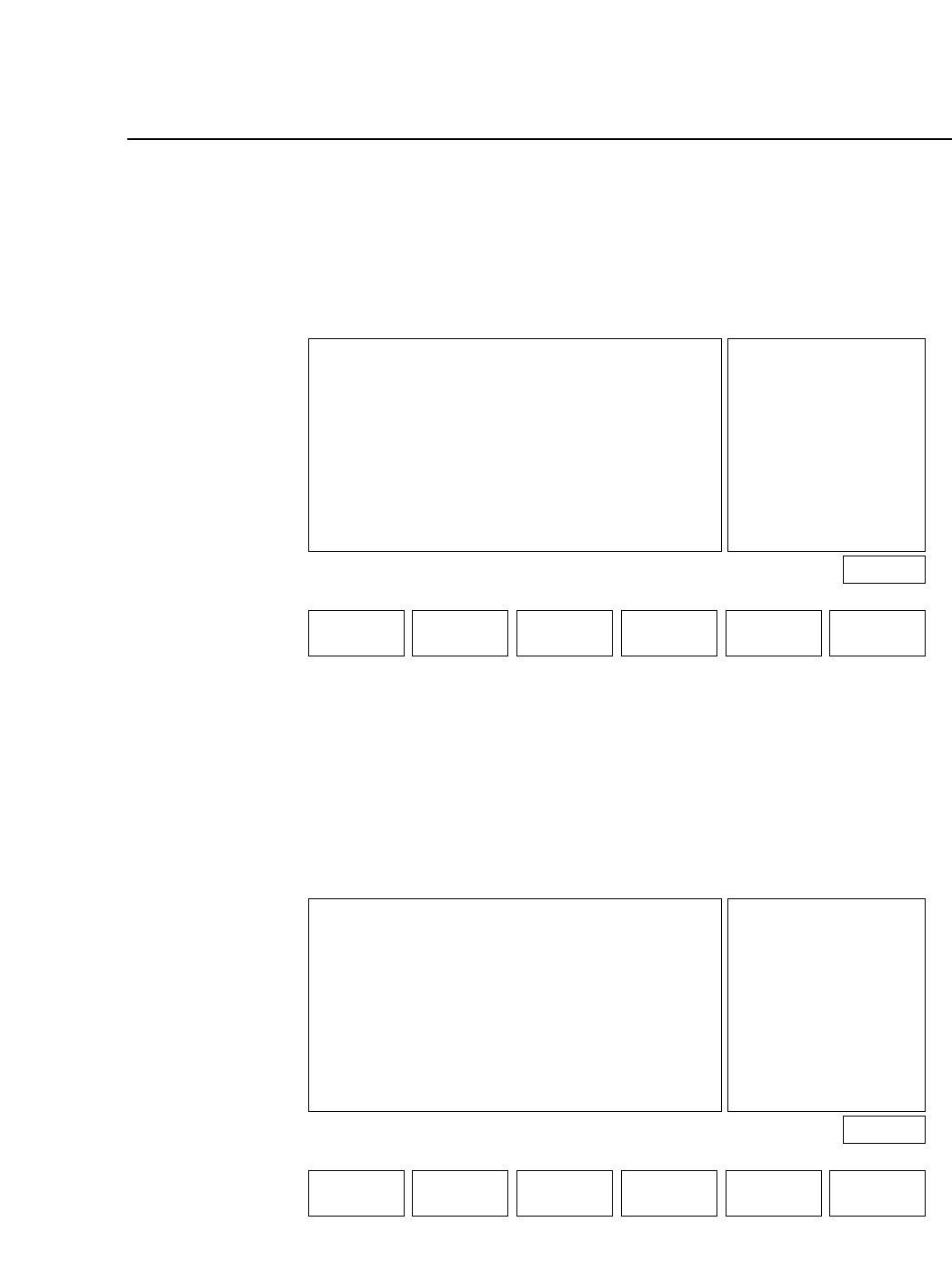
F2: MODE 1
In this mode the screen display will be like the one below where only
the device positions that are used in the program actually appear on
the screen.
F3 MODE 2
In this mode the display screen will be like the one shown below.
Among the device positions that are used in the program, only those
positions with a status condition such as Un Set, Parts E, Pickup,
Vision, etc. will actually display on the screen.
Page 451
+PAGE -PAGE ▲ RETURN
D001
D002
D005
D006
D007
D009
D015
Un Set
Parts E
Vision
Tape E
Next_d
Pickup
Un Set
[0013]
[0008]
[0005]
[0007]
[0002]
[0003]
[0023]
Device_comment_No_1
Korewa_No_2Desu
MSD2HD256
Micro_Tr_No1
Super_Mini_Tr
N3456Sd23
RECT3216060
▼ ESC
Page 451
+PAGE -PAGE ▲ RETURN
D001
D002
D003
D004
D005
D006
D007
D008
D009
D010
D015
Un Set
Parts E
Vision
Tape E
Next_d
Pickup
Un Set
[0013]
[0008]
[0002]
[0000]
[0001]
[0005]
[0007]
[0002]
[0003]
[0015]
[0023]
Device_comment_No_1
Korewa_No_2Desu
PCPR1-2TL
MSD2HD256
Micro_Tr_No1
Super_Mini_Tr
Nihongonitute
N3456Sd23
Jaf
RECT3216060
▼ ESC
2 – 36Version 5.0
FCP IV-3 Operation
Chapter 4 Device CheckPart 2
Function Key Menu
+PAGE : Press to display next screen
-PAGE : Press to display previous screen
▲ : Press to move cursor up one device
▼ : Press to move cursor down one device
ESC : Press to avoid checking all devices that have not been
checked yet. However, if Proper data item 74: ESC
Permission is not set to "Permit" this key cannot be
used.
Note: Even if ESC Permission is set to "Permit" this key cannot be used if
a "Parts out" device has been set.
The following methods can be used to register completion of device check.
(1) Move the cursor to the appropriate page using the function keys and
press the [CR] key.
(2) Input the device number.
example: device number 101
Input [1] [0] [1] and press the [CR] button to complete the check. The
color of the display will change to green. However, if the device
number being input is not displayed on the screen then only the
screen will change. Device check completion is not registered. The
device number must be input again and the [CR] key pressed to
register that the check has been completed.
(3) Press the [ESC] key.
This method allows the user to skip checking all devices that have not
been checked. However, if Proper data item 74: ESC Permission is
not set to "Permit" this key cannot be used.
+PAGE -PAGE ▲ RETURN▼ ESC
2 – 37Version 5.0
FCP IV-3 Operation
Chapter 4 Device CheckPart 2
4.4 Permanent Set
If a number of production programs are being used, there are cases when
frequently used devices are fixed in order to eliminate several steps in the
changeover process when changing programs. When programs are
changed, if this method is used, a comparison is made between the device
comments stored in present machine memory and the device comment of
the program that has changed. For any devices in common, device check
is omitted if the device has been checked already. Devices set in such a
manner are referred to as permanently set devices.
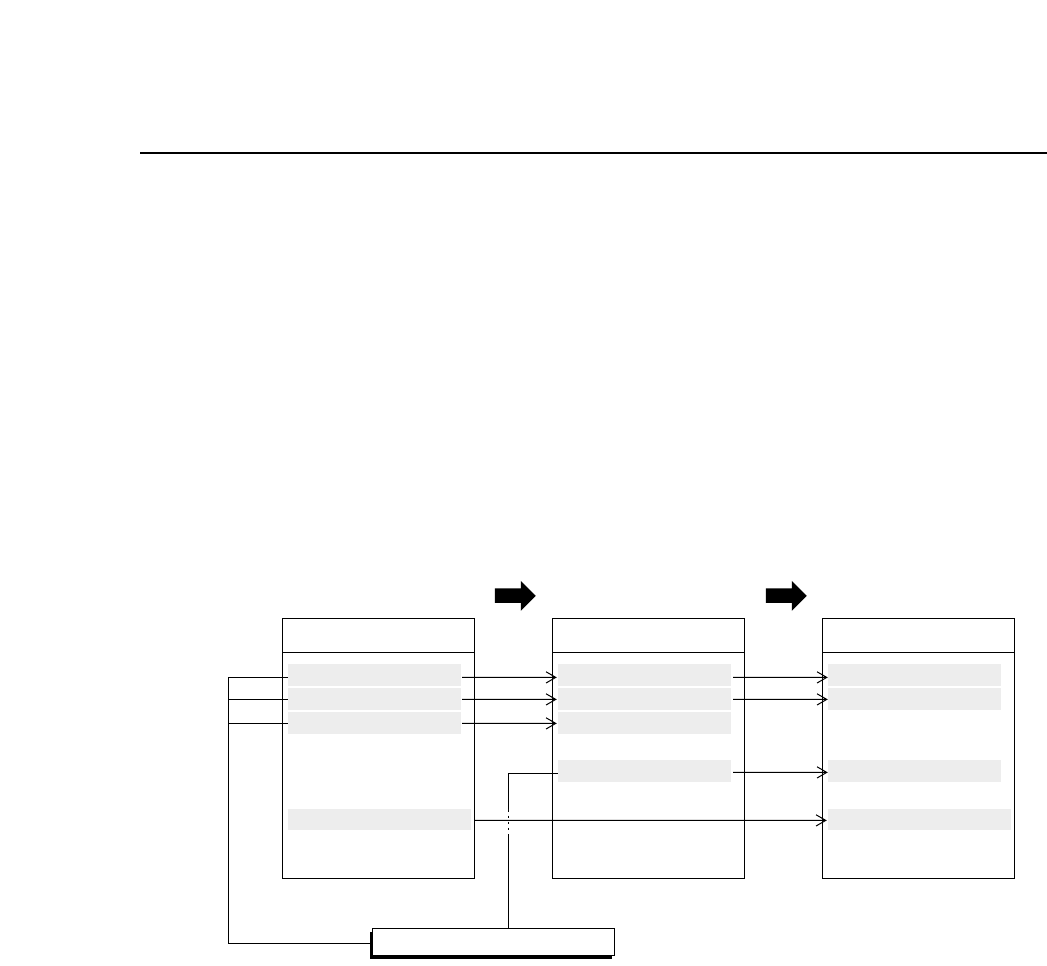
For example, consider the display below where production programs are
carried out in A → B → C order.
When changing from production program A to B.
If D1~D3 are used in both programs then once these devices have
been checked they are considered permanently set devices. These
devices are displayed in green on the device check screen. Once a
device check is completed on D7 it is considered a permanently set
device. Since D7 is not used in production program B a device check
is not carried out. Permanently set devices such as D7 that are not
used in the current program display in blue on the screen.
When changing from production program B to C.
D1 and D2 are used in both programs and have already been checked.
These devices have been judged as permanently set devices and are
displayed in green on the device check screen. The device being used
in D3 has changed and thus a device check is carried out. This device
is displayed in yellow on the device check screen until a check is
carried out. D7 has already been checked and determined as a
permanently set device and thus it displays in green.
Device_Comment
D1 RECT3216120
D2 RECT1608040
D3 MINI1220120
D4 ALEC4343570
D5 RECT2012040
D6 RNT45032040
D7 SQFP03610100
··········
Production program A
Device_Comment
D1 RECT3216120
D2 RECT1608040
D3 MINI1220120
D4 ALEC4343570
D5 RECT2012040
D6 RNT45032040
··········
Production program B
Device_Comment
D1 RECT3216120
D2 RECT1608040
D3 MINI1220120
D4 ALEC4343570
D5 RECT2012040
D6 RNT45032040
D7 SQFP03610100
··········
Production program C
Permanently Set Devices
2 – 38Version 2.0
FCP IV-3 Operation