00194888-01_DE_EN.pdf - 第88页
Installation Manual, Station Software Version 603.01 Issue 11/2006 26 of 62 Fig. 4-4: "Multiple M onitor Layout" dialog box → Click the Mirrored Monitors button. → Confirm your entry with OK . The touchscreens …
Installation Manual, Station Software Version 603.01 Issue 11/2006
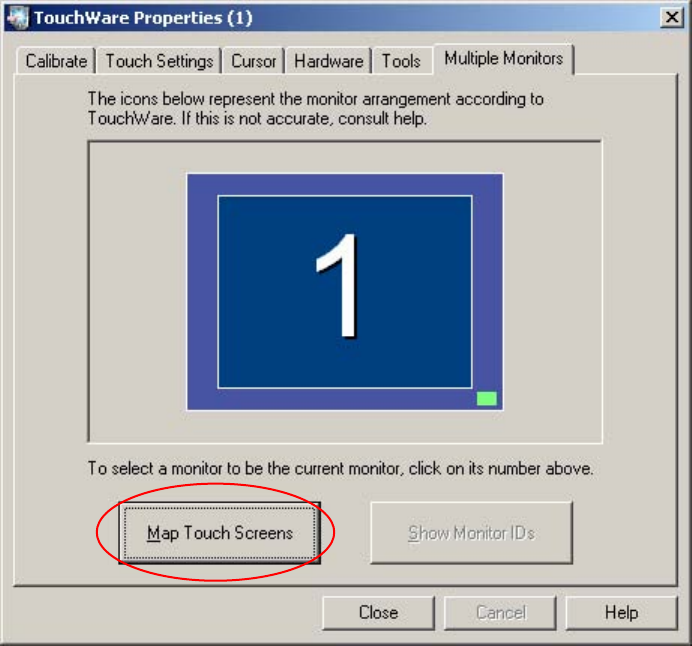
Fig. 4-3: TouchWare Properties – Multiple Monitors tab
→ Click the Map Touch Screens button.
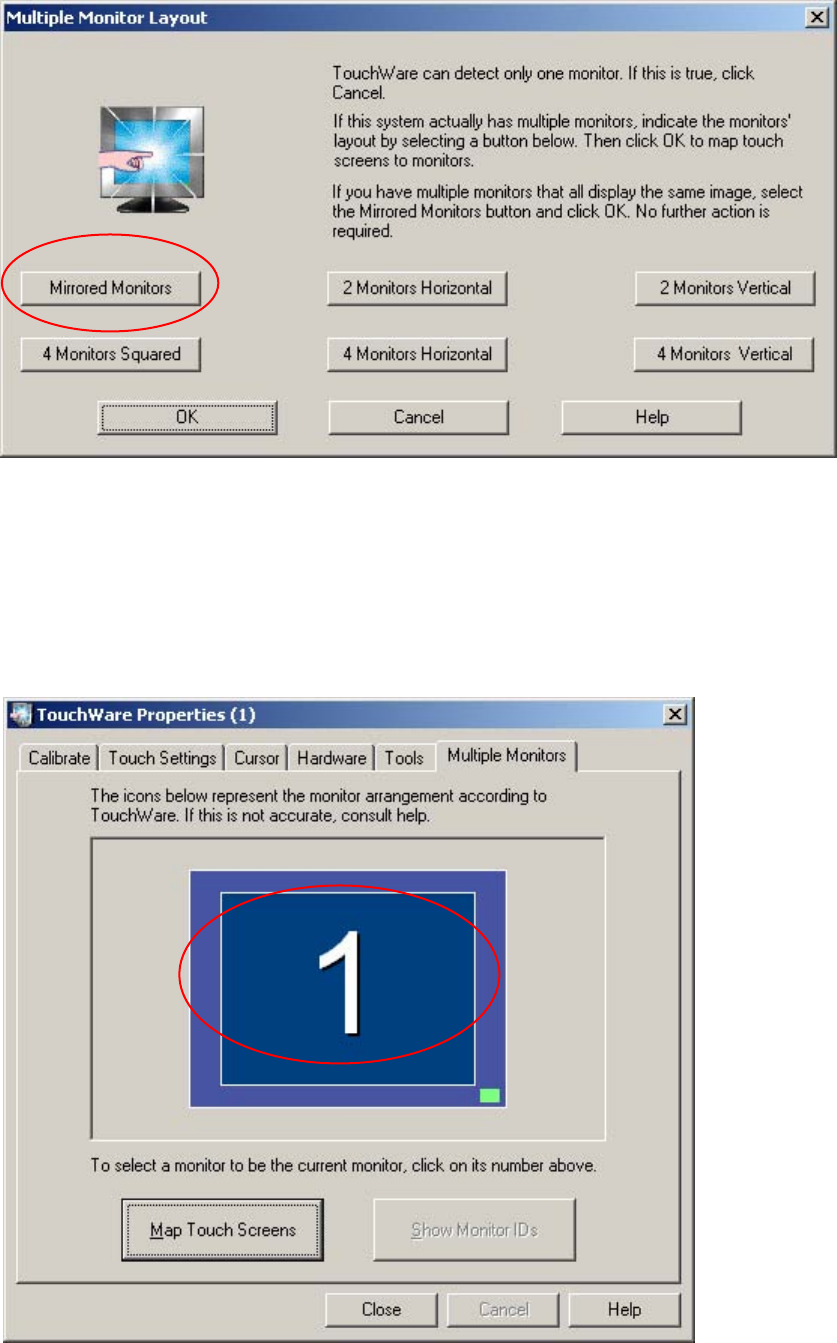
The "Multiple Monitor Layout" dialog box appears.
25 of 62
Installation Manual, Station Software Version 603.01 Issue 11/2006
26 of 62
Fig. 4-4: "Multiple Monitor Layout" dialog box
→ Click the Mirrored Monitors button.
→ Confirm your entry with OK.
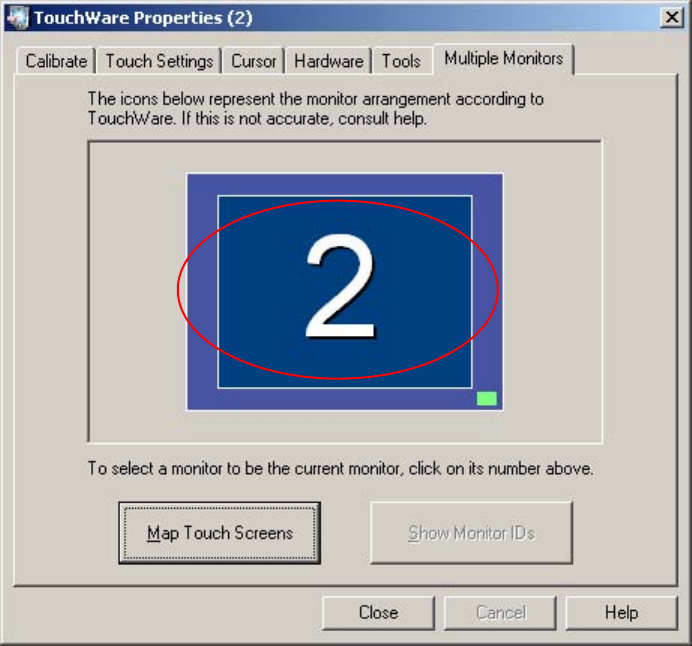
The touchscreens are now mapped and the "Multiple Monitors" tab is displayed again.
Fig. 4-5: TouchWare Properties – Multiple Monitors tab (example for Monitor 1)
Installation Manual, Station Software Version 603.01 Issue 11/2006
Fig. 4-6: TouchWare Properties – Multiple Monitors tab (example for Monitor 2)
→ Click the number of the monitor you wish to calibrate.
→ Open the Calibrate tab.
27 of 62