00198243-01_AI_BulkFeederX_XS-SX_DE+EN.pdf - 第129页
5 Final work 5.1 Connecting the keyboard and monitor Assembly Instructions / Montageanleitung SIPLACE BulkFeeder X Retrofit Kit for SX Series and X Series S 07/2017 129 5 Final work 5.1 Connecting the keyboard and monito…
4 Retrofit kit for X-Series S
4.6 Connecting the cable
128 Assembly Instructions / Montageanleitung SIPLACE BulkFeeder X Retrofit Kit for SX Series and X Series S 07/2017
4.6 Connecting the cable
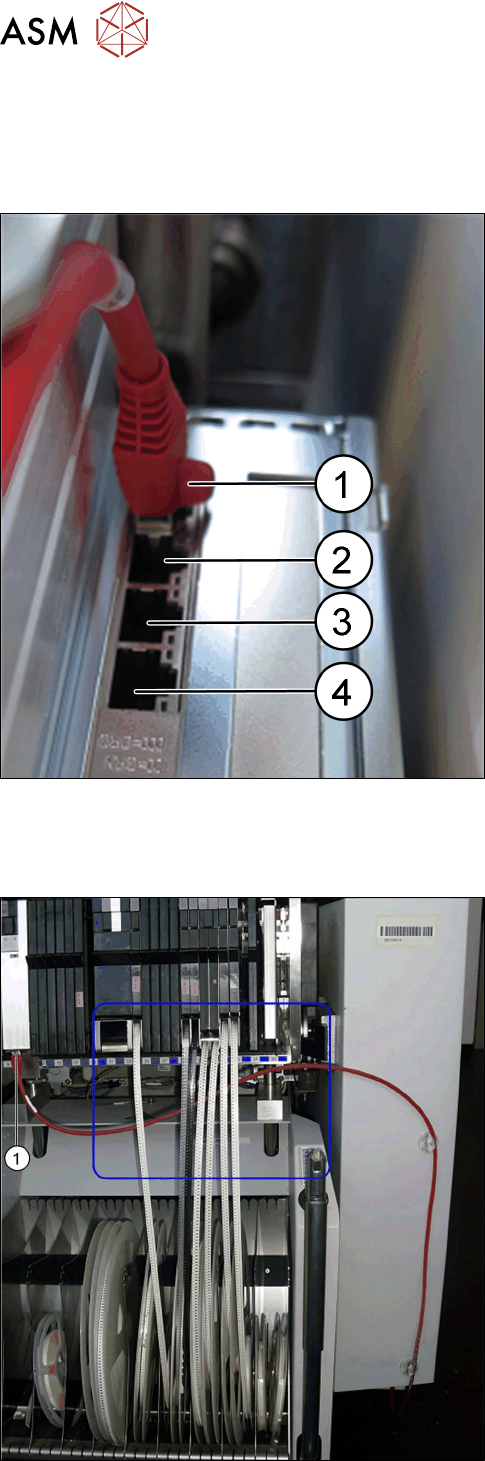
Connecting the BulkFeeder X to the BulkFeeder X computer
After inserting the cable, connect the BulkFeeder X to the BulkFeeder X computer:
► Connect the BulkFeeder X cable to the Bulk-
Feeder X computer:
(1) BulkFeeder X for location 1
(2) BulkFeeder X for location 2
(3) BulkFeeder X for location 3
(4) BulkFeeder X for location 4
Connecting the BulkFeeder X
One BulkFeeder X can be connected and operated per location. It can be placed anywhere on the
changeover table.
► Run the connection cable under the tapes.
► Connect the cable (1).
5 Final work
5.1 Connecting the keyboard and monitor
Assembly Instructions / Montageanleitung SIPLACE BulkFeeder X Retrofit Kit for SX Series and X Series S 07/2017 129
5 Final work
5.1 Connecting the keyboard and monitor
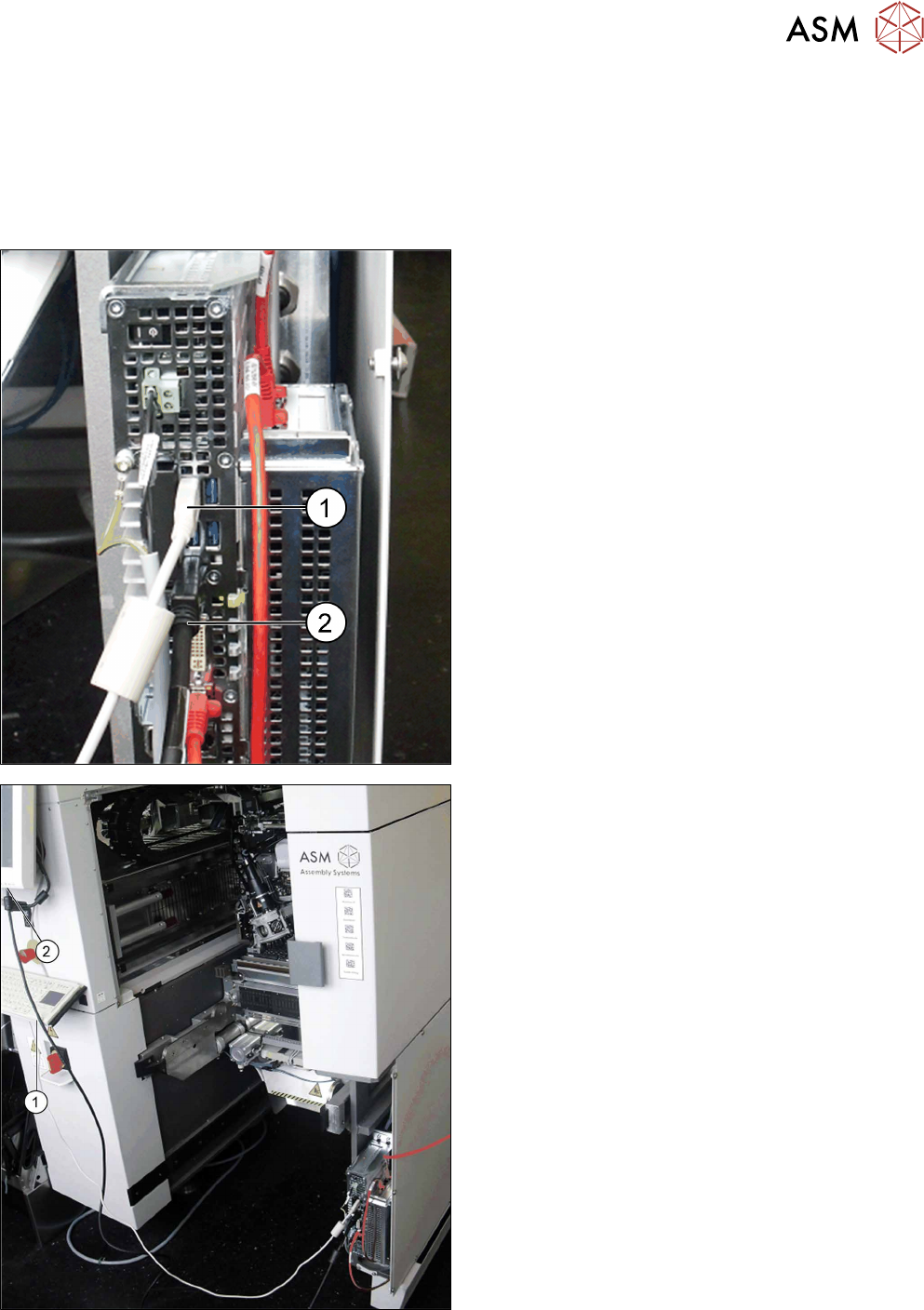
The configuration and installation of the BulkFeeder X computer is undertaken using the user con-
sole at location 4. To use this, you need to connect the keyboard and monitor cable provided.
► Connect the keyboard cable (1) and the monitor
cable (2) to the BulkFeeder X computer.
► Connect the keyboard cable (1) to the keyboard
at the user console and the monitor cable (2) to
the monitor at the user console.
5 Final work
5.2 Configuring the BulkFeeder computer
130 Assembly Instructions / Montageanleitung SIPLACE BulkFeeder X Retrofit Kit for SX Series and X Series S 07/2017
5.2 Configuring the BulkFeeder computer
5.2.1 Configuration for SX-Series
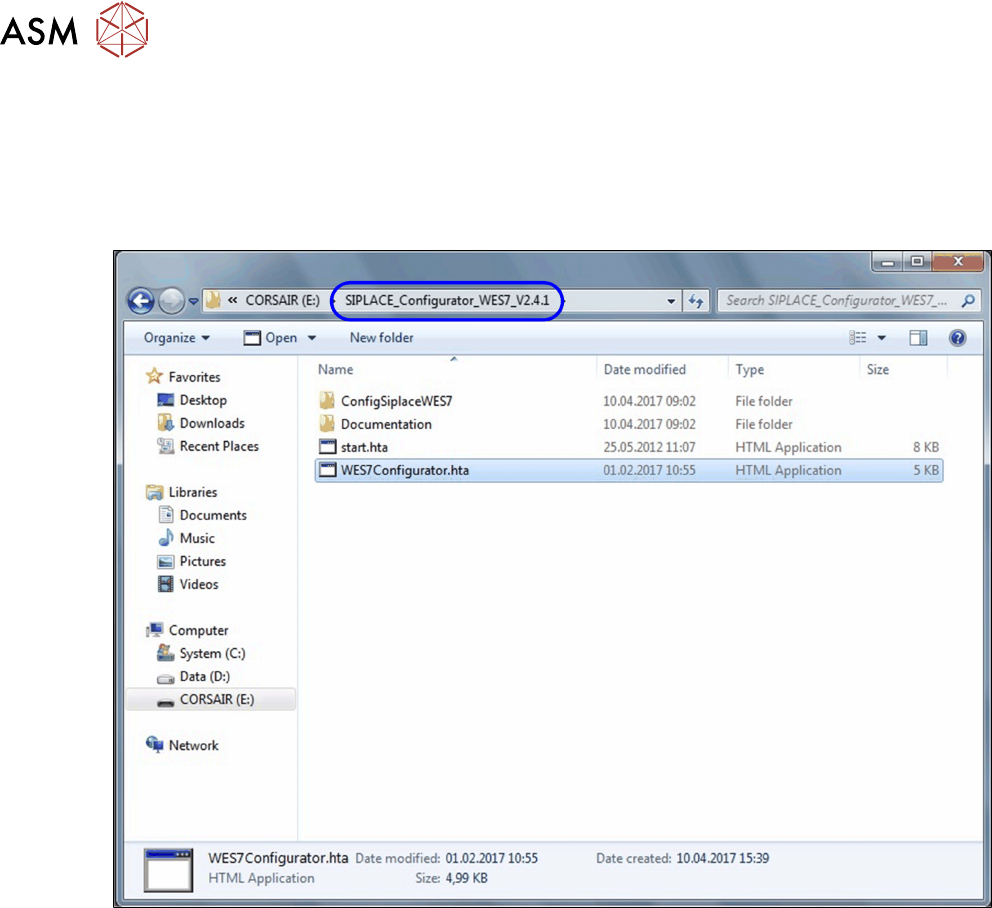
To control the BulkFeeder X in the machine, you need to configure the BulkFeeder X computer.
To configure this computer, proceed as follows.
► Open an Explorer window and switch over to the folder SIPLACE_Configur-
ator_WES7_V2.41.