2.VGOS V30 application software installation_upgrade manual.pdf - 第14页
For Users Serv i ce Information SI090100 2E- 003=VGOS V3 0 applicatio n software installatio n /upgrade manua l 14/24 4 Upgrad e the appli cation sof tw are Machine applica ti on software is upgraded to enable enhanced f…
For Users
Service Information
SI0901002E-003=VGOS V30 application software installation/upgrade manual
13/24
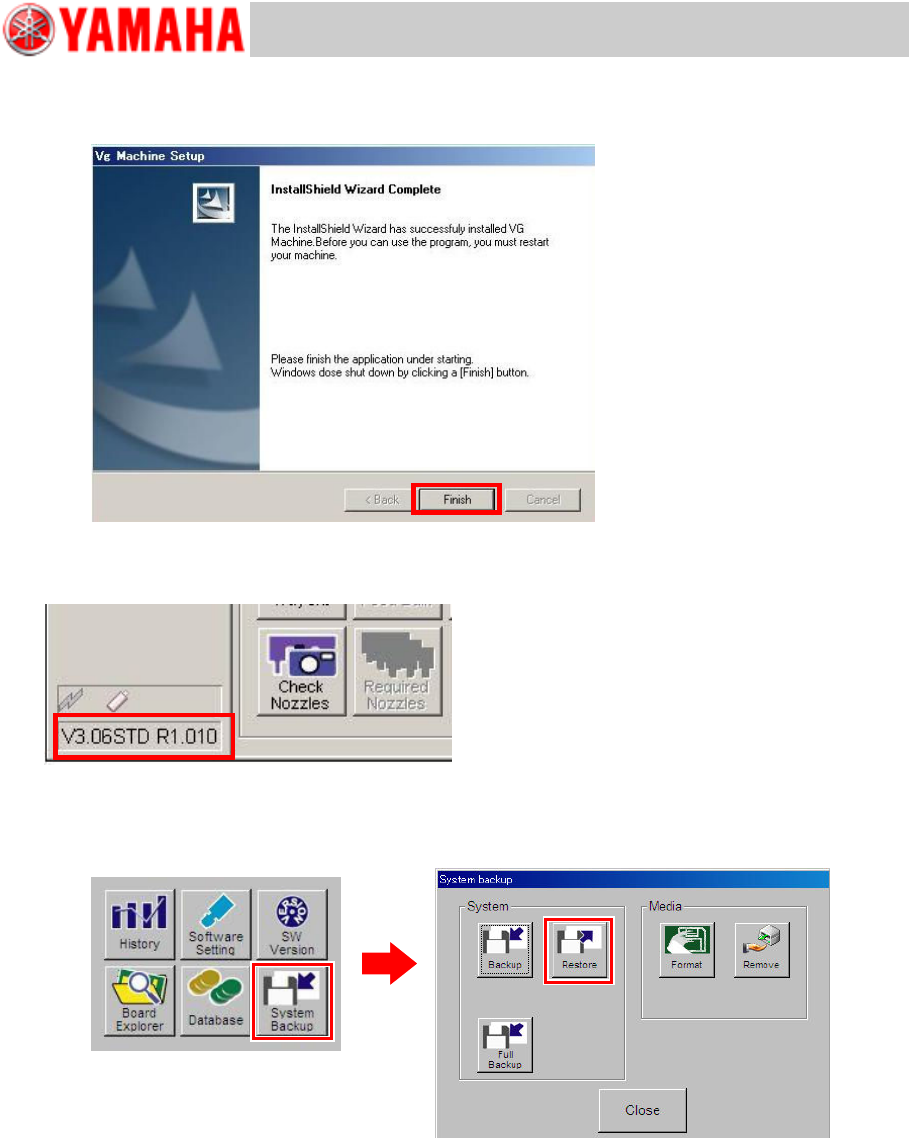
Step 11 Exit the installation wizard.
The InstallShield Wizard Completed window appears. Click the [Finish] button. The machine
automatically executes shutdown process.
Step 12 Restart the machine and check the machine application version displayed at the lower
left of the screen.
Step 13 Restore the system data backup to the application.
See “YS series Programming Manual”, Chapter 6 Managing the data for information.
Note
After restoring the system data, check if any change has been made in the following settings
since backing up the system data and restore the settings as necessary.
· Re-register IP addresses if network connection is established.
· Rename computers and workgroups.
· Restore backed up board data to the machine. If board data is saved in a networked PC,
re-register destination directory to browse for board data.
For Users
Service Information
SI0901002E-003=VGOS V30 application software installation/upgrade manual
14/24
4 Upgrade the application software
Machine application software is upgraded to enable enhanced functions, accommodate to custom
software functions or for other reasons.
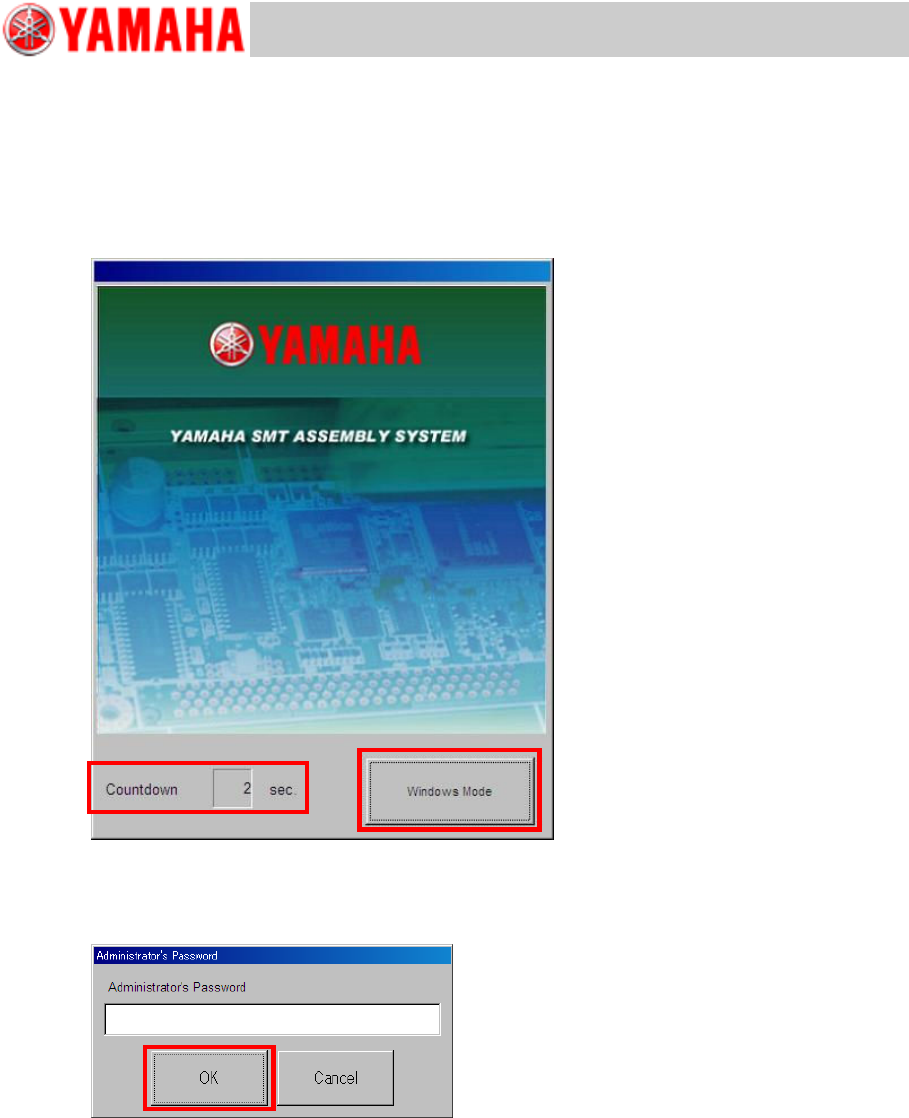
Step 1 Power on the machine and enter the Windows Mode.
Upon powering on the machine, the below window appears shortly. Click the [Windows
Mode] button before Countdown expires.
Step 2 Enter an Administrator’s password.
If a password has been registered, enter the password and click the [OK] button. If not, leave
the textbox empty and click the [OK] button.
For Users
Service Information
SI0901002E-003=VGOS V30 application software installation/upgrade manual
15/24
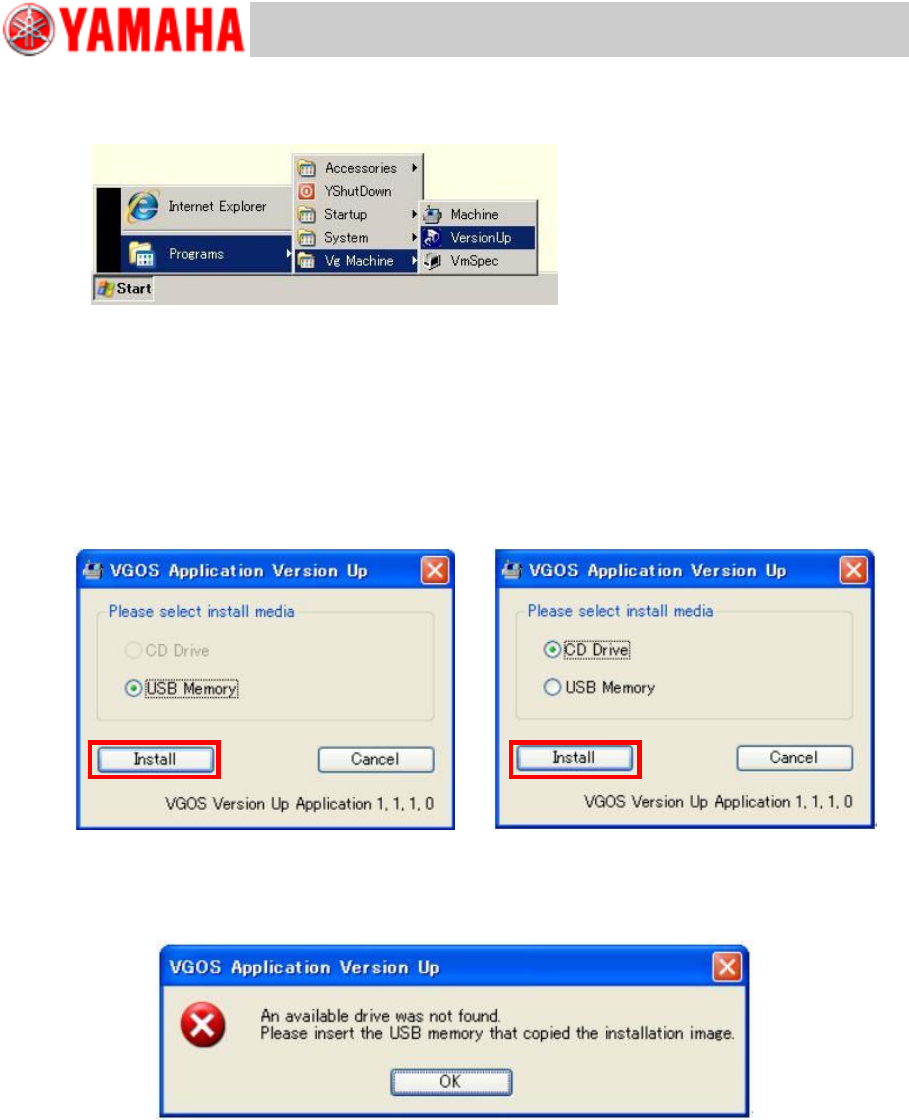
Step 3 Start the VGOS Application Version Up program.
From Windows start menu, select [Programs], [Vg Machine] then [VersionUp] to run the
program.
Note
When the system version is V3.00, or when other USB flash drive than the designated one
is used for application installation/upgrading, the VGOS Application Version Up program is
not selectable via the above menu selection. In this case, start the explorer and double click
“Setup.exe” in the installation image instead.
Step 4 Select an install media (source drive) and click the [Install] button.
If the machine is equipped with the CD drive, the “CD Drive” radio button is selectable.
Note
If the specified drive cannot be found, the following warning message appears. Check if the
source USB flash drive or CD is inserted properly, and click the [Install] button again.
n Machine Not equipped with CD drive
(YG12, YS series)
n Machine equipped with CD drive
(YG300)