2.VGOS V30 application software installation_upgrade manual.pdf - 第19页
For Users Serv i ce Information SI090100 2E- 003=VGOS V3 0 applicatio n software installatio n /upgrade manua l 19/24 Step 12 If the system softw are n eeds to be updated, th e below message appears. Complete the applica…
For Users
Service Information
SI0901002E-003=VGOS V30 application software installation/upgrade manual
18/24
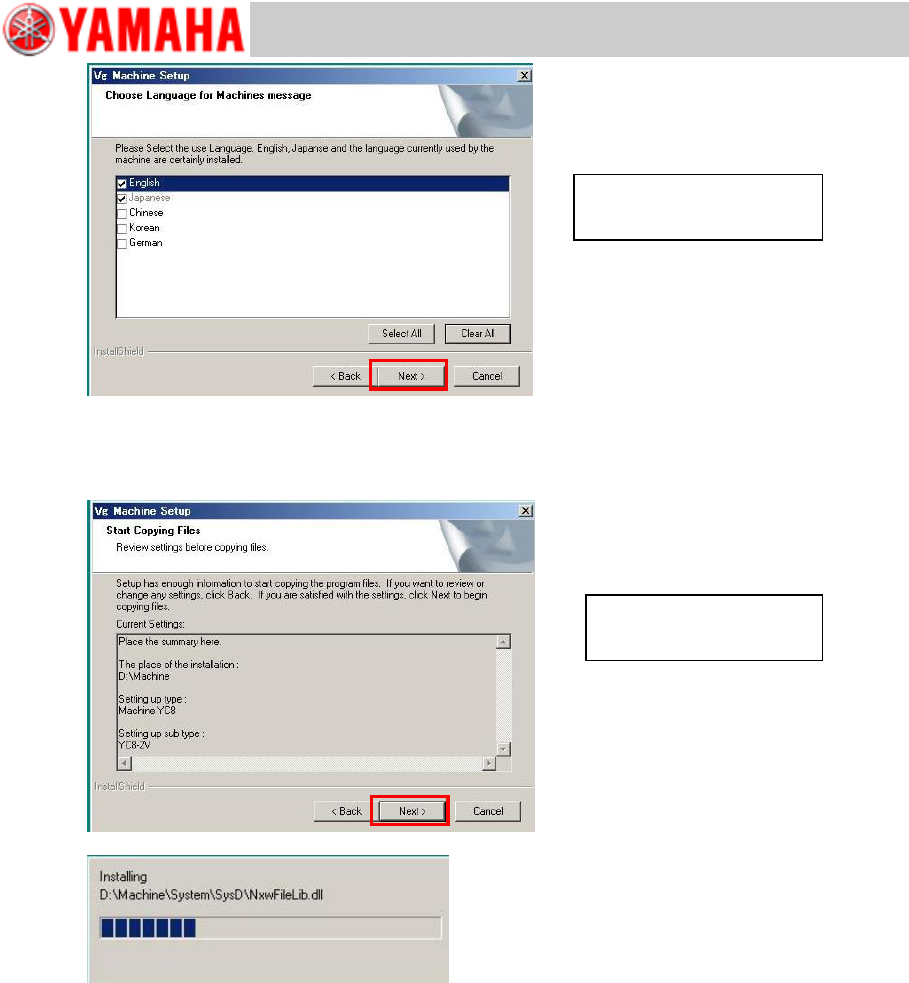
Step 11 Start installing the application.
Review all your settings and change as necessary. Then start installation by selecting [Next
>].
Select languages and select
[Next >].
Review settings and select
[Next >].
For Users
Service Information
SI0901002E-003=VGOS V30 application software installation/upgrade manual
19/24
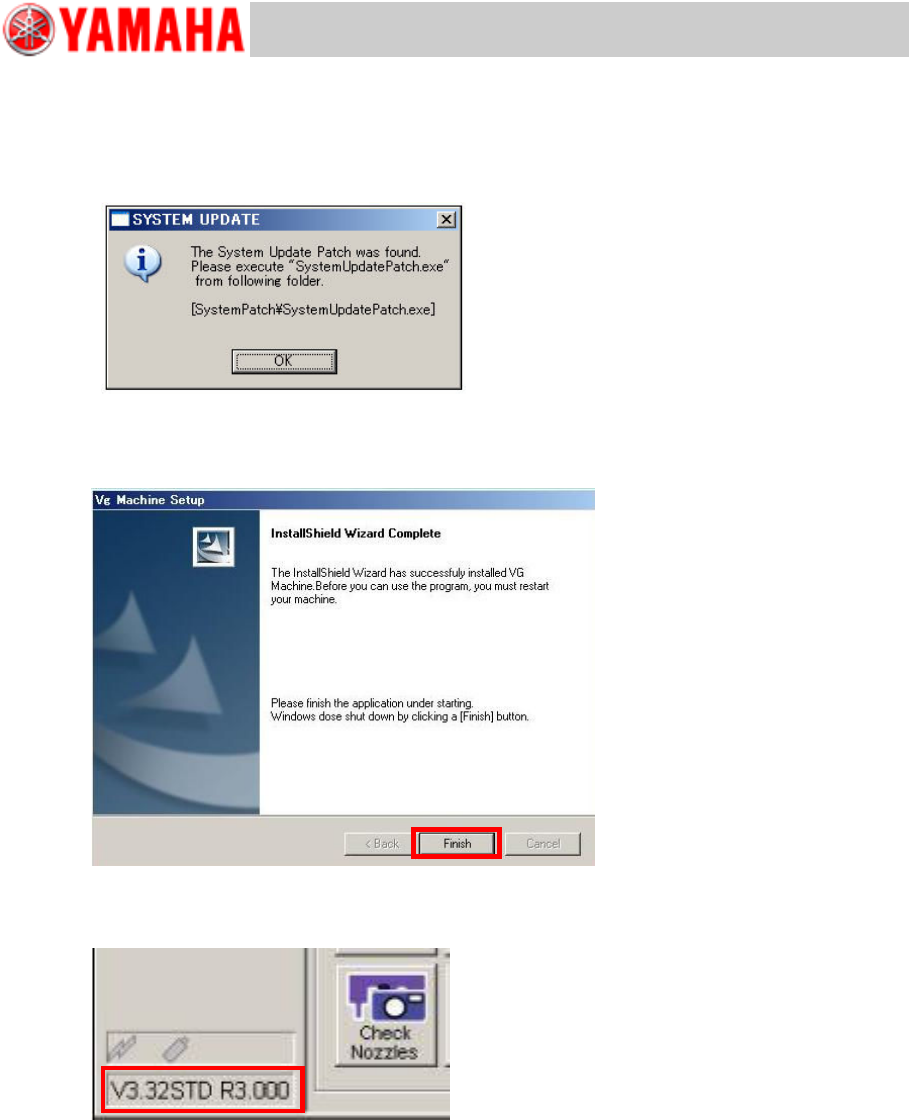
Step 12 If the system software needs to be updated, the below message appears.
Complete the application upgrading first. Then back up the system full back-up data and
execute “V30 System Update”.
Note
For details about the system software updating, see “5 Update the system software”.
Step 13 Exit the installation wizard.
The InstallShield Wizard Completed window appears. Click the [Finish] button. The machine
automatically executes shutdown process.
Step 14 Restart the machine and check the machine application version displayed at the lower
left of the screen.
For Users
Service Information
SI0901002E-003=VGOS V30 application software installation/upgrade manual
20/24
5 Update the system software
During application upgrading process, if a message appears prompting you to update the system
software, perform the following:
n Perform system full backup.
n Execute “V30 System Update” (V30 system patch program).
5.1 System full back-up
Back up the system full back-up data as data security routine.
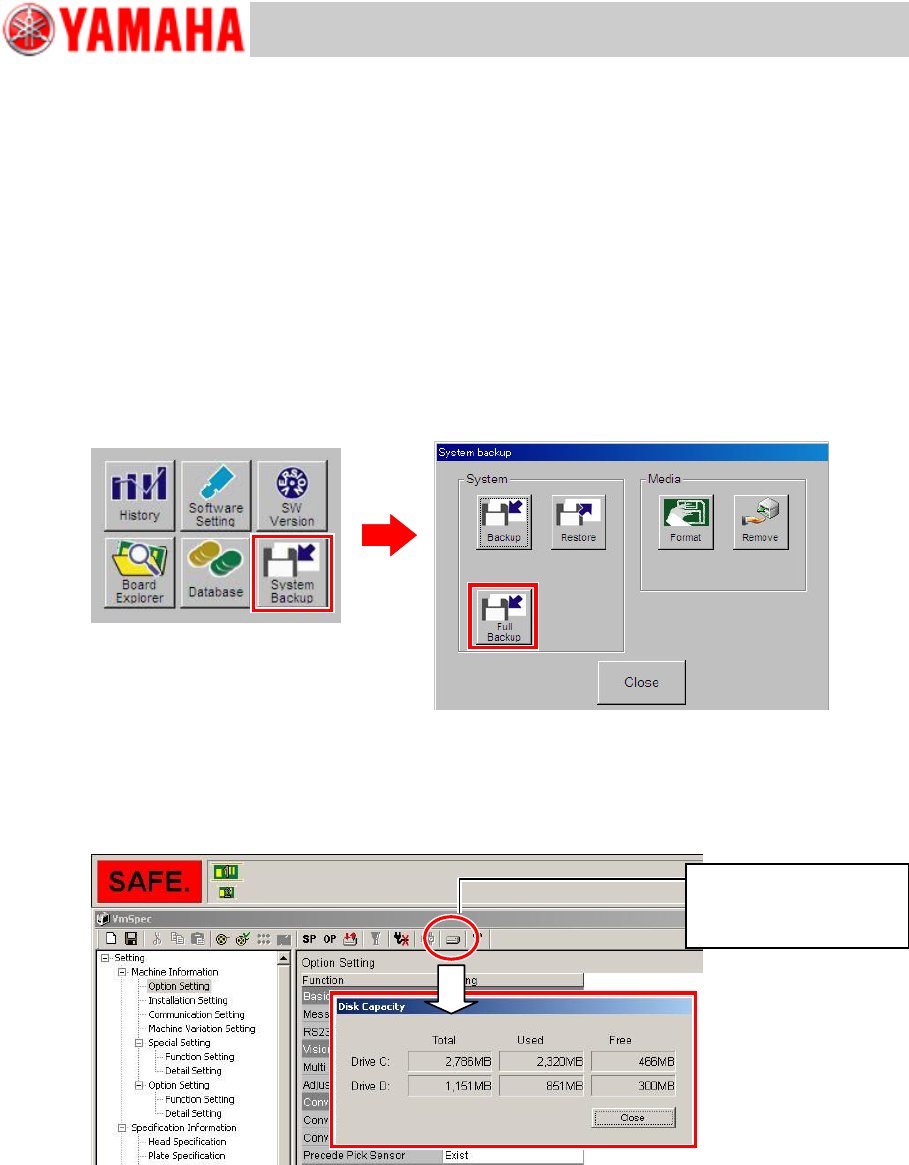
n Menu selection
Open the [Setup] window and click the [System Backup] button. Then in the System backup
window, click the [Full Backup] button. Plug a USB flash drive into the machine and click the
[Yes] button to execute copying.
n Required space for system full back-up
Destination drive to store full back-up data must have more free space than the CF capacity.
The CF capacity may vary depending on machine models, so be sure to check the CF
capacity beforehand.
Note
For further information about the system full back-up, see “YS series Programming Manual”,
Chapter 6 Managing the data.
In the VmSpec window,
press the HDD button to
show disc capacities.