2.VGOS V30 application software installation_upgrade manual.pdf - 第21页
For Users Serv i ce Information SI090100 2E- 003=VGOS V3 0 applicatio n software installatio n /upgrade manua l 21/24 5.2 V30 System Up date “ V30 Sy stem U pdate ” is designed to install a patch to update the system sof…
For Users
Service Information
SI0901002E-003=VGOS V30 application software installation/upgrade manual
20/24
5 Update the system software
During application upgrading process, if a message appears prompting you to update the system
software, perform the following:
n Perform system full backup.
n Execute “V30 System Update” (V30 system patch program).
5.1 System full back-up
Back up the system full back-up data as data security routine.
n Menu selection
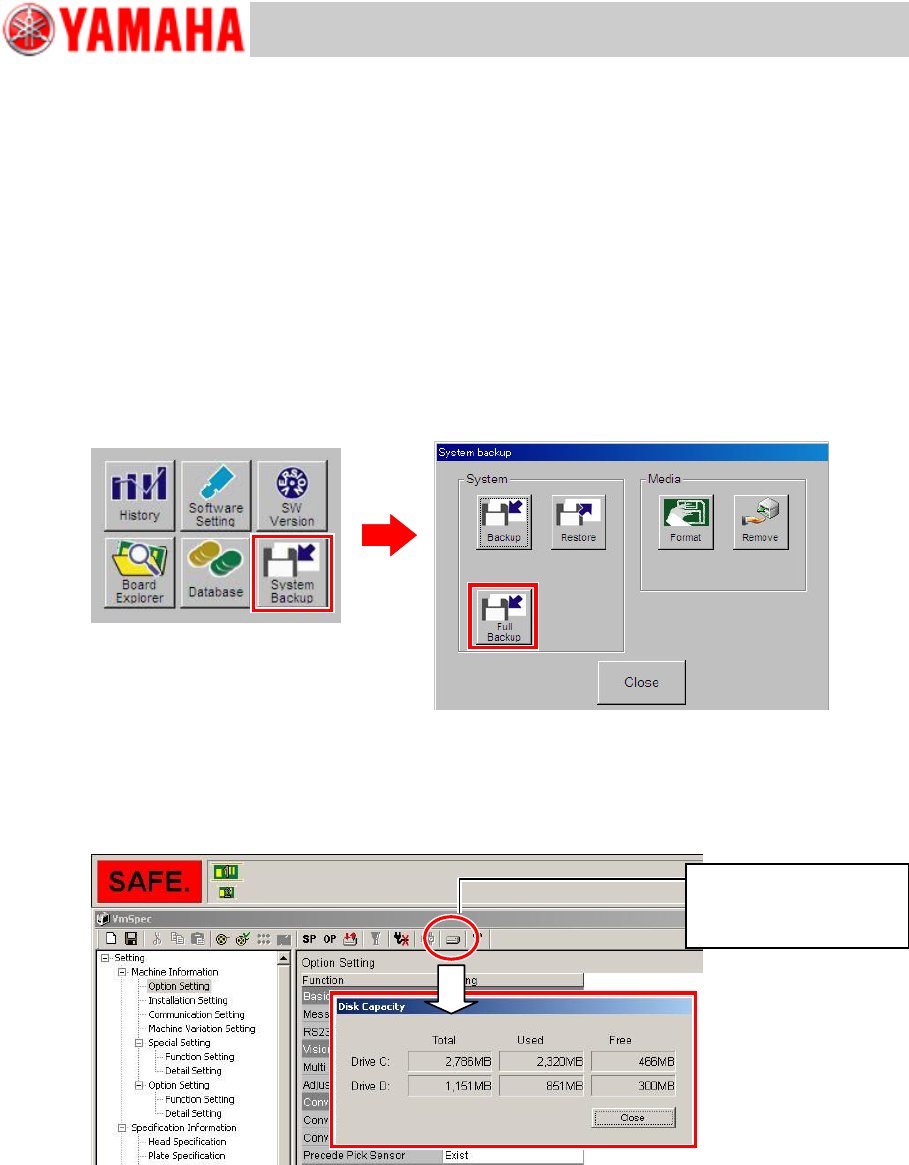
Open the [Setup] window and click the [System Backup] button. Then in the System backup
window, click the [Full Backup] button. Plug a USB flash drive into the machine and click the
[Yes] button to execute copying.
n Required space for system full back-up
Destination drive to store full back-up data must have more free space than the CF capacity.
The CF capacity may vary depending on machine models, so be sure to check the CF
capacity beforehand.
Note
For further information about the system full back-up, see “YS series Programming Manual”,
Chapter 6 Managing the data.
In the VmSpec window,
press the HDD button to
show disc capacities.
For Users
Service Information
SI0901002E-003=VGOS V30 application software installation/upgrade manual
21/24
5.2 V30 System Update
“V30 System Update” is designed to install a patch to update the system software. With this
patch you don’t have to reinstall the entire system software to update the existing system
software.
Note
Be sure to perform the system full back-up before executing “V30 System Update”.
5.2.1 Preparation
n Preparation
· Back up “system full back-up” data.
See “5.1 System full back-up” for information.
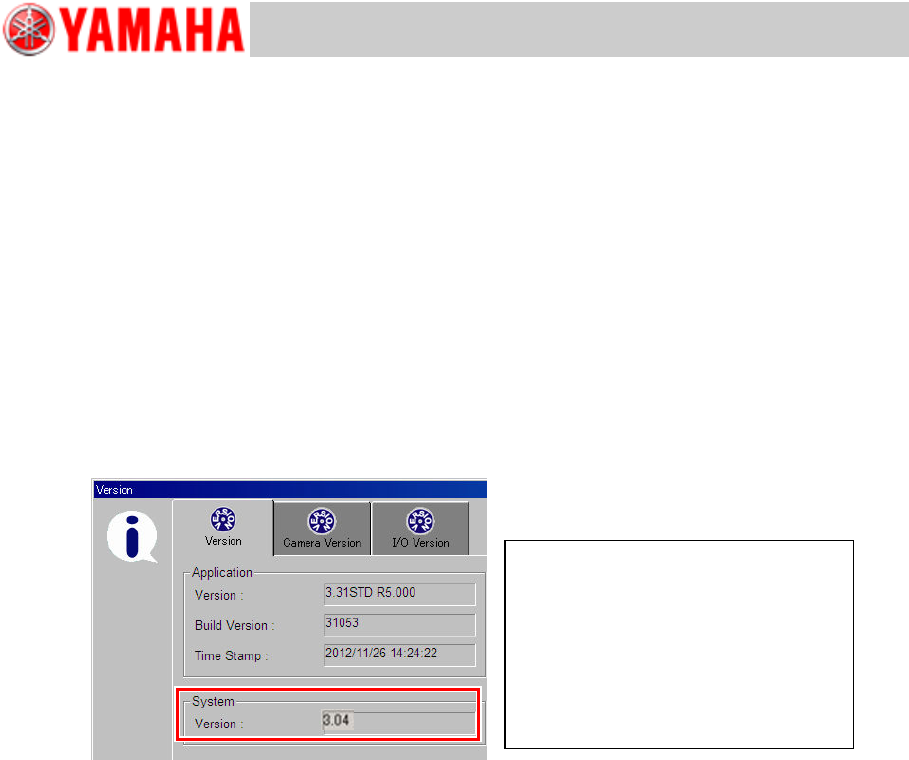
· Check the system software version.
Click the [Setup] button > [SW Version] button to open the Version window. Check the
version under [System].
Note
Only for machines equipped with a “KJJ-M6590-00 E.COM BOARD ASSY”.
· Copy the “SystemPatch” folder onto the USB flash drive.
The “SystemPatch” folder is part of the application install/upgrade image, which is to be
copied onto the USB flash drive. See “2 Copy contents of installation/upgrade CD
to the USB flash drive” for information.
n Notes
The following conditions must be met to execute V30 System Update.
· Free space in D: drive is 25 MB or larger.
· The machine application is not started.
· Executable within 10 minutes after the machine is powered on.
· You logged into Windows as User.
· Path to “SystemUpdatePatch.exe” consists only of single-byte alphanumerals.
· Executable only from the USB flash drive plugged into the machine.
Note
If the system software updating fails, failure logs are saved in the USB flash drive.
Examples
Original system software versions
・ 3.04
・ 3.05
Patched system software version
・ 3.04 Patch3.05a
・ 3.04 Patch3.05a/E (see Note)
For Users
Service Information
SI0901002E-003=VGOS V30 application software installation/upgrade manual
22/24
5.2.2 Execute “V30 System Update” for earlier than V3.41STD R2.000
The “V30 System Update” procedures differ depending on the machine application version.
For earlier than V3.41STD R2.000 applications, execute “SystemUpdatePatch.exe” via
Windows Explorer.
Note
Read “5.2.1 Preparation” carefully and complete preparatory tasks before performing
procedures in this section.
Step 1 Power on the machine and enter the Windows Mode.
Upon powering on the machine, the initial window appears shortly. Click the [Windows Mode]
button before Countdown expires.
Step 2 Plug the USB flash drive containing the “SystemPatch” folder into the machine.
Step 3 Start Windows Explorer.
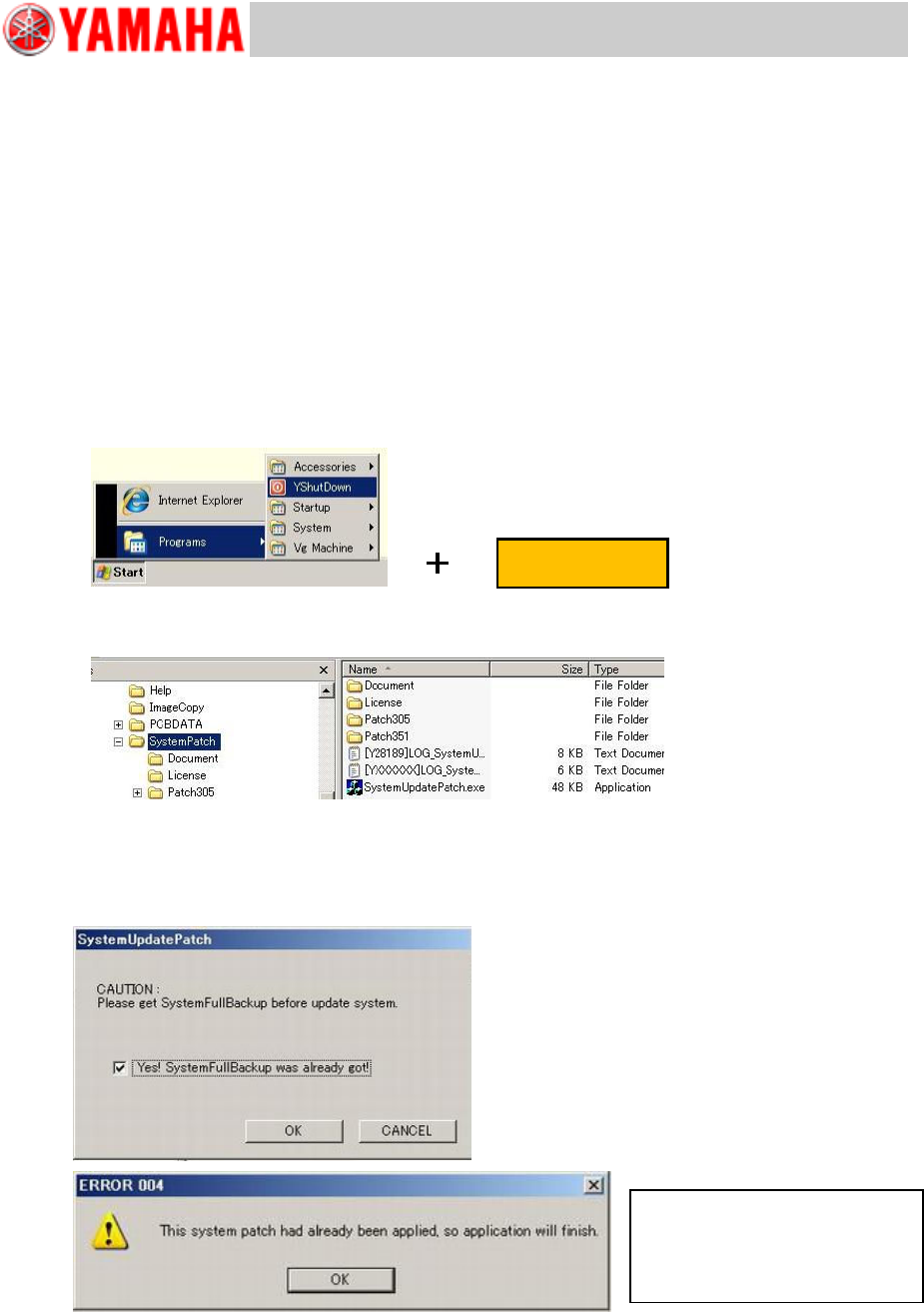
Hold down the right Shift key and select [YShutDown].
Step 4 Execute “SystemUpdatePatch.exe” under the “SystemPatch” folder in the USB flash
drive.
Step 5 Installation the V30 patch program starts. Follow the online instructions.
Step 6 A message asking whether system full back-up has been complete appears.
If the system full back-up has been complete as described in “5.1 System full back-up”,
click the [OK] button to continue.
Right Shift key
You don’t have to install the
patch. Click the [OK] button and
the machine executes shutdown
process..