2.VGOS V30 application software installation_upgrade manual.pdf - 第6页
For Users Serv i ce Information SI090100 2E- 003=VGOS V3 0 applicatio n software installatio n /upgrade manua l 6/24 2.2 Copy i nst all /upgrade image to the USB flash drive You can copy the install/upgrade image from th…

For Users
Service Information
SI0901002E-003=VGOS V30 application software installation/upgrade manual
5/24
2 Copy contents of installation/upgrade CD to the USB flash drive
Note
If you install/upgrade the application for YG300 model, skip the procedure in this section.
If you install/upgrade the application for CD drive-less machine, contents of the
installation/upgrade CD (hereinafter called “install/upgrade image”) need to be copied onto the
USB flash drive.
Caution
To install/upgrade the application, “VGOS_APPLICATION” folder created in the USB flash drive
is used. Copying the install/upgrade image from the CD to a USB flash drive will overwrite the
existing install/upgrade image in the folder. To preserve the existing image, rename the folder or
move it to other location.
2.1 Required items
· VGOSV3.0 application installation/upgrade CD
· USB flash drive (part No. KGY-M4268-00 or KLF-M4268-10)
· The PC equipped with the CD drive and USB port (for copying the install/upgrade image
from the CD to the USB flash drive)
Note
Use the USB flash drive that comes with the machine. Confirm that your USB flash drive
has 400MB or more of free space. If 256MB or below, please purchase a latest USB flash
drive designated by YAMAHA.
For Users
Service Information
SI0901002E-003=VGOS V30 application software installation/upgrade manual
6/24
2.2 Copy install/upgrade image to the USB flash drive
You can copy the install/upgrade image from the CD to an USB flash drive by using the
“Image Copy” program in the CD.
Step 1 Prepare the PC. Insert the USB flash drive into the USB port and the
installation/upgrade CD into the CD drive. The “Image Copy” program starts
automatically.
Depending on the PC setting, the Image Copy program may not start automatically.
Note
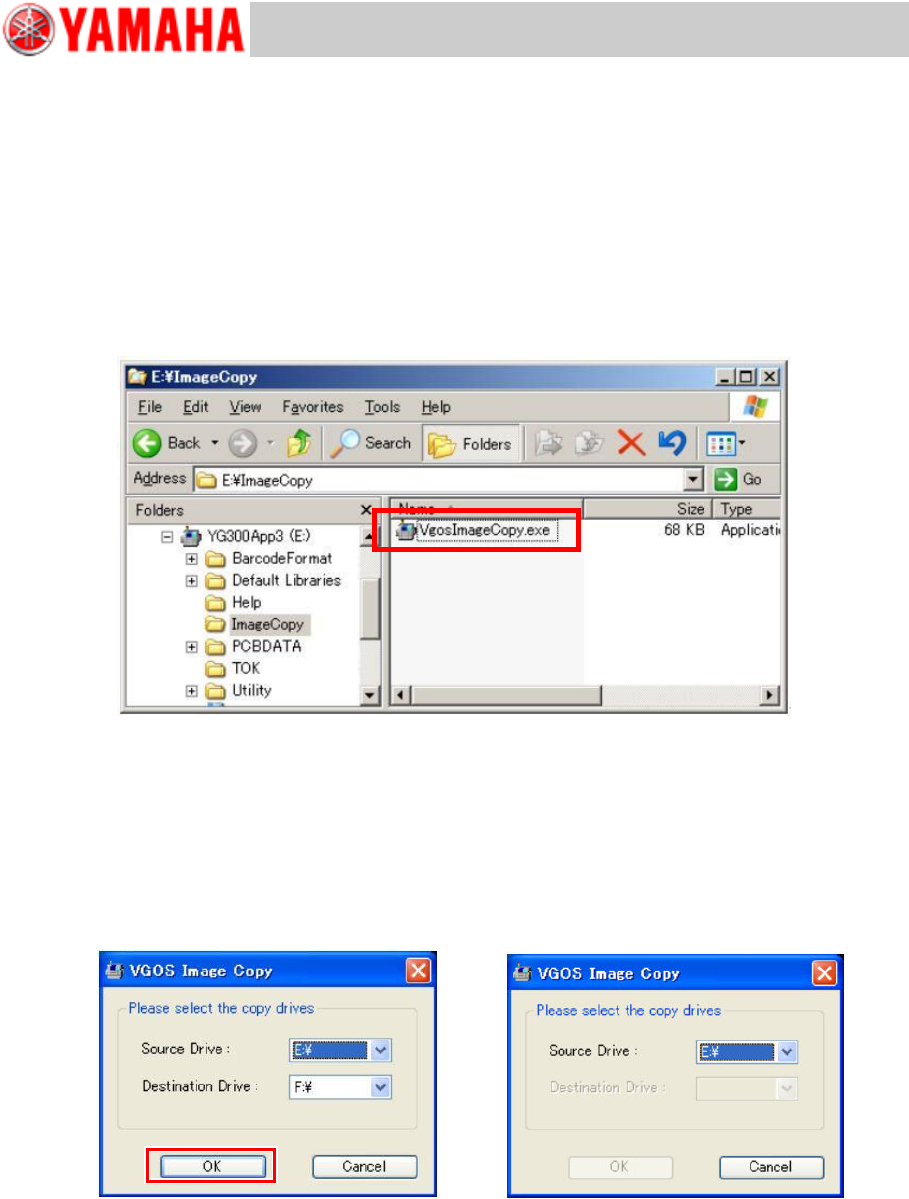
In the Image Copy program does not start automatically, select “VgosImageCopy.exe” in
the “Image Copy” folder in the CD to start the program.
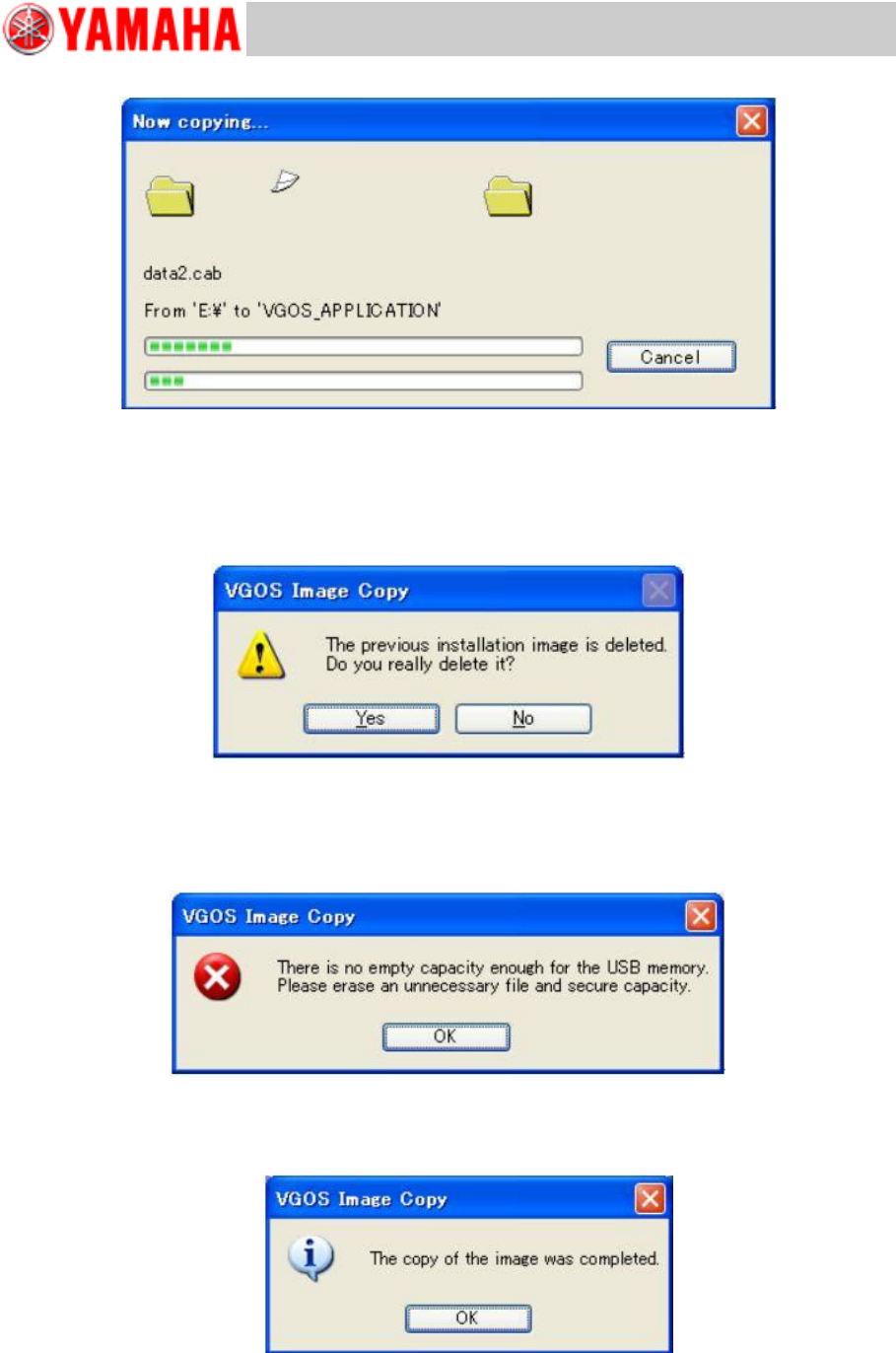
Step 2 Check the drives for copying the install/upgrade image.
The following dialog box appears when the Image Copy program starts. Check if the correct
drives are selected for the [Source Drive] and [Destination Drive].
Note
If the USB flash drive is not inserted into the USB port or not recognized properly, the [OK]
button is grayed out as shown in the below right figure. Make sure to insert the USB flash
drive into the USB port properly.
For Users
Service Information
SI0901002E-003=VGOS V30 application software installation/upgrade manual
7/24
Step 3 Click the [OK] button to start copying the image.
Note
If the previously installed image is in the USB flash drive, the following message box
appears. If you click the [Yes] button, the existing image is deleted and the new image is
copied onto the USB flash drive. If you click the [No] button, the copying process is
interrupted.
Note
If the USB flash drive has no enough available space, the following message box appears
and the copying process is interrupted. In this case, delete unneccesary files in the USB
flash drive and restart from step 1.
Step 4 Complete the copying process.
When the copying process is completed, the following message box appears. Click the [OK]
button to close the application and remove the USB flash drive from the PC.