2.VGOS V30 application software installation_upgrade manual.pdf - 第9页
For Users Serv i ce Information SI090100 2E- 003=VGOS V3 0 applicatio n software installatio n /upgrade manua l 9/24 Step 5 Select an install media (source drive) and click the [In stall] button. If the mac hine i s equi…
For Users
Service Information
SI0901002E-003=VGOS V30 application software installation/upgrade manual
8/24
3 Initial installation of the application software
When you install the system software on a blank CompactFlash (“CF”), install the application
software on the machine as shown below.
Step 1 Install the CF with the system software installed onto the machine.
Set the CF on the system board. Then set the system board in the control box of the
machine.
Note
For information about the CF replacement, see “SI1108004E: YS series, YG12, YG300
system board replacement”.
Step 2 Make sure the machine is in safe operating condition. Power on the machine.
Step 3 Set the installation/upgrade CD or USB flash drive to the machine.
n USB flash drive
Set the USB flash drive prepared in “2.2 Copy install/upgrade image to the USB flash drive”
on page 6 into the USB port of the machine.
n CD
Set the installation/upgrade CD into the CD drive of the machine. The CD drive is below the
operation panel of the machine front side.
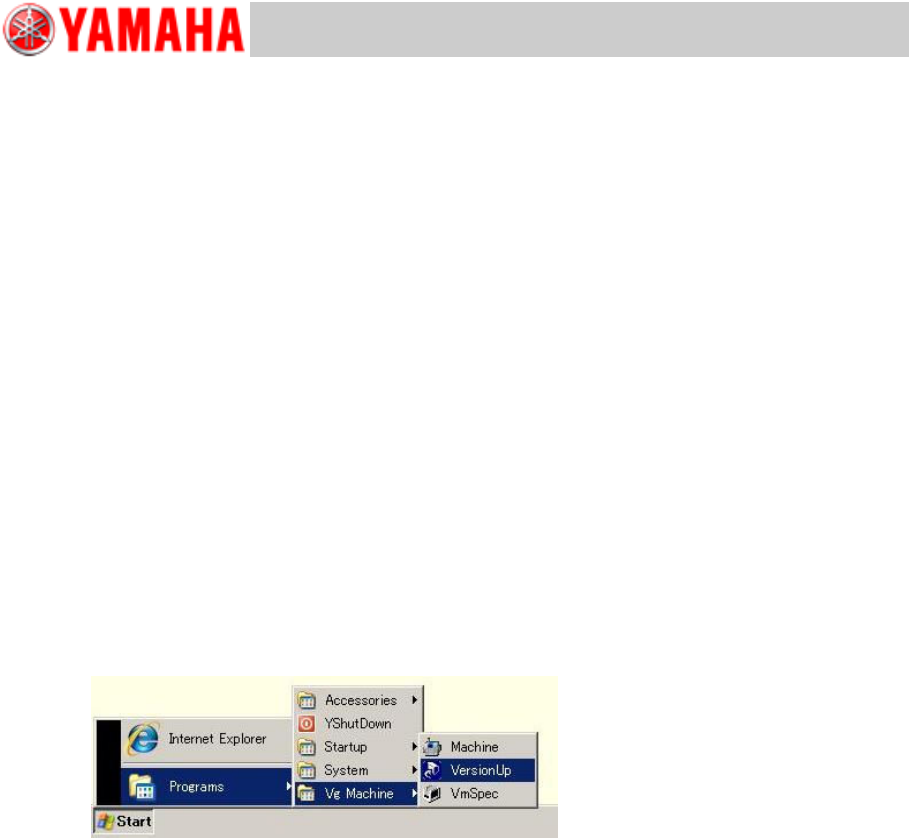
Step 4 Start the VGOS Application Version Up program.
From Windows start menu, select [Programs], [Vg Machine] then [VersionUp] to run the
program.
Note
When the system version is V3.00, or when other USB flash drive than the designated one
is used for application installation/upgrading, the VGOS Application Version Up program is
not selectable via the above menu selection. Start the explorer and double click “Setup.exe”
in the installation image instead.
For Users
Service Information
SI0901002E-003=VGOS V30 application software installation/upgrade manual
9/24
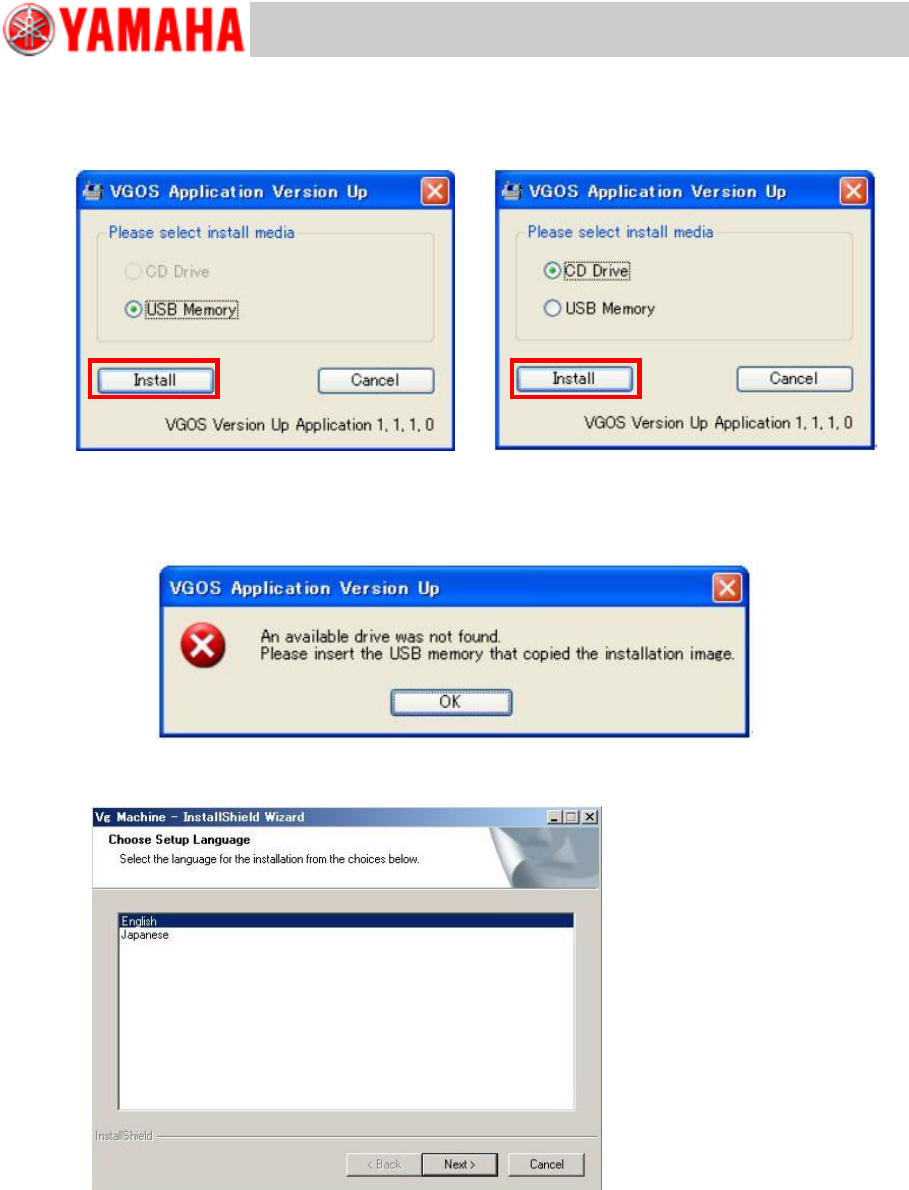
Step 5 Select an install media (source drive) and click the [Install] button.
If the machine is equipped with the CD drive, the “CD Drive” radio button is selectable.
Note
If the specified drive cannot be found, the following warning message appears. Check if the
source USB flash drive or CD is inserted properly, and click the [Install] button again.
Step 6 Select a language for setup procedure.
n Machine Not equipped with CD drive
n Machine equipped with CD drive
(YG300)
For Users
Service Information
SI0901002E-003=VGOS V30 application software installation/upgrade manual
10/24
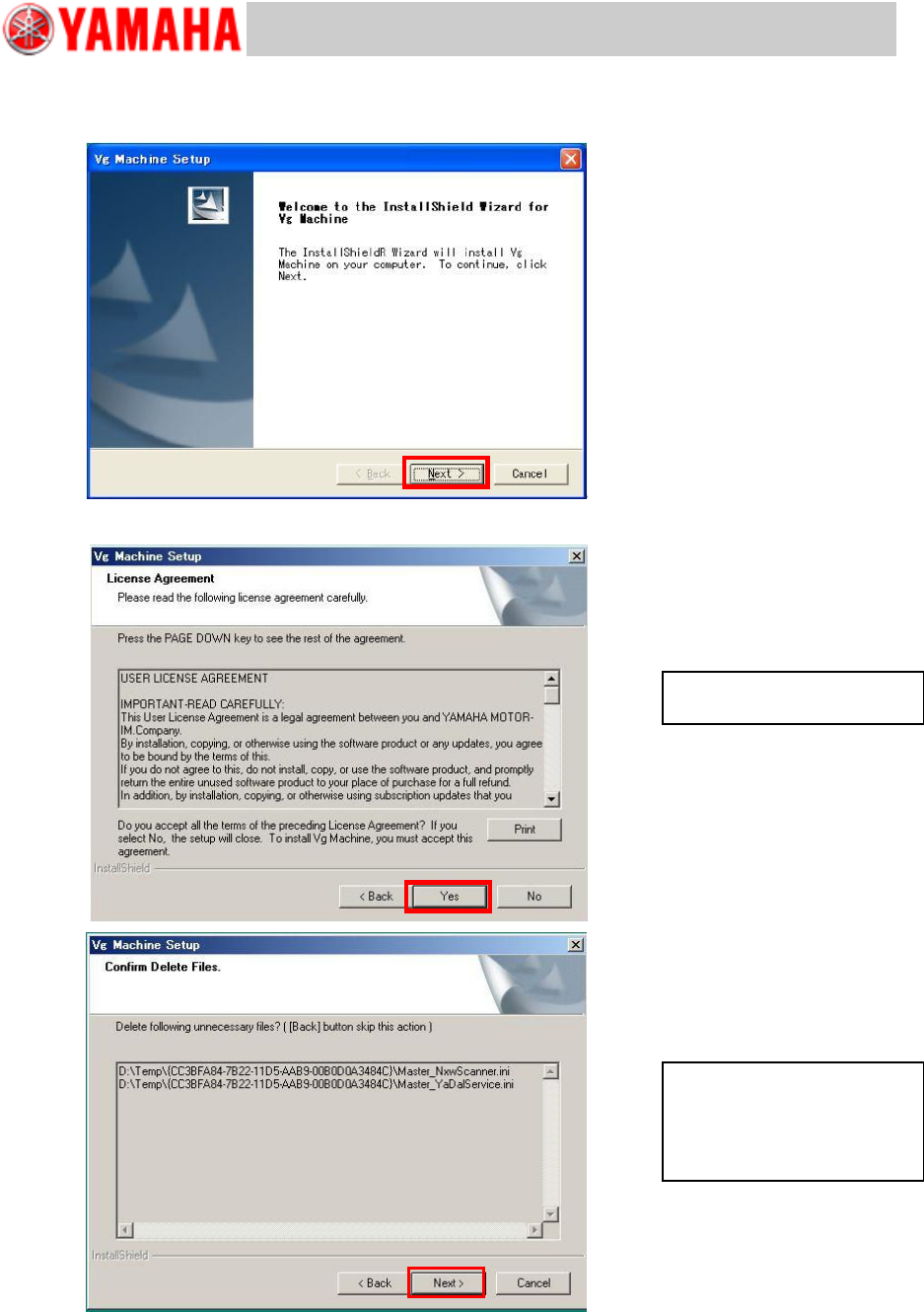
Step 7 Installation wizard starts.
When installation starts properly, the following dialog appears asking you to continue the
process. Click the [Next] button.
Step 8 Check the contents of the dialog and click the [Yes] button.
Confirm USER LICENSE
AGREEMENT and select [Yes].
If unnecessary files are found in
the “TEMP” folder, the Confirm
Delete Files window appears. If
it is OK to delete, click the [Next]
button.