00196098-02_IM_SIPLACE_Explorer_2.4_DE.pdf - 第106页
5 Deinstallation Installations- und Konfigurationsanleitung SIPLACE Explorer 5.2 Modify Ausgabe 08/2008 DE 106 → Haben Sie die entsp rechenden Inst allationsopt ionen ausgewählt, klicken Sie die Schalt fläche Next (We it…
Installations- und Konfigurationsanleitung SIPLACE Explorer 5 Deinstallation
Ausgabe 08/2008 DE 5.2 Modify
105
5.2 Modify
5
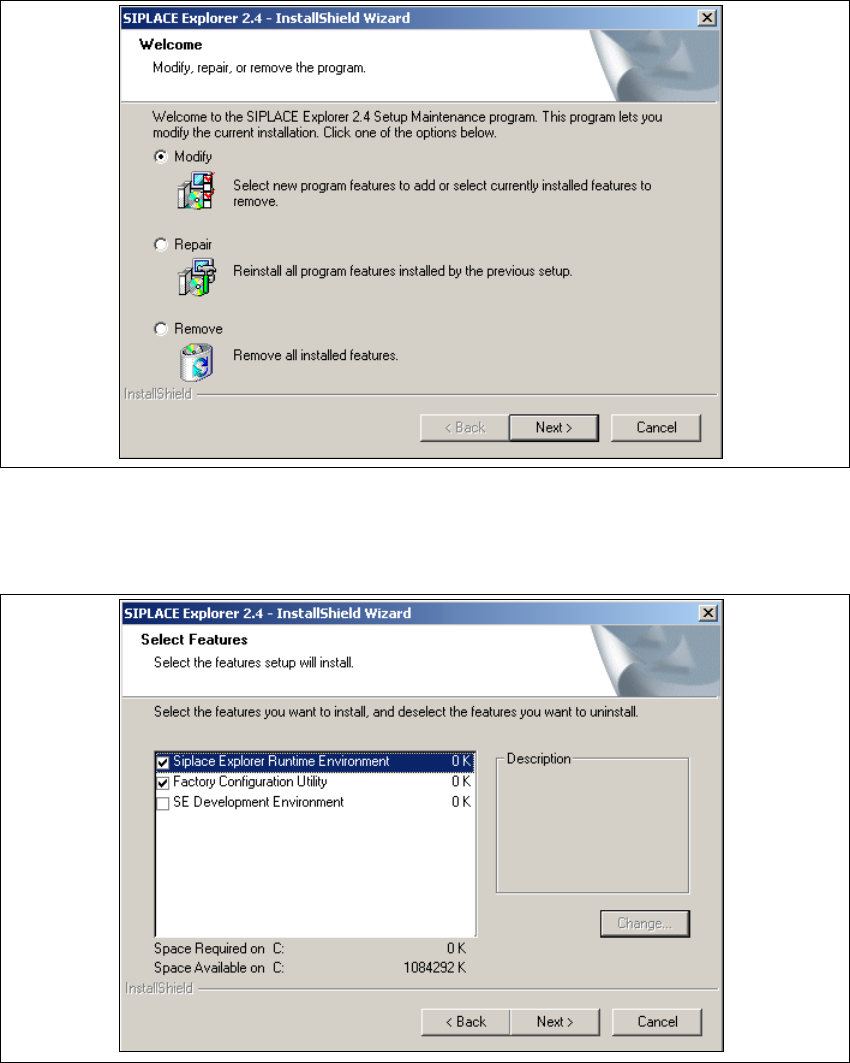
Abb. 5 - 2 SIPLACE Explorer 2.4 - Installshield-Assistent
→ Klicken Sie Modify (Verändern) an und klicken Sie auf Next (Weiter).
→ Das Dialogfenster Select Features (Installationsoptionen auswählen) wird angezeigt.
5
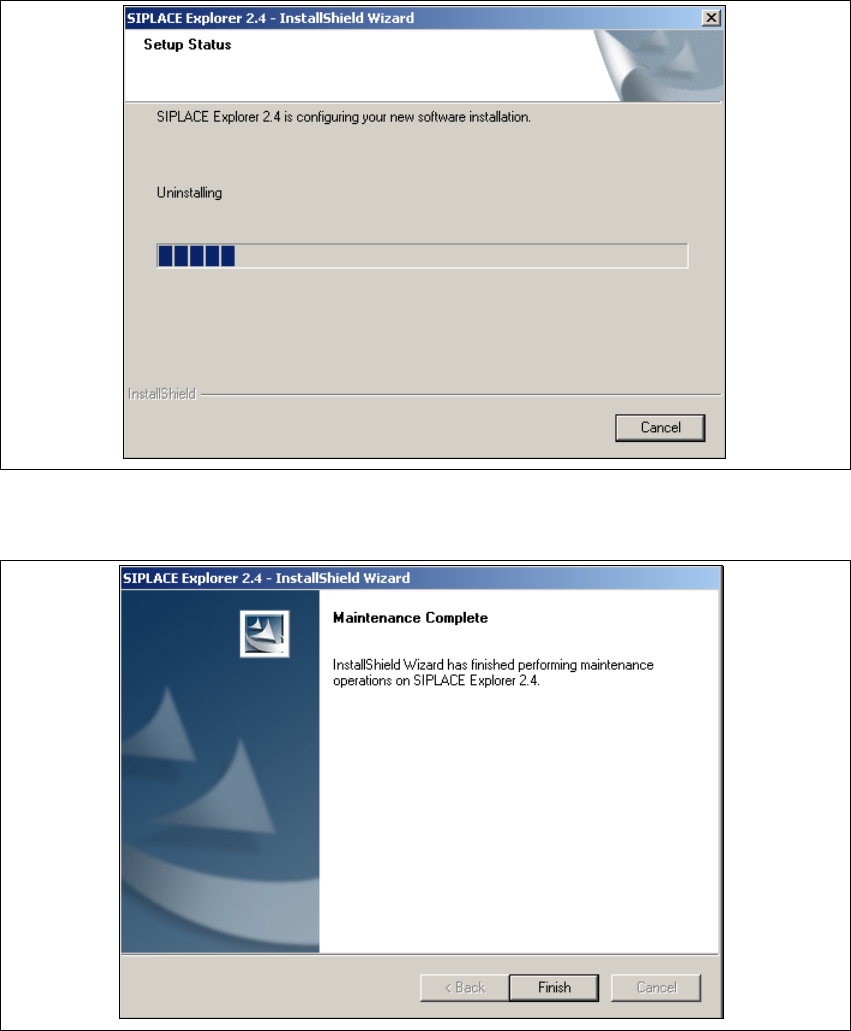
Abb. 5 - 3 SIPLACE Explorer 2.4 - Installshield-Assistent
→ Wählen Sie die Komponenten aus, welche Sie deinstallieren wollen. Dazu deaktivieren Sie das
entsprechende Ankreuzfeld neben der Komponente. Zur Installation der entsprechenden
Komponente muss das Ankreuzfeld aktiviert sein.
5 Deinstallation Installations- und Konfigurationsanleitung SIPLACE Explorer
5.2 Modify Ausgabe 08/2008 DE
106
→ Haben Sie die entsprechenden Installationsoptionen ausgewählt, klicken Sie die Schaltfläche
Next (Weiter) an.
→ Der Deinstallations-/Installationsvorgang wird durchgeführt. In dem Dialogfenster Setup
Status, sehen Sie welche Komponenten deinstalliert bzw. installiert werden.
5
Abb. 5 - 4 SIPLACE Explorer 2.4 - Installshield-Assistent
→ Die Deinstallations-/Installation des SIPLACE Explorer 2.4 ist komplett.
5
Abb. 5 - 5 Modify komplett
→ Klicken Sie Finish (Beenden). Der SIPLACE Explorer 2.4 - Installshield-Assistent wird
geschlossen.
Installations- und Konfigurationsanleitung SIPLACE Explorer 5 Deinstallation
Ausgabe 08/2008 DE 5.3 Repair
107
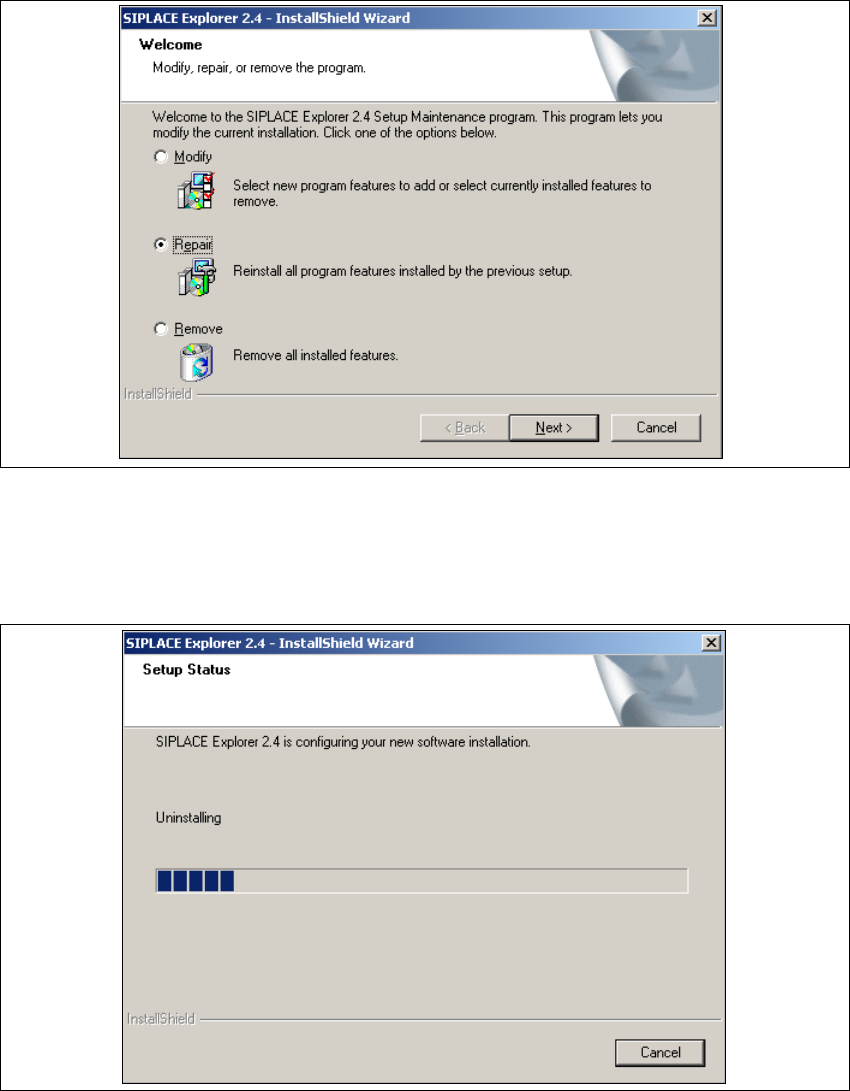
5.3 Repair
5
Abb. 5 - 6 SIPLACE Explorer 2.4 - Installshield-Assistent
→ Klicken Sie Repair (Wiederherstellen) an und klicken Sie auf Next (Weiter).
→ Der Wiederherstellungsvorgang wird durchgeführt. In dem Dialogfenster Setup Status sehen
Sie welche Komponenten deinstalliert bzw. installiert werden.
5
Abb. 5 - 7 SIPLACE Explorer 2.4 - Installshield-Assistent