00196098-02_IM_SIPLACE_Explorer_2.4_DE.pdf - 第27页
Installations- und Konfigurationsanleitung SIPLAC E Explorer 3 Installation des SIPLACE Explorer Ausgabe 08/2008 DE 3.1 Erstinstallation von SIPLACE Explorer 2.4 27 (4) Optionen zu SIPLACE Explorer V .2.4 Die Optionen SI…
3 Installation des SIPLACE Explorer Installations- und Konfigurationsanleitung SIPLACE Explorer
3.1 Erstinstallation von SIPLACE Explorer 2.4 Ausgabe 08/2008 DE
26
HINWEIS
Bei Verwendung von SIPLACE Explorer mit MS Windows Vista dürfen Sie Tomcat 5.5 nicht
auf das Systemlaufwerk C: installieren, ansonsten funktioniert die Berichts-Generierung und
die Anzeige der Berichte in MS Excel nicht zuverlässig. 3
HINWEIS
Bevor Sie SIPLACE Explorer V2.4 installieren können, muss Java 1.6 auf Ihrem Computer
installiert sein. Diese Komponente installieren Sie über die Support Media DVD. 3
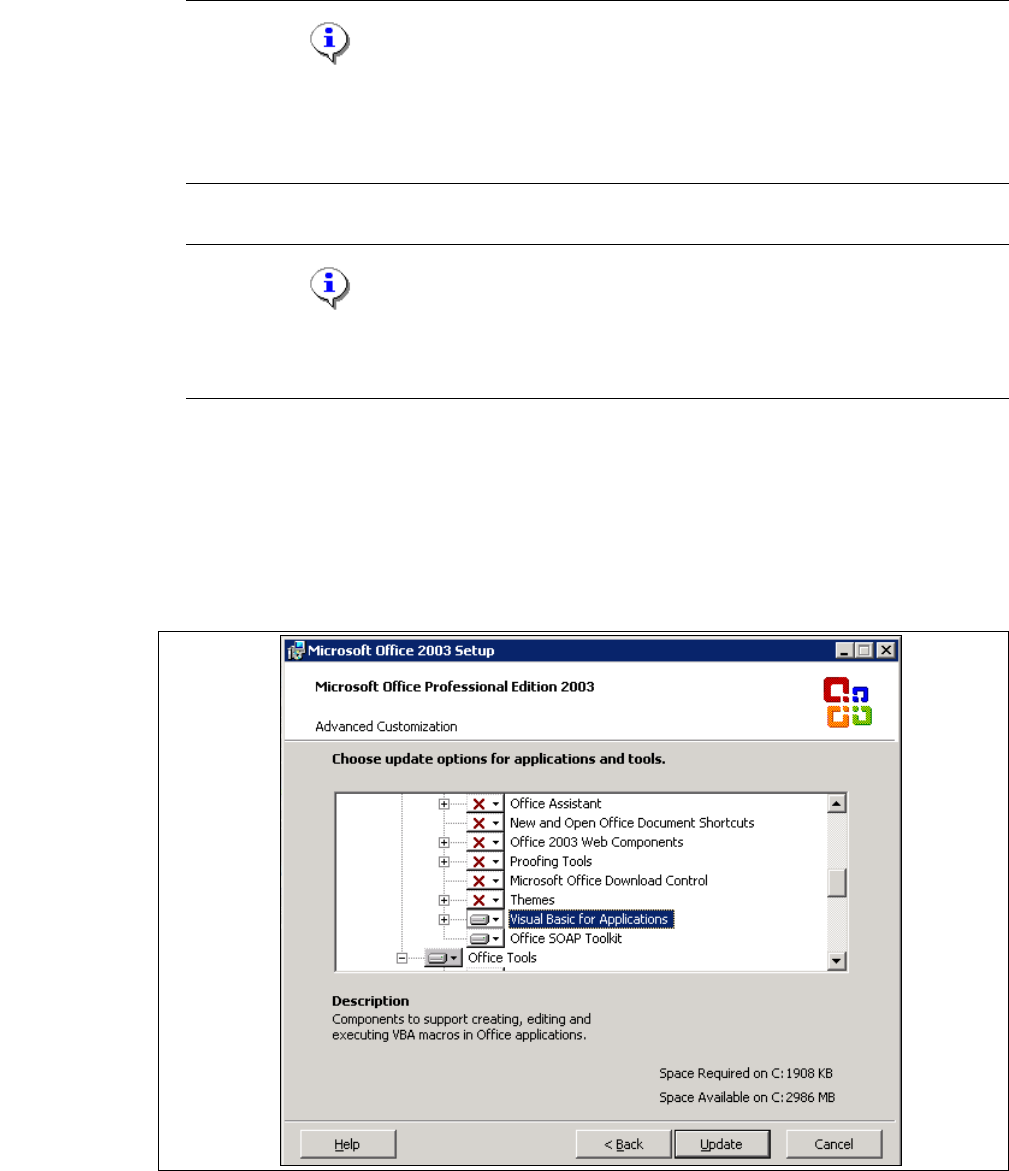
(3) MS Excel 2003 mit SIPLACE Explorer V2.4
MS Excel ist nötig für den Computer, auf welchem Factory Reporting installiert wird. Damit die
manuelle Generierung von Berichten funktioniert, muss bei der Installation von MS Excel
folgende Option aktiviert sein: 3
Custom installed options: Office Shared Features → Visual Basic for Applications 3
3
Abb. 3 - 1 MS Office Setup
Installations- und Konfigurationsanleitung SIPLACE Explorer 3 Installation des SIPLACE Explorer
Ausgabe 08/2008 DE 3.1 Erstinstallation von SIPLACE Explorer 2.4
27
(4) Optionen zu SIPLACE Explorer V.2.4
Die Optionen SIPLACE Traceability Option V2.0 und SIPLACE Maintenance Manager V1.0
müssen Sie extra bestellen und installieren. Diese sind nicht im Leistungsumfang des
SIPLACE Explorer V2.4 enthalten. 3
3.1.1 Installationsvorgang SIPLACE Explorer 2.4 - Erstinstallation
HINWEIS
Sie müssen über Windows Administrator-Rechte verfügen, um die Installation ausführen zu
können. 3
→ Legen Sie die Support Media DVD in Ihr DVD-Laufwerk ein. Folgen Sie den Anweisungen aus
dem Dokument "Navigation Guide for the Installation Procedure of SIPLACE Software
Systems" (Art.-Nr. 00195050-xx).
Ihr System wird auf die nötigen Software-Komponenten und deren Versionen überprüft. Sie
erhalten entsprechende Meldungsfenster und können alle noch benötigten Software-
Komponenten installieren. 3
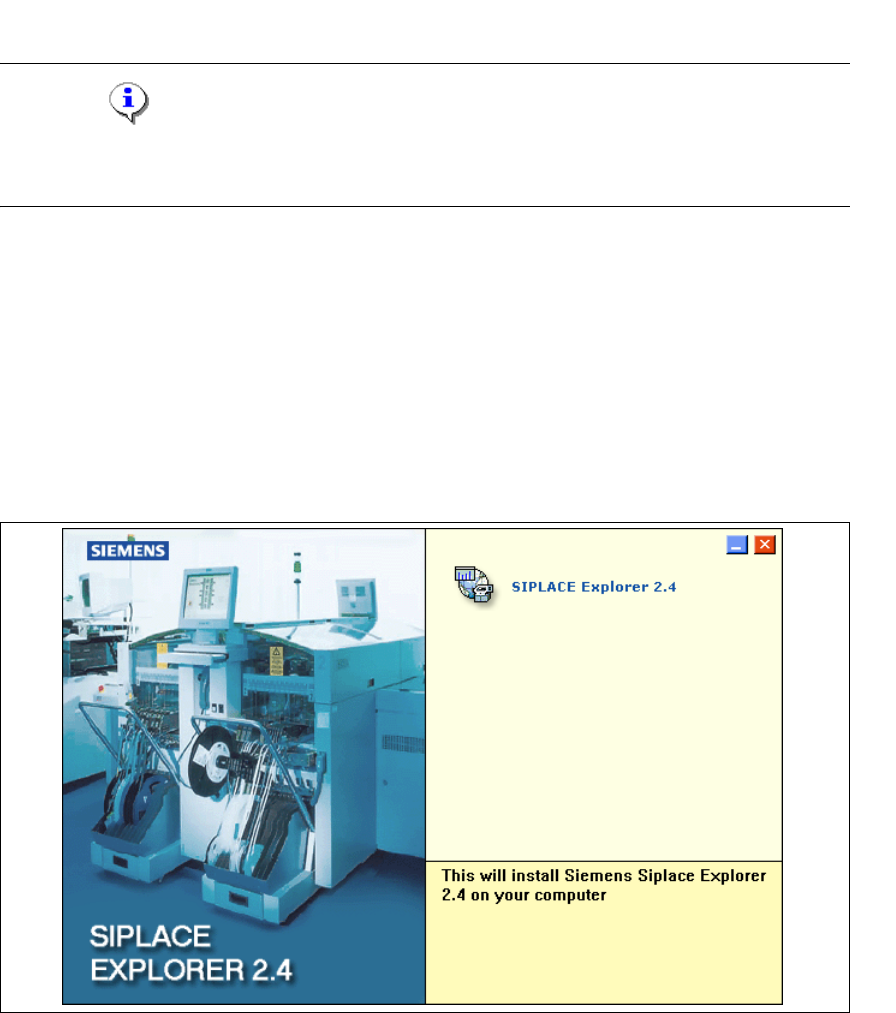
→ Legen Sie die SIPLACE Explorer CD in Ihr CD-Rom-Laufwerk ein. Es erscheint der Start
Screen.
3
Abb. 3 - 2 SIPLACE Explorer setup - Start Screen
→ Wählen Sie SIPLACE Explorer 2.4 aus.
3 Installation des SIPLACE Explorer Installations- und Konfigurationsanleitung SIPLACE Explorer
3.1 Erstinstallation von SIPLACE Explorer 2.4 Ausgabe 08/2008 DE
28
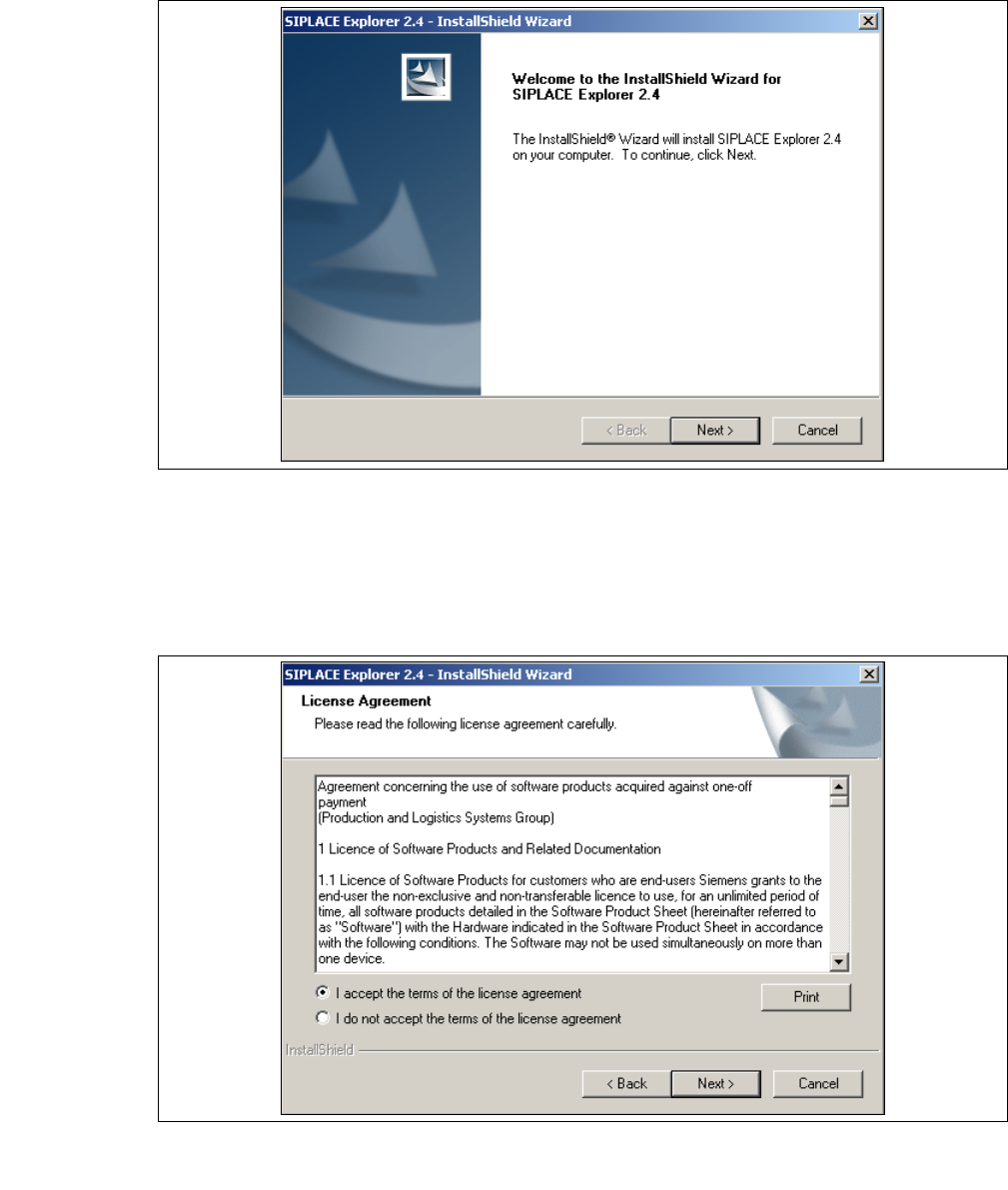
→ Die benutzergeführte Installation von SIPLACE Explorer wird gestartet.
3
Abb. 3 - 3 SIPLACE Explorer setup - Willkommen im SIPLACE Explorer
→ Beenden Sie alle anderen Programme und klicken Sie auf Next (Weiter). Das Dialogfenster
License Agreement wird geöffnet.
→ Lesen Sie die Lizenzbestimmungen. Wenn Sie zustimmen, I accept ... anklicken, ansonsten I
do not accept .... Wenn Sie I do not accept ... anklicken, wird die Installation beendet.
3
Abb. 3 - 4 SIPLACE Explorer Setup - Lizenzvereinbarungen
→ Bestätigen Sie Ihre Auswahl mit Next (Weiter).