00196098-02_IM_SIPLACE_Explorer_2.4_DE.pdf - 第39页
Installations- und Konfigurationsanleitung SIPLAC E Explorer 3 Installation des SIPLACE Explorer Ausgabe 08/2008 DE 3.2 Update-Installation von SIPLACE Explorer 2 .4 39 3 Abb. 3 - 18 SIPLACE Explorer setup - Willkommen i…
3 Installation des SIPLACE Explorer Installations- und Konfigurationsanleitung SIPLACE Explorer
3.2 Update-Installation von SIPLACE Explorer 2.4 Ausgabe 08/2008 DE
38
3.2.1 Installationsvorgang SIPLACE Explorer 2.4 - Update-Installation
HINWEIS
Sie müssen über Windows Administrator-Rechte verfügen, um die Installation ausführen zu
können. 3
→ Legen Sie die Support Media DVD in Ihr DVD-Laufwerk ein. Folgen Sie den Anweisungen aus
dem Dokument "Navigation Guide for the Installation Procedure of SIPLACE Software
Systems" (Art.-Nr. 00195050-xx).
Ihr System wird auf die nötigen Software-Komponenten und deren Versionen überprüft. Sie
erhalten entsprechende Meldungsfenster und können alle noch benötigten Software-
Komponenten installieren. 3
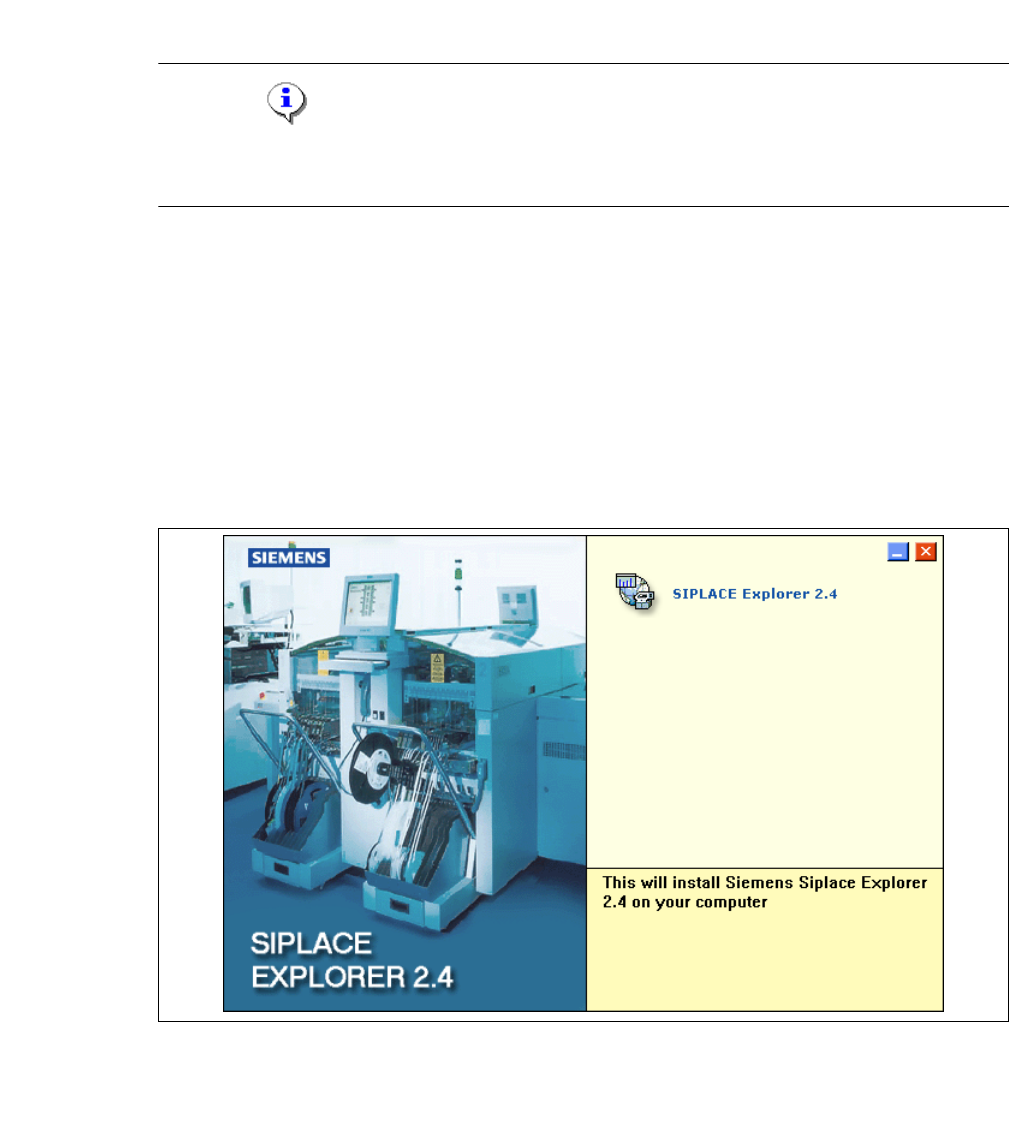
→ Legen Sie die SIPLACE Explorer CD in Ihr CD-Rom-Laufwerk ein.
→ Es erscheint der Start Screen.
3
Abb. 3 - 17 SIPLACE Explorer setup - Start Screen
→ Wählen Sie SIPLACE Explorer 2.4 aus.
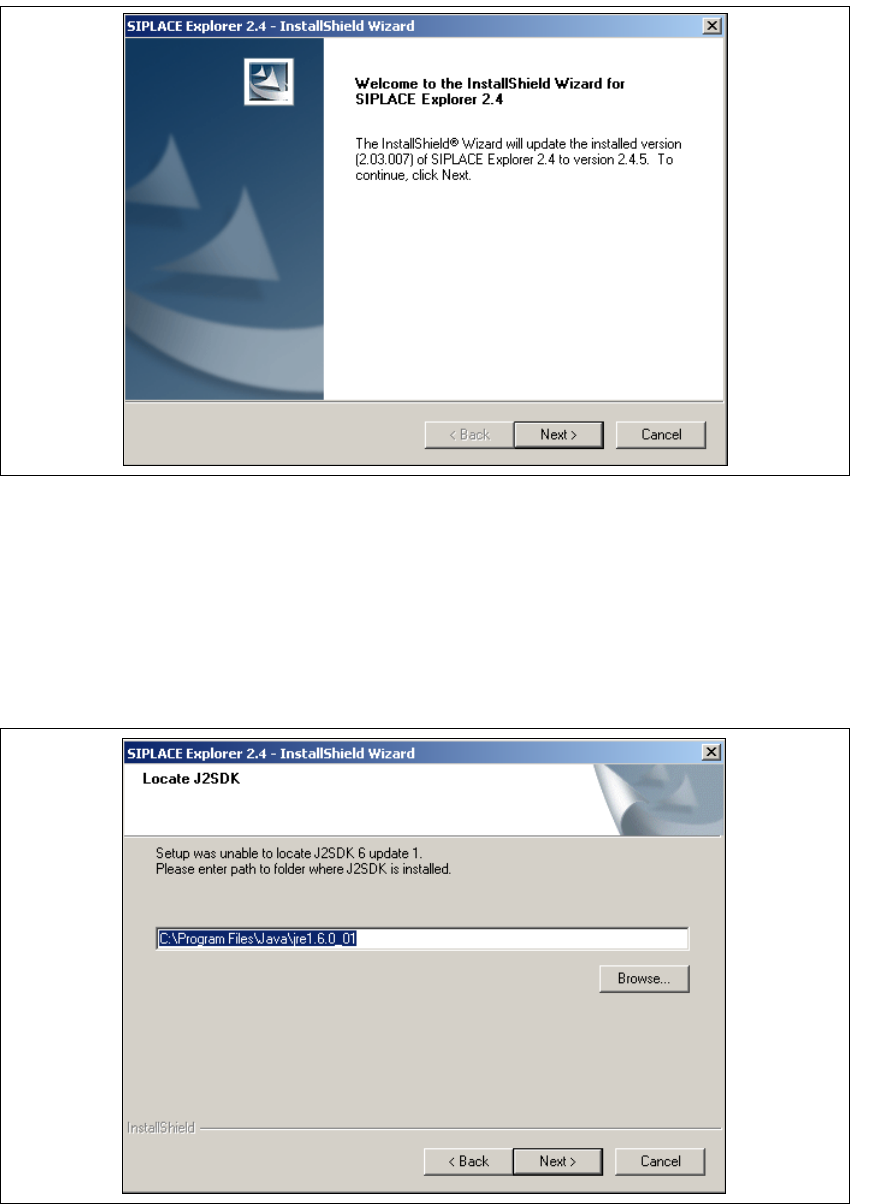
→ Die benutzergeführte Installation von SIPLACE Explorer wird gestartet.
Installations- und Konfigurationsanleitung SIPLACE Explorer 3 Installation des SIPLACE Explorer
Ausgabe 08/2008 DE 3.2 Update-Installation von SIPLACE Explorer 2.4
39
3
Abb. 3 - 18 SIPLACE Explorer setup - Willkommen im SIPLACE Explorer
→ Beenden Sie alle anderen Programme und klicken Sie dann auf Next (Weiter).
→ Damit SIPLACE Explorer lauffähig ist, muss J2SE Runtime Environment 6 Update 1 oder
höher auf Ihrem PC installiert sein. Wenn es bereits installiert ist, läuft das SIPLACE Explorer
Setup-Programm weiter.
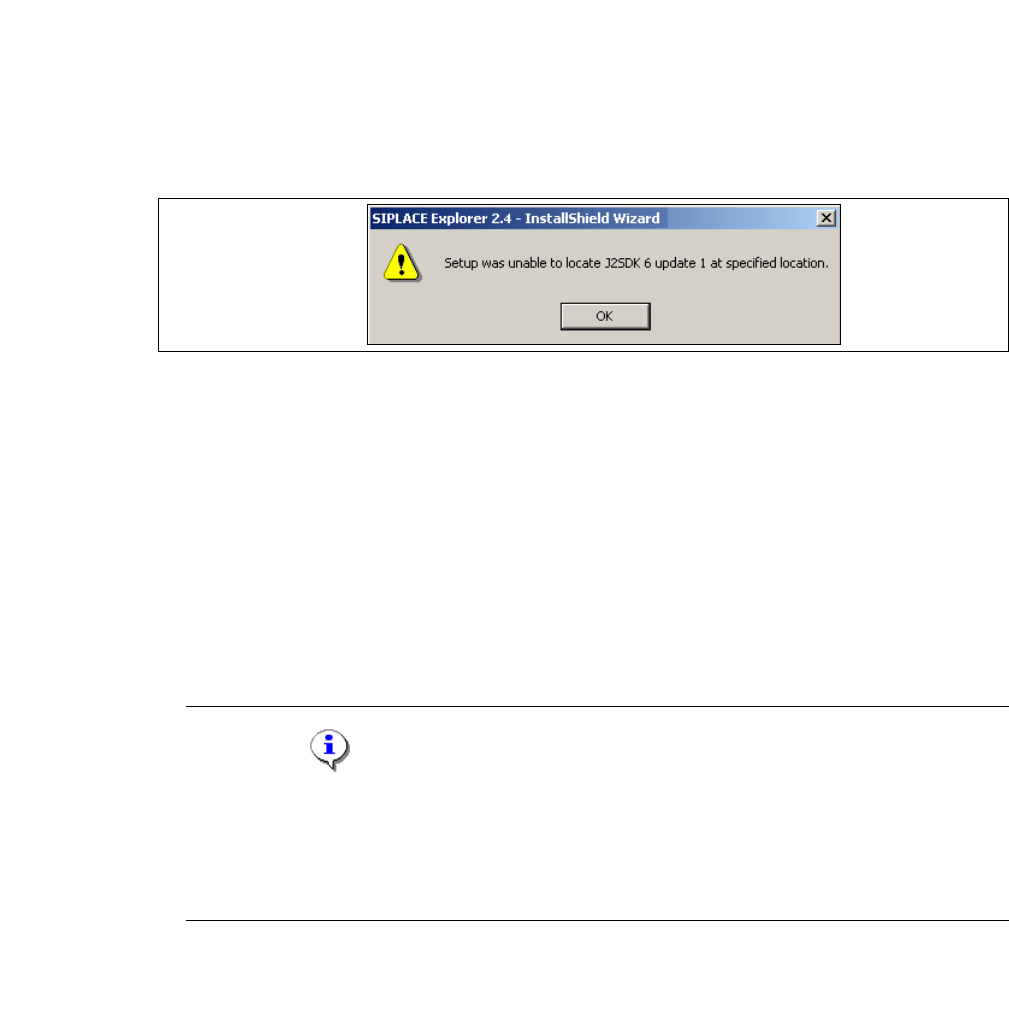
→ Wenn beim Installationsversuch J2SE RTE 6 Update 1 nicht gefunden wird, erscheint auf
Ihrem Bildschirm das Fenster Locate J2SDK (Finden).
3
Abb. 3 - 19 SIPLACE Explorer Setup - JAVA 2SDK finden
3 Installation des SIPLACE Explorer Installations- und Konfigurationsanleitung SIPLACE Explorer
3.2 Update-Installation von SIPLACE Explorer 2.4 Ausgabe 08/2008 DE
40
→ In diesem Fall können Sie entweder den Pfad des Ordners J2SE Runtime Environment 6
Update 1 direkt im Textfeld eingeben oder die Schaltfläche Browse (Durchsuchen) anklicken
und mit Hilfe des Dialogfensters Open File (Datei öffnen) den Ordner J2SE Runtime
Environment 6 Update 1 suchen.
→ Wenn Sie den Ordner nicht korrekt angegeben haben, in dem J2SE Runtime Environment 6
Update 1 installiert ist, erhalten Sie nachfolgende Meldung.
3
Abb. 3 - 20 SIPLACE Explorer Setup - J2SE kann nicht gefunden werden
→ Klicken Sie OK, um zum vorangegangenen Dialogfenster zurückzukehren. SIPLACE Explorer
erfordert vor der Installation von SIPLACE Explorer, dass J2SE Runtime Environment 6
Update 1 installiert wurde.
→ An dieser Stelle können Sie entweder den J2SE Runtime Environment 6 Update 1 Ordner
nochmals eingeben oder Cancel (Abbrechen) anklicken, um die Installation des SIPLACE
Explorer abzubrechen.
→ Haben Sie Cancel (Abbrechen) gewählt, installieren Sie die auf der Support Media DVD
enthaltene Version von J2SE Runtime Environment 6 Update 1. Beginnen Sie anschließend
die Installation des SIPLACE Explorer erneut.
HINWEIS
Wenn auf Ihrem System die von Sun Microsystems unter http://java.sun.com/j2se erhältliche
J2 Runtime Umgebung (und nicht J2SE Runtime Environment 6 Update 1) installiert ist,
funktioniert die von SIPLACE Explorer Website Builder erstellte Website nicht einwandfrei,
da diese auf JSP basiert, was wiederum J2SE Runtime Environment 6 Update 1 voraussetzt.3
→ Die Installation von SIPLACE Explorer 2.4 wird nach Lokalisierung von J2SE Runtime
Environment 6 Update 1 fortgesetzt. Das Dialogfenster Setup Status wird geöffnet.