00197961-01_UM_JTF-MW_on_SIPLACE_E_en_FINAL - 第52页
Tasks on the Machine Operating the JEDEC Tray Feeder in the Station Software (SW708) 52 User Manual JTF-MW on SIPLACE E 2. Deactivate : Deactivates the complete t ray which is then marked as " Deactivated by operato…
Tasks on the Machine
Operating the JEDEC Tray Feeder in the Station Software (SW708)
User Manual JTF-MW on SIPLACE E 51
Position Correction
If necessary, perform a pickup position correction for the selected tray.
▪ Teaching the pickup position for eccentric pickup.
▪ Teaching the component center
Switching to Level View
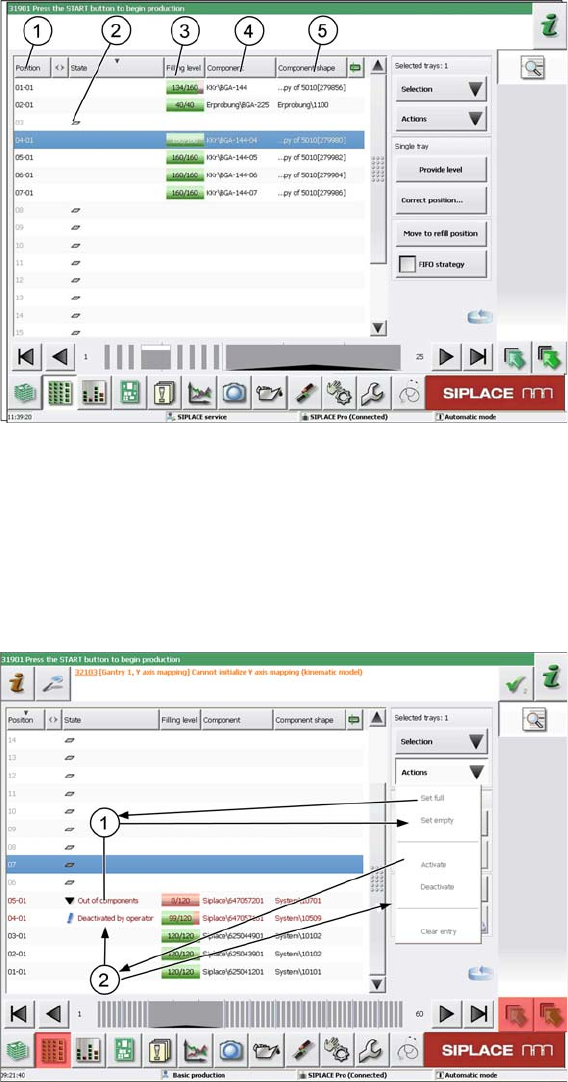
► Press the change button to display the level view of the SIPLACE JTF-MW.
1. Position of the SIPLACE JTF-MW tray
2. State (2) indicates that a tray is present on this level which is not used for this setup. The filling level
is not queried.
3. Filling level: Actual - target
4. Component: Component description
5. Component shape: Component shape name
Single Tray Selection
The line for a single selected tray is highlighted in blue color.
Use the cursor to select a single tray.
You can now make settings for the tray and assign different states.
Please note that the trays have been selected in advance in the example in the screenshot.
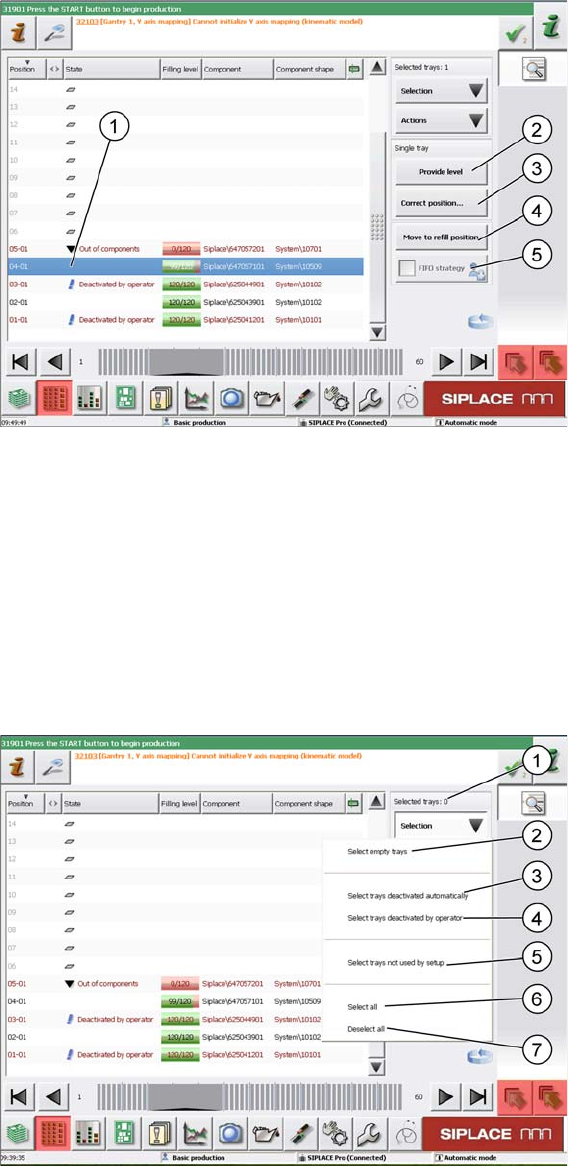
1. Set empty: Sets the tray to "Out of components". Use the Set full button to set it back to full.
Tasks on the Machine
Operating the JEDEC Tray Feeder in the Station Software (SW708)
52 User Manual JTF-MW on SIPLACE E
2. Deactivate: Deactivates the complete tray which is then marked as "Deactivated by operator". Use
the Activate button to set it back to active.
You can select the following functions and actions for the single selected tray:
1. Selected tray: highlighted in blue color
2. Provide level: Moves this level to the transfer position.
3. Correct position: Correction of the pickup position
4. Move to refill position: Moves the tray back into the tray carrier in order to remove it. In this state, no
components can be picked up from any tray.
5. FIFO strategy: This button is active when you are logged in with the necessary access privileges. As
soon as pickup has been performed once from a JEDEC tray on a replacement track, this will be
emptied completely before the actual track is used again.
Multiple Selection of Trays
Use the key combination Shift+Alt to select several trays. The selected trays are then highlighted in blue
color.
If trays have been deactivated manually or automatically before or if the state has been changed, you
can now easily select these trays with the Selection button.
The selected trays are then displayed as Selected Trays: xx.
Tasks on the Machine
Operating the JEDEC Tray Feeder in the Station Software (SW708)
User Manual JTF-MW on SIPLACE E 53
The Selection button provides the following quick selection types:
1. Selected Trays: xx: Indicates the number of selected trays.
2. Select empty trays: All empty trays in the setup are selected.
3. Select trays deactivated automatically: All automatically deactivated trays are selected.
4. Select trays deactivated by operator: All trays that have been manually deactivated by the operator
are selected.
5. Select trays not used by setup: All trays that are not used in the current setup are selected.
6. Select all: All trays are selected regardless of their state.
7. Deselect all: Each previous selection is discarded.