M3plus_OperationManual_e.pdf - 第206页
6 - 11 6 Managing the data 3. Creating XML library 3.2.3 Using library matching (Editor only) If it is troublesome to set each library link individually, use the Library Matching com- mand to set all library links. 1 Sel…
6 -10
6
Managing the data
3. Creating XML library
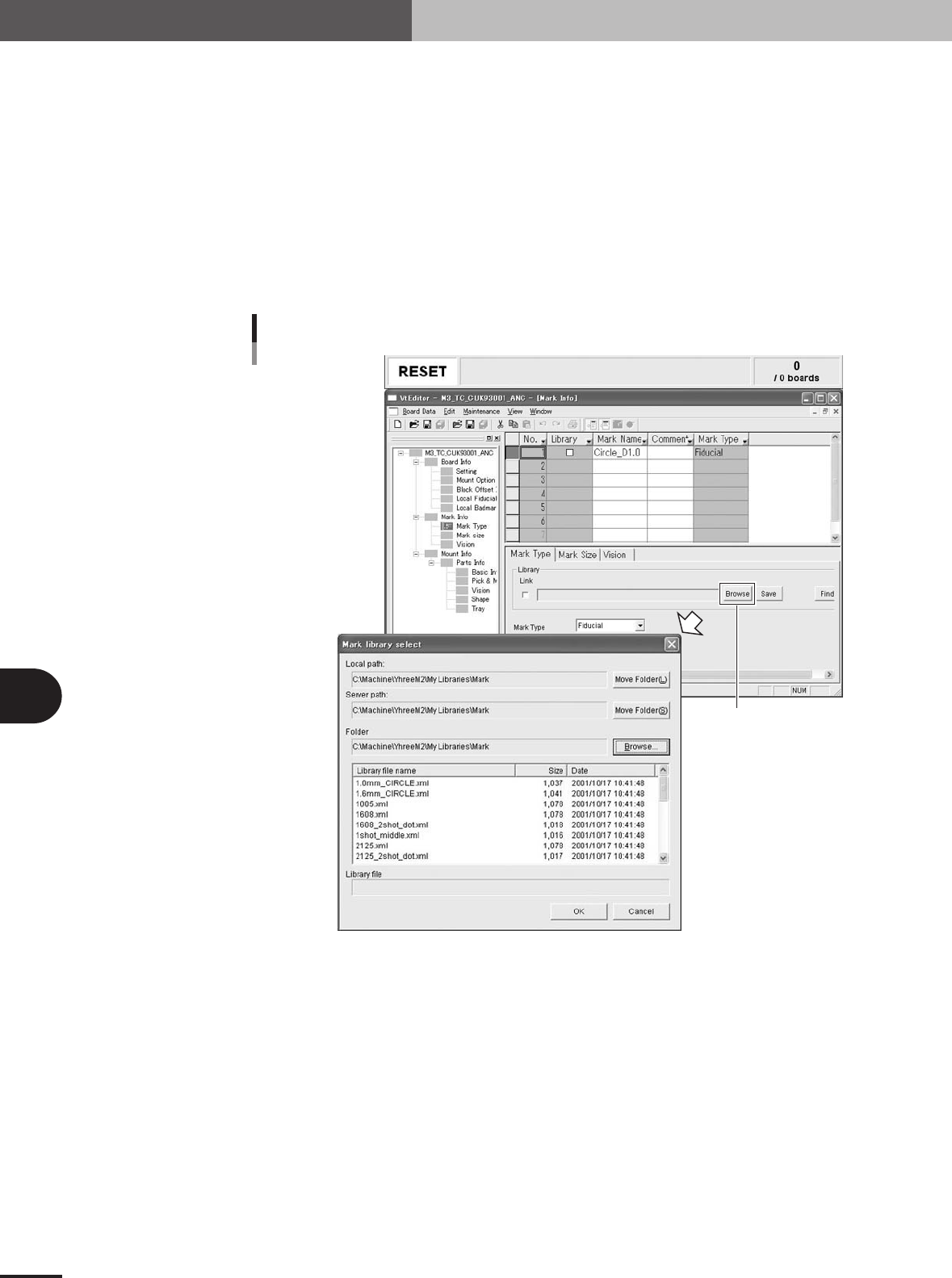
3.2.2 Setting links from the Editor
1
Line up the cursor with the mark or component data to be linked.
In the Mark or Parts Info window of the Editor, line up the cursor with the data to be
linked. The mark name or component name should be input beforehand.
2
Open the [Mark Type] tab or [Basic] tab to set a link.
• Select the [Mark Type] tab to set a link with the Mark library.
• Select the [Basic] tab to set a link with the Parts library.
3
Press the [Browse] button to set the path to the library.
A list of mark or parts library file names appears. Select the applicable file name and
press the [OK] button. A checkmark is automatically placed in the "Link" checkbox.
[Browse] button
Manual link setting
Editor side
27604-5E-20
6 -11
6
Managing the data
3. Creating XML library
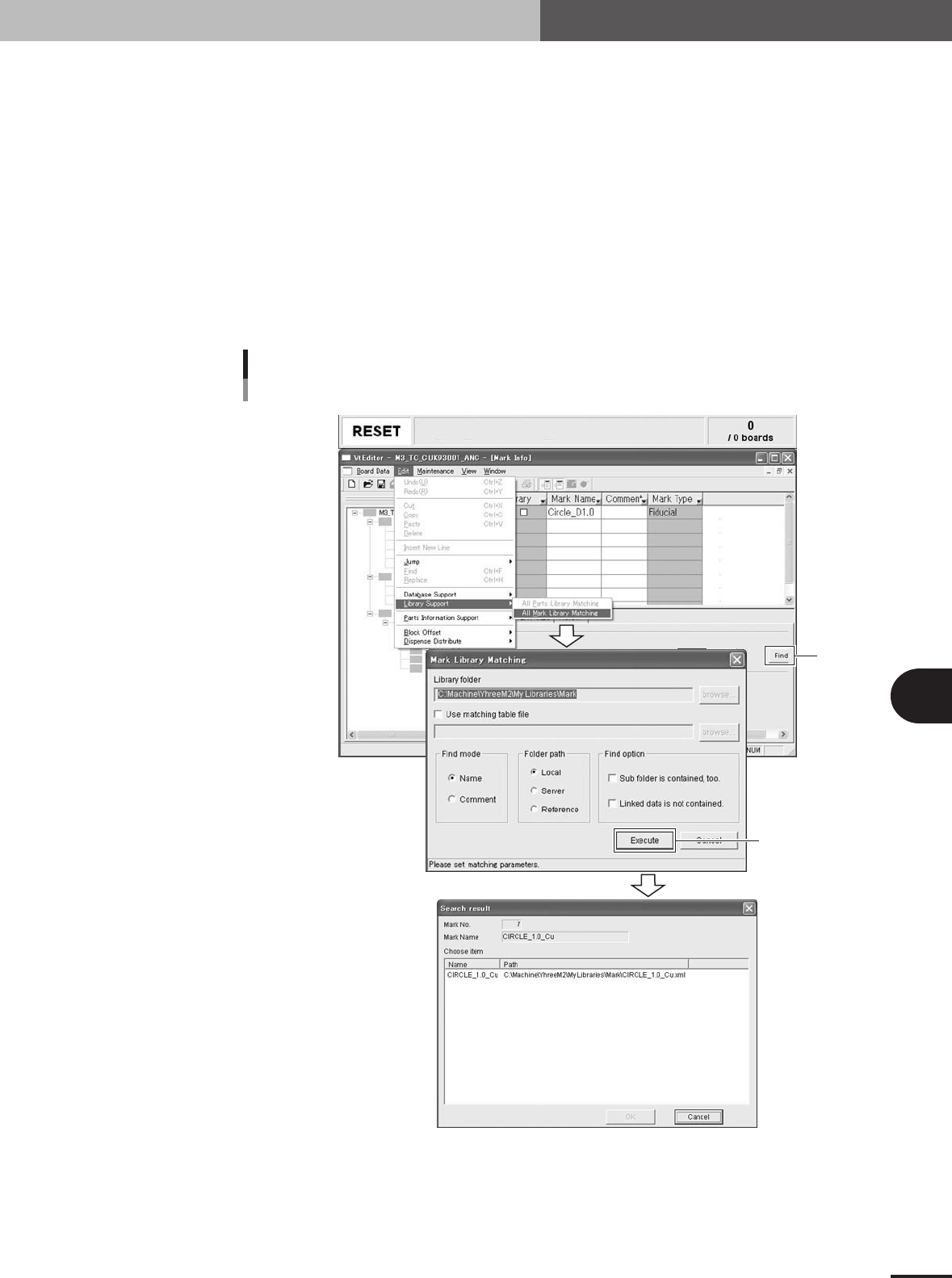
3.2.3 Using library matching (Editor only)
If it is troublesome to set each library link individually, use the Library Matching com-
mand to set all library links.
1
Select the "Library Support" command.
On the Edit menu, select "Library Support" – "All Parts Library Matching" or "All
Mark Library Matching". The Parts Library Matching or Mark Library Matching dialog
box then appears.
2
Press the [Execute] button.
After checking the location (Folder path) to search, press the [Execute] button.
3
Check the search results.
Library matching is continuously executed for all parts (or all marks), so select the
applicable parts or mark and press the [OK] button.
[Execute] button
[Find]
button
Library matching
Example of mark
27605-5E-20

6 -12
6
Managing the data
3. Creating XML library
4
Check that library matching is complete.
A message appears when library matching for all parts or marks is complete. Press the
[OK] button.
n
NOTE
When setting mark library links individually, pressing the [Find] button displays the library if the name of that
library is identical with a component name in the folder. Select the displayed library and press the [Execute]
button to set the link automatically.
c
CAUTION
To enable library links, save the data and then reload it.