M3plus_OperationManual_e.pdf - 第109页
3 - 44 3 Creating the PCB data 4. Creating the component information 4.9.1 Parts Adjust mode 1 Set up the component feeder. Install the feeder loaded with components you want to check. Be sure that the feeder set positio…
3 -43
4. Creating the component information
3
Creating the PCB data
4.9 Parts Adjust mode
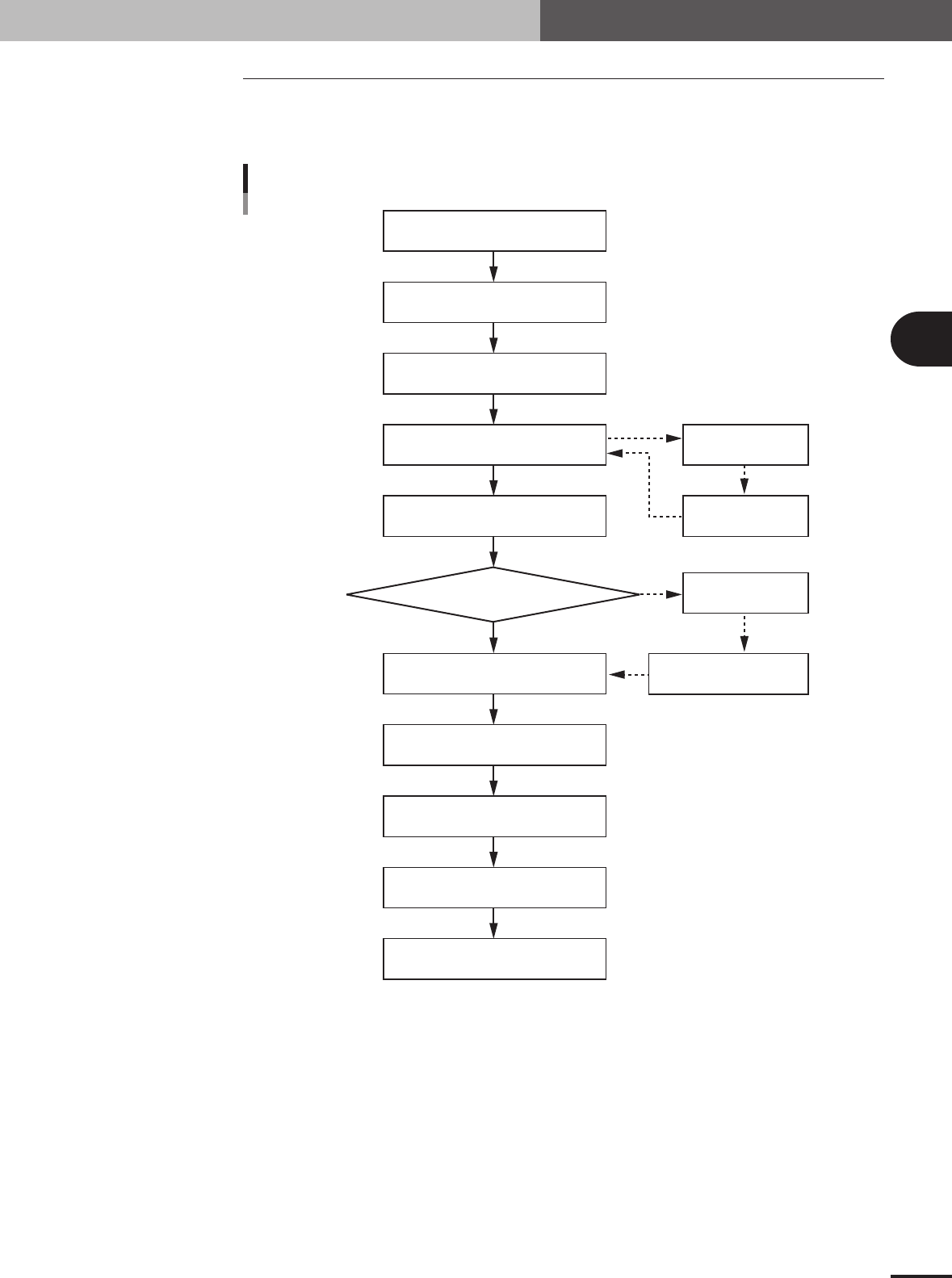
The Parts Adjust mode allows you to check whether the parameter settings are appropri-
ate. While performing the vision test, you can also find and determine an optimum value
for parameters which have not yet been set.
OK
NG
Te ach component (Single camera)
Typical flow chart in Parts Adjust mode
Select component data
Open Parts Adjust screen
Set feeder position
Press [Pick Up] button
Press [Test] button
Check head & nozzle
to be used
Check pickup/mount
vacuum levels
Press [Draw Shape] button
Press [Find Best] button
Press [Test] button
No error
Discard component
Quit Parts Adjust mode
Error occurred
23427-5E-20
3 -44
3
Creating the PCB data
4. Creating the component information
4.9.1 Parts Adjust mode
1
Set up the component feeder.
Install the feeder loaded with components you want to check. Be sure that the feeder
set position matches the number previously set for " Feeder Set No." of the Pick
parameters. If the Feeder Set No. has not yet been determined, you can specify it on
the Parts Adjust screen, so install the feeder at a position you can easily access.
2
Select the component data.
On the Component information screen, line up the cursor with the component data
you want to check.
3
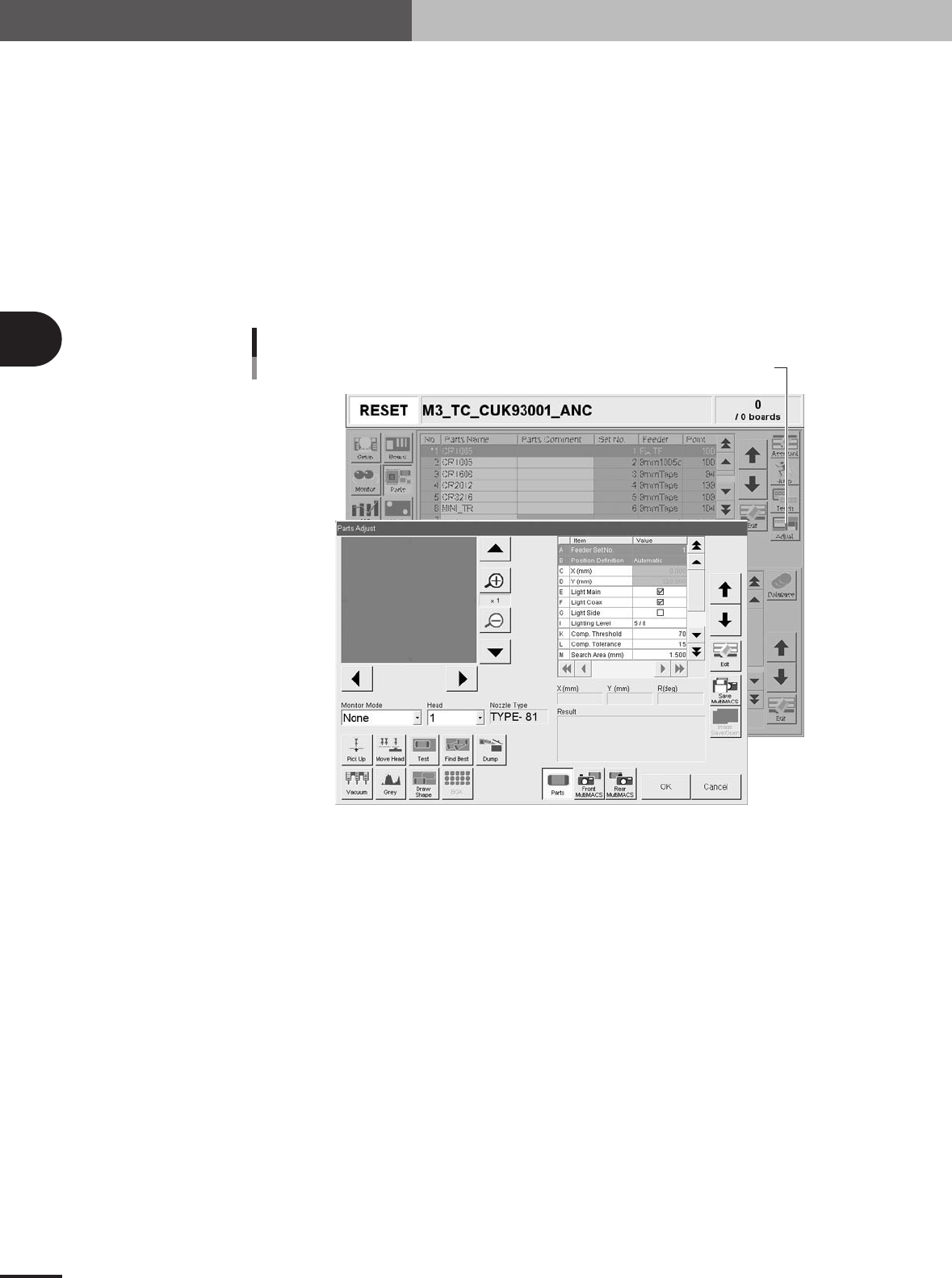
Press the [Adjust] button to enter the Parts Adjust mode.
The Parts Adjust window appears as shown below.
Press the [Adjust] button to open the Parts Adjust window.
Parts Adjust screen
27423-5E-20
3 -45
4. Creating the component information
3
Creating the PCB data
4
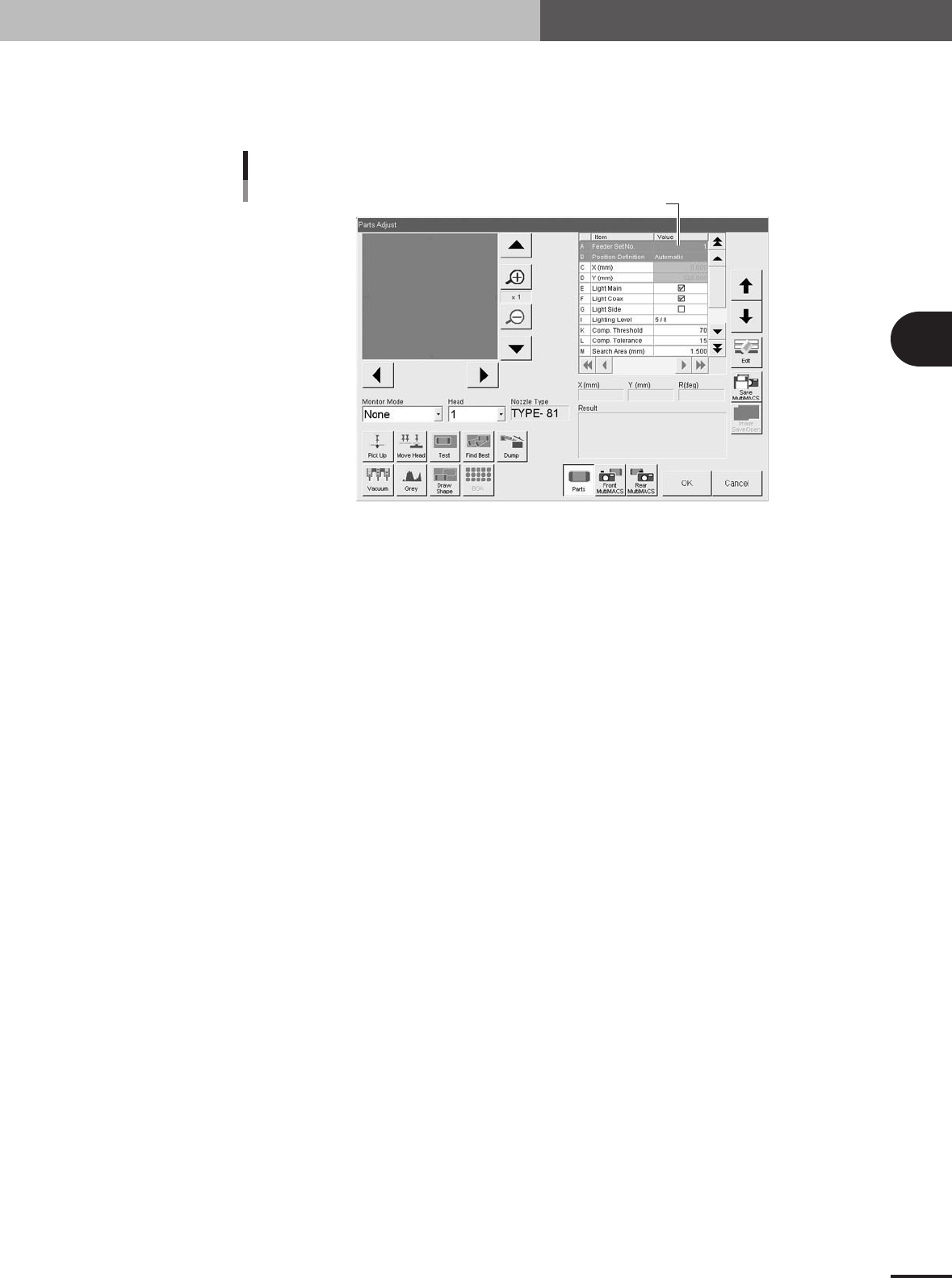
Enter the feeder set number.
Enter this parameter only for components whose feeder position is unspecified. Move
the cursor to "Feeder Set No." in parameter list, then enter the number of the feeder
plate position at which the feeder is installed.
Step 4: Set feeder position
Feeder position input screen
27426-5E-2A
5
Check the head and nozzle to be used.
The head number and nozzle type to be used are shown on the screen. To change
the head number, select it from the Head dropdown list. If you want to change the
nozzle type, exit the Parts Adjust mode and then change the "Required Nozzle"
setting on the Basic tab screen.
6
Perform component pickup.
Press the [Pick Up] button on the Parts Adjust screen. The head assembly moves to
pick up a component.