M3plus_OperationManual_e.pdf - 第119页
3 - 54 3 Creating the PCB data 4. Creating the component information 5 Set "Feeder Set No." of the Pick parameters. Open the [Pick] tab and set "4" to "Feeder Set No." when you have installe…
3 -53
4. Creating the component information
3
Creating the PCB data
4.10.2 Tray shuttle feeder
When supplying components from a tray shuttle feeder (called "TSF1"), make the follow-
ing settings.
1
Set the TSF1 on the feeder plate.
Install the TSF1 on the feeder plate and then set tray components.
n
NOTE
The TSF1 can be installed in position 1 or position 2, each of which occupies the following width on the feeder
plate.
Position 1: Occupies a width from feeder set positions 1 to 7.
Position 2: Occupies a width from feeder set positions 8 to 14.
c
CAUTION
It is not possible to install the TSF1 in position 2 only. For details on how to handle the TSF1
and set tray components, refer to the TSF1 manual at the end of this manual.
2
Select the component and set the alignment type.
Open the [Parts] screen and line up the cursor with the component that should be
supplied from the TSF1. Set "Alignment Group", "Alignment Type" and "Required
Nozzle" in the [Basic] tab grid.
3
Set "Package" of the Basic parameters.
In the [Basic] tab grid, set "Tray" to "Package".
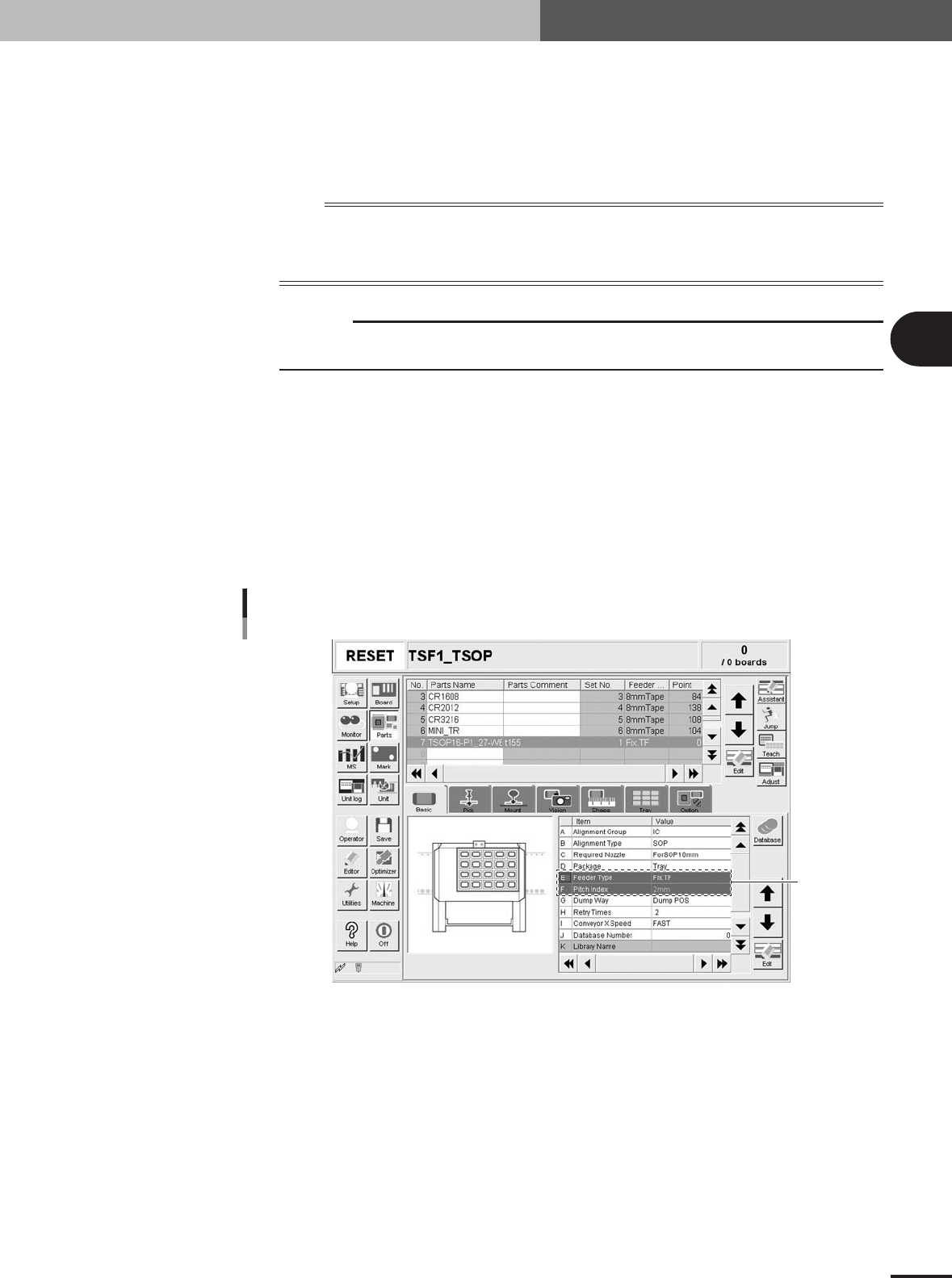
4
Set "Feeder Type" of the Basic parameters.
In the [Basic] tab grid, set "Fix. TF" to "Feeder Type".
Basic parameters
Set these
parameters.
27442-5E-20
3 -54
3
Creating the PCB data
4. Creating the component information
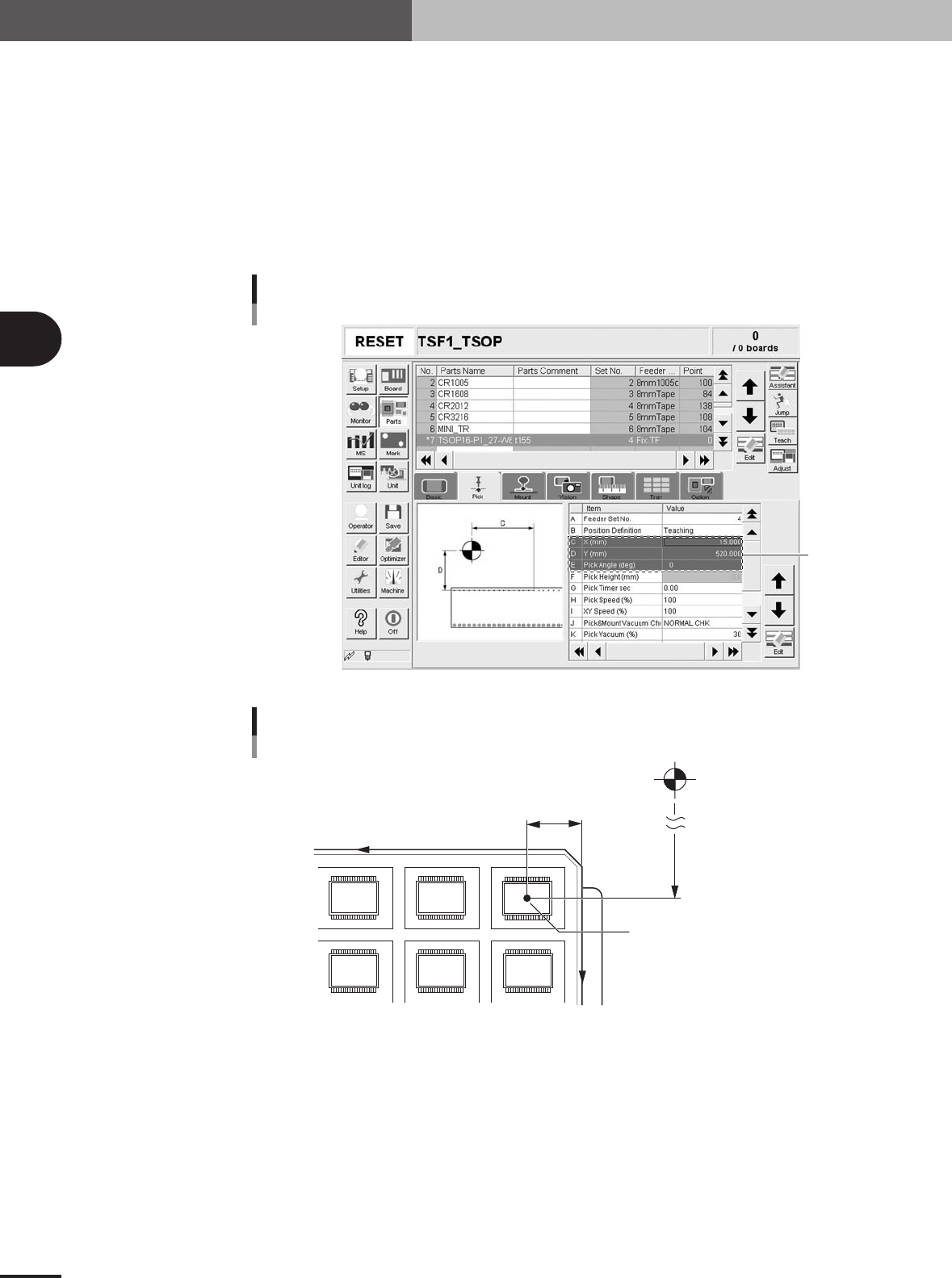
5
Set "Feeder Set No." of the Pick parameters.
Open the [Pick] tab and set "4" to "Feeder Set No." when you have installed the
TSF1 in position 1 or set "11" when you have installed the TSF1 in position 2.
6
Set "Position Definition" of the Pick parameters.
In the [Pick] tab grid, set "Teaching" to "Position Definition".
7
Set "X (mm)" of the Pick parameters.
Measure the distance to the tray reference position from the tray origin with a vernier
caliper or measuring tape, and then enter it in the "X (mm)" field of the [Pick] tab
grid.
Pick parameters
Set these
parameters.
27443-5E-20
Pickup position
X
Y
Pickup position X mm
(Enter this value manually.)
Pickup position Y mm
(Enter this value by teaching.)
Tray reference position (1st pickup point)
Machine origin
23434-5E-20
8
Set "Y (mm)" of the Pick parameters.
Referring to the procedure below, perform teaching for the coordinates of the compo-
nent pickup position.
1.Press the [Teach] button to open the teach window.
2.Press the emergency stop button on the TSF1 and then open the upper safety cover.
3.Move the shuttle by hand to near the pickup position (where a component on the
tray is roughly aligned with the axis of the moving camera.)
e
3 -55
4. Creating the component information
3
Creating the PCB data
4.Move the head assembly by hand to a point at which a component on the tray is
viewed with the moving camera.
n
NOTE
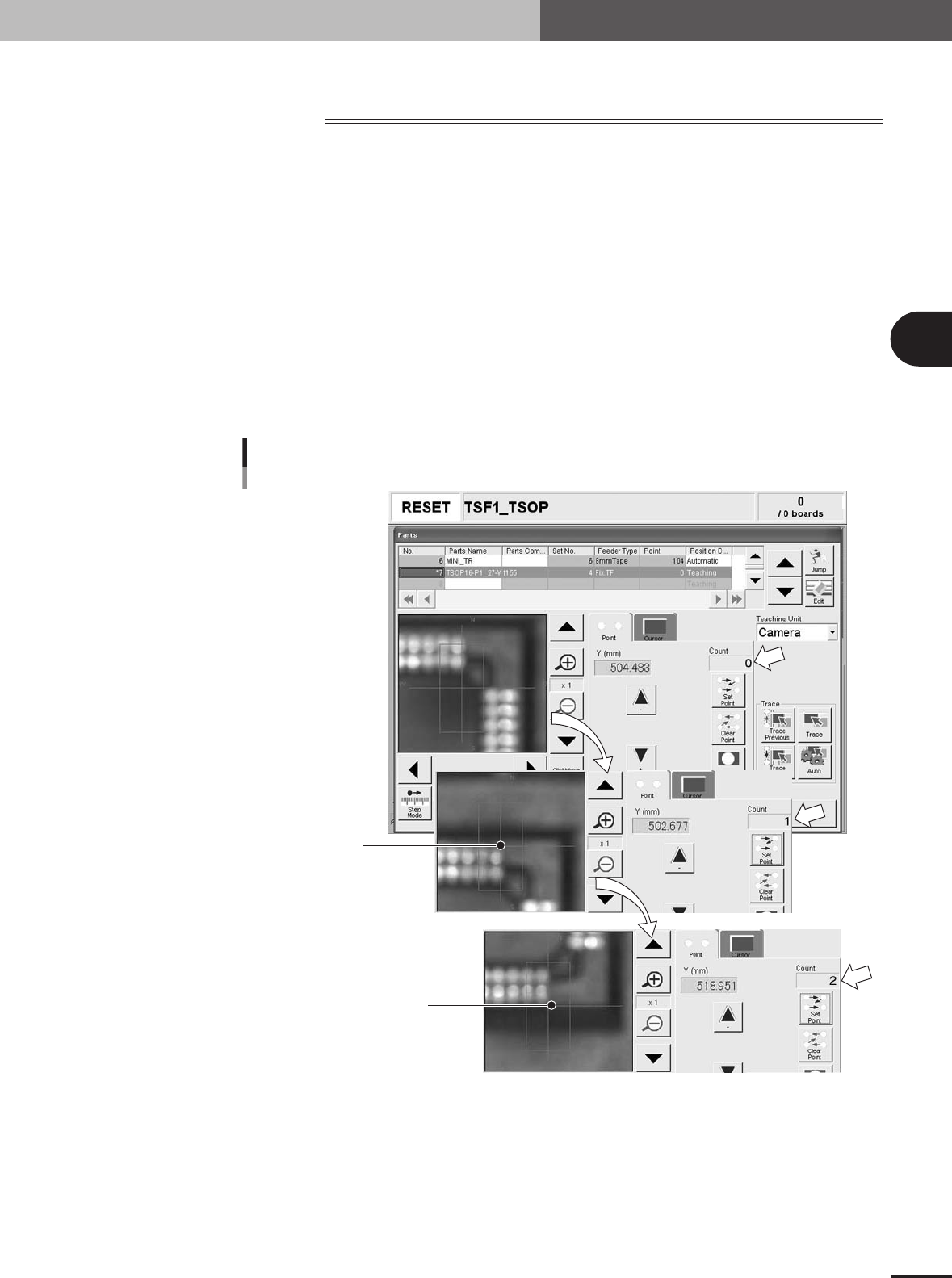
Components on the tray are not exactly focused because of the camera structure. The image appears blurred as
shown below. Adjust the camera lighting levels as needed, to make it easier to view the teaching point.
5.Close the TSF1 and mounter safety covers, cancel the emergency stop button and
press the [READY] button.
6.Press the [Click Move] button, place the mouse pointer at the component lead edge
on the N side (or S side), and click the mouse button. (When the component has
no leads, click at a component mold edge.)
7.When the camera has moved to the component lead edge, click the [Set Point]
button once. (The "Count" box in the teach window changes from "0" to "1".)
8.Move the camera by teaching to the opposite lead edge of the component.
9.When the camera has moved to the opposite lead edge, click the [Set Point] button
once.
Check that the "Count" box has changed from "1" to "2" and then click the
[Teach] button.
Setting the pickup position Y (mm)
First point
Second point
27320-5E-20
10.The above procedure automatically enters the pickup position (Y position only).
Close the teach window by pressing the [Close] button.