M3plus_OperationManual_e.pdf - 第121页
3 - 56 3 Creating the PCB data 4. Creating the component information 11. Open the [Pick] tab and check that the Y position value is entered in the "Y (mm)" field. X (mm) and Y (mm) positions 27321-5E-20 n NOTE …
3 -55
4. Creating the component information
3
Creating the PCB data
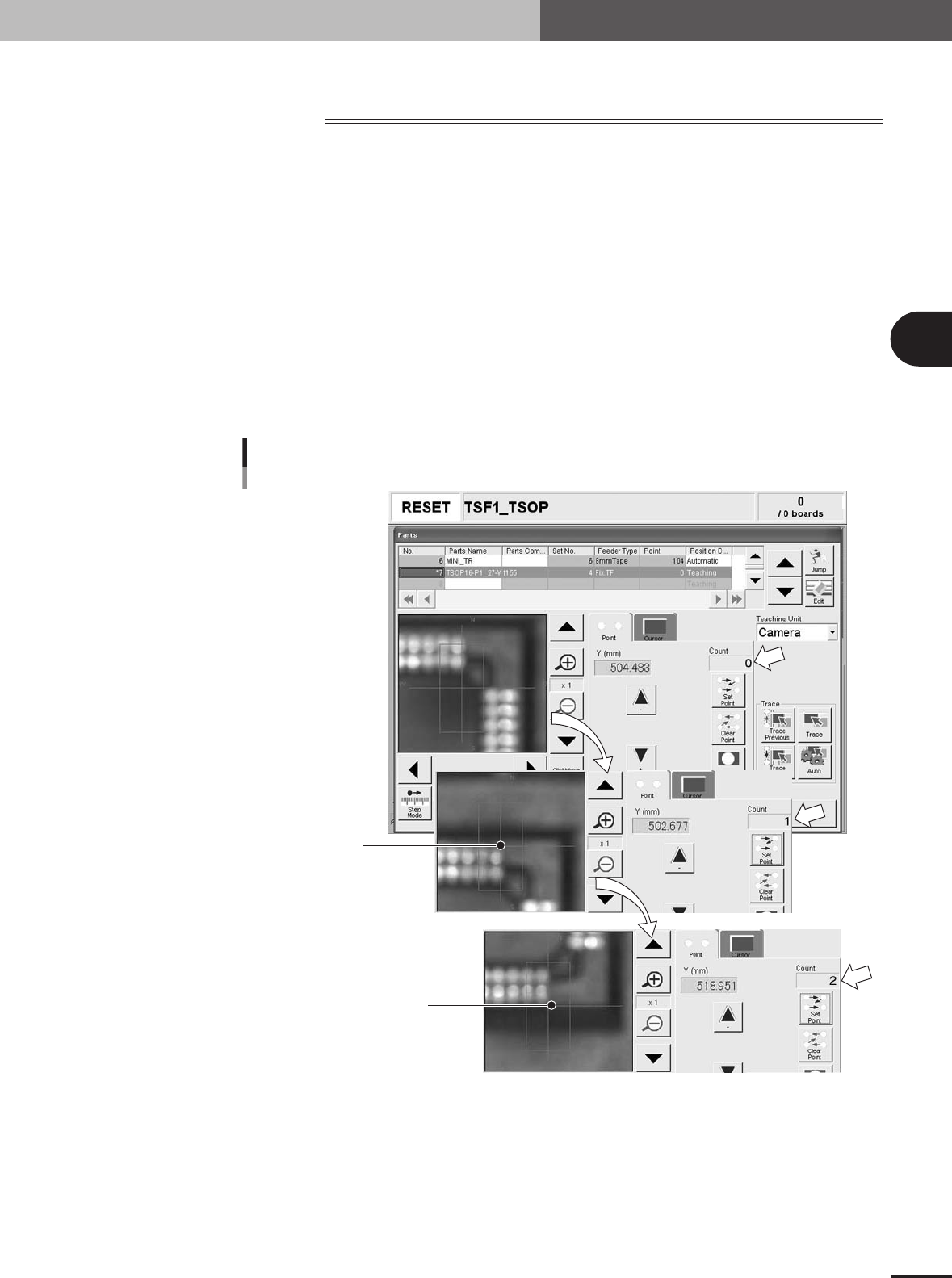
4.Move the head assembly by hand to a point at which a component on the tray is
viewed with the moving camera.
n
NOTE
Components on the tray are not exactly focused because of the camera structure. The image appears blurred as
shown below. Adjust the camera lighting levels as needed, to make it easier to view the teaching point.
5.Close the TSF1 and mounter safety covers, cancel the emergency stop button and
press the [READY] button.
6.Press the [Click Move] button, place the mouse pointer at the component lead edge
on the N side (or S side), and click the mouse button. (When the component has
no leads, click at a component mold edge.)
7.When the camera has moved to the component lead edge, click the [Set Point]
button once. (The "Count" box in the teach window changes from "0" to "1".)
8.Move the camera by teaching to the opposite lead edge of the component.
9.When the camera has moved to the opposite lead edge, click the [Set Point] button
once.
Check that the "Count" box has changed from "1" to "2" and then click the
[Teach] button.
Setting the pickup position Y (mm)
First point
Second point
27320-5E-20
10.The above procedure automatically enters the pickup position (Y position only).
Close the teach window by pressing the [Close] button.
3 -56
3
Creating the PCB data
4. Creating the component information
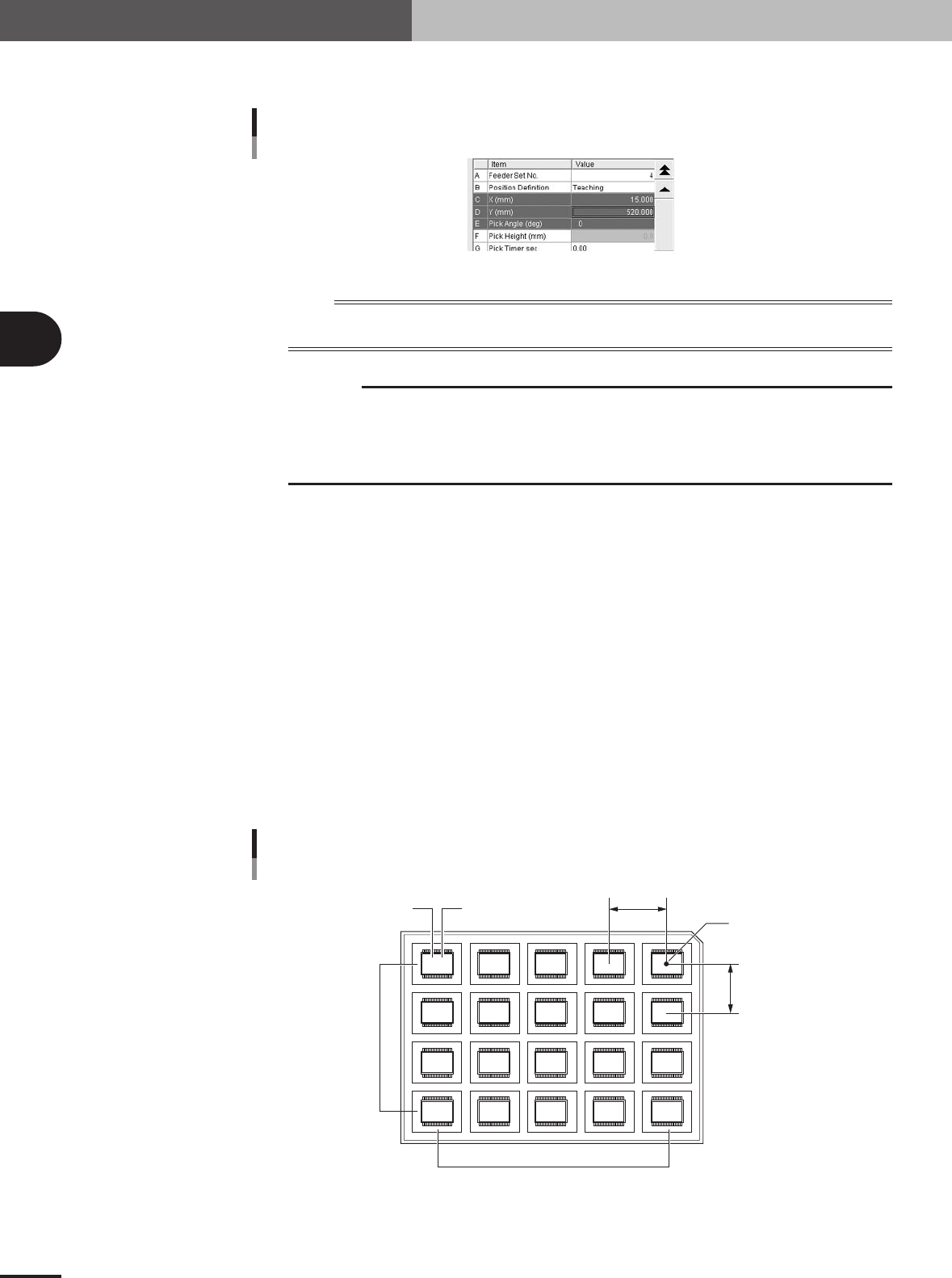
11.Open the [Pick] tab and check that the Y position value is entered in the "Y (mm)"
field.
X (mm) and Y (mm) positions
27321-5E-20
n
NOTE
Clicking the [Teach] button does not automatically enter the "X (mm)" position. You must manually enter the "X
(mm)" position.
c
CAUTION
When using two TSF1 units installed in positions 1 and 2 on the feeder plate, two sets of
component data will be required even when picking up the same type of tray components from
the two TSF1, because the pickup position Y differs between positions 1 and 2. To create this
component data, always first install the TSF1 at the position actually used for production and
set tray components on theTSF1.
9
Set the tray parameters.
Open the [Tray] tab and set each parameter as follows.
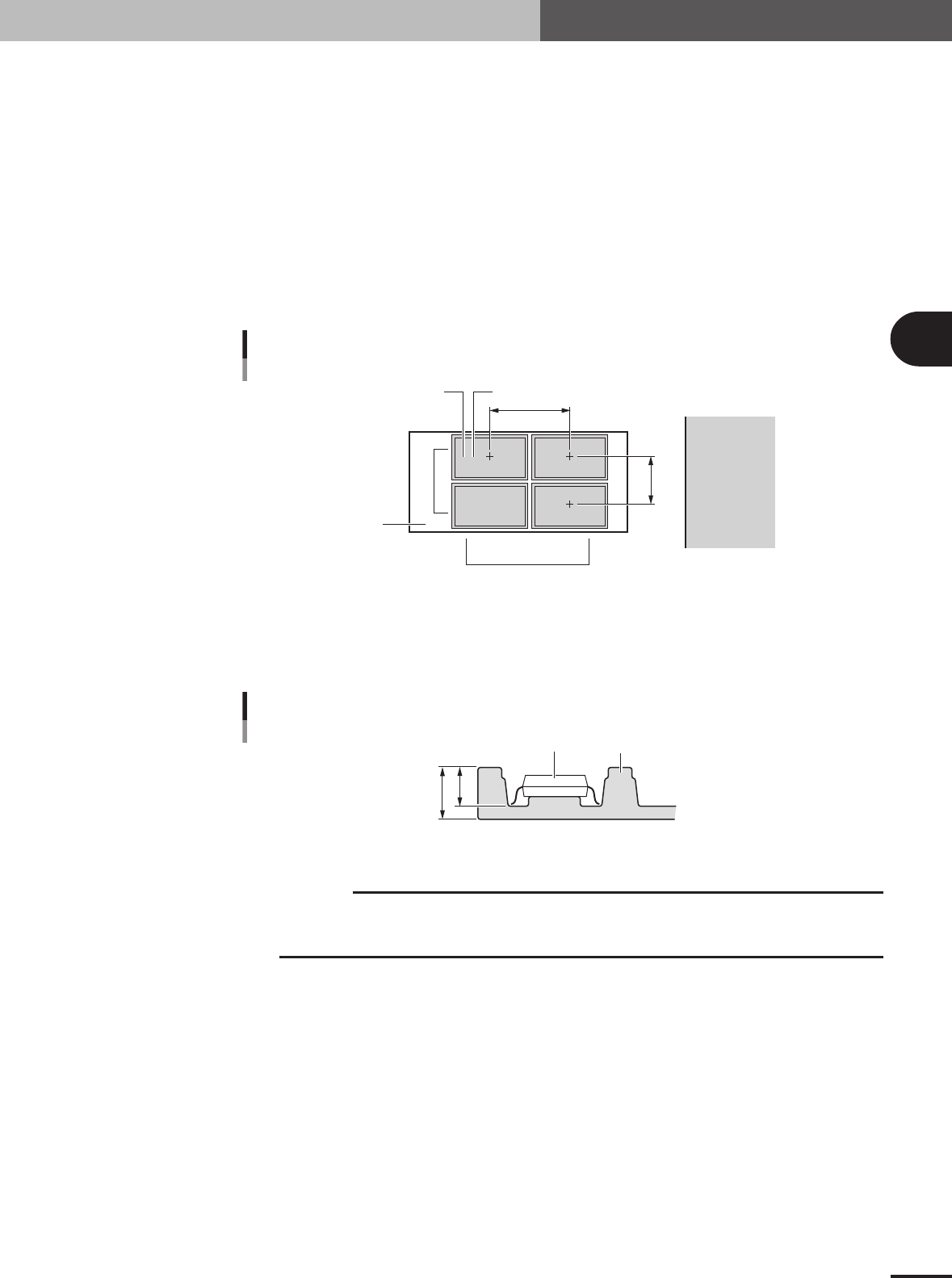
A, B: Comp. Amount XY
Enter the number of components in the XY directions on a tray.
C, D: Comp Pitch XY
Enter the component pitch (center to center spacing) in millimeters in the XY directions on a tray.
E, F: Current Pos. XY
These parameters indicate which row and column on a tray the component is currently picked up
from. The row and column on a tray are counted from the tray reference position.
Normally, enter "1" in both the Current Pos. X and Current Pos. Y parameters when you have
created new component information. With these parameters set to "1", the machine starts picking
up a component from the tray reference position. Since these parameters automatically change as
the components are picked up, so you can check which row and column on the tray the components
have been used up to.
Tray reference position
Comp Amount / Current Pitch / Current Pos. settings
5,4
4,4 3,4 2,4 1,4
5,3 4,3 3,3 2,3 1,3
5,2 4,2 3,2 2,2 1,2
5,1 4,1 3,1 2,1 1,1
A
C
FE
D
B
23431-5E-20
3 -57
4. Creating the component information
3
Creating the PCB data
G, H: Tray Amount XY
These parameters specify the number of trays set in the XY directions on the shuttle. For example
in the figure below, enter "2" for the Tray Amount X parameter, and "2" for the Tray Amount Y
parameter.
I, J: Tray Pitch XY
These parameters set the center to center spacing of the adjacent trays. When only one tray is set
on the shuttle, both the Tray Pitch X and Tray Pitch Y parameters should be "0.00".
K, L: Current Tray XY
These parameters indicate which row and column on the shuttle the tray is currently used. Nor-
mally, enter "1" for both Current Tray X and Current Tray Y parameters. With these parameters set
to "1", the machine starts picking up a component from the tray placed closest to the tray reference
position.
2,1 1,1
2,2 1,2
Tray Amount / Tray Pitch settings
G
H
J
I
LK
Shuttle
Feeder side
23433-5E-20
M: Tray Height
Enter the thickness (mm) of the tray by referring to the figure below. The sum of the "Body Size
Z" and the value you entered here determines the component pickup height, so measure the tray
thickness correctly.
B
A
Component
Tray
Tray height (thickness) = A – B
Tray height (thickness)
23445-5E-20
c
CAUTION
The "Height" parameter is set to "0" by default. Be sure to enter the correct tray thickness to
prevent the nozzle from pushing the component too far. Failure to do so might cause pickup
errors or damage to the nozzle and head.