M3plus_OperationManual_e.pdf - 第132页
3 - 67 3 Creating the PCB data 5. Creating the mark information 5 Press the [Test] button to perform the vision test. Repeat this test several times. If no error is detected, each parameter is appropriate so advance to t…
3 -66
3
Creating the PCB data
5. Creating the mark information
5.5 Mark Adjust mode
This operation checks whether the parameter settings are correct. For parameters which
are unspecified, the optimal values can be obtained by performing "VISION TEST" here.
The following adjustment procedure is explained for cases where "Mark Type" of the
Basic parameters is set to "Fiducial".
1
Select the mark data.
Open the mark information screen and line up the cursor with the mark data you
want to check.
2
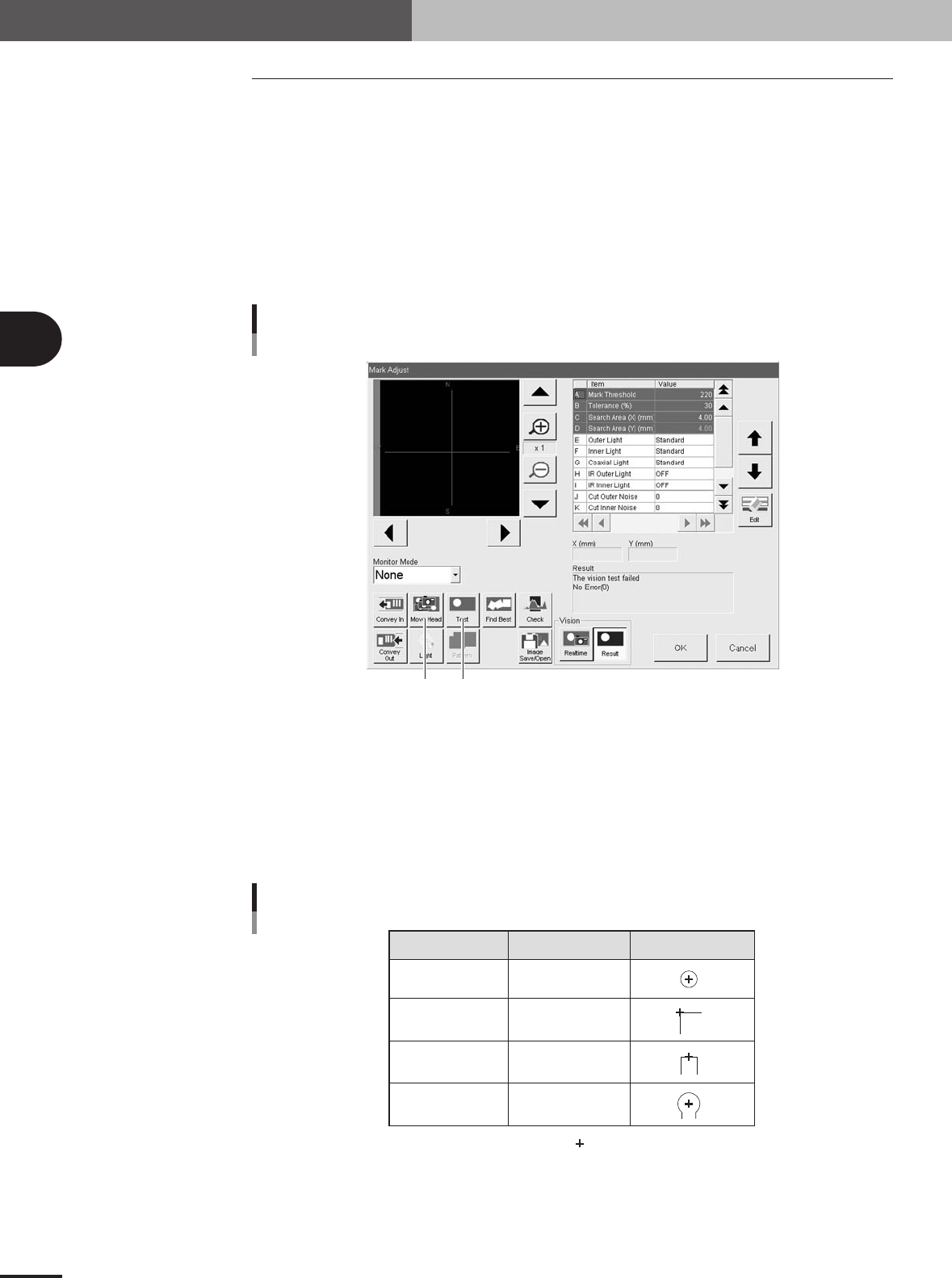
Press the [Adjust] button to enter the Mark Adjust mode.
The Mark Adjust screen appears as shown below.
Step 4 Step 5
Mark Adjust screen
27449-5E-20
3
Set the PCB on the conveyor and clamp it.
4
Perform teaching for the mark.
1.Press the [Move Head] button to open the Move Head window.
2.Use the arrow buttons to position the moving camera above the mark so the mark is
aligned with the cross cursor on the vision monitor as shown in the table below.
3.Press the [OK] button to return to the Mark Adjust screen.
Shape Type Teaching point Example
Circle, Square
Triangle, Sp. Shape
Corner
TopEdge
CirEdge
Center of mark
Corner of mark
Center of a square
edge line
Center of a round edge
: Cross cursor at center of screen
Mark teaching positions
25415-5E-20
3 -67
3
Creating the PCB data
5. Creating the mark information
5
Press the [Test] button to perform the vision test.
Repeat this test several times. If no error is detected, each parameter is appropriate so
advance to the next step. If an error occurs, make adjustments with the procedure
below.
1.Press the [Cancel] button to exit the Mark Adjust mode and check whether the
parameter settings (Mark Type, Shape Type, Algorithm Type, etc.) are correct.
2.After checking the parameters, enter the Mark Adjust mode and press the [Test]
button again to run the same test. When no errors occur, move to the next step.
3.If an error still occurs, press the [Find Best] button to find an optimum threshold
level.
4.After the optimum threshold level has been found, run the vision test again.
If no errors occur, go to the next step.
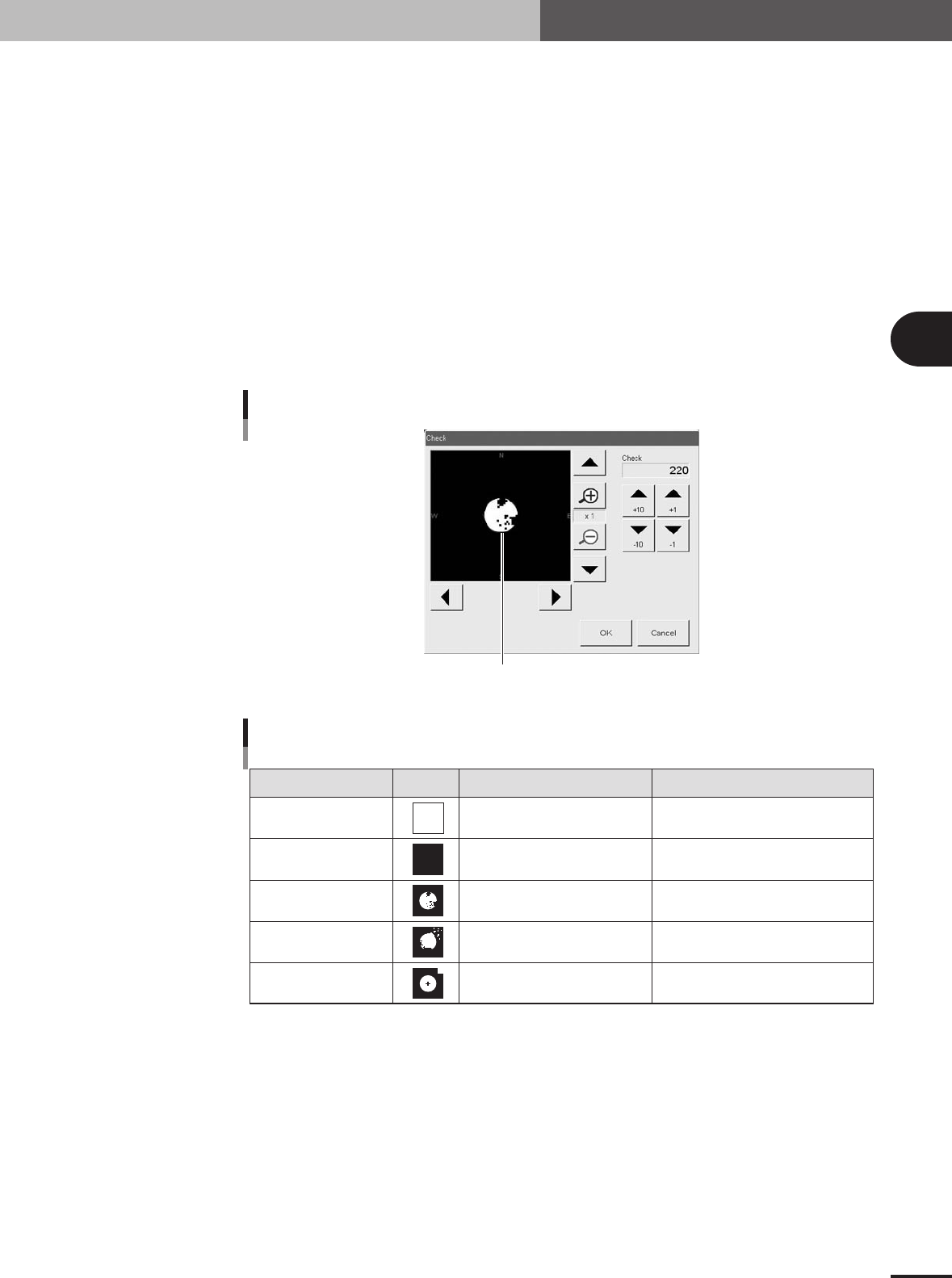
5.If the optimum threshold level could not be obtained, press the [Check] button.
A binary image appears on the vision monitor according to the current parameter
settings as shown below. Adjust the threshold level as suggested below, so that the
mark image is clearly displayed.
Binary mark image
Mark binary image
27450-5E-20
Binary image check
State Image Countermeasure Remarks
All white
All black
Noise within mark
Noise outside of mark
Other than mark in
search area
Increase the threshold level with
the arrow buttons.
Decrease the threshold with the
arrow buttons.
Increase the Cut Inner Noise level.
Increase the Cut Outer Noise level.
Reduce the Search Area size.
Adjust it till the mark is displayed.
Adjust it till the mark is displayed.
Recognition time becomes longer
as the Cut Inner Noise level is increased.
Recognition time becomes longer
as the Cut Outer Noise level is increased.
Refer to "Search Area"
explained previously.
25416-5E-20
6.Press the [Find Best] button again to find an optimum threshold level.
If the result is successful, next run the vision test. When no error occurs, advance to
the next step. If the vision test result is a fail, enter a larger value for the Tolerance
parameter on the Mark Adjust screen, then press the [Find Best] button again.
3 -68
3
Creating the PCB data
5. Creating the mark information
6
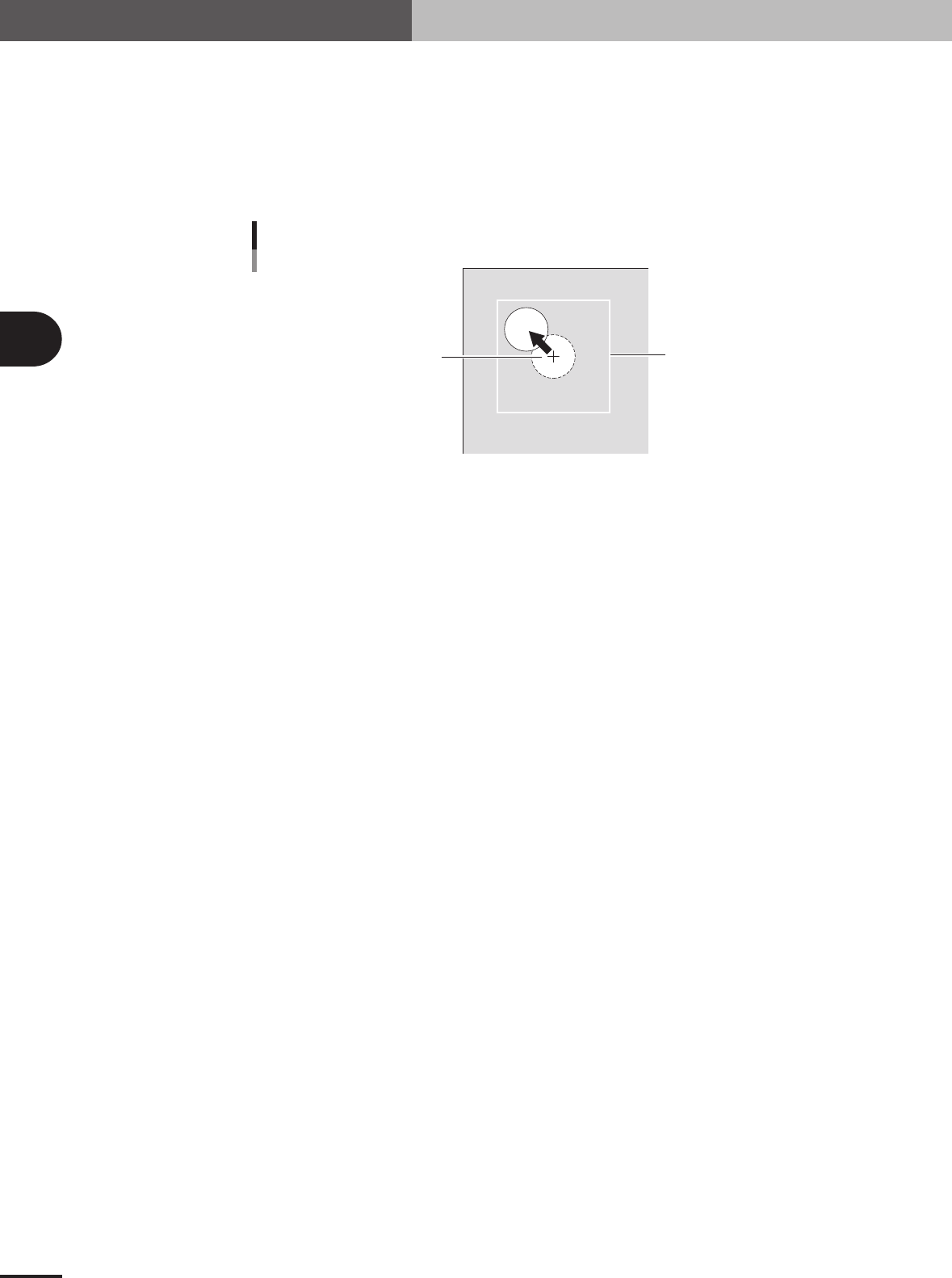
Check that the mark can be recognized even if it has moved.
Check that the mark can be recognized in any location within the search area.
1.Press the [Move Head] button to open the Move Head window.
2.Use the arrow buttons to move the mark slightly from the center of the search area.
3.Return the Mark Adjust screen and run the vision test once more.
If no error occurs, the parameter settings are satisfactory. Repeat this operation
several times, and check that no error occurs.
Search Area
Center of search area
Final check for mark recognition
23441-5E-20
7
Quit the Mark Adjust mode.
Press the [OK] button to quit the Mark Adjust mode.