M3plus_OperationManual_e.pdf - 第137页
4 - 2 4 Using the adv anced functions 1. Board parameters Badmark operation The flow chart below shows typical methods for setting a board badmark and block badmark. Operation not performed for the block Operation perfor…
4
Using the advanced functions
4 -1
1. Board parameters
1.1 Using the badmark functions
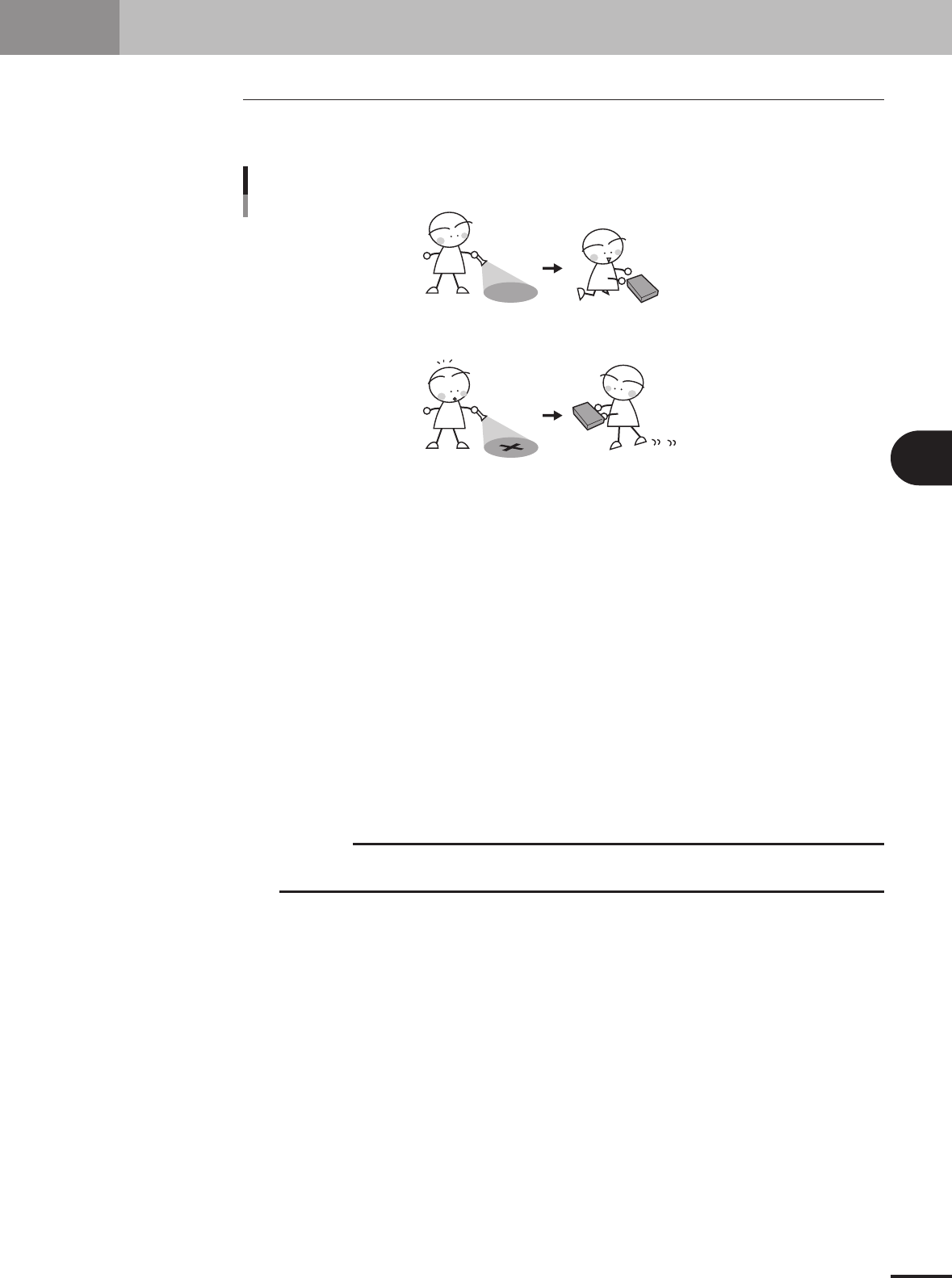
The badmark function permits the machine to cancel component mounting if the machine
detects a badmark affixed to the specified position on a PCB.
The machine mounts components when no badmarks are detected.
Badmark function
The machine skips mounting components when a badmark is detected.
23414-5E-20
Badmarks are broadly classified into two types: one is specified for the PCB data and the
other is for the mount data. These badmarks are further divided by their functions into
"Board badmark", "Block badmark" and "Local badmark".
Board badmark
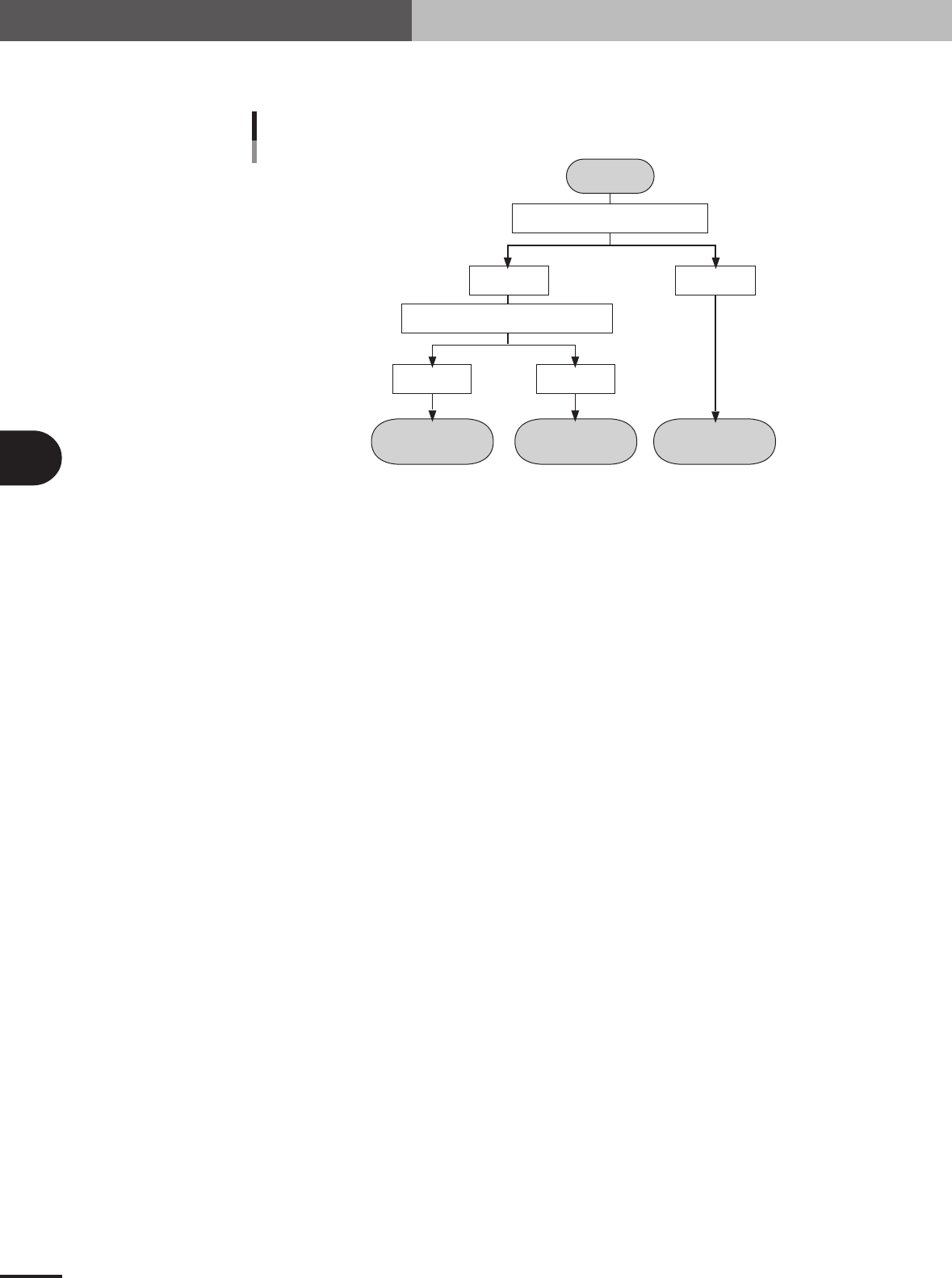
A board badmark is affixed on a PCB and used to determine whether or not the machine searches for
block badmarks on the PCB. For example, when a multi-block PCB with no faulty blocks (no block
badmarks) is fed to the machine, it is a loss of time to search for block badmarks on that PCB. The
PCB badmark function permits the machine to search for block badmarks only when the PCB
badmark is detected. If no PCB badmark is detected, the machine mounts components on all blocks
of the PCB without searching for block badmarks.
Block badmark
A block bad mark is affixed to each block which is defective. The machine mounts components only
on blocks with no badmark affixed. For example, if Block B is defective in a multi-block PCB
consisting of 4 blocks (A, B, C and D), affix a block badmark on Block B so that the block badmark
function allows the machine to skip mounting on Block B. Components will be mounted only on
Blocks A, C and D.
c
CAUTION
The block badmark function can only be used for multi-block PCB data with "block offset"
specified on the Offset tab screen.
Local badmark
The local badmark function cancels component mounting by recognizing a badmark specified at a
mounting point.
4 -2
4
Using the advanced functions
1. Board parameters
Badmark operation
The flow chart below shows typical methods for setting a board badmark and block badmark.
Operation
not performed for
the block
Operation
performed for
the block
Operation
performed for
all blocks
Start
Search PCB badmark
Detected Not detected
Search block badmark
Badmark operation flows
Detected Not detected
23415-5E-20
4 -3
4
Using the advanced functions
1.1.1 Badmark parameters
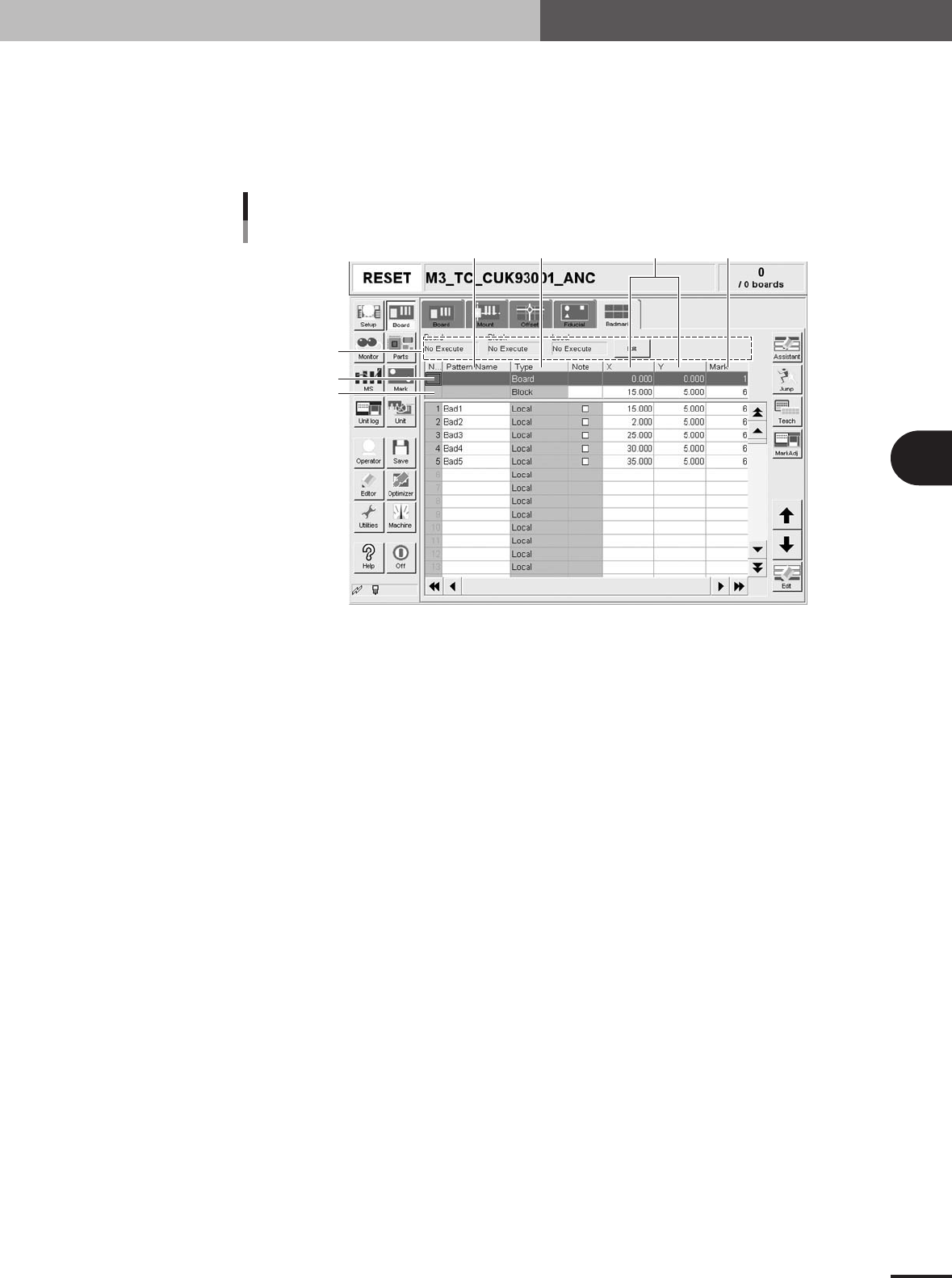
Selecting the [Badmark] tab opens the screen for setting badmark mark parameters and
their coordinates. Set these parameters as explained below when using the badmark
function. Two or four badmarks are used as a set, but it is okay if each mark is different
in shape. Badmark mark data must be registered in the mark information beforehand.
(See "5. Creating the mark information" in chapter 3.)
4
1
567
2
3
Badmark parameter screen
27410-5E-20
1 Board, Block, Local
Badmark functions are broadly classified into three types: "Board" badmark function specified for a
PCB, "Block" badmark function specified for each block of a multi-block PCB, and "Local" badmark
function related to mounting data. The badmark function you want to use should be set to "Execute".
To change the setting, press the [Edit] button on the right end.
2 Board
On the top line of the parameter list, set the board badmark data.
3 Block
On the second line of the parameter list, set the block badmark data.
4 Pattern Name
Enter the badmark name here. (No names can be entered on the top and second lines.)
5 Type
Badmark function types are specified here. (These cannot be changed.)
6 X, Y
Enter the XY coordinates of the badmark relative to the PCB origin in millimeters. You can perform
teaching with the [Teach] button.
7 Mark
Enter the mark No. for the badmark (mark No. registered as mark in the mark information).
1. Board parameters