M3plus_OperationManual_e.pdf - 第160页
4 - 25 7. Fixed board matching 4 Using the adv anced functions 7.1 How to set up the fixed board matching function 1 Prepare the board data to register. Before starting, prepare the board data to register as fixed board …
4 -24
7. Fixed board matching
4
Using the advanced functions
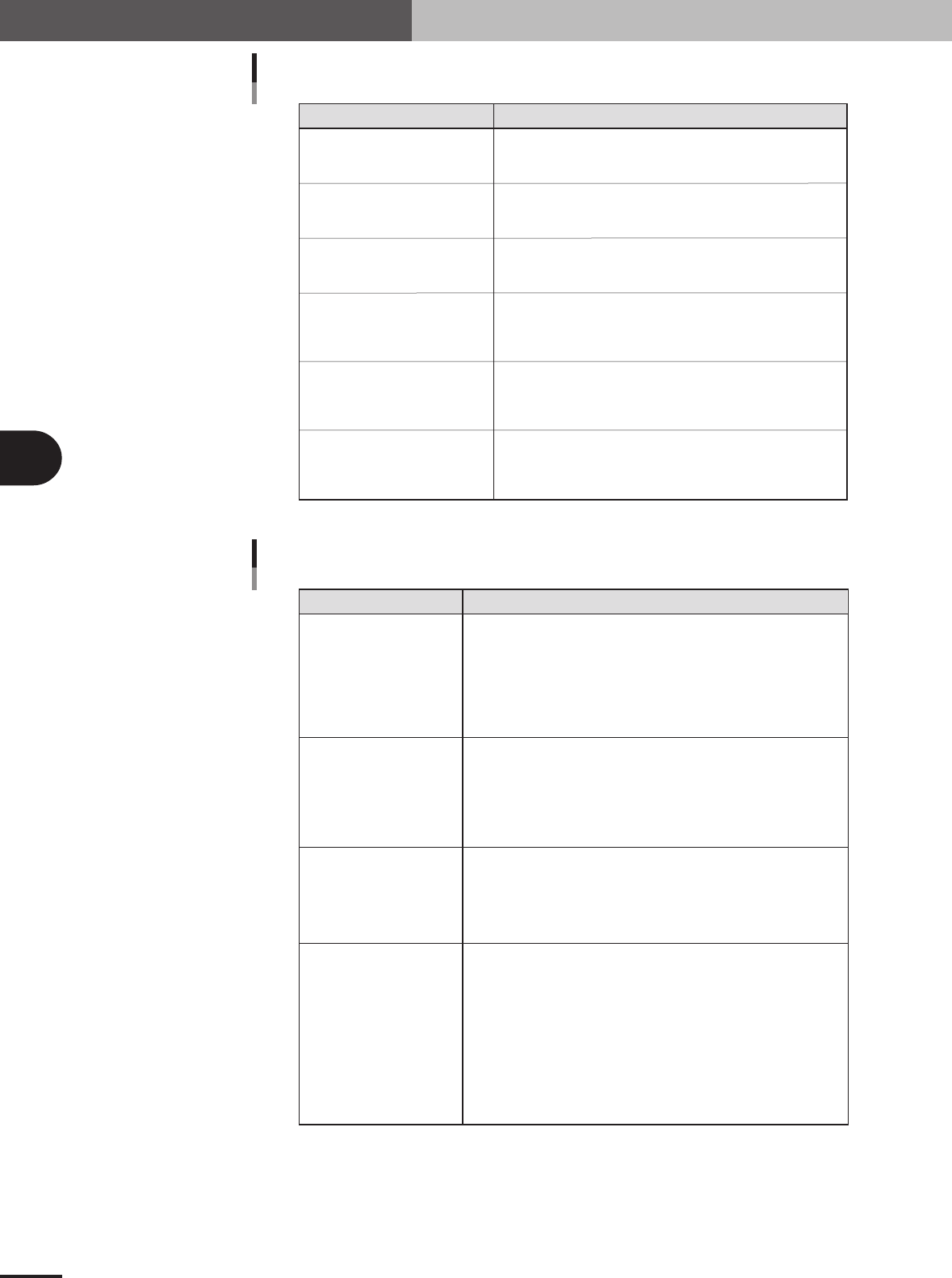
Was a fixed board specified?
Is there a fixed board B?
Is matching for all component
data finished?
Is component name the same?
Is there valid data?
Is the feeder type the same?
Checks if fixed board matching function is enabled and branches
the processing if enabled. Data loading ends with no changes made
if this function is not used.
Checks if fixed board data is registered when fixed board matching
function is enabled, and branches the processing if registered.
If no fixed board data is registered, an error (Ea721) is issued.
Checks if matching for all component data registered in the loaded
PCB data is finished or not, and branches the processing.
If not yet finished, the matching process continues.
Searches for a component name match between the loaded
PCB data and the fixed board data. If a component with the same
name is found, then the operation proceeds to the next process.
If not found, then a search is made for the next component.
Checks if the contents of the fixed board data for a component
with a matching name are valid or not. If valid, the operation
proceeds to the next process. If not valid, an error (Ea723)
is issued and the matching process is stopped.
Checks if the feeder type of the target component matches
the fixed board component feeder type. If a match, the operation
proceeds to the next process. If there is no match an error (Ea725)
is issued and the matching process is stopped.
Flow item Description
Description of flow items
25421-5E-20
Ea721
Fixed board loading error
Ea723
No component data
Ea725
Feeder type mismatch error
Component information
in PCB data was changed.
Error Cause and countermeasure
Errors and countermeasures
[Cause]
This error occurs if no fixed board data is registered even when the fixed
board matching function is enabled. When multiple fixed board data is
registered and a check is placed in the "Use" check box, an error occurs
if even just one of those fixed board data is not present.
[Countermeasure]
Check if fixed board data is registered properly and then reload the target
PCB data.
[Cause]
This error occurs if the component name on the loaded PCB data matches
a component name in the fixed board data but there is no component data
on the fixed board side.
[Countermeasure]
Check and correct the fixed board component data and then reload the
target PCB data.
[Cause]
This error occurs if the component name on the loaded PCB data matches
a component name in the fixed board data but the feeder type is different.
[Countermeasure]
After changing the feeder type of the target component, register the
PCB data and reload it.
[Cause]
The component data may have been rewritten due to the fixed
board matching. The matching and copying of component data will
continue every time PCB data is loaded, as long as fixed board matching
is enabled on the "Fixed Board Matching" dialog box (see section 7.1).
In other words, when component data and also feeder type component
data with the same name as component data registered for the fixed board
have been changed, they are then substituted into the fixed board
component data at the instant the PCB data is loaded.
[Countermeasure]
Disable the fixed board matching function if you don’t want to rewrite
board data in the fixed board matching process.
25422-5E-20
4 -25
7. Fixed board matching
4
Using the advanced functions
7.1 How to set up the fixed board matching function
1
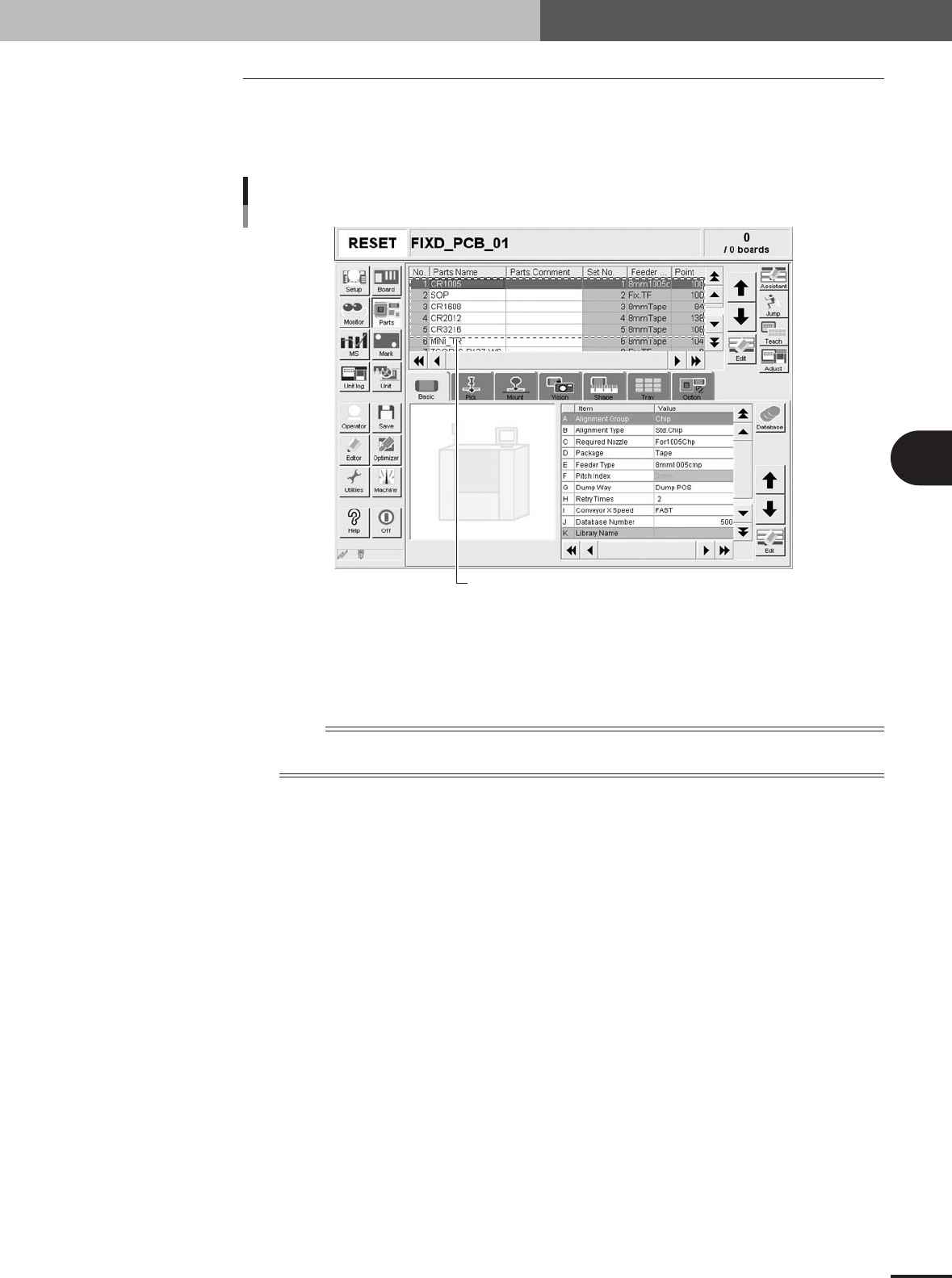
Prepare the board data to register.
Before starting, prepare the board data to register as fixed board data. (You can
register up to a maximum of 5 types of board data.)
Components to be registered in fixed board data
Setup screen showing components for fixed board data
27488-5E-20
2
Store the fixed board data in a designated location.
The fixed board data you prepared in step 1 must be stored in a folder in the specified
location. Store the fixed board data in "D:\Machine\No.1" when the "Machine"
folder is created in drive D.
n
NOTE
Those customers with board data managed via a network should store the fixed board data in the specified
location in the host server.
4 -26
7. Fixed board matching
4
Using the advanced functions
3
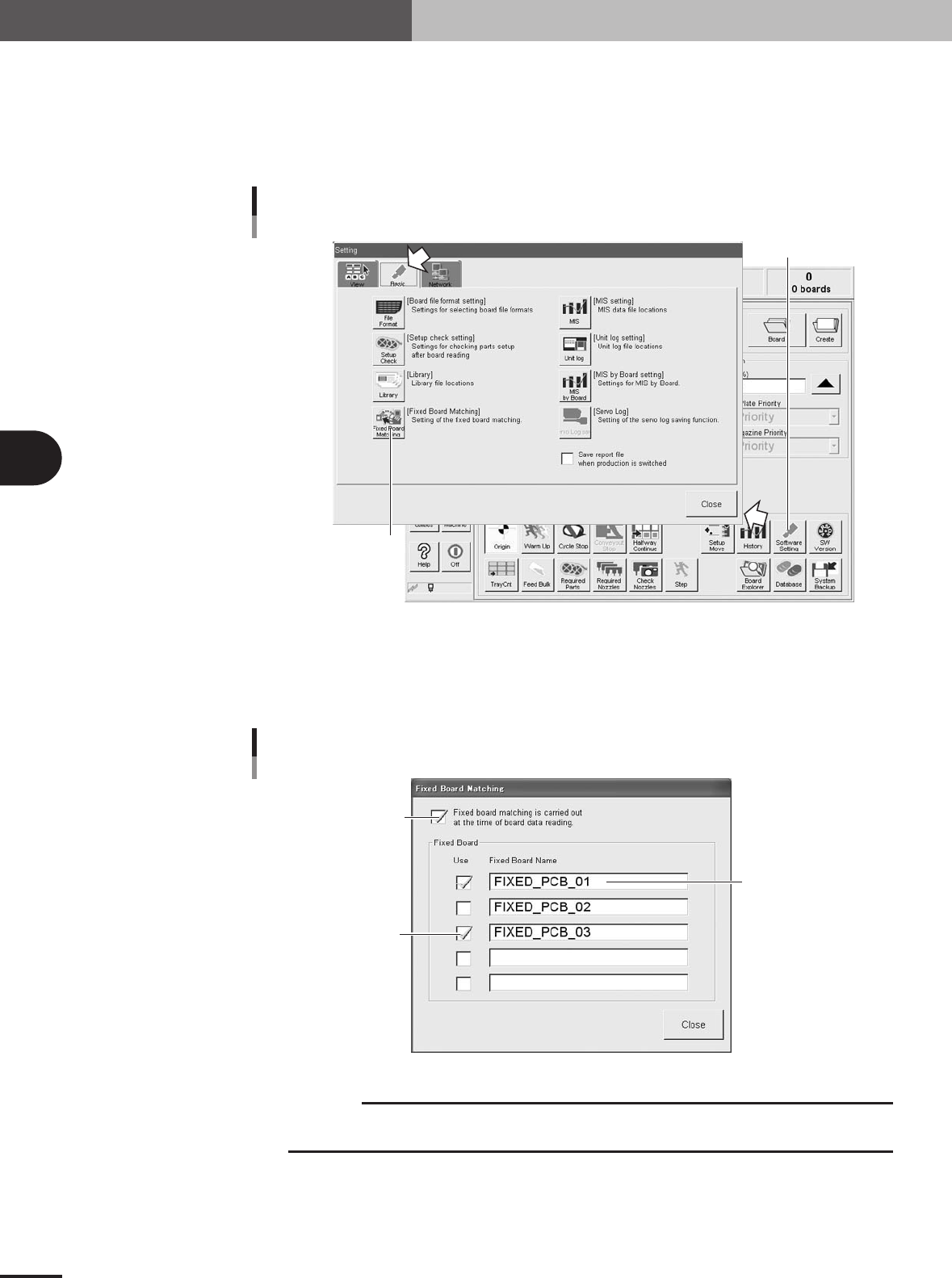
Open the Setting window.
Press the [Software Setting] button on the Setup screen to open the Setting window.
4
Open the Fixed Board Matching dialog box.
Press the [Fixed Board Matching] button under the [Basic] tab in the Setting window.
The Fixed Board Matching dialog box then appears.
Press this button.
[Software Setting] button
[Fixed PCB Matching] button
27489-5E-20
5
Register the name of the fixed board data.
In the "Fixed Board Name" text box, enter the fixed board name you want to register.
Name is not case-sensitive (uses either large or small letters). Place a check mark in
the "Use" check box for the fixed board data you want to use.
Place a check mark here.
Check the board to use.
Fixed board data
Registering the fixed board matching data
27490-5E-20
c
CAUTION
Fixed board matching will not function unless you place a check mark in the "Fixed board
matching is carried out at the time of board data reading" check box.