M3plus_OperationManual_e.pdf - 第162页
4 - 27 7. Fixed board matching 4 Using the adv anced functions 6 End the setup. When finished making the setup, press the [Close] button. The fixed board matching setup is now complete. 7 Check the operation. Load PCB da…
4 -26
7. Fixed board matching
4
Using the advanced functions
3
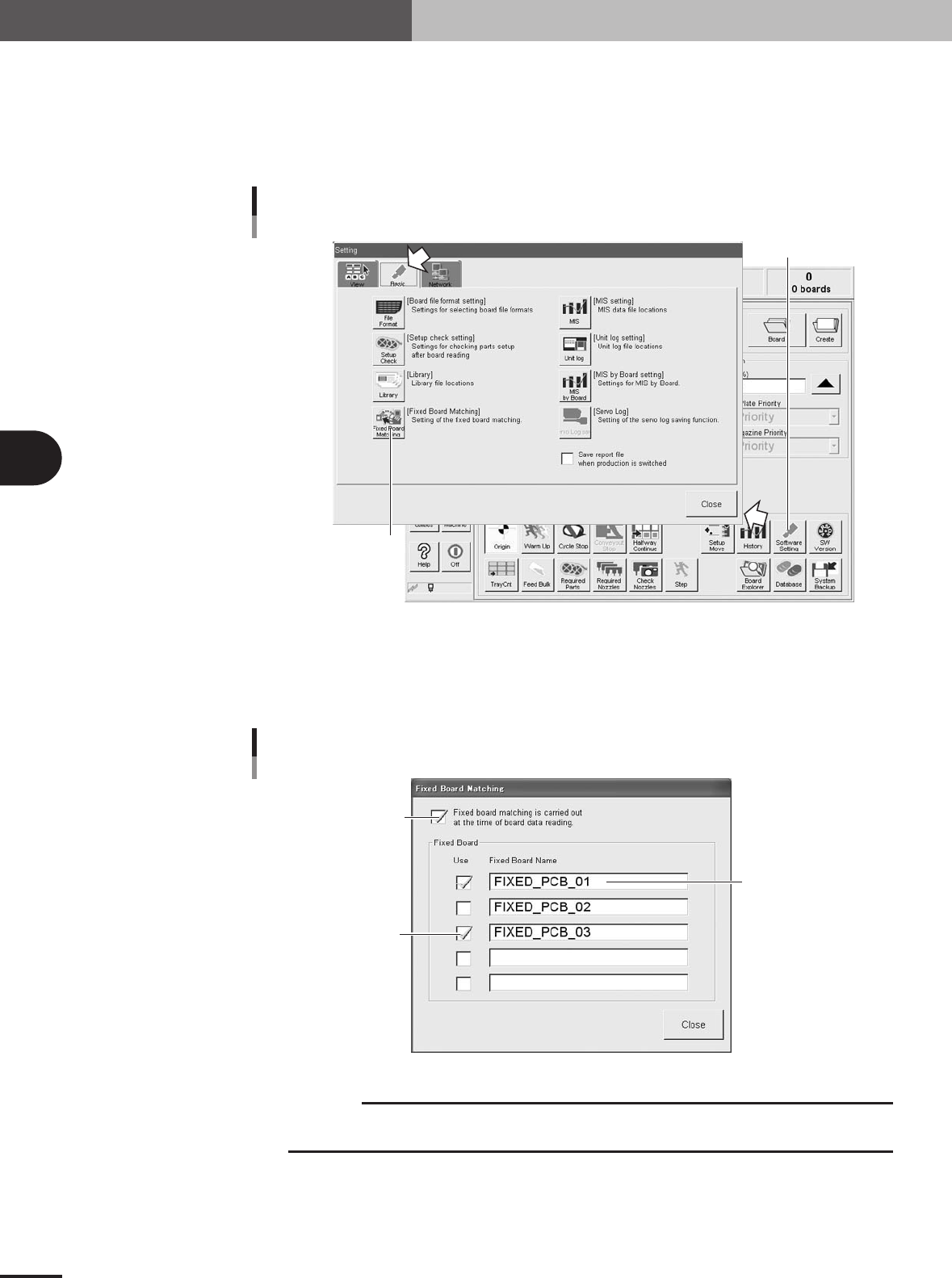
Open the Setting window.
Press the [Software Setting] button on the Setup screen to open the Setting window.
4
Open the Fixed Board Matching dialog box.
Press the [Fixed Board Matching] button under the [Basic] tab in the Setting window.
The Fixed Board Matching dialog box then appears.
Press this button.
[Software Setting] button
[Fixed PCB Matching] button
27489-5E-20
5
Register the name of the fixed board data.
In the "Fixed Board Name" text box, enter the fixed board name you want to register.
Name is not case-sensitive (uses either large or small letters). Place a check mark in
the "Use" check box for the fixed board data you want to use.
Place a check mark here.
Check the board to use.
Fixed board data
Registering the fixed board matching data
27490-5E-20
c
CAUTION
Fixed board matching will not function unless you place a check mark in the "Fixed board
matching is carried out at the time of board data reading" check box.
4 -27
7. Fixed board matching
4
Using the advanced functions
6
End the setup.
When finished making the setup, press the [Close] button. The fixed board matching
setup is now complete.
7
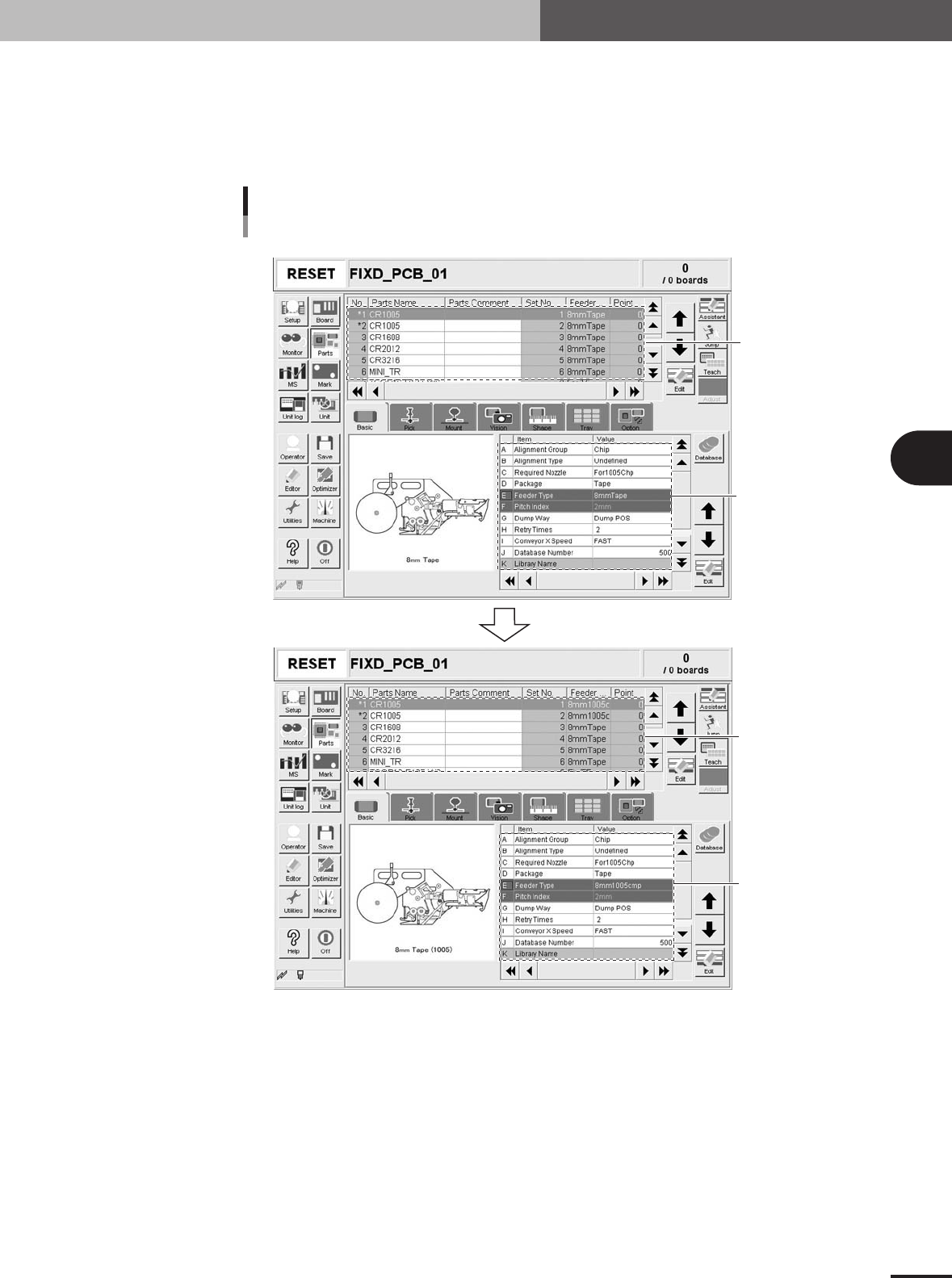
Check the operation.
Load PCB data, and check that the fixed board data is copied.
Enter just the component
name and feeder type.
Default value
Fixed board data is copied
Checking the fixed board matching
Copied items and data
Before loading
After loading
Loading PCB data
27491-5E-20