M3plus_OperationManual_e.pdf - 第166页
5 Editing the PCB data 5- 1 1. Using the Editor 1.1 Jump This section explains what you can do with the Editor that starts by pressing the [Editor] button on the Setup screen. On the Editor's main view window, the c…
5
Editing the PCB data
5-1
1. Using the Editor
1.1 Jump
This section explains what you can do with the Editor that starts by pressing the [Editor]
button on the Setup screen.
On the Editor's main view window, the cursor can be jumped to the top, end or any
desired data line number. This function can be used on the "Board Info", "Parts Info",
"Mark Info", "Block Offset Info", "Local Fiducial Info" and "Local Badmark Info"
displays in the main view window.
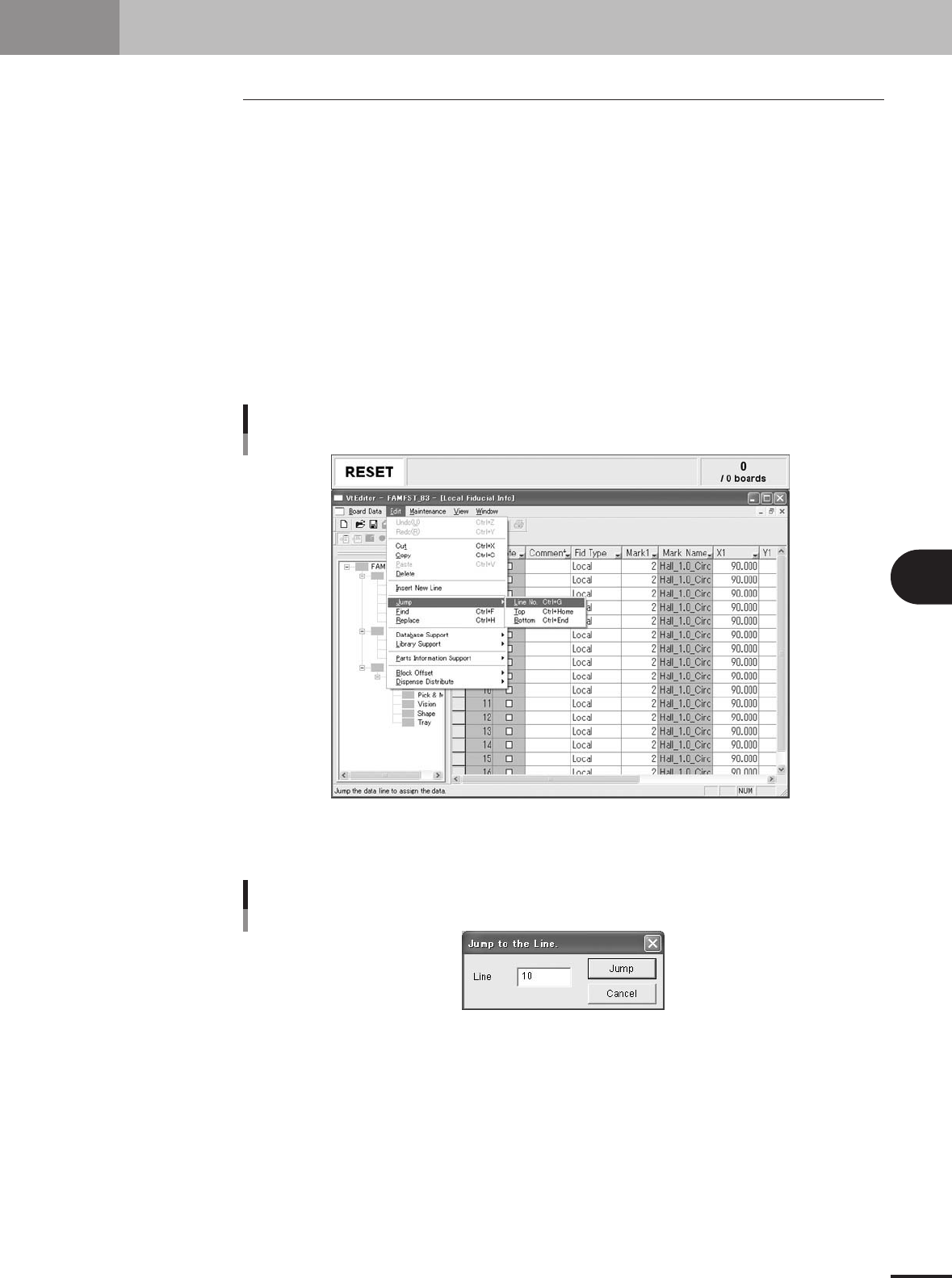
1.1.1 Specifying the line number to jump
A jump can be made to a specified line number.
1
Place the cursor at any position in the main view window.
2
Select the "Jump" command to jump to the specified line number.
1.Select "Jump" - "Line No." from the Edit menu.
The "Jump to the line" dialog box appears.
"Jump" - "Line No." command
27505-5E-20
2.Specify the line number and click the [Jump] button.
The cursor will jump to the specified line number.
"Jump to the line" dialog box
27506-5E-20
5 -2
5
Editing the PCB data
1. Using the Editor
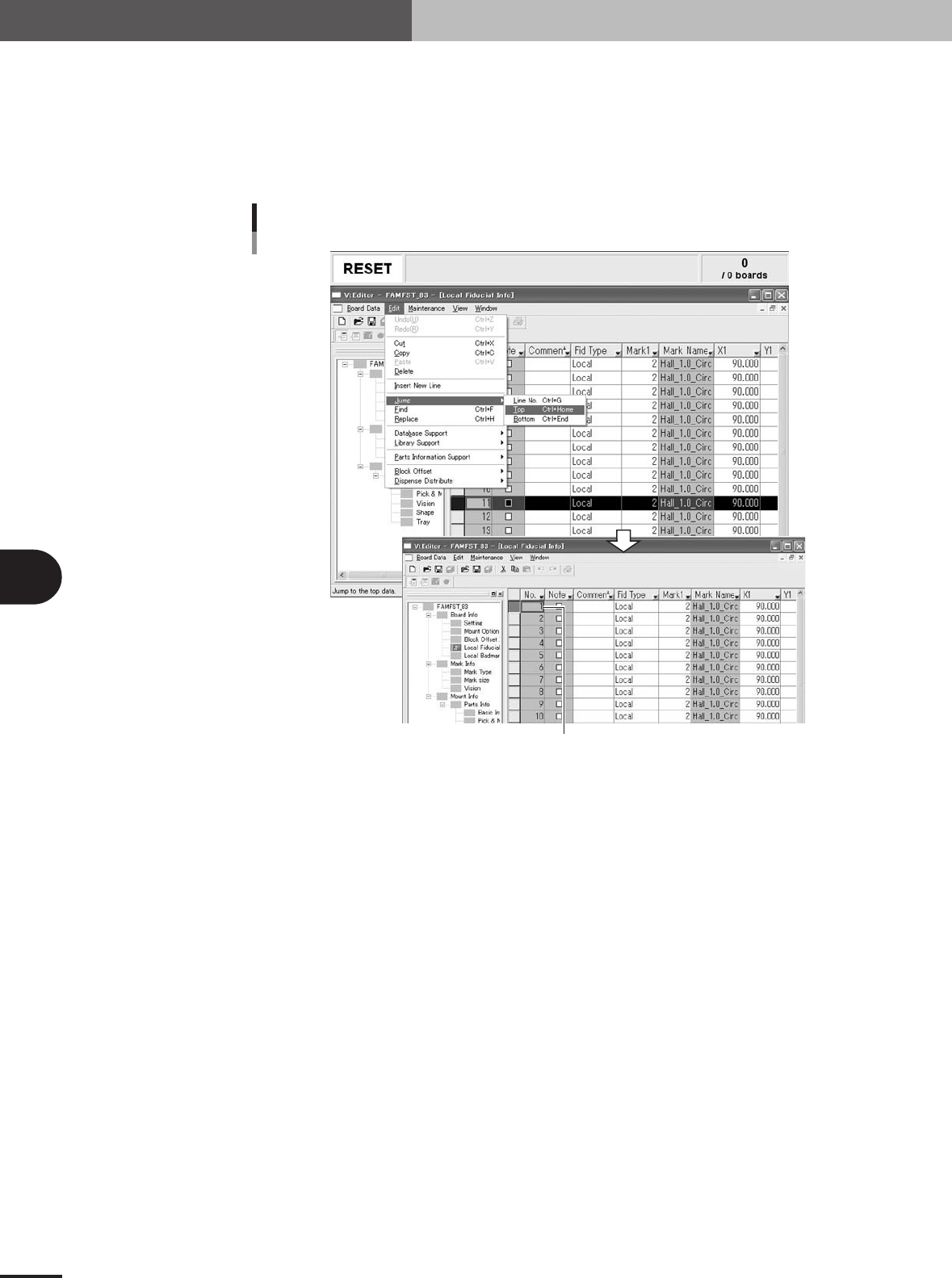
1.1.2 Jump to the top line
To jump to the top line, proceed as follows.
1
Place the cursor at any position in the main view window.
2
Select "Jump" - "Top" from the Edit menu.
The cursor will jump to the top line.
"Jump" - "Top" command
The cursor jumps to the top line.
27507-5E-20