M3plus_OperationManual_e.pdf - 第168页
5 - 3 5 Editing the PCB data 1. Using the Editor 1.1.3 Jump to the bottom line To jump to the bottom line, proceed as follows. 1 Place the cursor at any position in the main view window. 2 Select "Jump" - "…
5 -2
5
Editing the PCB data
1. Using the Editor
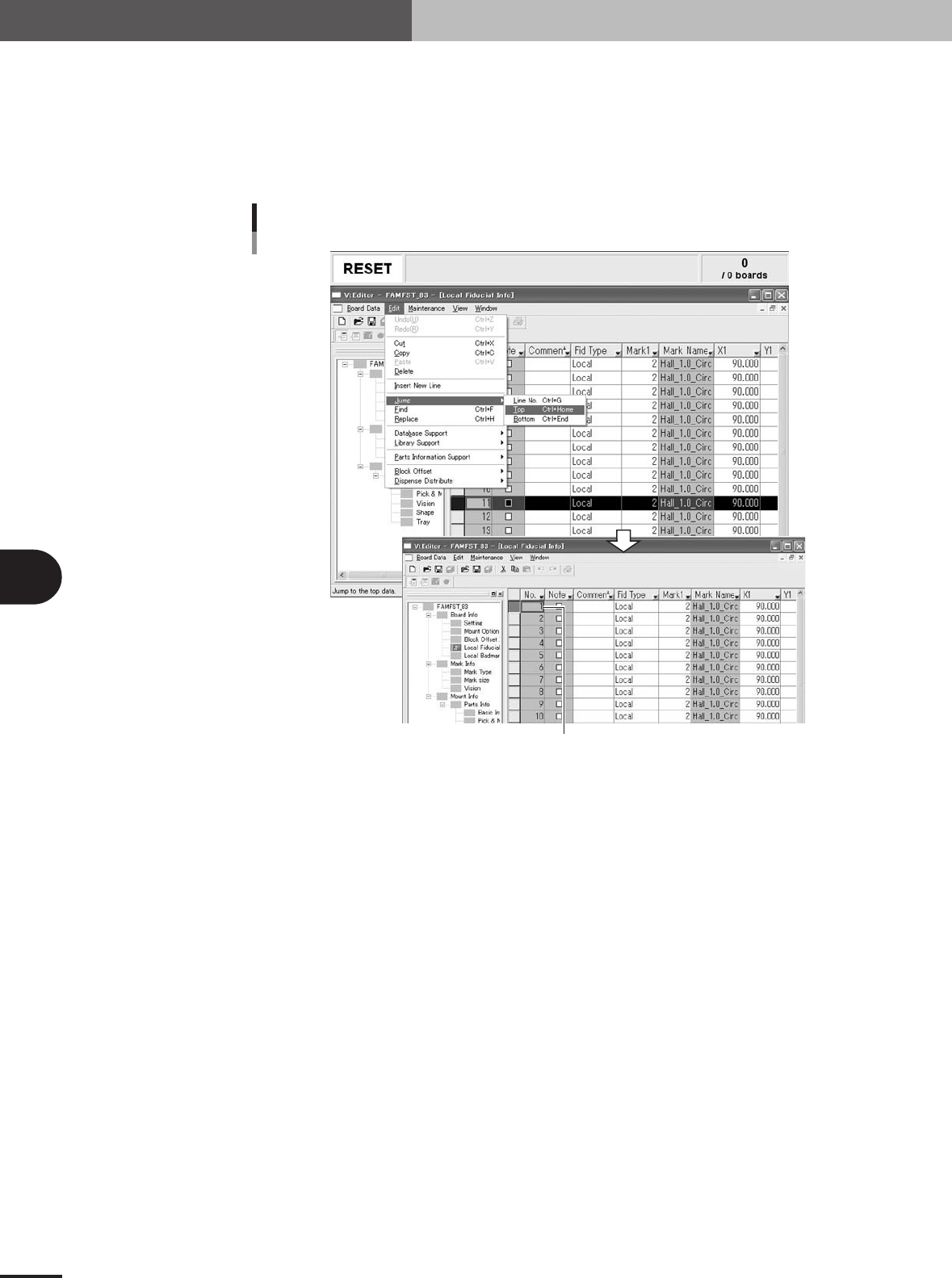
1.1.2 Jump to the top line
To jump to the top line, proceed as follows.
1
Place the cursor at any position in the main view window.
2
Select "Jump" - "Top" from the Edit menu.
The cursor will jump to the top line.
"Jump" - "Top" command
The cursor jumps to the top line.
27507-5E-20
5 -3
5
Editing the PCB data
1. Using the Editor
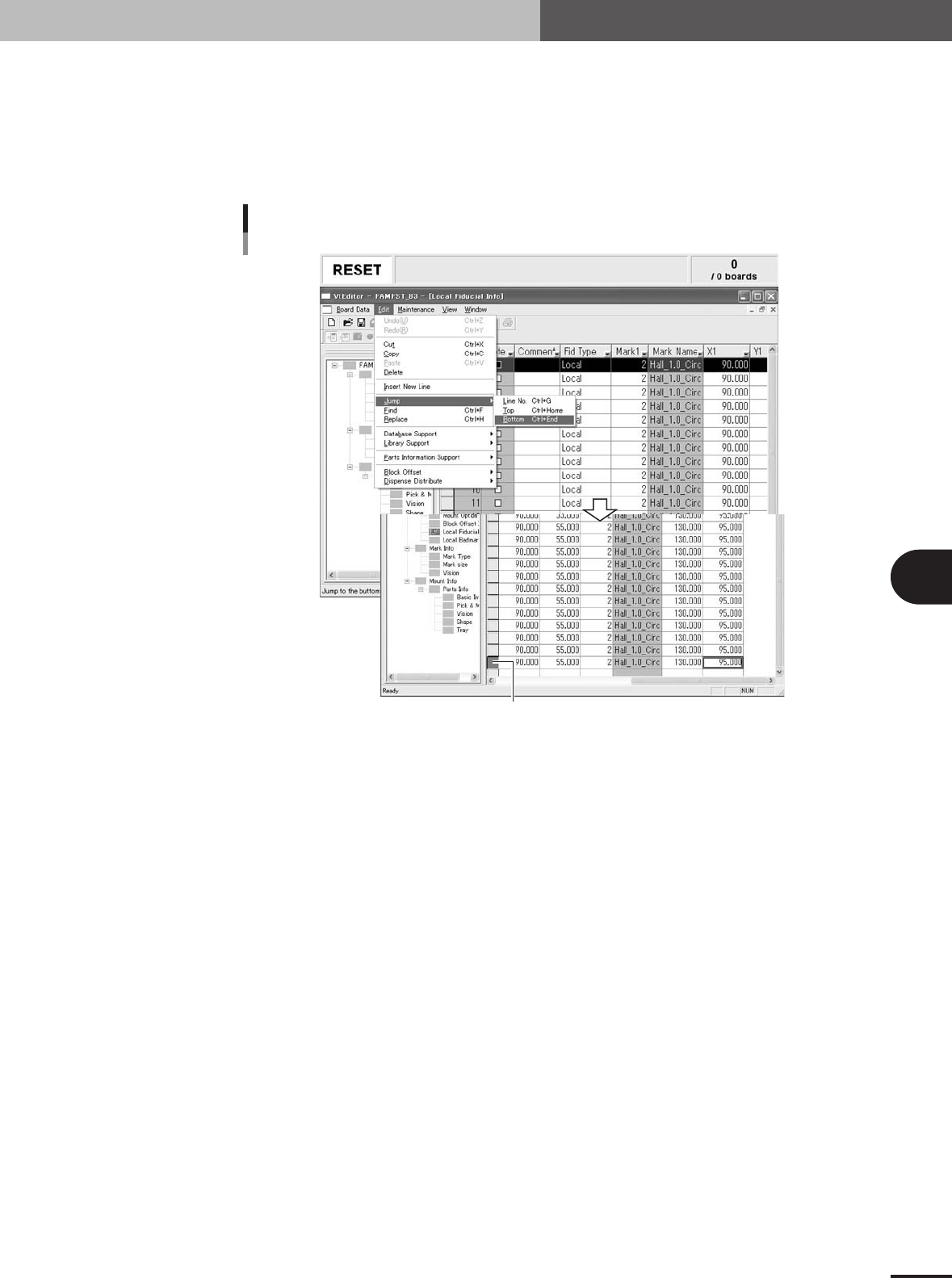
1.1.3 Jump to the bottom line
To jump to the bottom line, proceed as follows.
1
Place the cursor at any position in the main view window.
2
Select "Jump" - "Bottom" from the Edit menu.
The cursor will jump to the bottom line.
"Jump" - "Bottom" command
The cursor jumps to the last line.
27508-5E-20
5 -4
5
Editing the PCB data
1. Using the Editor
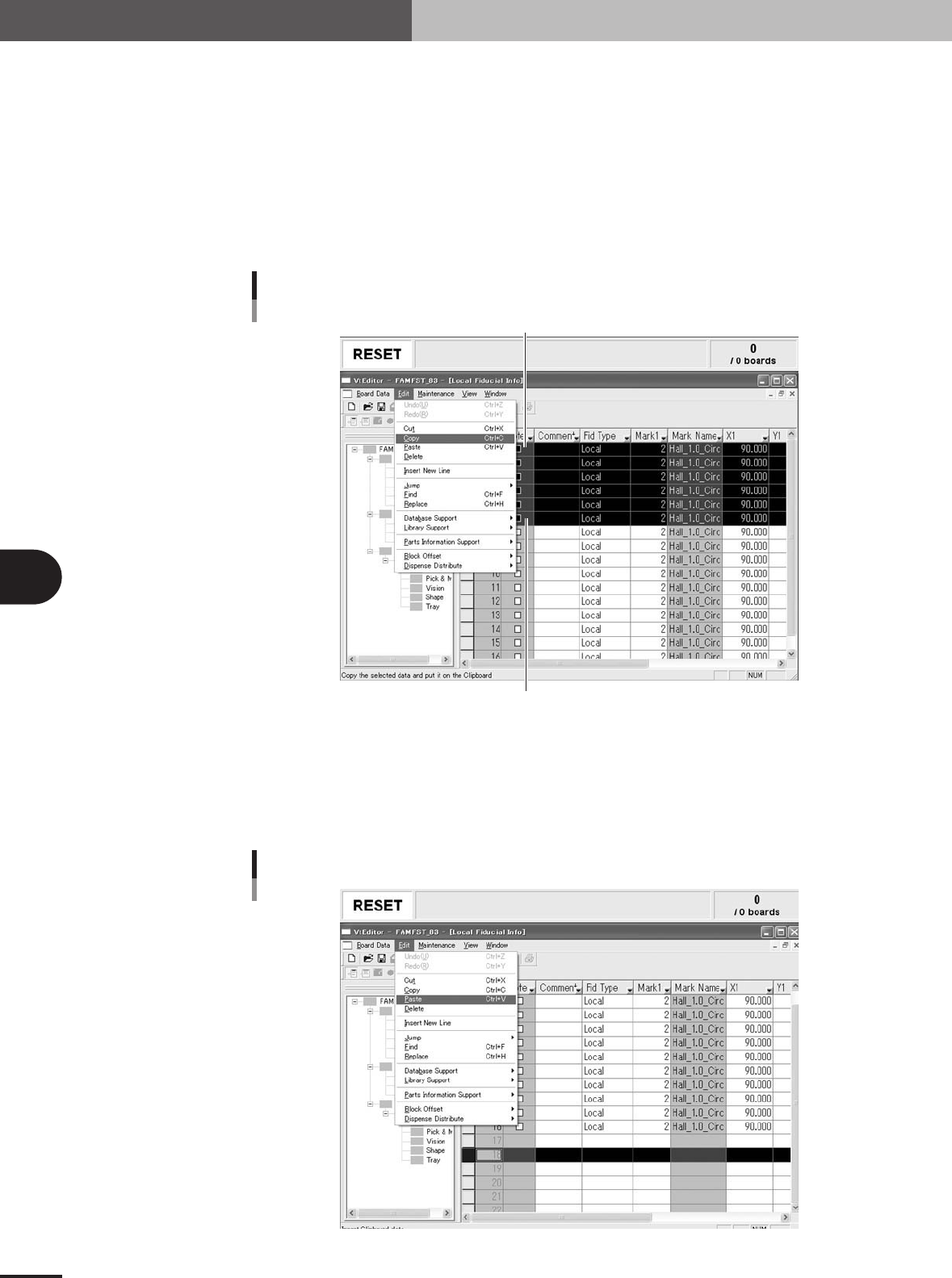
1.1.4 Copying and pasting the data
To copy and paste data lines, proceed as follows.
1
Select the data lines to be copied.
1.Click the top line of the data lines to be copied.
The selected line is highlighted.
2.While holding down the [Shift] key, click the last line of the data lines to be copied.
All data lines between the two specified lines are highlighted.
2
Select "Copy" from the Edit menu.
"Copy" command
Click here while holding down the Shift key.
Top of selected range
27509-5E-20
3
Click the line where you want to paste the copied data.
The selected line is highlighted.
4
Select "Paste" from the Edit menu.
The "Paste" dialog box appears asking how to paste the data.
"Paste" command
27510-5E-20