M3plus_OperationManual_e.pdf - 第171页
5 - 6 5 Editing the PCB data 1. Using the Editor 1.2 Filtering On the main view window, the Filter function allows you to choose the display items or display conditions. 1.2.1 Filtering 1 Click the Filter button (arrow b…
5 -5
5
Editing the PCB data
1. Using the Editor
5
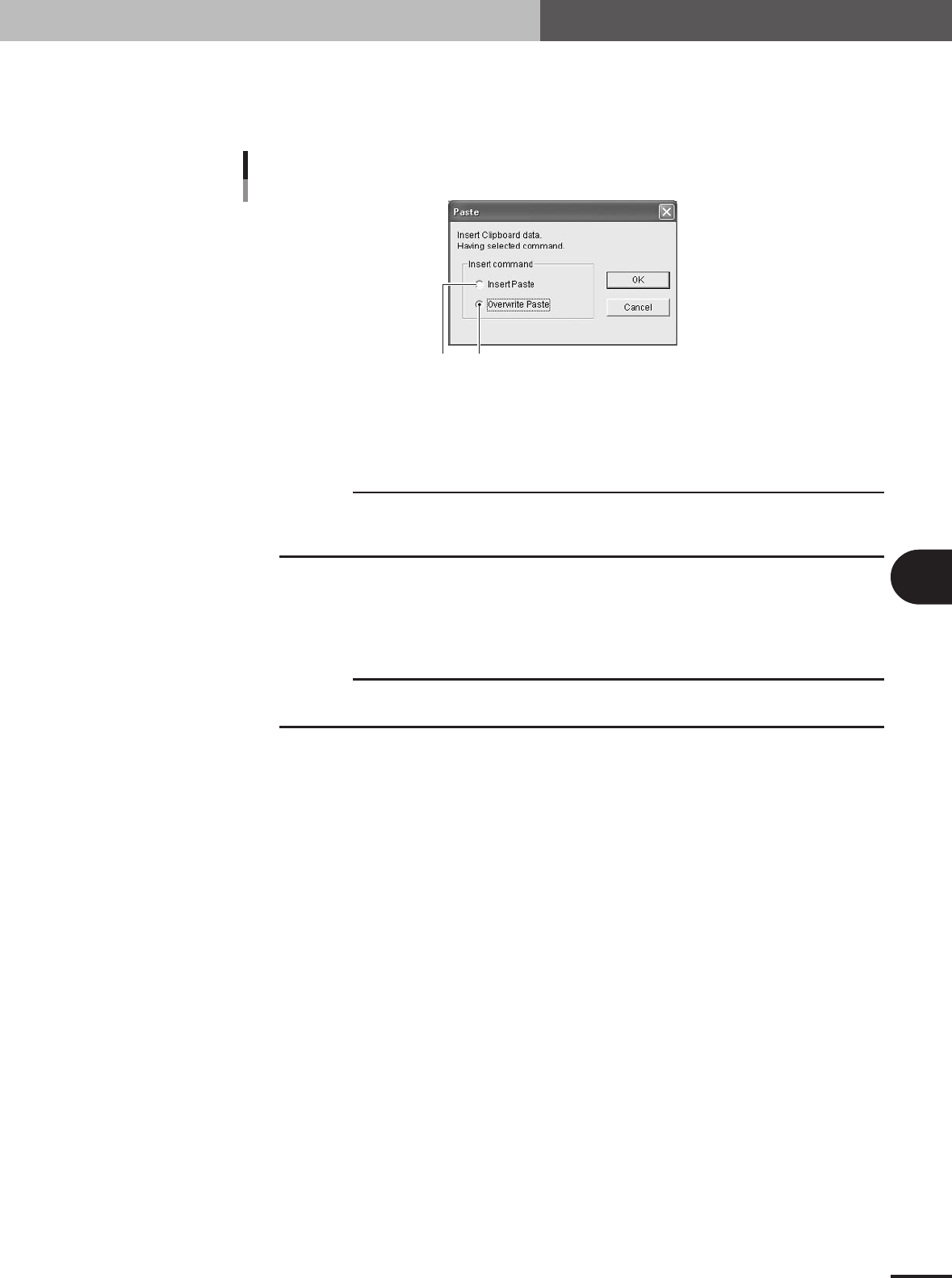
Select the method for pasting the data.
On the "Paste" dialog box, select "Insert Paste" to insert the data or "Overwrite
Paste" to paste over the selected lines, and then click the [OK] button to paste the
data.
"Paste" dialog box
12
27511-5E-20
1 When "Insert Paste" is selected:
The data is inserted just prior to the selected line, so the data lines after the insertion position are
shifted down by the number of lines equal to the inserted lines.
c
CAUTION
When the data is pasted in "Insert Paste" mode, the current data numbers after the insertion
position will be shifted. This may cause a data mismatch when the data line number is used in
other locations, resulting in an error. So use caution.
2 When "Overwrite Paste" is selected:
The data is pasted while replacing the data by the number of lines equal to the pasted lines, starting
from the selected line. For this reason, a warning message appears. Click the [OK] to paste the data,
or click the [NO] button if canceling the paste.
c
CAUTION
When the data is pasted in "Overwrite Paste" mode, the current data in the specified line range
will be replaced. So use caution.
5 -6
5
Editing the PCB data
1. Using the Editor
1.2 Filtering
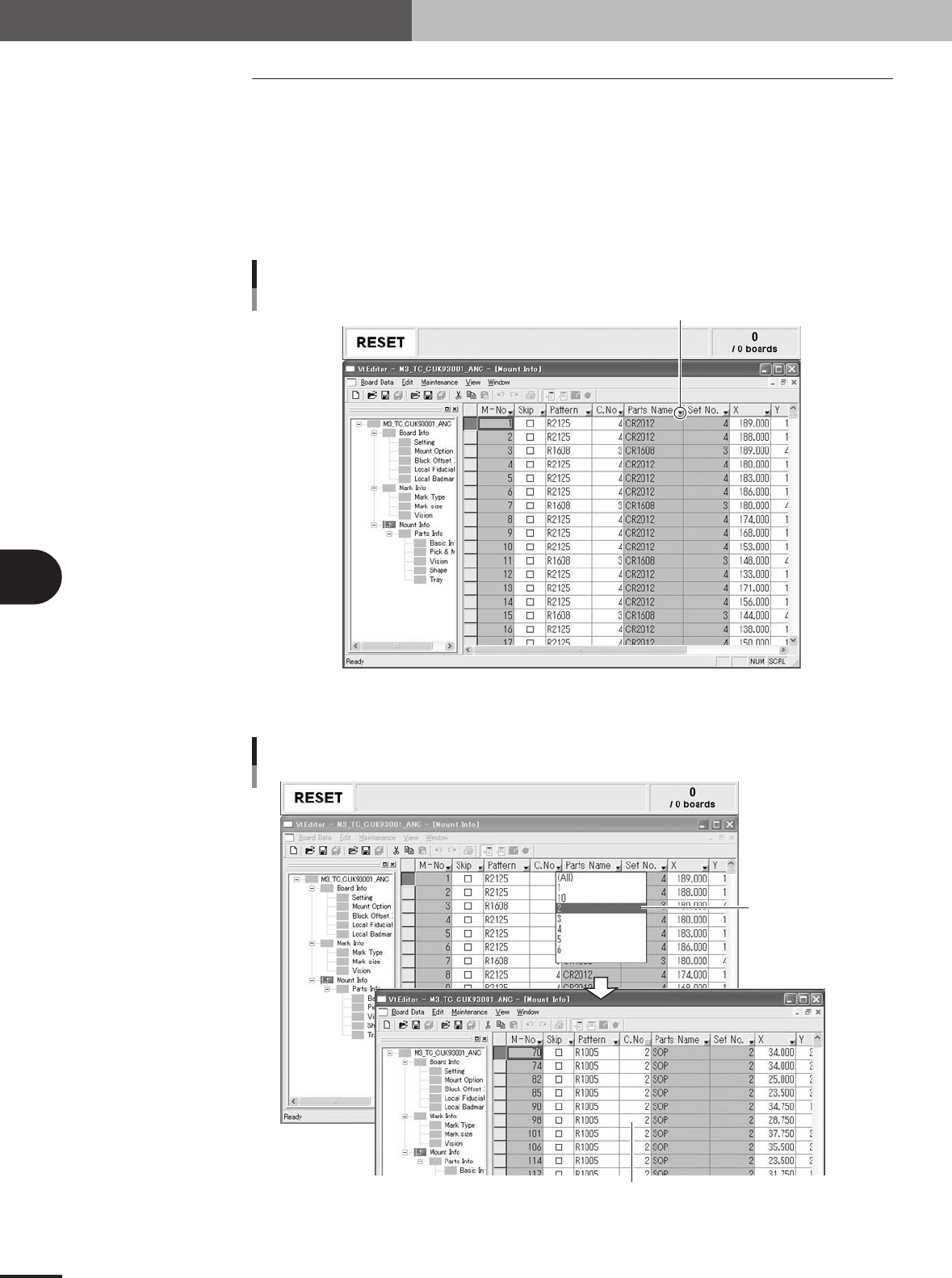
On the main view window, the Filter function allows you to choose the display items or
display conditions.
1.2.1 Filtering
1
Click the Filter button (arrow button) next to column label for which
you want to filter.
A drop-down list of registered data appears.
Filter button
Filter button
27512-5E-20
2
From the drop-down list, choose the data item you want display.
Executing the Filter function
Extracted data is displayed.
Select the data
item to extract.
27513-5E-20
5 -7
5
Editing the PCB data
1. Using the Editor
1.2.2 Canceling the filter
1
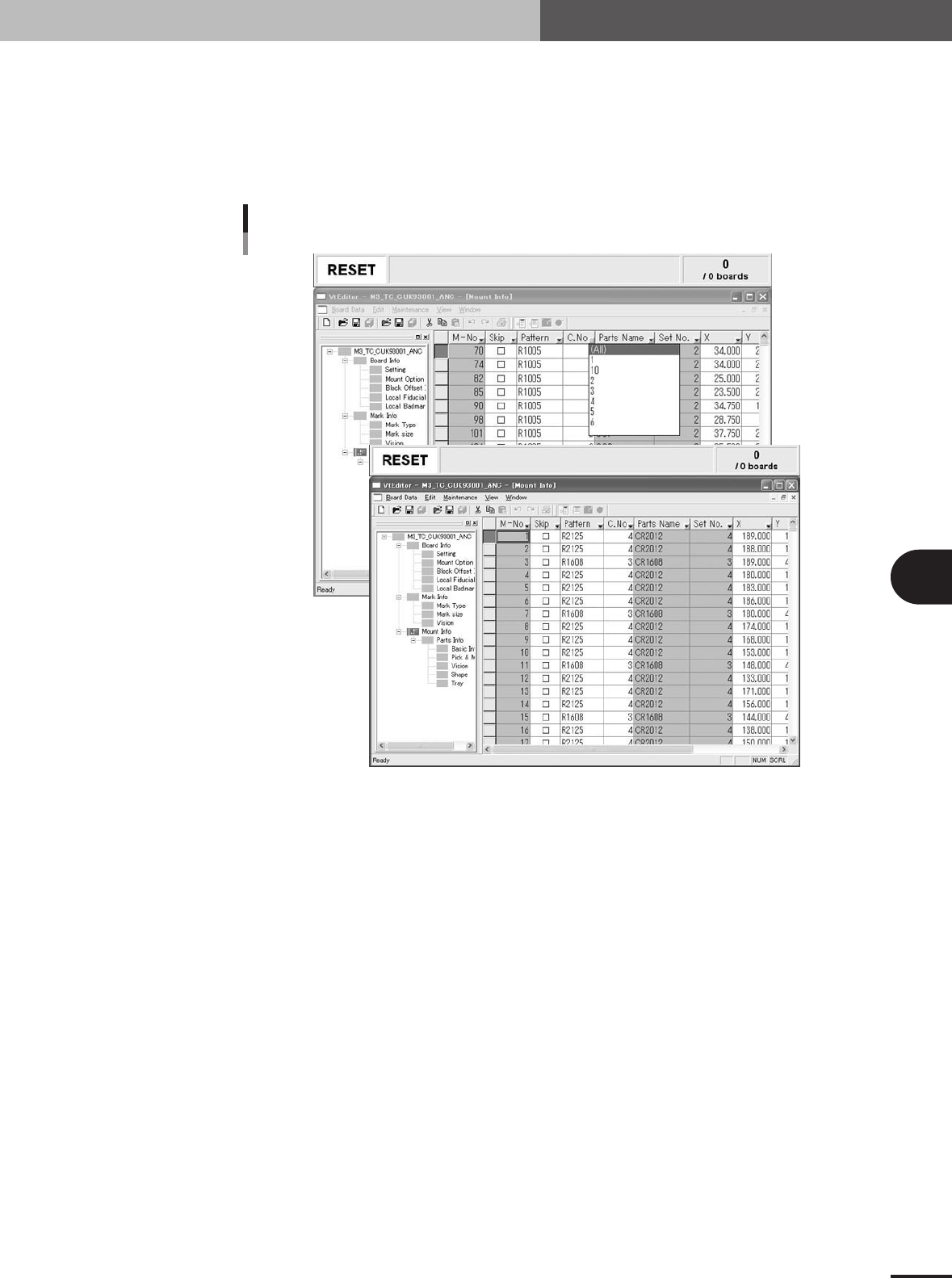
Click the Filter button (arrow button) next to the column label.
A drop-down list appears showing the selected data item and "All".
2
Choose "All" from the drop-down list.
Filtering is canceled and all data items are redisplayed.
Canceling the filter
27514-5E-20