M3plus_OperationManual_e.pdf - 第173页
5 - 8 5 Editing the PCB data 1. Using the Editor 1.3 Find and Replace On the main view window, a specific data item can be searched for or replaced with another value or character string. These functions can be used on t…
5 -7
5
Editing the PCB data
1. Using the Editor
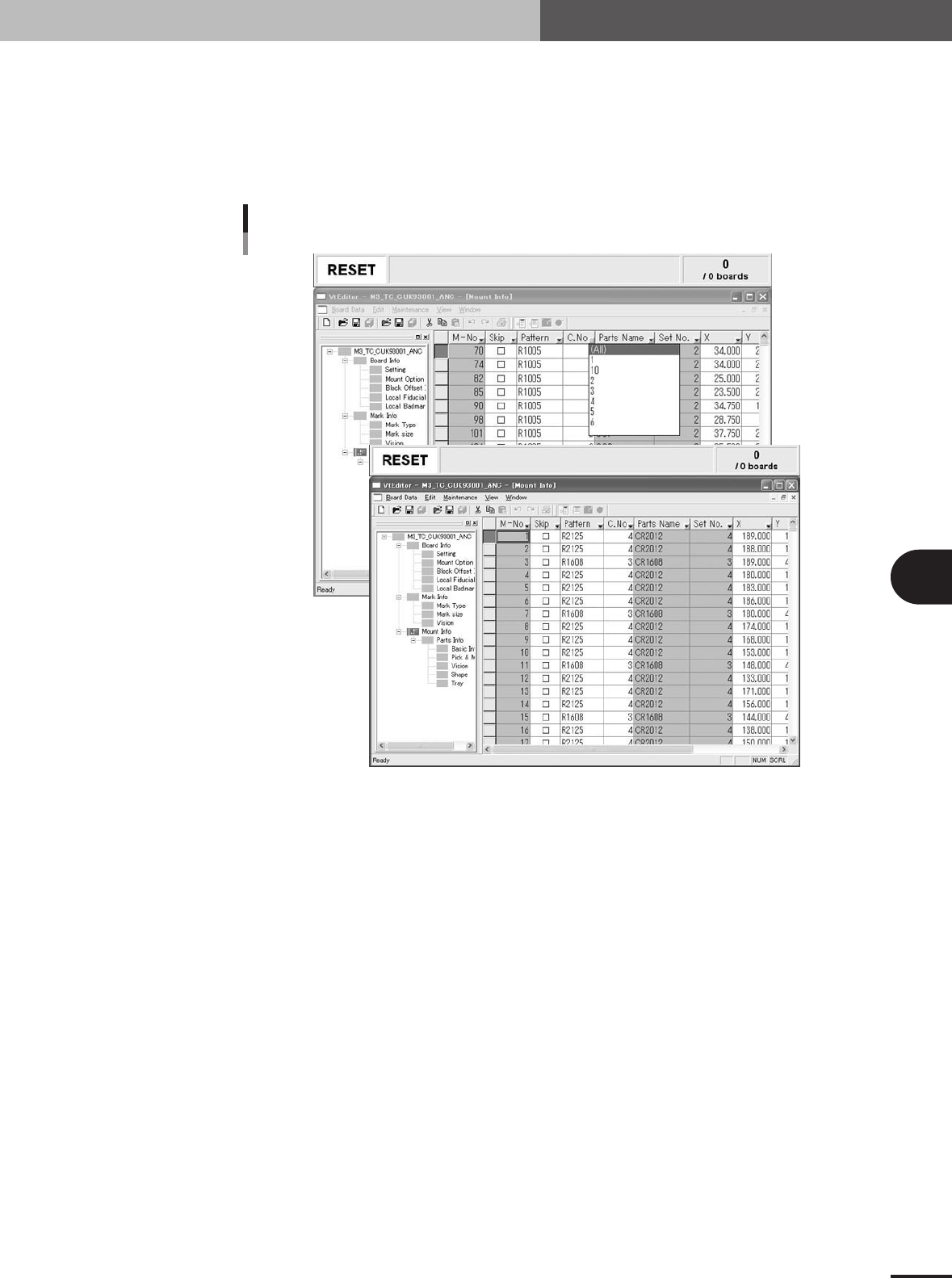
1.2.2 Canceling the filter
1
Click the Filter button (arrow button) next to the column label.
A drop-down list appears showing the selected data item and "All".
2
Choose "All" from the drop-down list.
Filtering is canceled and all data items are redisplayed.
Canceling the filter
27514-5E-20
5 -8
5
Editing the PCB data
1. Using the Editor
1.3 Find and Replace
On the main view window, a specific data item can be searched for or replaced with
another value or character string. These functions can be used on the "Board Info", "Parts
Info", "Mark Info", "Block Offset Info", "Local Fiducial Info" and "Local Badmark Info"
displays in the main view window.
1.3.1 Find
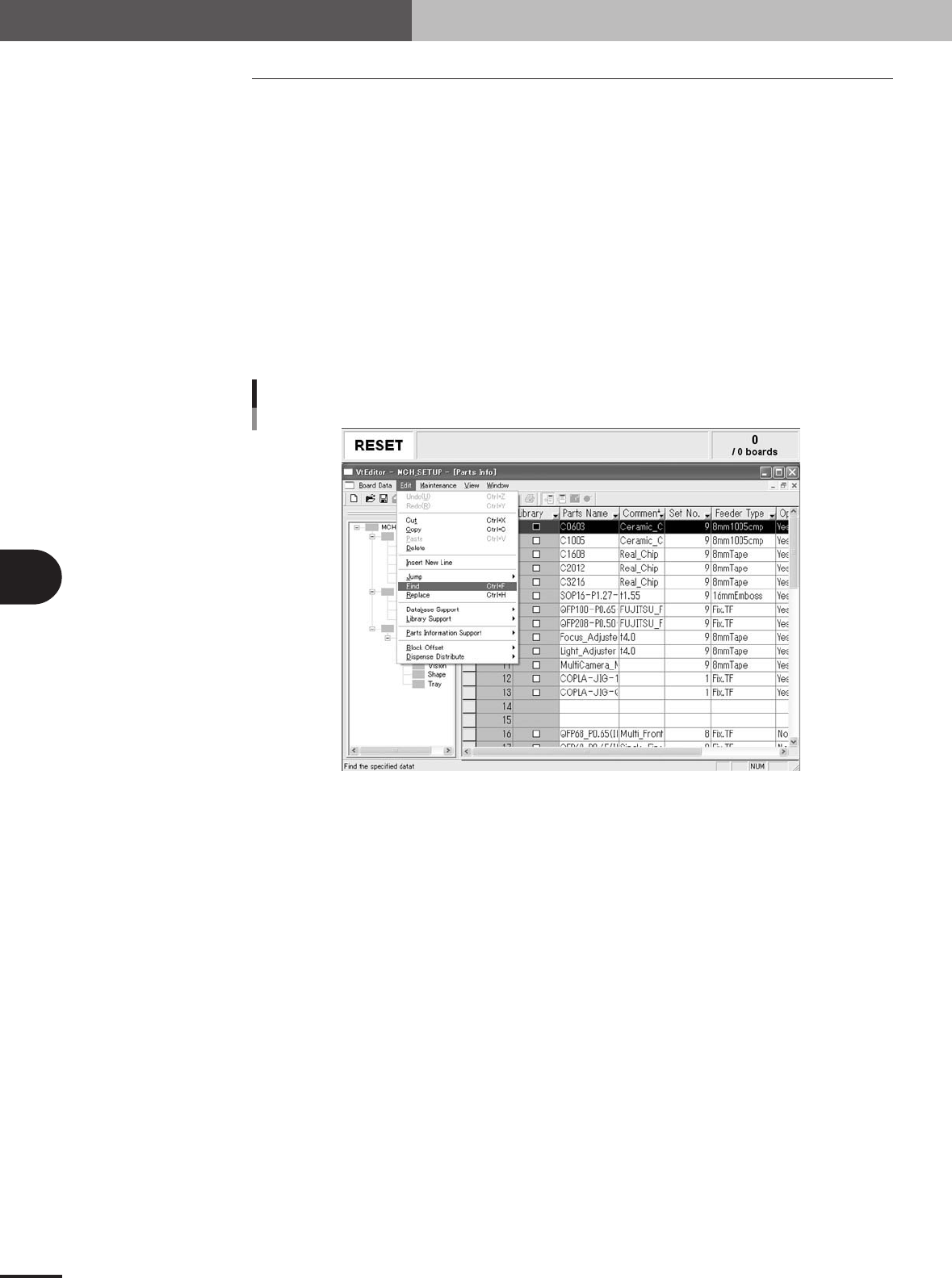
To find a specific data item in the main view window, proceed as follows.
1
Display the data table in which you want to find a data item.
2
Click at any position in the main view window.
3
Find the data.
1.Select "Find" from the Edit menu.
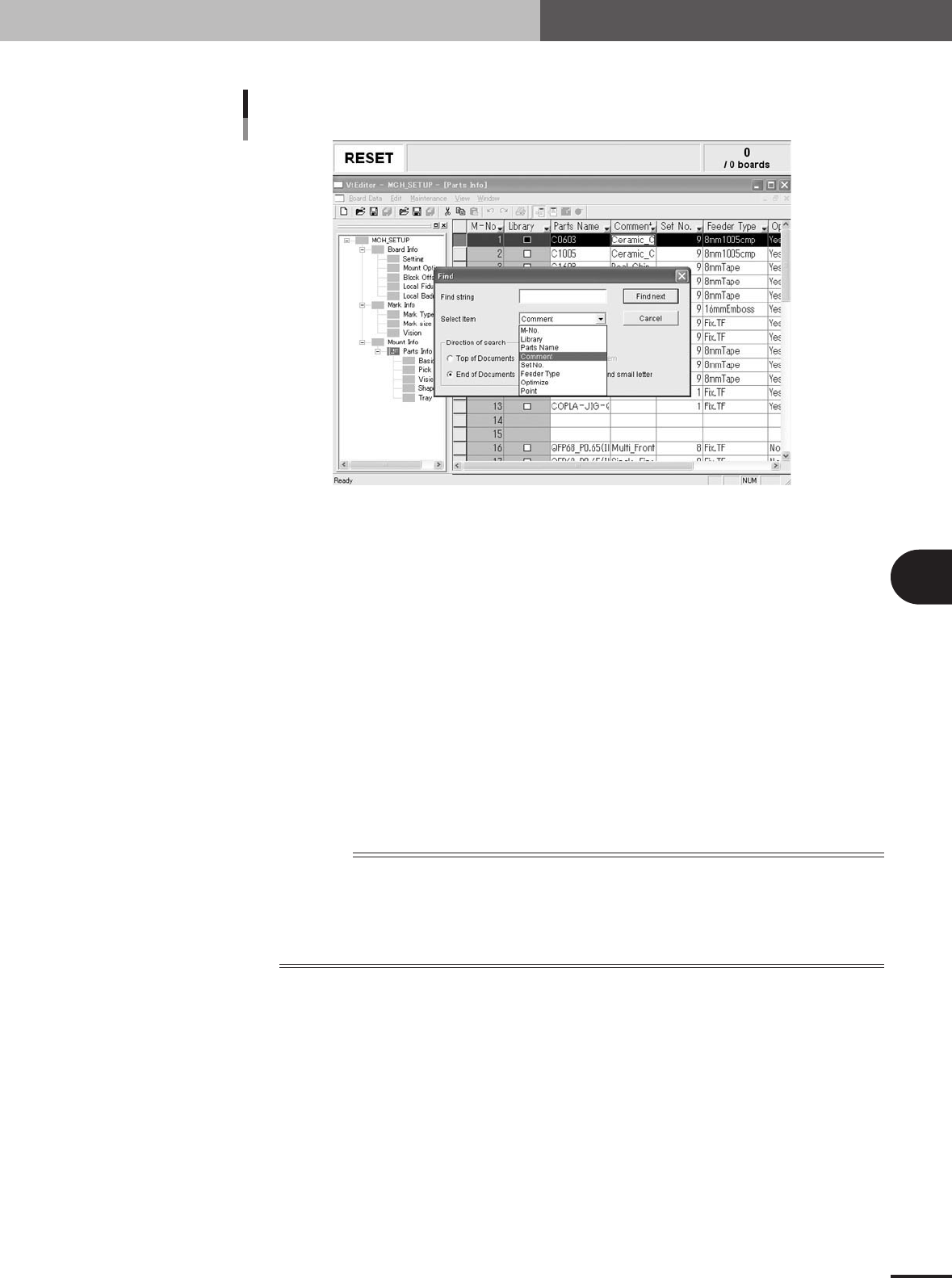
The "Find" dialog box appears.
"Find" command
27515-5E-20
5 -9
5
Editing the PCB data
1. Using the Editor
2.Select the data item from the "Select Item" drop-down list.
"Find" dialog box
27516-5E-20
3.In the "Find value" or "Find string" box, enter the value or character string you
want to find.
4.Select the "Distinguish capital and small letter" checkbox if necessary.
5.Select the direction of search.
Select "Top of Documents" to start the search from the current position towards the
top of the data lines, or select "End of Documents" to start the search towards the
end of the data lines.
6.Click the [Find Next] button to start the search.
When the specified item is found, the cursor moves there and highlights it. To
continuously find another item under the same conditions, click the [Find Next]
button again.
If no matching item is found, the message box appears. Click the [OK] button to
close the message box. Change the conditions for finding another item as needed.
4
Close the "Find" dialog box.
Click the [Cancel] button (or click the Close button in the upper right corner) to close
the "Find" dialog box.
Reference
• Depending on the item selected from the "Select Item" drop-down list, the name of the "Find value" box
becomes "Find string" or "Find data".
• For example, when an item using numeric values such as "X", "Y" and "C. No." is selected, the box name
becomes "Find value".
• When an item using character strings such as "Pattern" is selected, the box name becomes "Find string".
• When the "Skip" parameter is selected, the box name becomes "Find data".