M3plus_OperationManual_e.pdf - 第181页
5 - 16 5 Editing the PCB data 2. Block offset 3 Set the offset data on other blocks. On the second or subsequent lines, set the offset data on other blocks. When PCB origin is at the same position as reference block orig…
5 -15
5
Editing the PCB data
2. Block offset
2 Comment
Type any desired comment on the block offset in alphanumeric characters.
c
CAUTION
Spaces cannot be used. Use underbars ( _ ) for spaces.
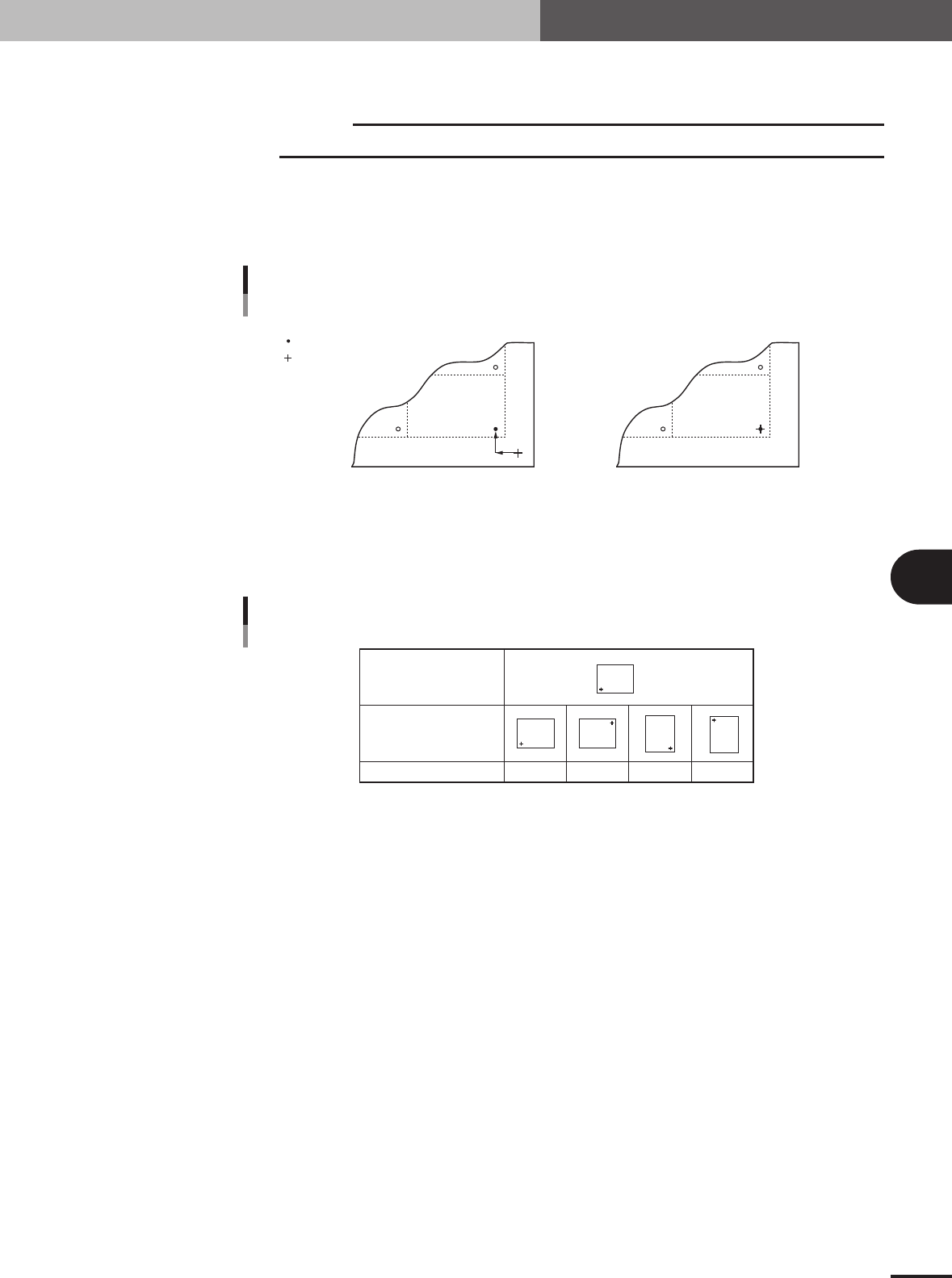
3 X, Y
Enter the XY coordinates of the origin of this block relative to the PCB origin. Usually, the PCB
origin is specified at the same position as the reference block origin, so enter "0.00, 0.00" as the XY
coordinates.
PCB origin is at the same position
as reference block origin
PCB origin is at a position other than
reference block origin
PCB origin
Reference block origin
XY data
PCB origin and reference block origin
X
Y
63437-5E-20
4 R
Enter "0.00" for the reference block.
Reference block direction
Block direction
R data 0° 180° 90° -90°
Block
Block
Block
Block
Block
R data
65418-5E-20
5 -16
5
Editing the PCB data
2. Block offset
3
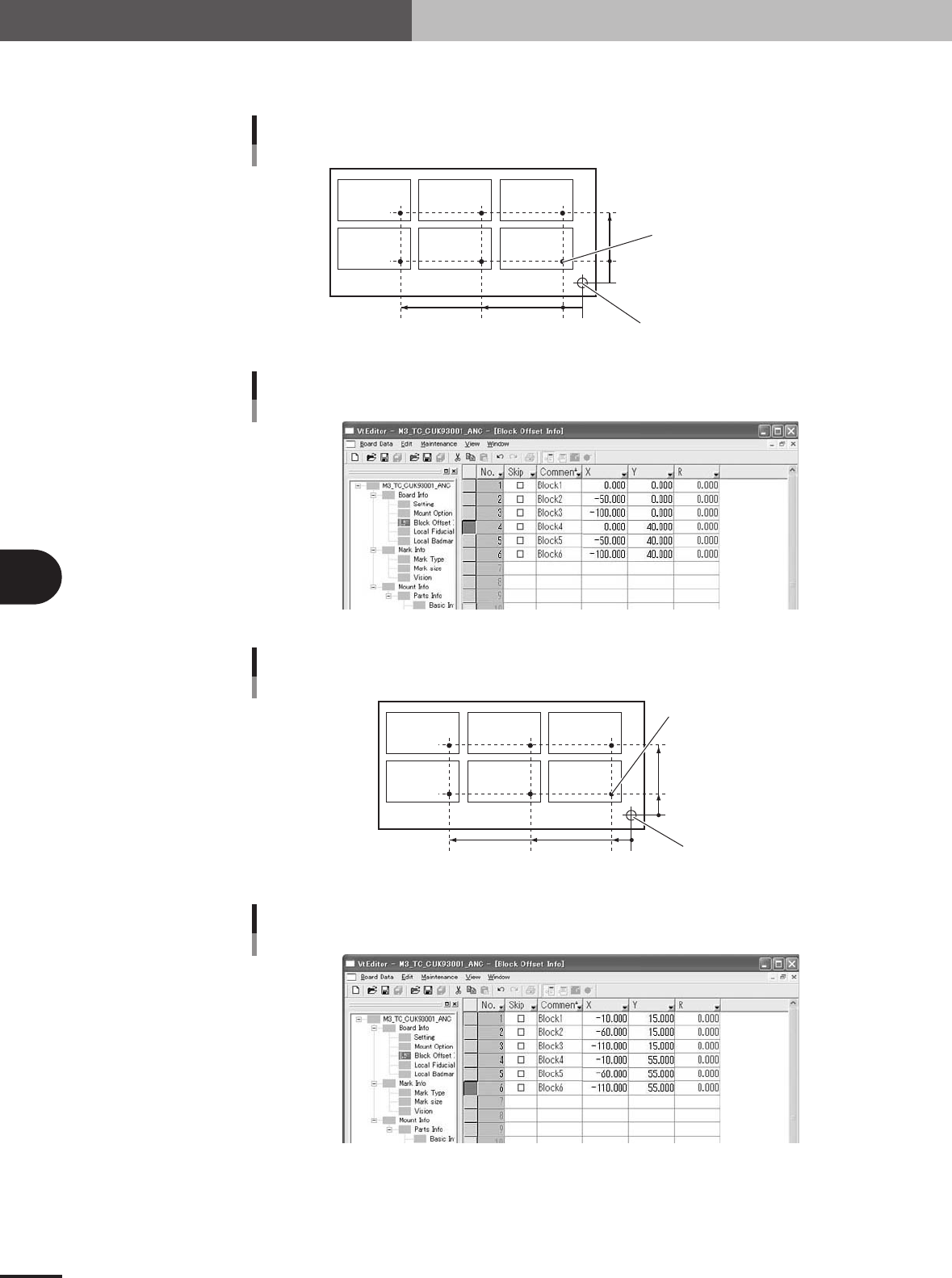
Set the offset data on other blocks.
On the second or subsequent lines, set the offset data on other blocks.
When PCB origin is at the same position as reference block origin
0-5
0
-5
40
50100
PCB origin =
reference block origin PCB origin =
reference block origin
Locate pin position
Block 1Block 2Block 3
Block 4Block 5Block 6
63438-5E-20
Block offset information display when PCB origin is
at the same position as reference block origin
27524-5E-20
When PCB origin is at a position other than reference block origin
10 0
15
55
60110
PCB origin
Locate pin position
Block 1Block 2Block 3
Block 4Block 5Block 6
Reference block origin
0
63439-5E-20
Block offset information display when PCB origin is
at a position other than reference block origin
27525-5E-20
5 -17
5
Editing the PCB data
2. Block offset
2.2 Block offset conversion and reconversion
This section explains how to convert multi-block PCB data into single-block PCB data
and also how to reconvert back to the original multi-block PCB data. Converting multi-
block PCB data into single-block PCB data shortens the production cycle time. Use the
original multi-block data when editing mount data, and convert the multi-block data into
single-block PCB data when optimizing PCB data for production.
2.2.1 Executing the block offset conversion
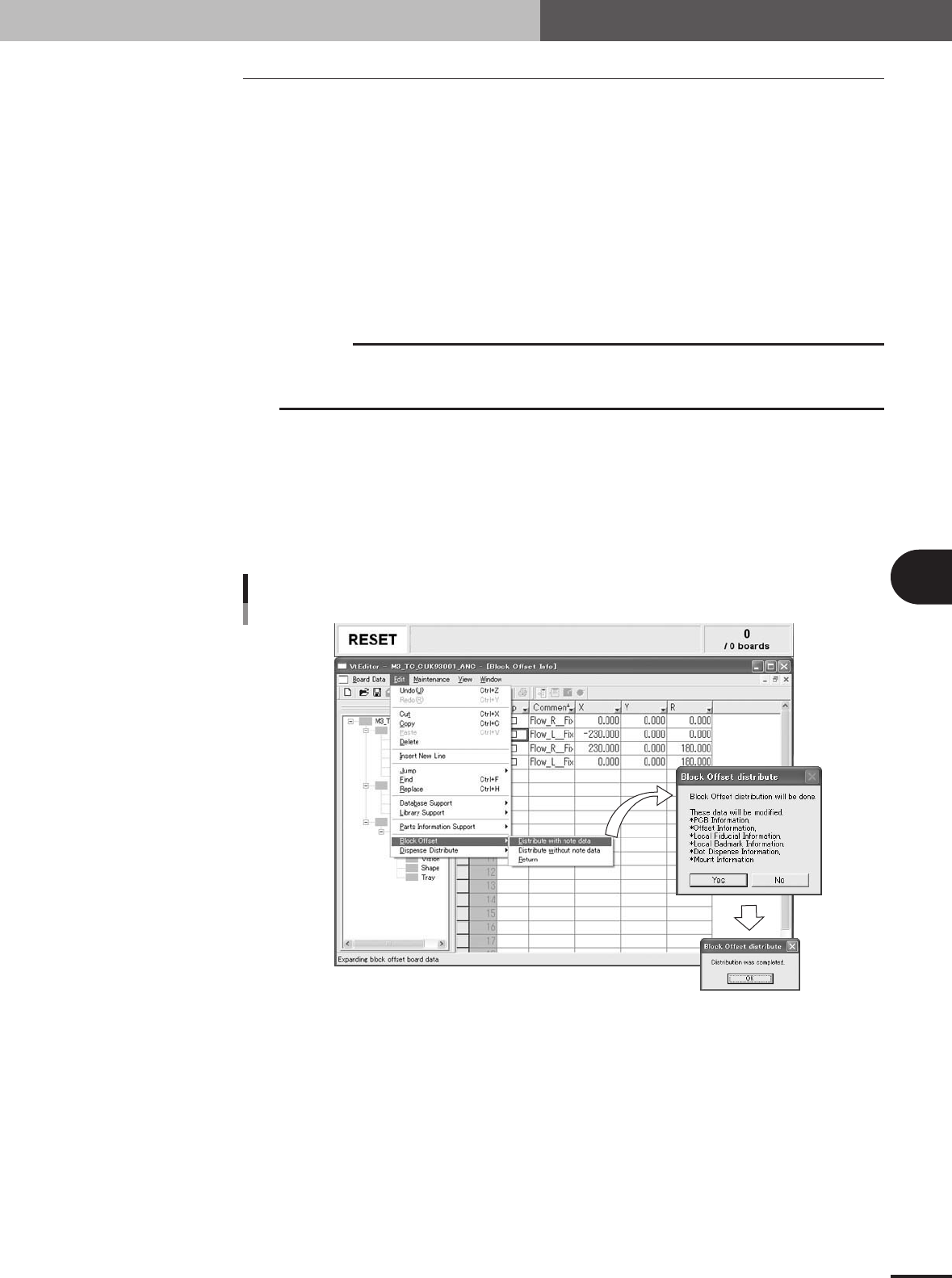
To convert multi-block PCB data into single-block PCB data, follow these steps.
1
Select the "Block Offset" - "Distribute" command from Edit menu.
Select "Block Offset" – "Distribute(with note data)" or "Distribute(without note
data)"
c
CAUTION
When block offset conversion is executed with the "Distribute(without note data)" command,
the original multi-block data will be deleted. The converted data cannot be returned back to the
original multi-block data.
2
Check the items to be converted and start block offset conversion.
When the Block Offset Distribution dialog appears, check the items to be converted
and click the [Yes] button to start block offset conversion.
3
Click the [OK] button to finish block offset conversion.
When a dialog box appears after block offset conversion is complete, click the [OK]
button to finish block offset conversion.
Block offset conversion
27526-5E-20