M3plus_OperationManual_e.pdf - 第183页
5 - 18 5 Editing the PCB data 2. Block offset 4 Check the conversion result. When block offset conversion has been executed with "Distribute(with note data)", the original multi-block data should remains as &qu…
5 -17
5
Editing the PCB data
2. Block offset
2.2 Block offset conversion and reconversion
This section explains how to convert multi-block PCB data into single-block PCB data
and also how to reconvert back to the original multi-block PCB data. Converting multi-
block PCB data into single-block PCB data shortens the production cycle time. Use the
original multi-block data when editing mount data, and convert the multi-block data into
single-block PCB data when optimizing PCB data for production.
2.2.1 Executing the block offset conversion
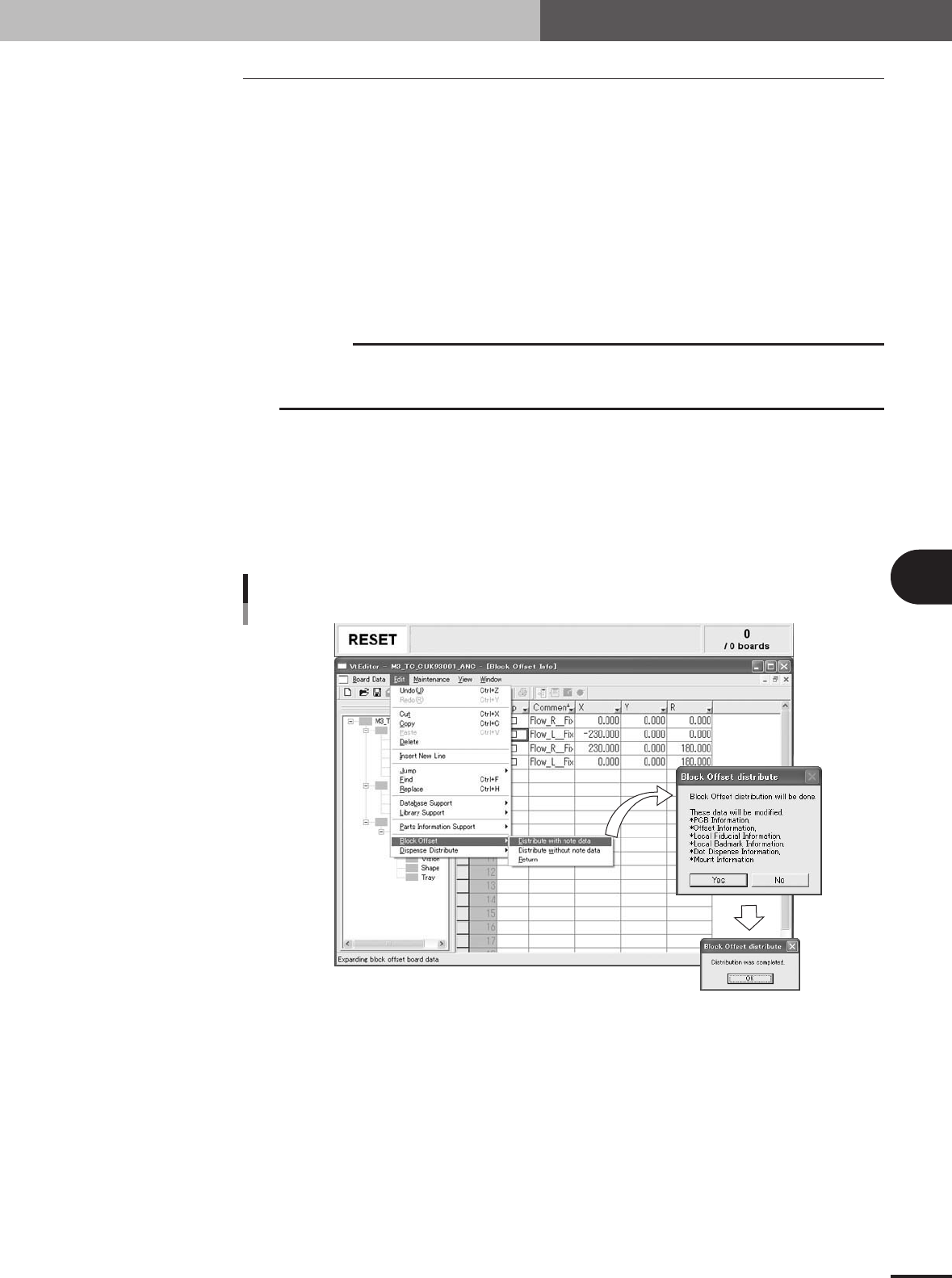
To convert multi-block PCB data into single-block PCB data, follow these steps.
1
Select the "Block Offset" - "Distribute" command from Edit menu.
Select "Block Offset" – "Distribute(with note data)" or "Distribute(without note
data)"
c
CAUTION
When block offset conversion is executed with the "Distribute(without note data)" command,
the original multi-block data will be deleted. The converted data cannot be returned back to the
original multi-block data.
2
Check the items to be converted and start block offset conversion.
When the Block Offset Distribution dialog appears, check the items to be converted
and click the [Yes] button to start block offset conversion.
3
Click the [OK] button to finish block offset conversion.
When a dialog box appears after block offset conversion is complete, click the [OK]
button to finish block offset conversion.
Block offset conversion
27526-5E-20
5 -18
5
Editing the PCB data
2. Block offset
4
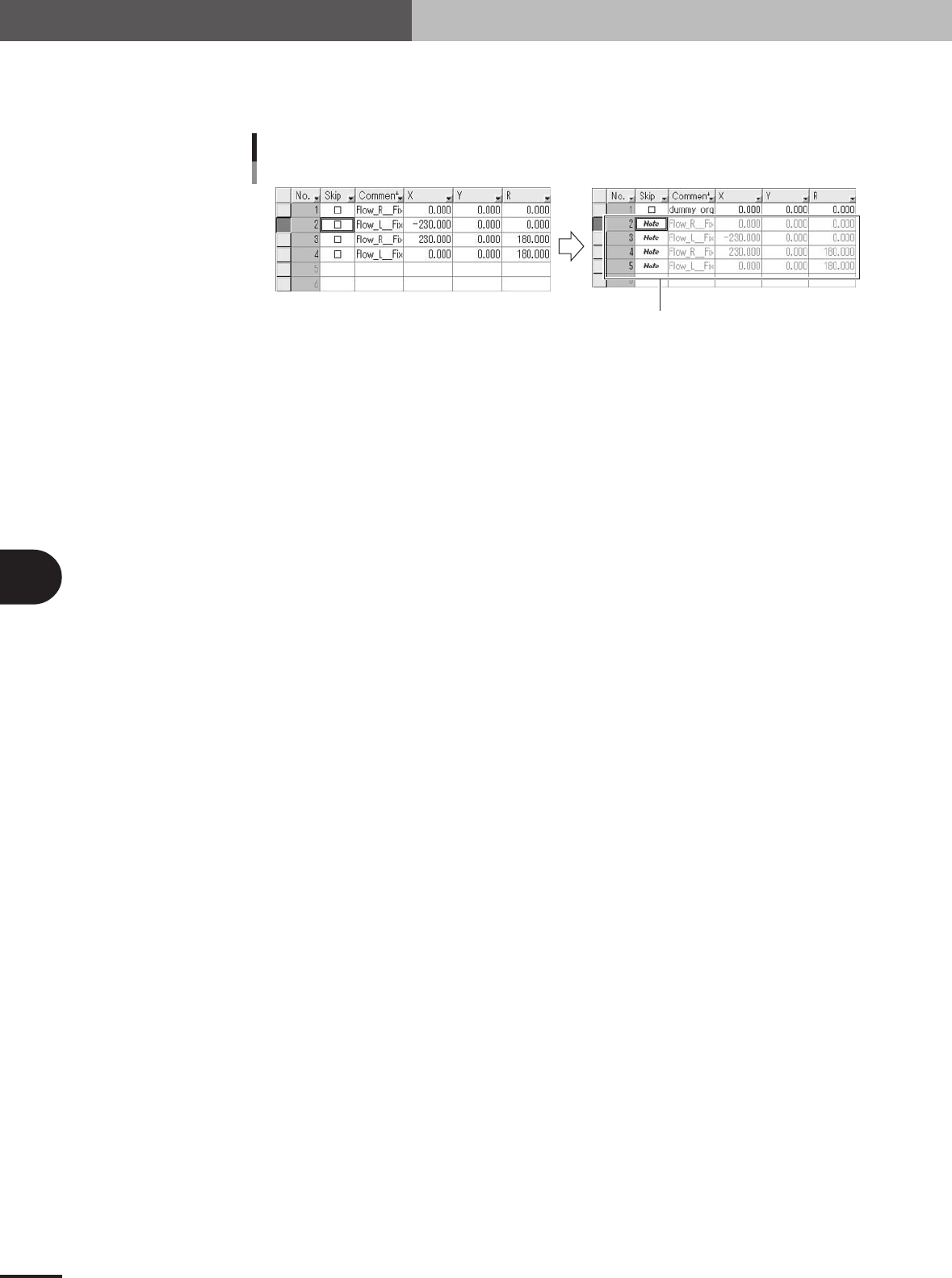
Check the conversion result.
When block offset conversion has been executed with "Distribute(with note data)",
the original multi-block data should remains as "Note" data.
Block offset conversion
Example of "with note data"
Original data remains as "Note" data.
27527-5E-20
5
Save the PCB data.
5 -19
5
Editing the PCB data
2. Block offset
2.2.2 Reconverting to the multi-block data
To return the converted data back to the original multi-block data, follow these steps.
c
CAUTION
This reconversion is possible only when the block offset conversion was executed with the
"Distribute(with note data)" command.
1
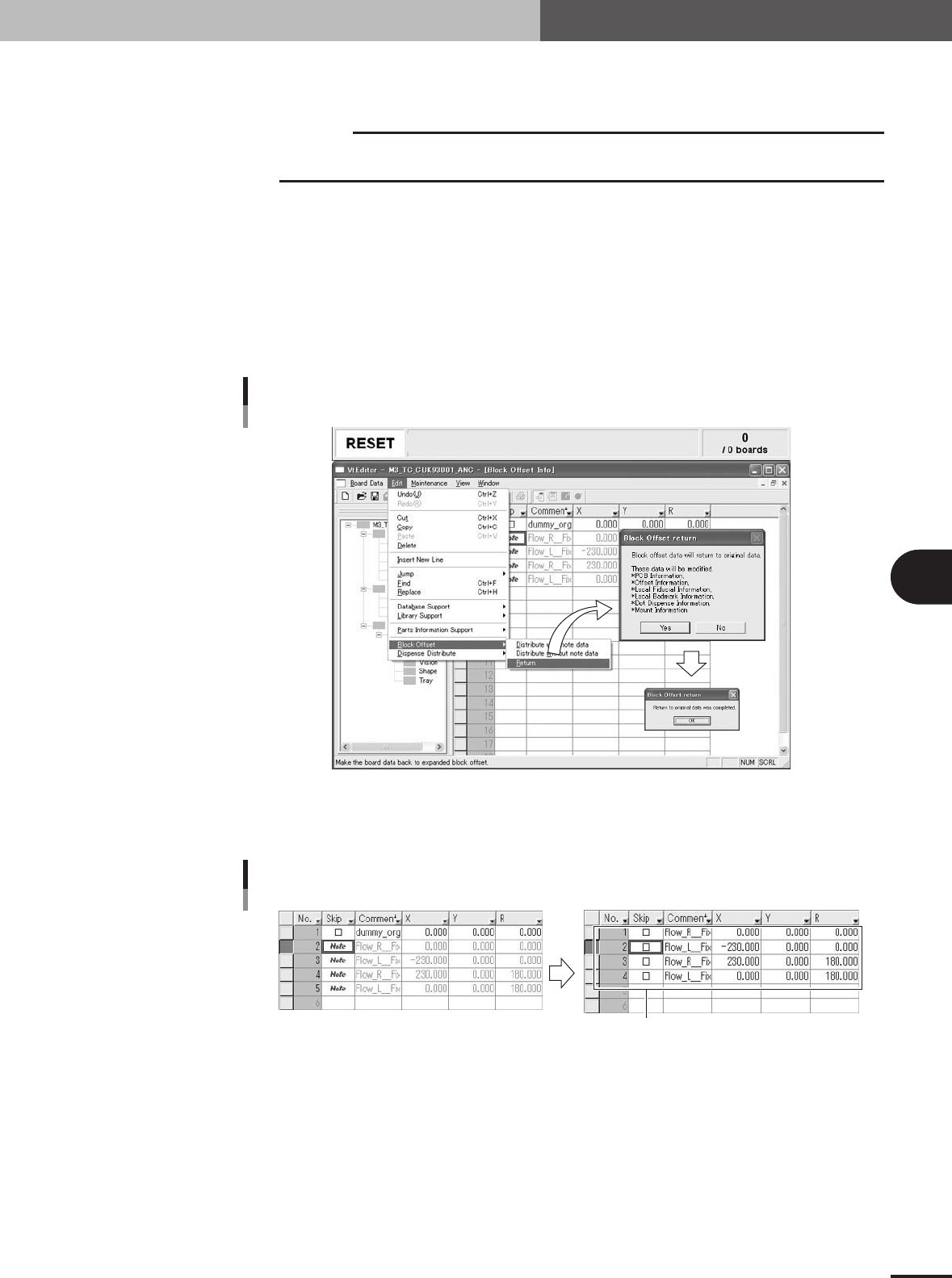
Select the "Block Offset" - "Return" command from Edit menu.
2
Check the items to be reconverted and start reconversion.
When the Block Offset Return dialog appears, check the items to be reconverted and
click the [Yes] button to start block offset reconversion.
3
Click the [OK] button to finish reconversion.
When a dialog box appears after reconversion is complete, click the [OK] button to
finish block offset reconversion.
Block offset reconversion
27528-5E-20
4
Check the reconversion result.
Check that the original multi-block data that was kept as "Note" data is now restored.
Block offset conversion
Example of reconversion
Original data is restored.
27529-5E-20
5
Save the PCB data.