M3plus_OperationManual_e.pdf - 第198页
6 - 3 6 Managing the data 5 Press the [Copy] button. A check dialog box appears. Press the [Yes] button to make a copy. Copy confirmation dialog bo x 27469-5E-20 6 Rename the PCB data as needed. When you want to change t…
6 -2
6
Managing the data
1.1.1 Data backup
Follow the steps below to make a data backup using the Board Explorer.
1
Insert a PCB data disk into the floppy disk drive.
Insert a floppy disk formatted as a PCB data disk into the FD drive on the front lower
right of the machine.
2
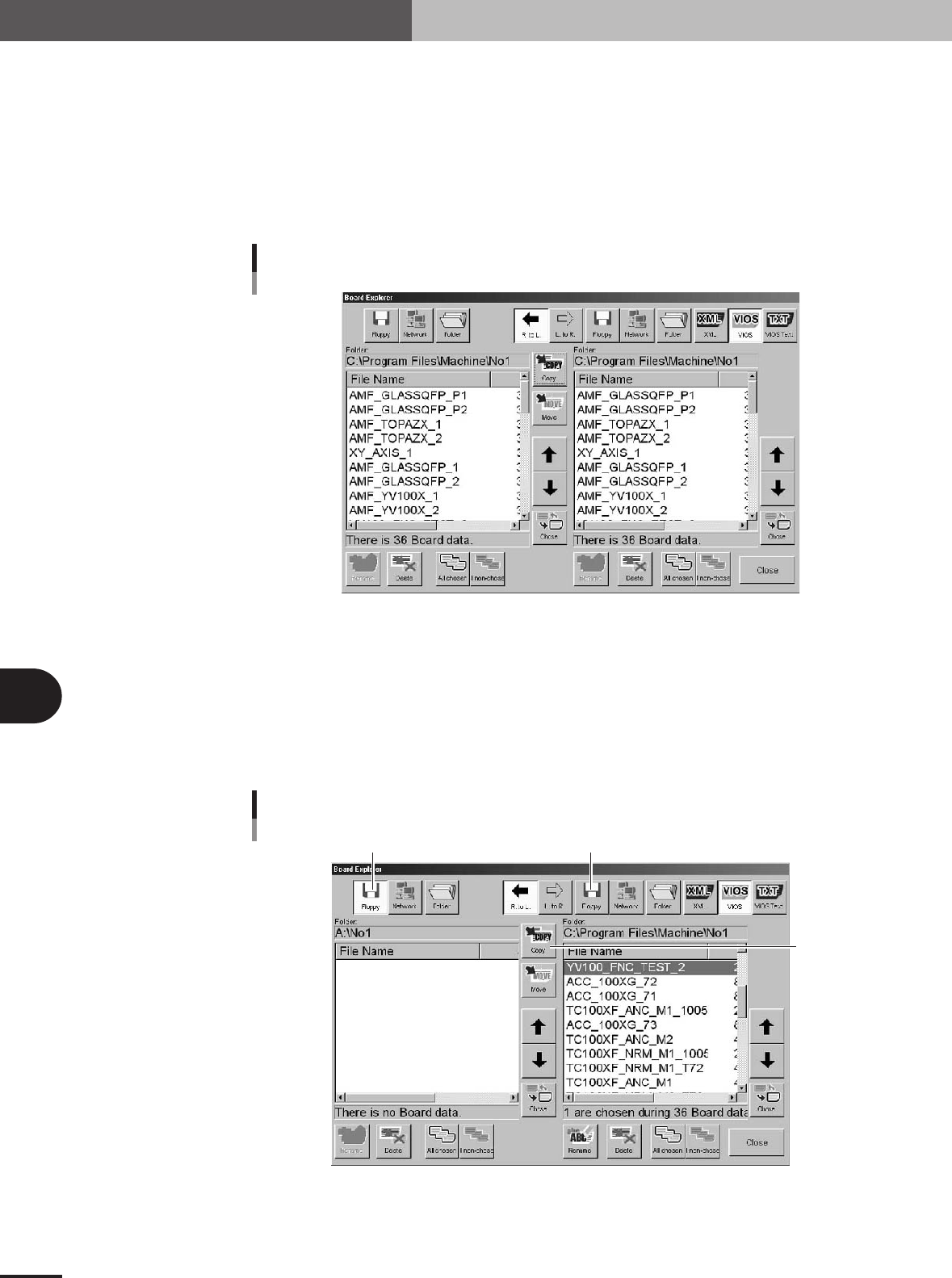
Open the Board Explorer.
Press the [Board Explorer] button on the Setup screen.
Board Explorer dialog box
27467-5E-20
3
Select the PCB data to be backed up.
Line up the cursor with the PCB data to be backed up. You can select multiple PCB
data by selecting them while holding down the [Ctrl] key or [Shift] key. When you
want to select all PCB data in the list, press the [All Chosen] button.
4
Designate the copy destination FD.
Press the [Floppy] button on the left when copying from right to left, or press the
[Floppy] button on the right when copying from left to right.
Copy from left to right
[Copy] button
Copy from right to left
Selecting the copy destination
27468-5E-20
1. Data backup
6 -3
6
Managing the data
5
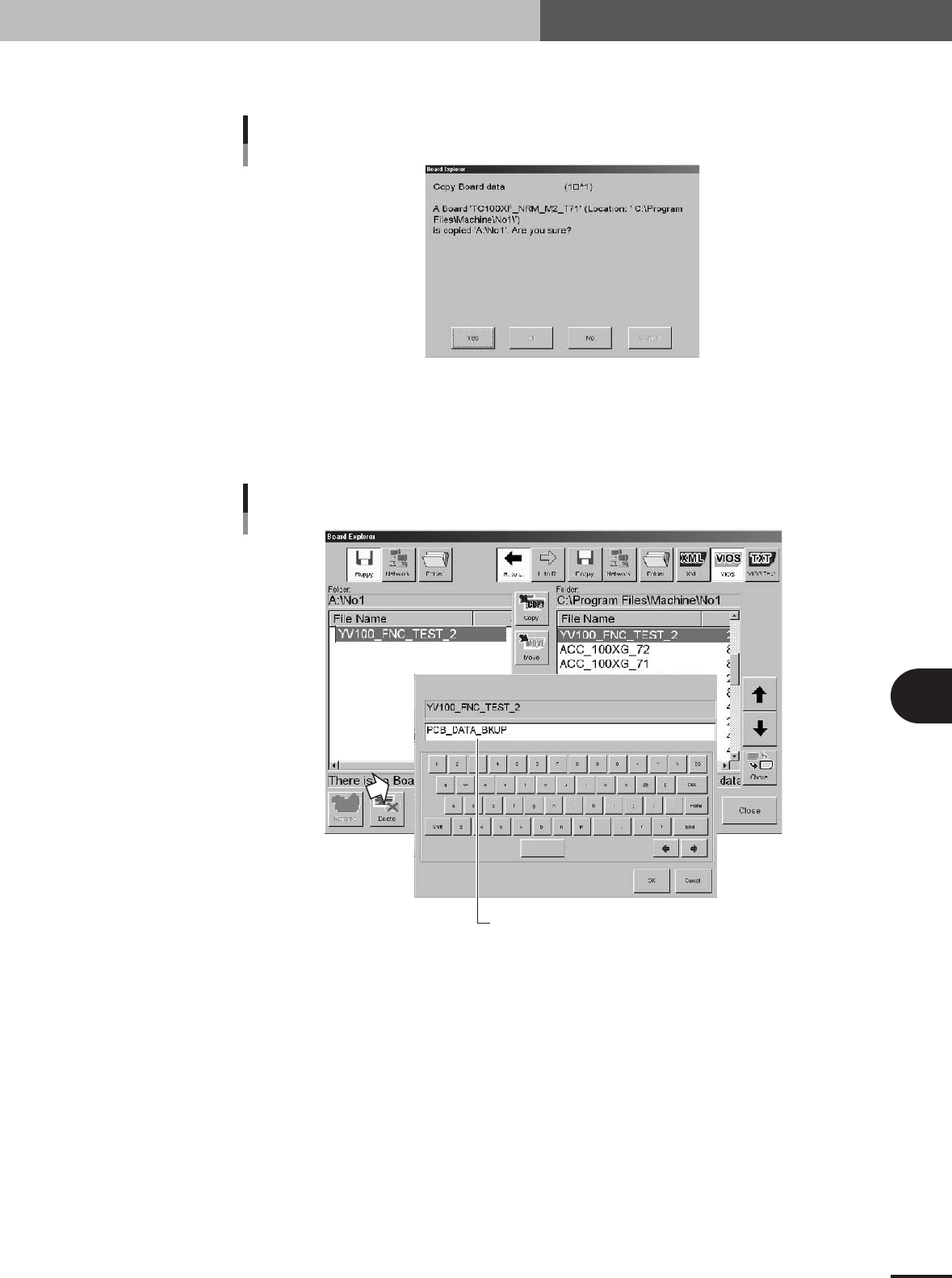
Press the [Copy] button.
A check dialog box appears. Press the [Yes] button to make a copy.
Copy confirmation dialog box
27469-5E-20
6
Rename the PCB data as needed.
When you want to change the PCB name so that you can easily identify it as backup
data, press the [Rename] button. The keyboard dialog box appears, so enter a new
name and press the [OK] button.
Rename
Enter a new name for backup data.
27470-5E-20
1. Data backup
6
Managing the data
6-4
2. Creating the user database
Registering components (or marks) in the user database will prove convenient if they are not included
in the database or they are used very frequently.
The user database should be registered in the user area of the database. The user database area can be
from Nos. 1 to 499 for the component database and from Nos. 1 to 149 for the mark database. The
registered data in this area will be retained even if the software version is upgraded.
2.1 Copying the data into the database
To copy the component or mark data you created into the user database, follow these
steps.
1
Select the PCB name.
Press the [Board] button on the Setup screen and select the PCB name.
2
Open the Parts screen or Mark screen.
Press the [Parts] button or [Mark] button in the main menu button area.
3
Select the copy source data.
Line up the cursor with the component data or mark data you want to copy from.
4
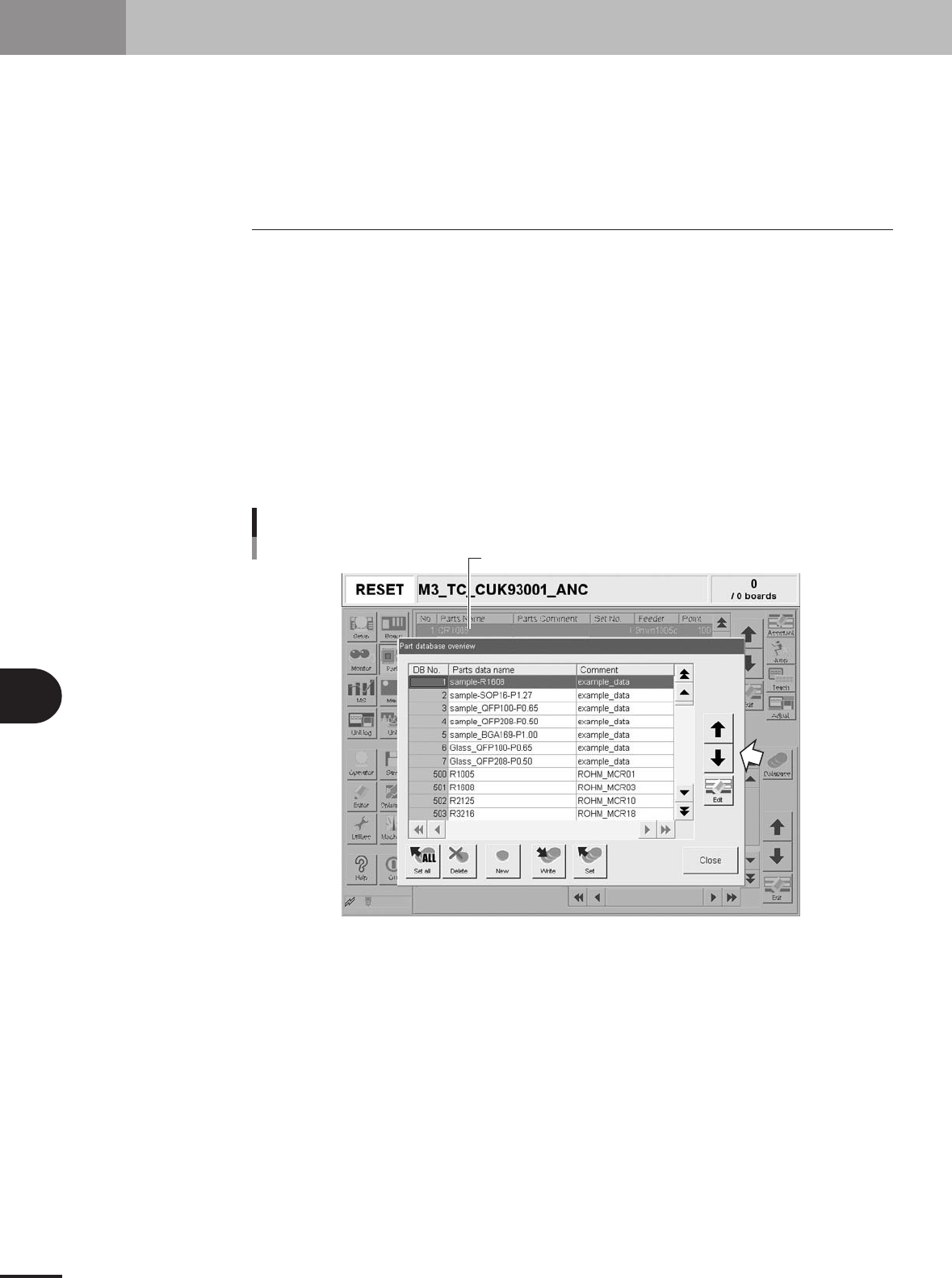
Open the database list.
Press the [Database] button on the [Basic] tab. The database list appears.
Copy source
Database list
27471-5E-20