M3plus_OperationManual_e.pdf - 第201页
6 Managing the data 6- 6 3. Creating XML librar y This section describes the features of XML data and some cautions for handling XML data. Major differences between XML PCB data and VIOS PCB data are that XML data can be…
6 -5
6
Managing the data
5
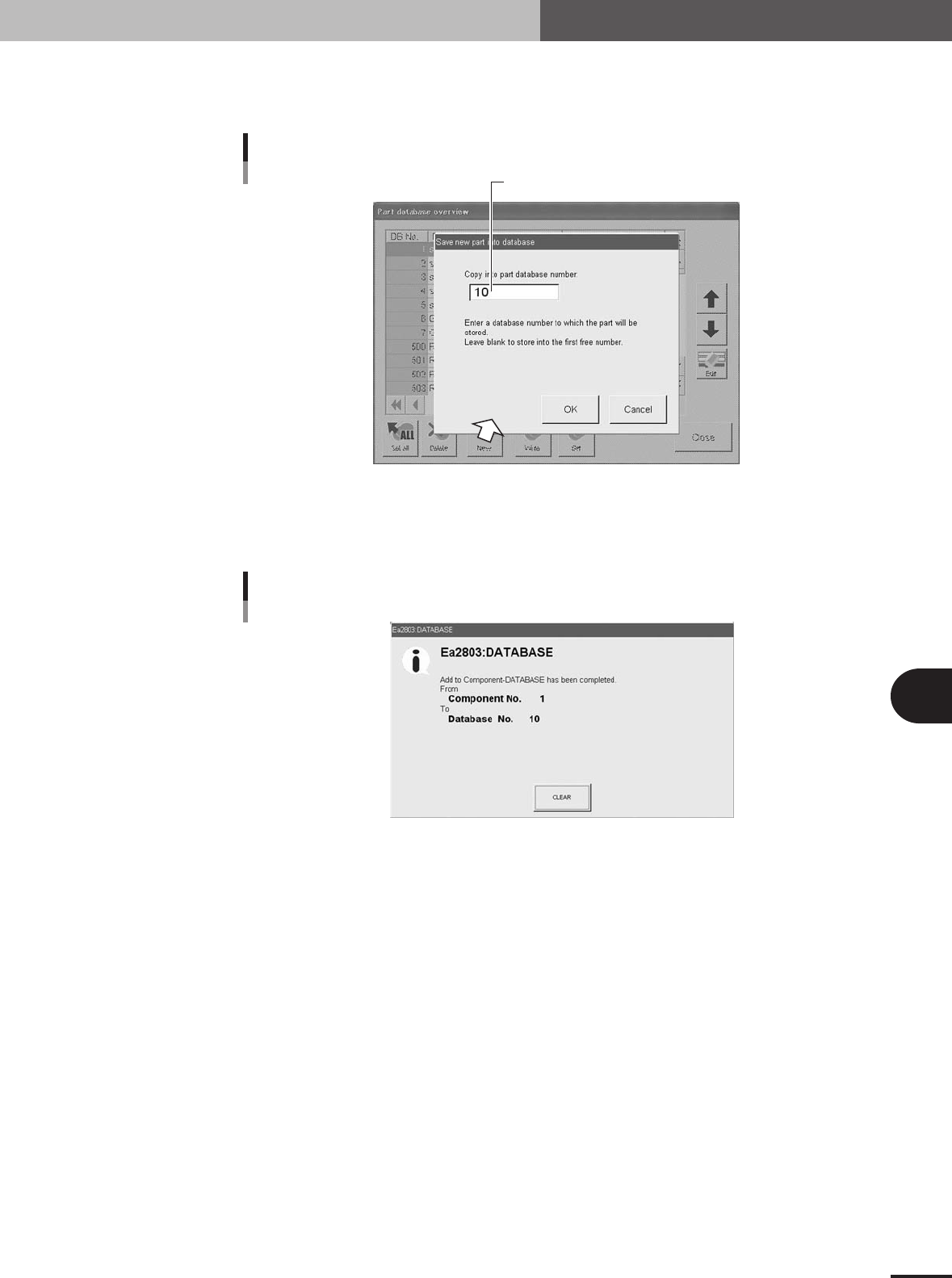
Press the [New] button and designate the database number.
The database number input dialog box appears. Enter the database number under
which the data will be stored. Leave blank to store the data in the first free number.
Enter the database number where data should be copied.
Database number input dialog box
27472-5E-20
6
Press the [OK] button to copy the data into the database.
All items of the selected data including the data name and comment will be copied.
Press the [CLEAR] button to return to the database list.
Database registration message
27473-5E-20
7
Press the [Close] button to close the database list.
If you want to copy other data into the database, repeat the above procedure.
2. Creating the user database
6
Managing the data
6-6
3. Creating XML library
This section describes the features of XML data and some cautions for handling XML data. Major
differences between XML PCB data and VIOS PCB data are that XML data can be utilized as a library
and also uses the only one file format. This allows collective management and operation of PCB data
without limitation on the number of data items, and also permits registration of differences between
machines.
3.1 Setting the library path
The following is an example for setting the library in the machine or on a PC connected
on a LAN.
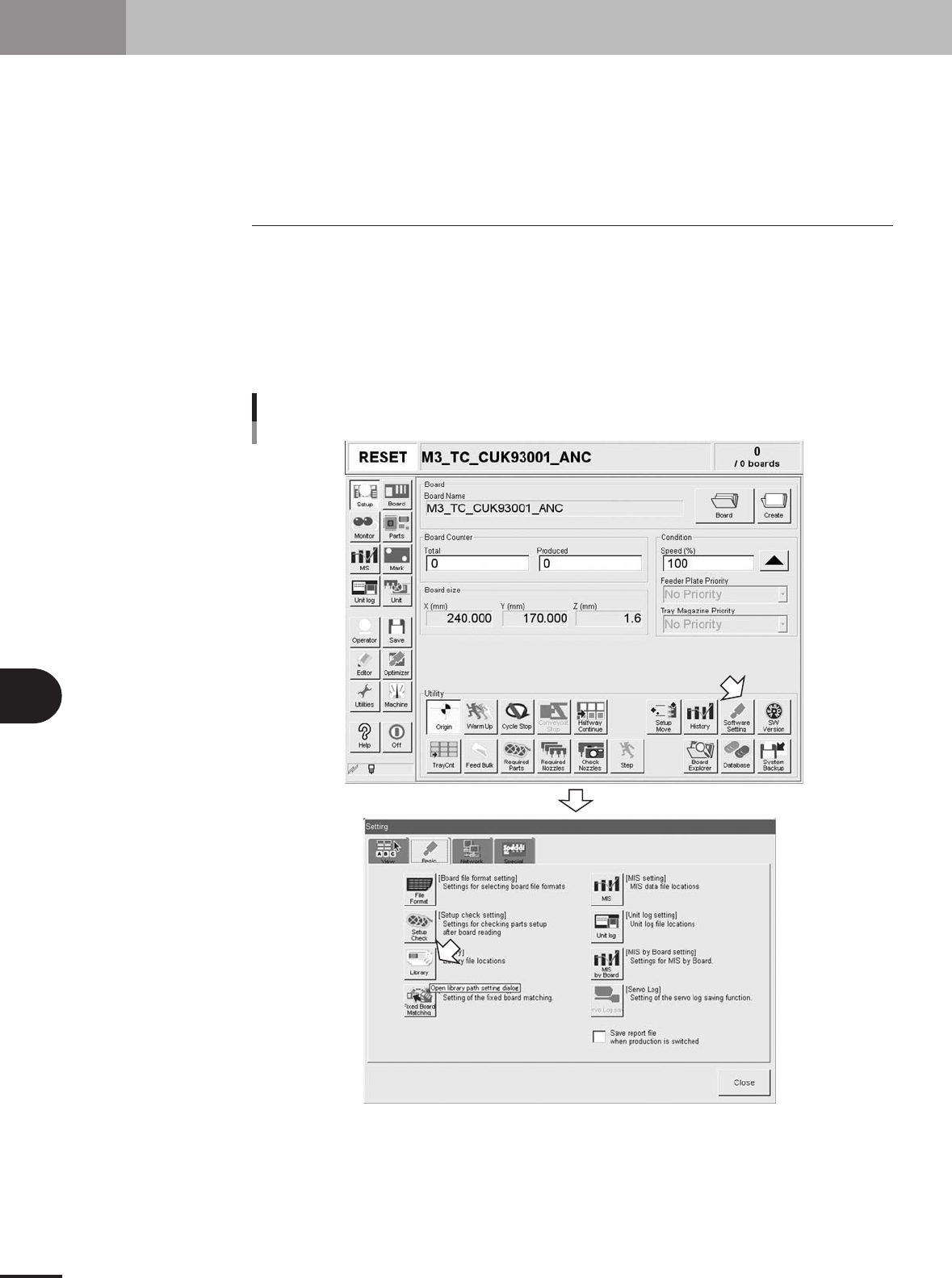
1
Open the "Setting" window.
Press the [Software Setting] button on the Setup window to open the "Setting"
window.
2
Press the [Library] button to open the library.
Opening the library
27600-5E-20
6 -7
6
Managing the data
3. Creating XML library
3
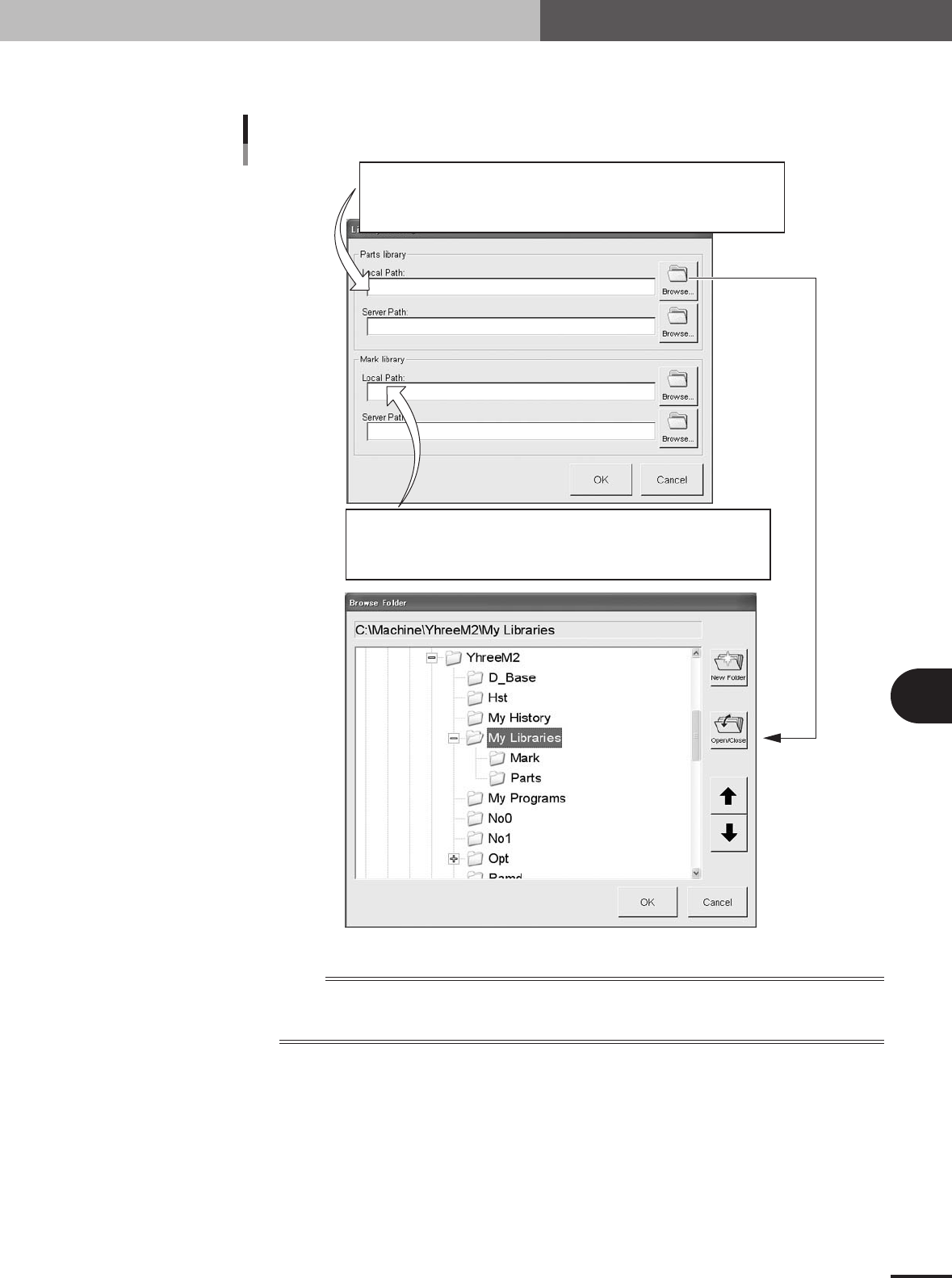
Enter the path to the library.
Set the path to the library as follows.
: \\(PC name)\YGOS\COMMON\May Library\Parts
: \\(PC name)\(shared folder name)\May Library\Parts
: D\Machine\(machine name)\May Library\Parts
Off-line software
PC on LAN
Machine
Path setting
: \\(PC name)\YGOS\COMMON\May Library\Mark
: \\(PC name)\(shared folder name)\May Library\Mark
: D\Machine\(machine name)\May Library\Mark
Off-line software
PC on LAN
Machine
27601-5E-20
n
NOTE
Two types of path "Local Path" and "Server Path" can be set.
Normally, the "Local Path" becomes valid when the library is selected. But, set the same path for both "Local
Path" and "Server Path" to avoid misoperation.
4
Use the [Browse] button as needed to set the path.
Pressing the [Browse] button opens the Browse Folder dialog box as shown above.
You can set the path without directly typing in the Local or Server box. After setting
the path, press the [OK] button.