M3plus_OperationManual_e.pdf - 第223页
B - 10 B Alignment T ype glossar y 2. Alignment T ype glossary 2.2 Using special recognition settings If a component cannot be recognized with normal "Alignment Type" settings, use special recognition algorithm…
B -9
B
Alignment Type glossary
2. Alignment Type glossary
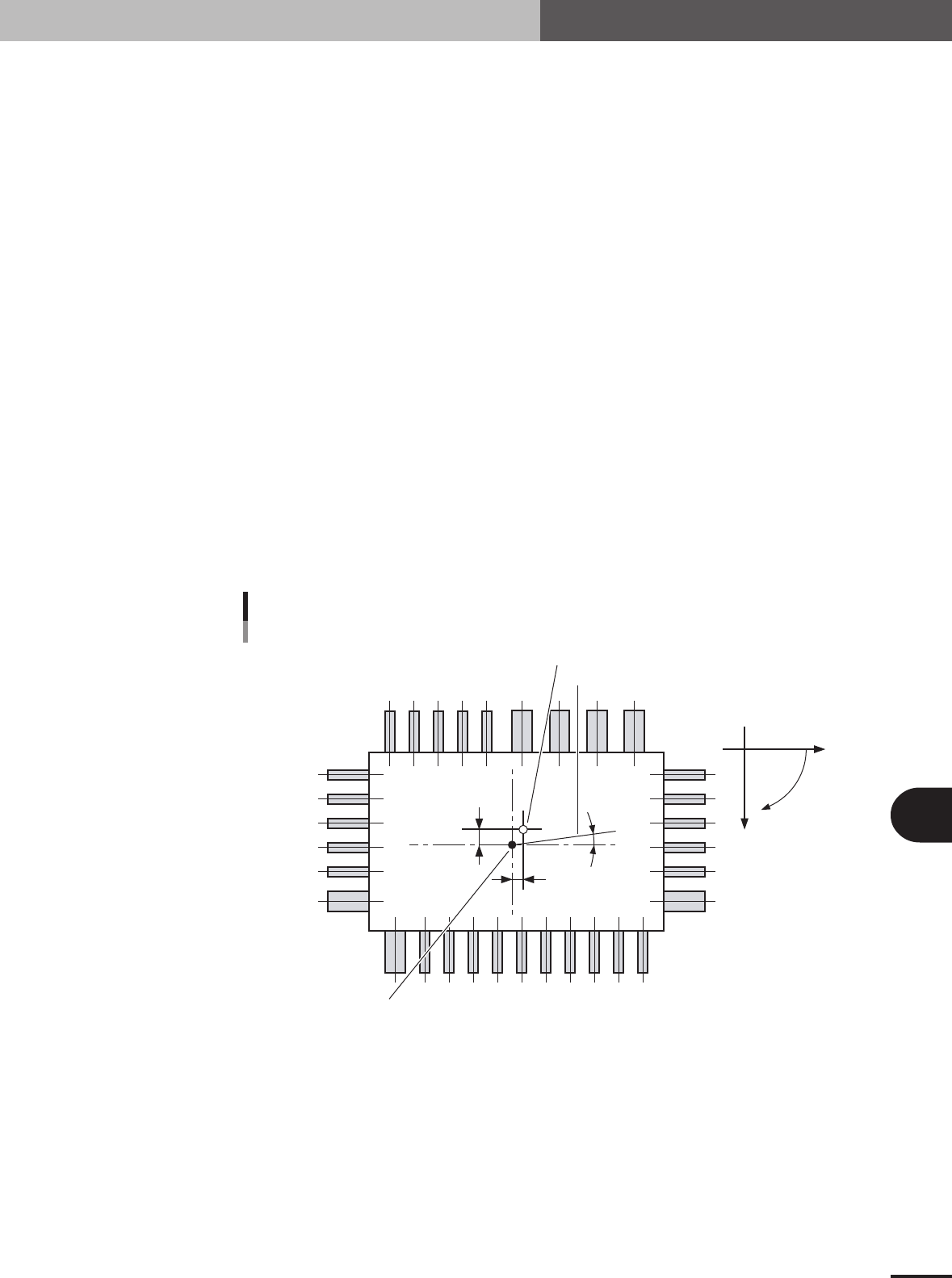
2.1.2 Detecting the component center and tilt
In vision systems, the center position and tilt of a component are detected by several
methods according to the type of component.
Depending on the component, the center position and tilt of a component found in recog-
nition processing might not always match the center and tilt of the actual component. In
those cases, the detected data must be corrected (offset) based on the library data.
In library data, the center of the dimensional outline is usually defined as the component
center. The positions of leads on all sides of the component are defined based on this
component center. In recognition processing, the component position (hereafter "recogni-
tion center") is usually found as the center-of-gravity position for all component lead
tips.
The center of the dimensional outline of a component such as a QFP matches the recogni-
tion center so the recognition center of these components can be used as the component
center.
The recognition center will not usually match the component center if the left/right and
top/bottom of a component are not symmetrical with each other.
In recognition processing in such cases, the center-of-gravity position (average value for
each X/Y coordinate) for all lead tips is found as the recognition center. The center-of-
gravity positions for all leads and component center offsets are then found beforehand
from the defined component data (library data). Based on this information, the center
positions found from recognition processing are correctly offset to find the component
center. The tilt is found beforehand in the same way by correcting the recognition results
using the offset amount.
So when there is a discrepancy or error between the library data and the actual compo-
nent, that error prevents correctly offsetting the component center position and leads to
problems in component mounting. In components that require offset correction (mainly
asymmetrical components) it is essential that the library data be set correctly.
Offset X
Offset Y
Offset R
Detected angle
Coordinate system
Center of dimensional outline
Y
X
R
Center of all lead tips
Component center detection
23B01-5E-20

B -10
B
Alignment Type glossary
2. Alignment Type glossary
2.2 Using special recognition settings
If a component cannot be recognized with normal "Alignment Type" settings, use special
recognition algorithms. Methods for setting those algorithms are explained below.
2.2.1 QFP recognition mode
Several special recognition algorithms are available for QFP recognition mode.
1. Algorithm: Special 1 (Special QFP recognition 1)
Setting this mode is sometimes useful when edge lead detection is unstable.
2. Algorithm: Special 2 (Special QFP recognition 2)
This mode is used when detecting only horizontal leads with Special QFP recognition 1.
3. Algorithm: Special 3 (Special QFP recognition 3)
This mode is used when detecting only vertical leads with Special QFP recognition 1.
4. Algorithm: Special 4 (QFP recognition with lead length check)
This is a normal QFP recognition mode added with a function to check the lead length. This
function checks whether each lead tip distance is within a specified distance versus a line relative
to each tip. This value is set in Option 3, in hundredths of a millimeter (1/100 mm). Values are
settable from 0 to 127 (0.01 to 1.27 millimeters).
2.2.2 Single connector recognition mode
Several special recognition algorithms are available for connector recognition mode.
1. Algorithm: Special 1 (Special connector recognition 1)
Setting this mode is sometimes useful when edge lead detection is unstable.
2. Algorithm: Special 2 (Special connector recognition 2)
This mode is used when recognizing only multiple leads on both sides of the connector.
3. Alignment Type: Odd. Con
Recognizes connectors having a portion with no leads on unidirectional connectors (connector E).
Recognition method is the same as for unidirectional connectors.
2.2.3 4-way connector recognition mode (Con-NSEW)
Several special recognition algorithms are available for 4-way connector recognition
mode.
1. Algorithm: Special 1 (Special connector recognition 1)
Setting this mode is sometimes useful when edge lead detection is unstable.
2. Algorithm: Special 2 (Recognizing only long connector contours)
This mode is used to recognize only connectors with multiple leads on both sides. In Vision Option
2, set the number of leads to detect on both sides.
3. Compensation type: OffLead
Recognizes components having a portion with no leads on 4-way connectors (Con-NSEW).
Recognition method is the same as for 4-way connectors.
B -11
B
Alignment Type glossary
2. Alignment Type glossary
2.2.4 Mark recognition mode
Several special recognition algorithms are available for mark recognition mode.
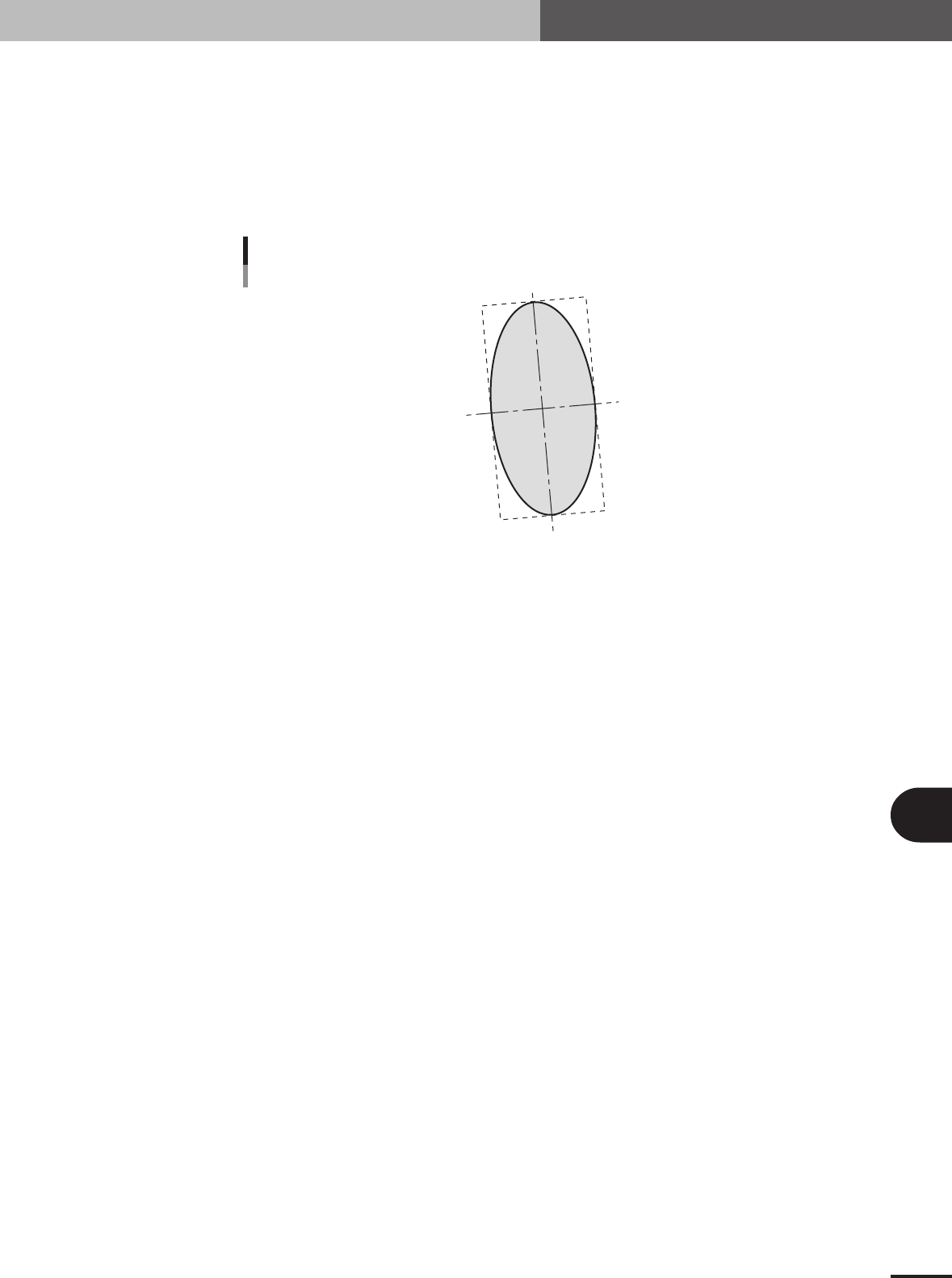
1. Alignment Type: AsMark (components comprised of 1 section)
Algorithm for recognizing components comprised of 1 section with a shape as shown below. This
algorithm is used for recognizing irregular shaped components. The component center is the
center-of-gravity position and the tilt is the main axis tilt. So the tilt cannot be found for circular or
square components since these have no main axis.
C
Alignment Type : Mark
23B02-5E-20
■ Mark type components
Alignment Group Special
Alignment Type AsMark
Comp. Threshold Set the binary level. (If set to 0, the binary level is set
automatically.)
Comp. Tolerance Set the shape dimension tolerance.
Search Area Set the detection range.
Body Size X Set the component size.
Body Size Y Set the component size.
Body Size Z Set the component thickness.
Surface Type Select "Reflect" (reflective surface) or "NonReflect" (mat
surface). If component appears whitish, select "Reflect".
Select "NonReflect" if component does not appear whitish.
Cut Outer Noise Select from 0 to 7.
Cut Inner Noise Select from 0 to 7.
Noise Cut Order Select "Inner" or "Outer".