M3plus_OperationManual_e.pdf - 第38页
2 - 5 2 Basic oper ation Help screen Help screens show you the function and description of each menu button, selection tab or parameter. Press the [Help] button to open the Help screen. To return to the operation screen …
2 -4
2
Basic operation
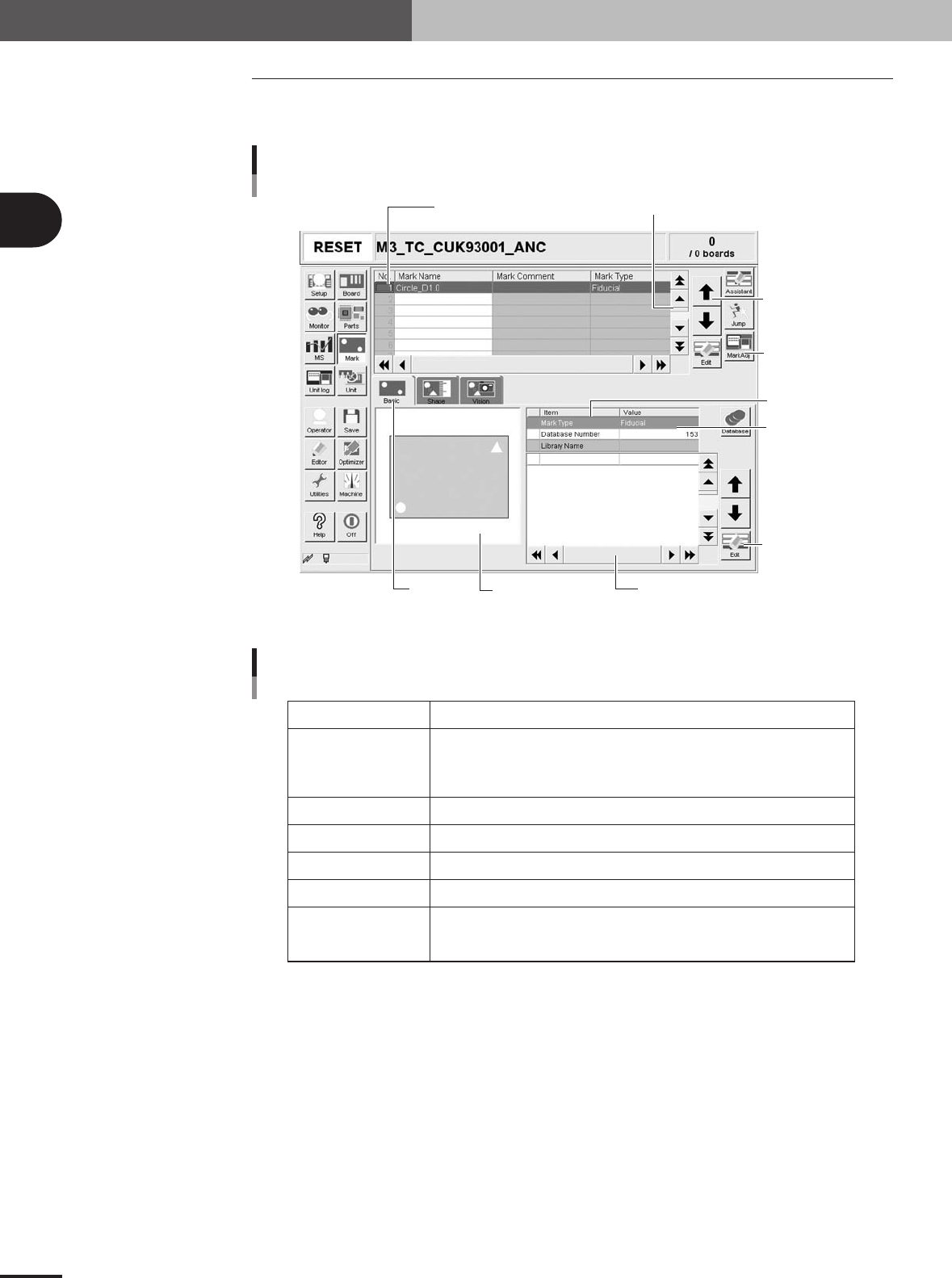
2.2 Various buttons and parameter input boxes
Various types of buttons, selection tabs and parameter input boxes are used on the
operation screen.
Line up/down
button
Ver tical scroll bar & button
Operation screen basic elements
Setup screen
Operation
button
Edit button
Horizontal scroll bar & button
Assistant
screen
Selection
tab
Parameter
list
Parameter
input box
Data No. list
27202-5E-20
Buttons and basic elements on operation screen
Selection tab
Parameter input box
Scroll bar and button
Cursor up/down button
Operation button
Edit button
Assistance screen
Select this tab to switch the parameter input screen.
Select, enter or edit parameters here. When the keyboard is used, double-click on
a parameter input box to enter or edit the data.
When a touch screen (option) is used, press the [Edit] button on the lower right of
the parameter list. The edit box then pops up for data input and editing.
Use the scroll bars or arrow buttons to see hidden items in the parameter list.
Use these buttons to move the cursor up or down through the parameter list.
Press these buttons to open the next operation screen or dialog box.
Press this button to open the edit dialog box for the selected parameter item.
Shows an illustration or information useful for parameter input or editing.
Alphabet characters shown in the parameter list and in the illustration on
this screen correspond to each other.
25202-5E-20
2. Operation monitor and buttons
2 -5
2
Basic operation
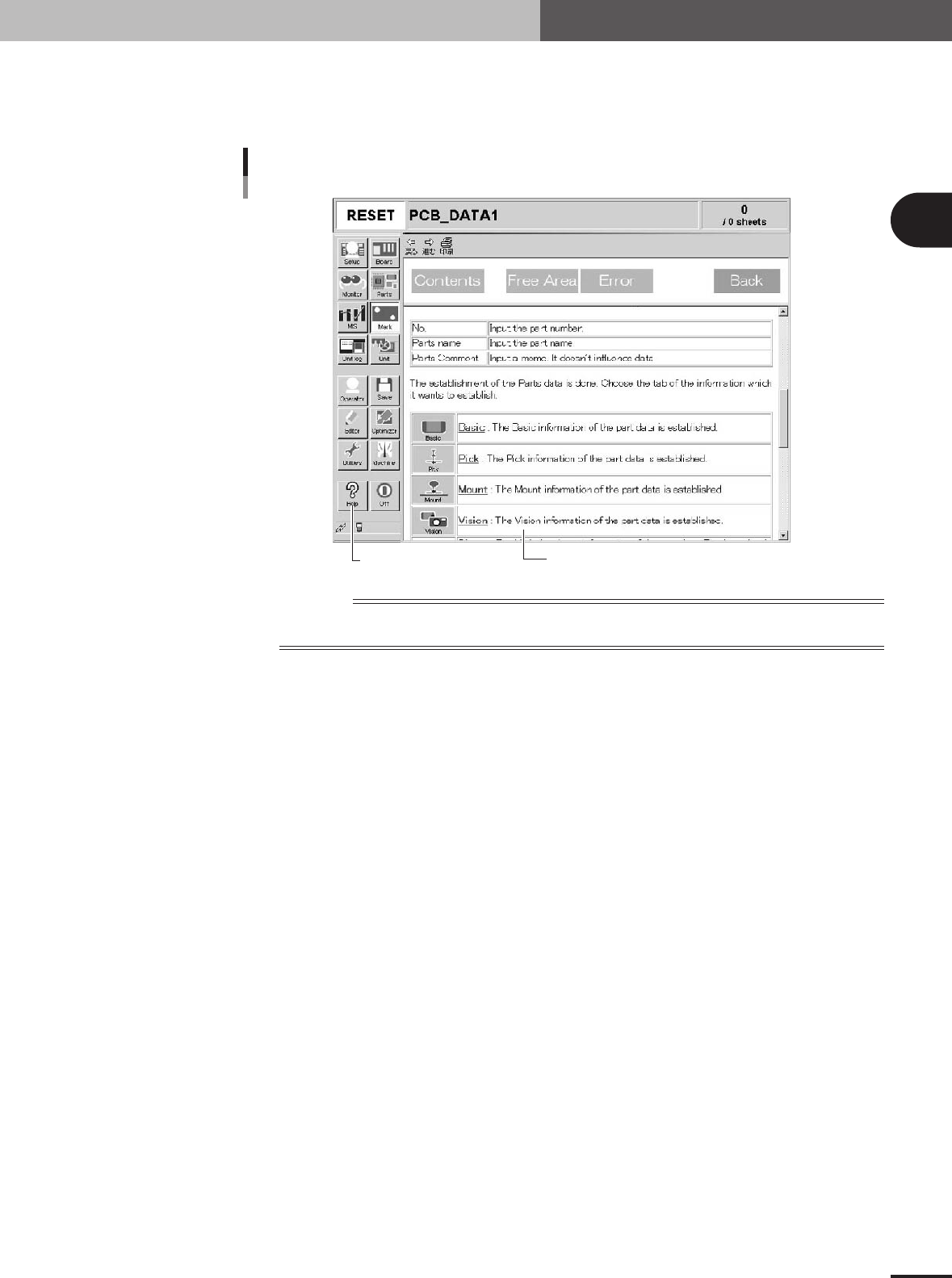
Help screen
Help screens show you the function and description of each menu button, selection tab or parameter.
Press the [Help] button to open the Help screen. To return to the operation screen from the Help
screen, press any button in the main menu button area.
[Help] button
Help screen
[Help] screen
27203-5E-20
Reference
To display the Help screen, the CD-ROM that comes with the machine for software installation must be left
inserted into the CD-ROM drive in the machine.
2. Operation monitor and buttons
2 -6
2
Basic operation
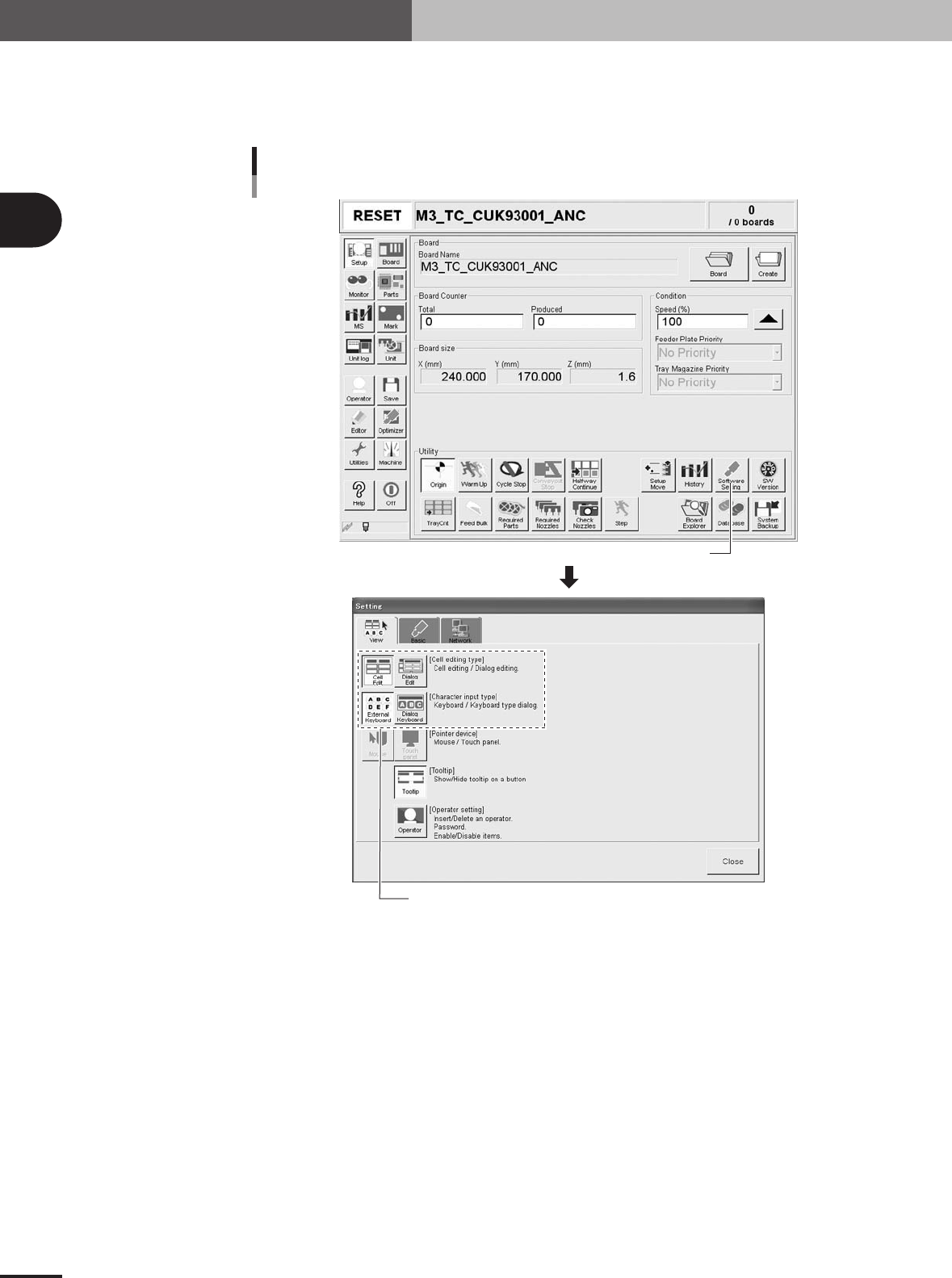
Data input method
Pressing the [Software Setting] button on the Setup screen opens the Setting window as shown
below. With the upper left four buttons in the [View] tab of the Setting window, you can select the
data input method using dialog boxes or the keyboard and mouse.
[Software Setting] button
Selecting the data input method
Select the input method.
27204-5E-20
2. Operation monitor and buttons